Week 6-Meshing of Hood Challenge
AIM :
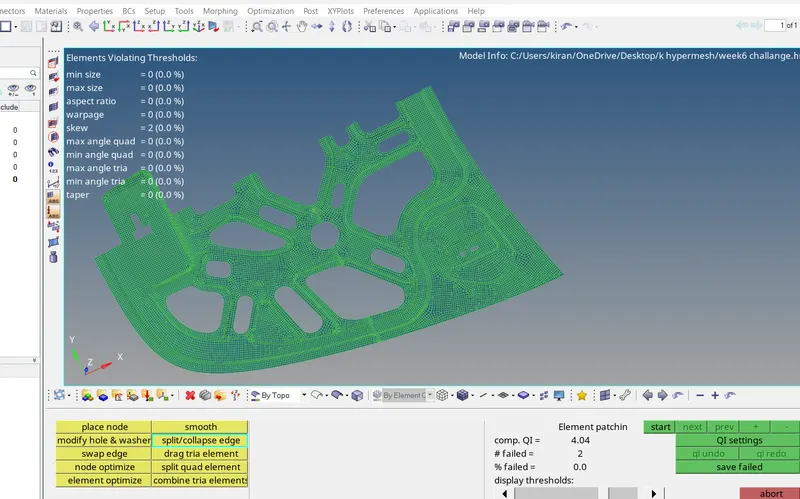
To Preprocessing the given hood component and created mesh should pass all the quality parameters.
OBJECTIVES :
1) Extracting the midsurface individually in each part from which given parent component.
2) To cleanup the extracted midsurface by using both automatic as well as manual.
3) Discritization on extracted individual midsurface.
4) Checking the mesh quality as per given quality criteria.
CAD MODEL IMAGE :
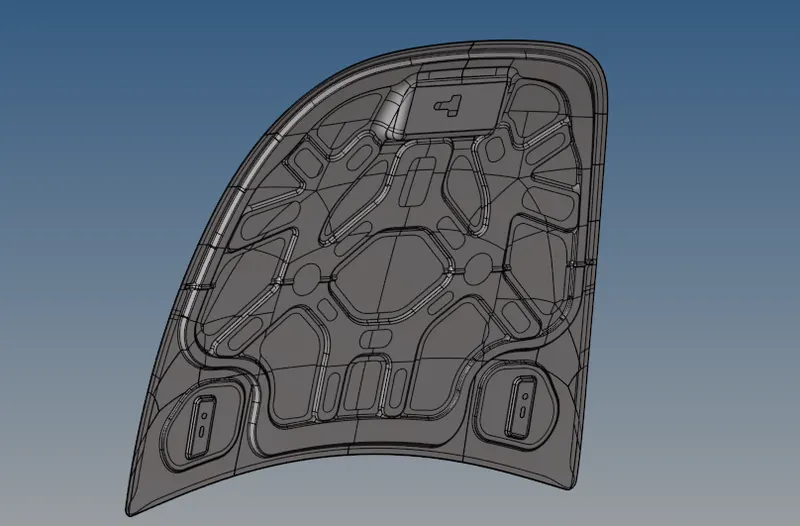
1) Open a Hyperworks software then click the 'Import Solver Deck' option, then select the option called 'Import Geometry' afterwhere choose the file type which is 'STEP' Format. Because, given file format is 'STP file' and then select the appropriate file which we want perform afterthat click 'Import option'. After importing the file, a component should shows same as below snap.
2) A Model contains five components are One Latch, two Hinge, Inner body and then outer body.
PROCEDURE FOR ATTENDING THE OBJECTIVES :
A given hood model have five components, initially importing the model all component were visible to see from graphical display. Inorder to extracting the midsurface one by one, we have to unselected the 'component visible option' for all components except one components for which performing on it.
Delete solids :
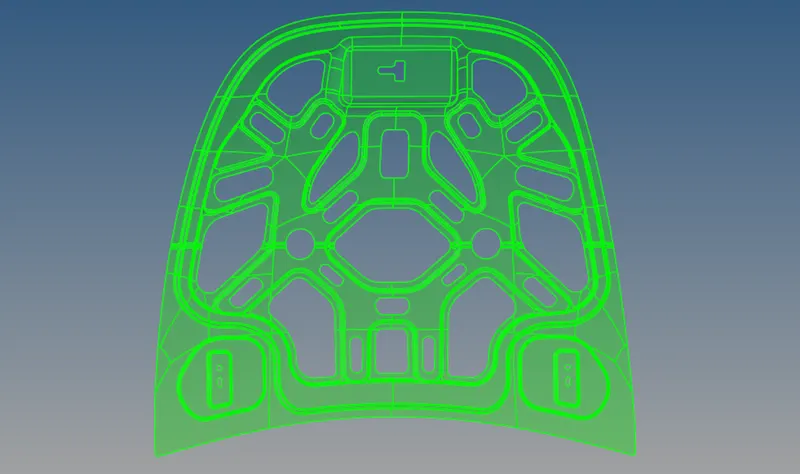
1) After selecting the Hood inner component, it will showing the component from hyperworks window. This component is a solid part, we need only surface for extracting the midsurface from Hood inner component. So, we has to delete the solids by using delete option.
2) Click the 'Delete option' from tool bar or else press F2 from the keyboard. Choose the 'Solid' from selector bar then selecting the solid from Hinge component and then click the 'delete option' or else click middle mouse button to delete the solid from hood inner component.
With Solid :
Without Solid :
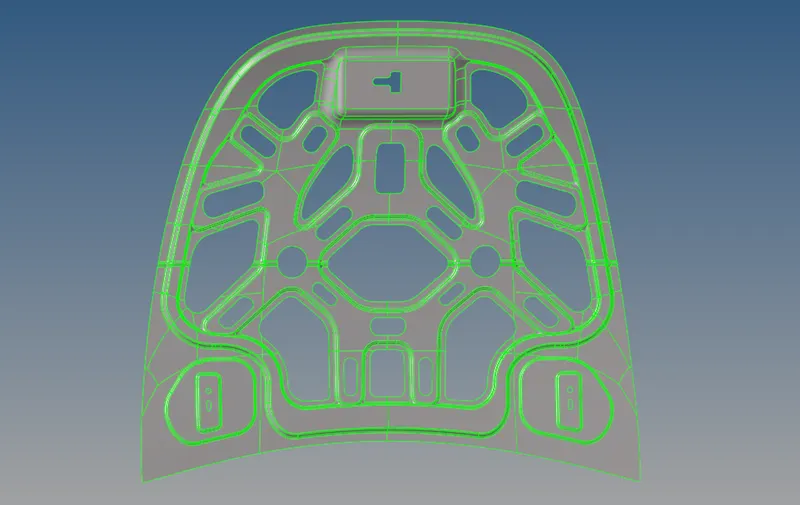
After deleted the solid part from Hood inner component, remaining things were surface object only available. Above snap is represents solid object and below snap is represents surface object.
Extracting the midsurface :
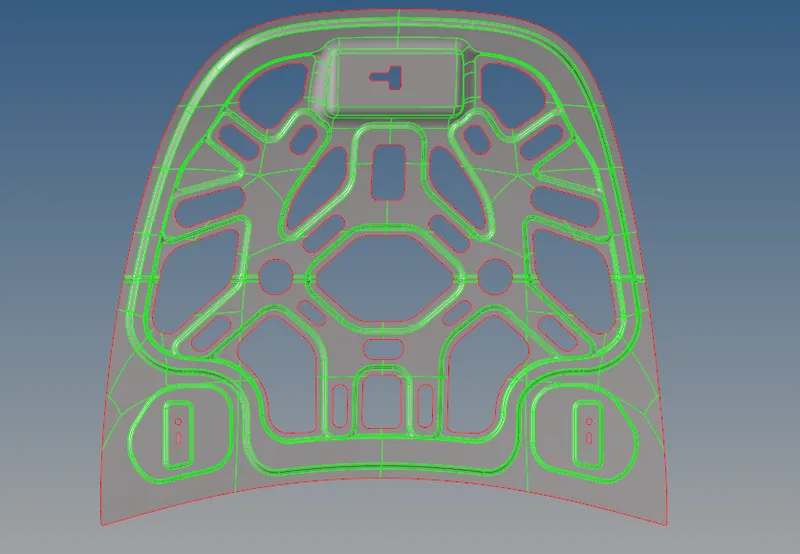
1) Select the "Geometry" under the main menu panel we have option called " Midsurface" and under the midsurface option we have "auto midsurface" option. By using " Auto Midsurface" to extract the midsurface from parent Hood inner component. Below snap is shows a mid surface for Hood outer component.
2) We have different options to automatically extracting the midsurface to the component. In this case, 'Offset + Planes +Sweeps' option under the 'Extraction option' by use to extract the good mid surface.
3) After extracting the midsurface, it will looks like below sanp image.
Geometry Cleanup :
1) First, by using " Auto cleanup" option to cleanup the geometry. A autocleanup had missed some of the sharped edge lines to supress or unsupress the needed lines.
2) A midsurface is symmetrical on about the Y axis. So we need to perform a manual cleanup only on half of a portion to which creating the sharped edge lines or suppressing unneeded lines. Most of manual cleanup tools are available from "Quick edit panel"
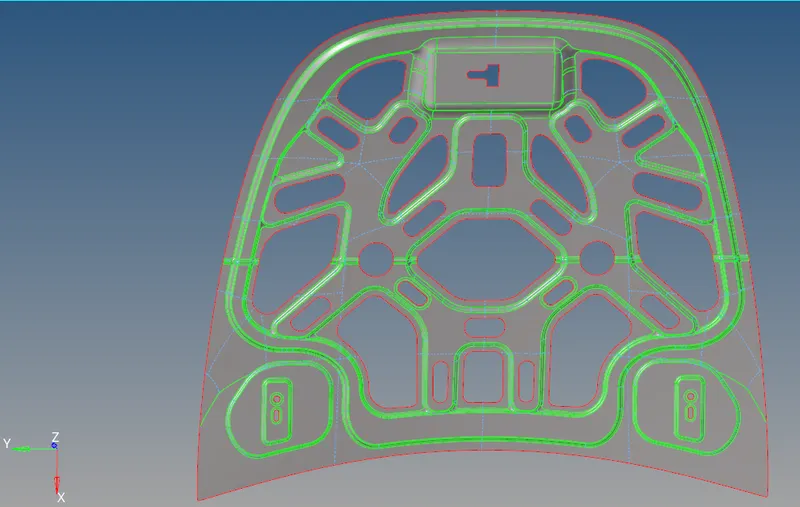
FINAL MODEL OF THE GEOMETRY ATTACHED BELOW