Week 6-Meshing of Hood Challenge
Week 6-Meshing of Hood Challenge
Aim:
To extract mid-surface and generate mesh on Hood using Hyper mesh.
Procedure:
Step 1: Importing geometry and cleanup:
- To import the geometry, go to file >> Import >> select the file >> Import.
- After importing the geometry, the geometry is checked for any missing surfaces or triple cons. If there are no errors present in the geometry then the geometry is ready for the mid-surface extraction.
Step 2: Extracting mid-surface and assigning properties:
- Mid-surface can be extracted by any of the 3 methods below.
- Offset + plane + sweep. 2. Offset + plane. 3. Skin Offset.
- To extract the mid-surface, go to geom >> mid-surface >> select any extraction option >> select the surface >> extract. In this challenge offset + plane + sweep is used
- After extracting the mid-surface, it is checked for any geometrical errors like needle faces, missing surfaces and triple cons. If any of the errors present then it should be rectified immediately
- Now the properties like thickness, material etc. need to be assigned to the mid-surface. To assign the properties, select model in database and right click and choose create and then property.
- Now all the properties are entered in the property tab and the properties are assigned to the respective mid-surfaces.
- To assign the properties to mid-surface, right click on the mid-surface and then select assign and select the respective properties which needs to be assigned.
Step 3: Generating mesh within the given quality criteria:
- Before generating mesh, the geometry is cut into smaller rectangles for good mesh flow.
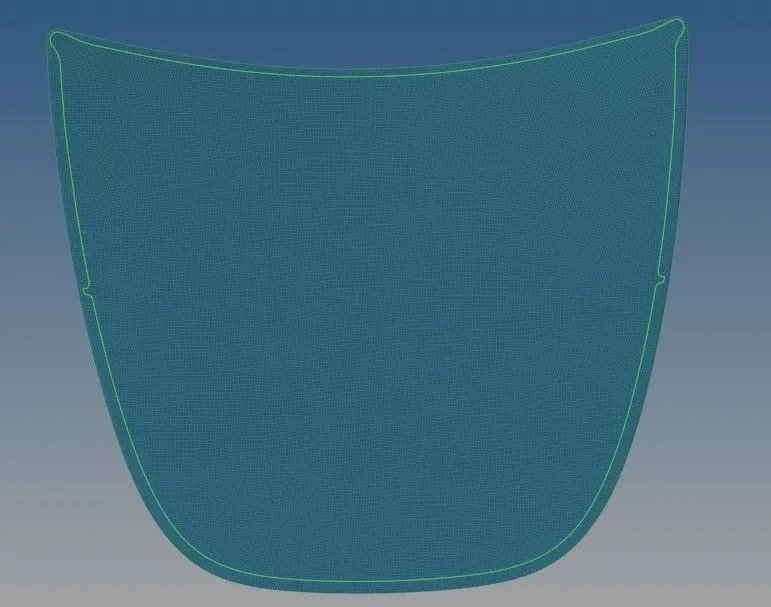
- To generate mesh, go to 2D >> automesh >> select the surface >> mesh. To edit the mesh for proper flow, the elements are selected and meshed again.
- If any elements are failing for quality then cleanup tools option which is present in quality index can be used.
Result:
Conclusion:
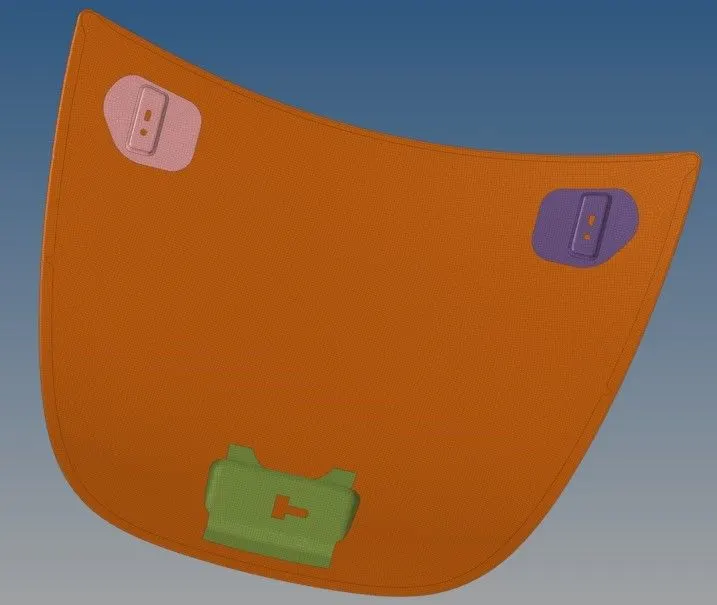
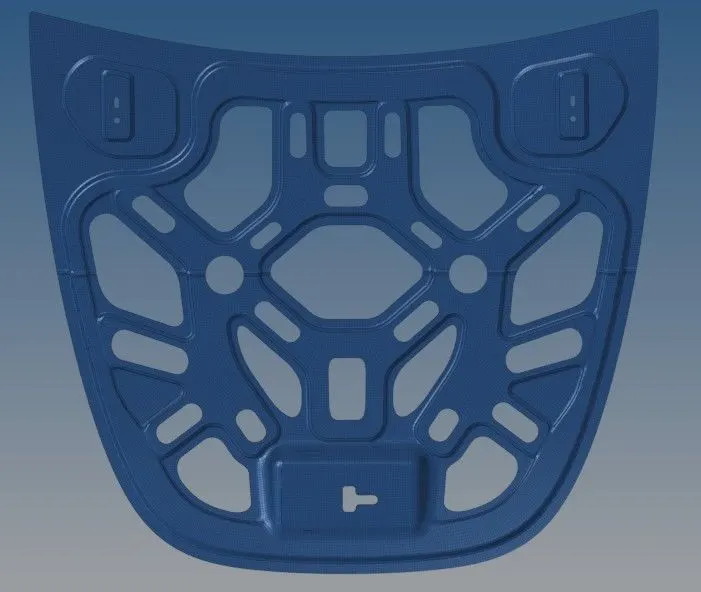
For the given hood panel mid-surface is extracted and mesh is generated with in the given quality criteria.