Week 6-Meshing of Hood Challenge
Aim
To extract mid surface and mesh with given Quality criteria of the given Hood model.
Procedure
Stepl: Import
Open Hyperwork, go to file-import-> select the geometry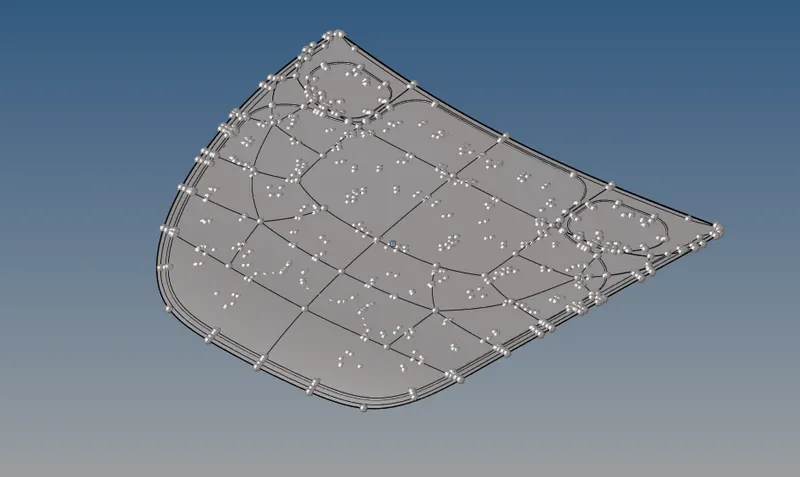
Step2: Geometry clean up.
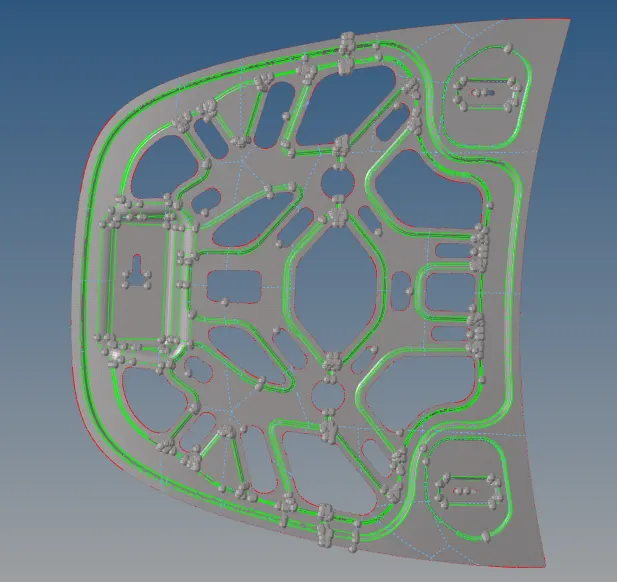
Do geometry clean by removing construction line, edge free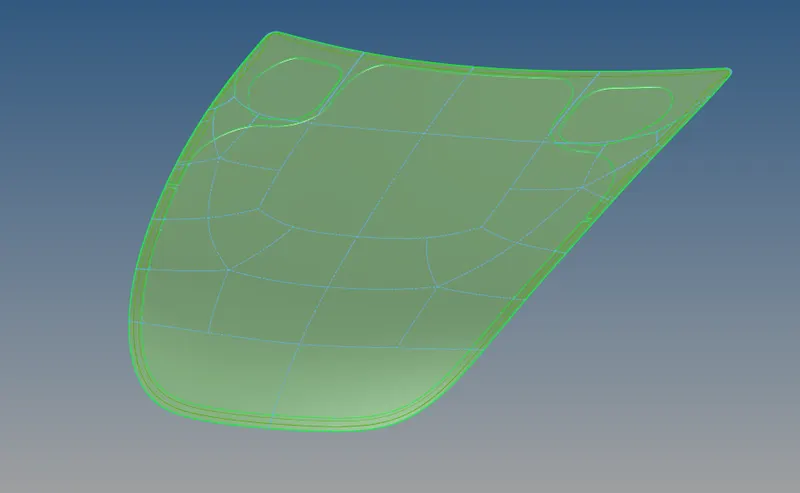
Step 3- Extracting Mid-Surface
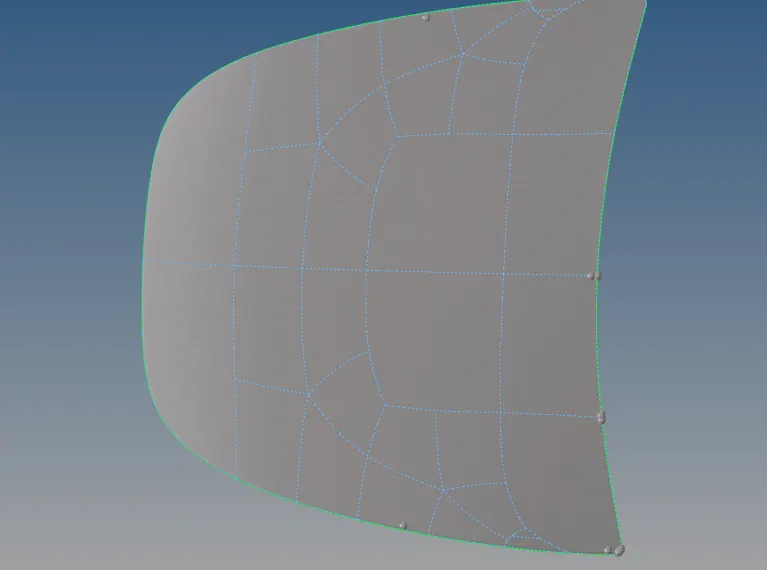
-We extract the mid-surface using the auto mid-surface option
- For that, we go to the Midsurfcae in Geom tab, then in extracting option select the skin offset option, then in the auto extraction option we select the surf- displayed, and hit the extract option.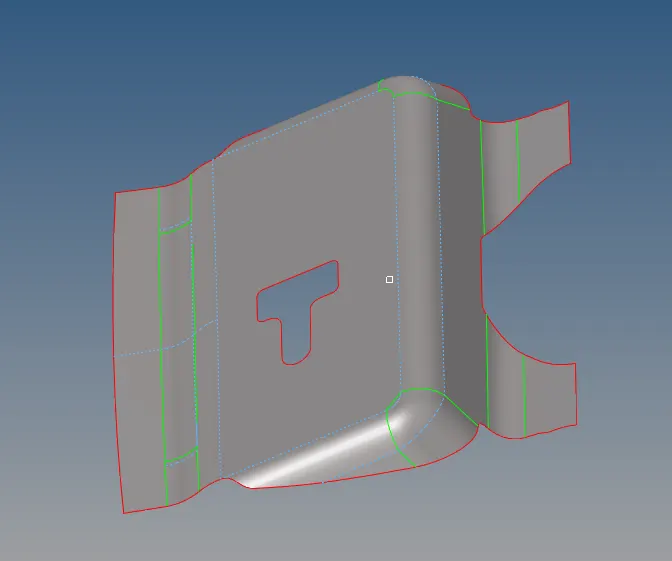
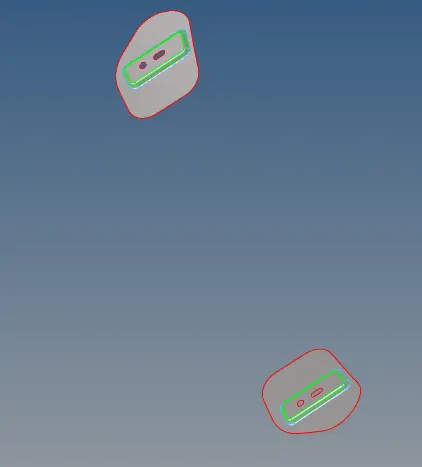
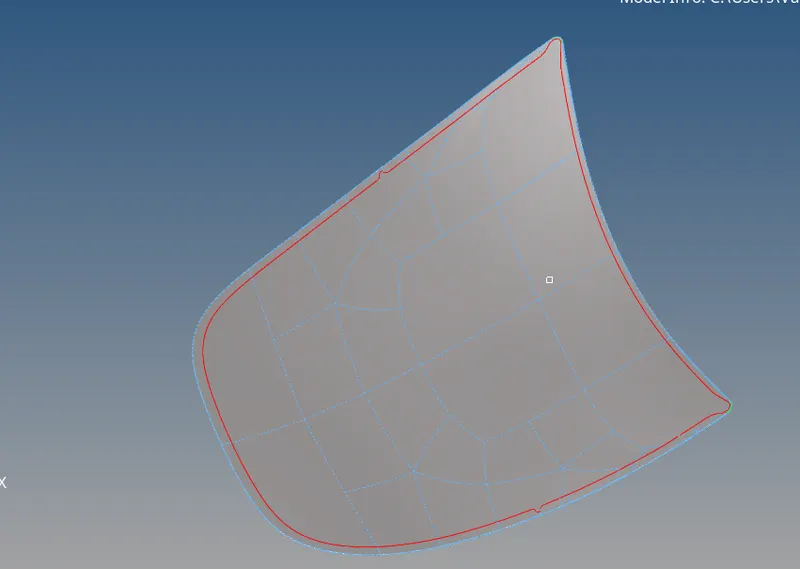
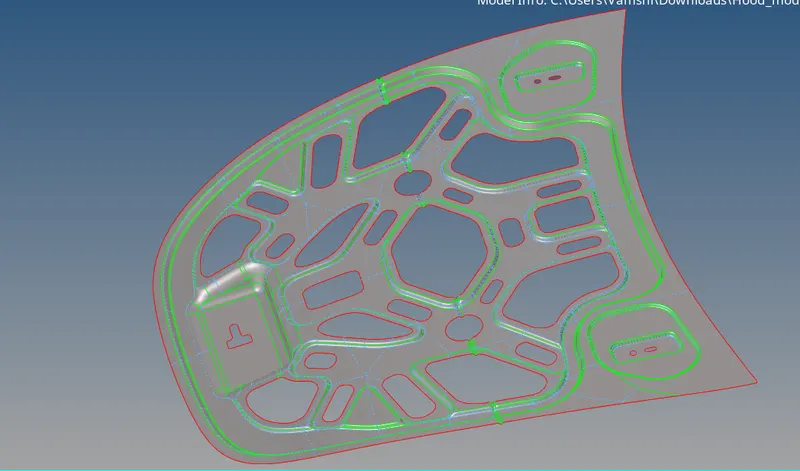
Step 4- Generate Mesh & Optimize the Mesh quality
- After extracting the mid-surface and do all the processes required for the mesh, We need to provide all the required criteria for the
meshing.
- The meshing will automatically generate according to the criteria provided.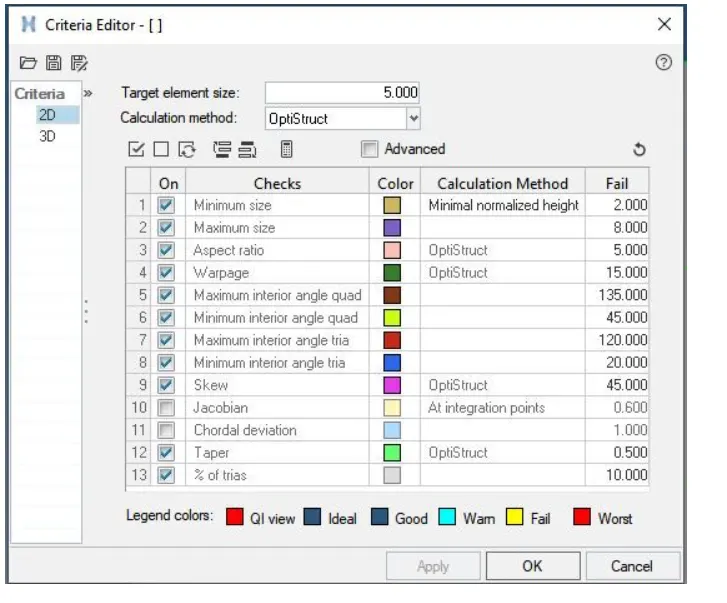
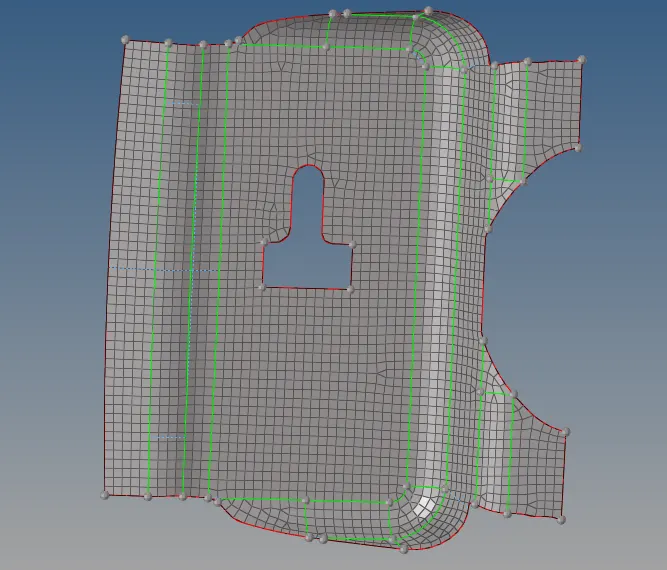
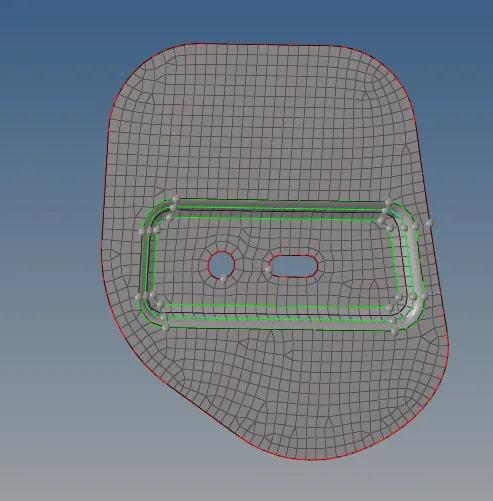
- The inner panel and the outer panel are symmetrical therefore, after extracting mid-surface meshing is done on one half of the mid surface and then reflecting the other half.
- Now, auto meshing is done, keeping the element size to be 5 and mesh type-mixed in auto mesh option.
- Now, after meshing, there are so many back-to-back trias and quad elements that will be formed, So, we need to optimize the quality of the element.
- To optimize the element quality, we can use tools as element optimize, drag tria, smooth, edit-element (split/combine/create).
- To optimize the elements we can use the Rebuild option and also remesh the element of a particular place.
- This will remove all the element failure from the mesh, as it is necessary to have a proper mesh for the analysis, if our mesh flow or mesh element is not properly made, we cannot calculate the accurate analysis.
- After meshing one half of the model, the elements of the half part are selected and it can be reflected using reflect option in the tool option..
- After reflecting the elements to the other half, it might get the free edges which we need to check and remove
- For that we will go to edges in tools select the displayed element of a particular component and click on find edges, it will show the free edges if it is unnecessary free edges are there, we can fix it using the equivalence option.
RESULT: