Week 6- Challenge
AIM: To extract the mid surface for each component and mesh the given hood component with the given target element size of 5 mm mentioned quality criteria.
Follow the below-mentioned quality criteria, mesh the component given below and assign thickness:
Target Element Length = 5mm
|
S.N |
Quality Criteria |
Value |
|
1 |
Aspect Ratio |
5 |
|
2 |
Skewness |
45 |
|
3 |
Warping |
15 |
|
4 |
Taper |
0.5 |
|
5 |
Min. Length |
2mm |
|
6 |
Max. Length |
8mm |
|
7 |
Min angle Quad |
45 |
|
8 |
Max angle Quad |
135 |
|
9 |
Min angle Tria |
20 |
|
10 |
Max angle Tria |
120 |
|
11 |
Tria % |
10 |
STEPS:
- Before working on the model first create a new parameter and criteria files with the target element size of 5 mm and quality criteria as discussed in the objective section. Enable mid surface extraction to auto-extract the mid surface of the components.
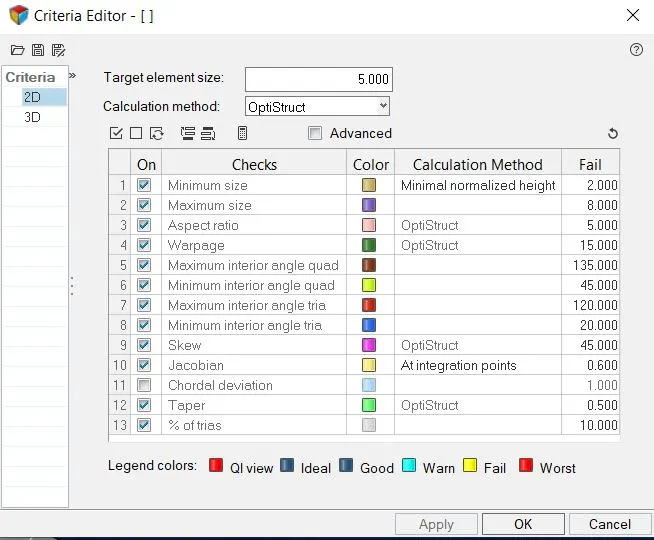
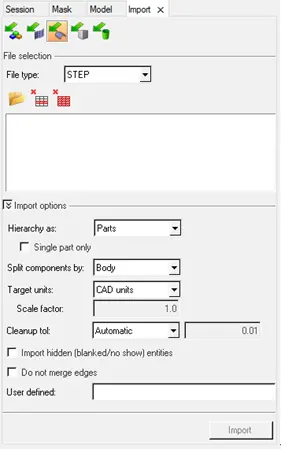
- Import the geometry by clicking on the import option and select import geometry.
- Select the file type to STEP.
- Browse and select the file to be imported
- Click the import button
The model is imported in the hypermesh and make it fit to the graphical area using F key
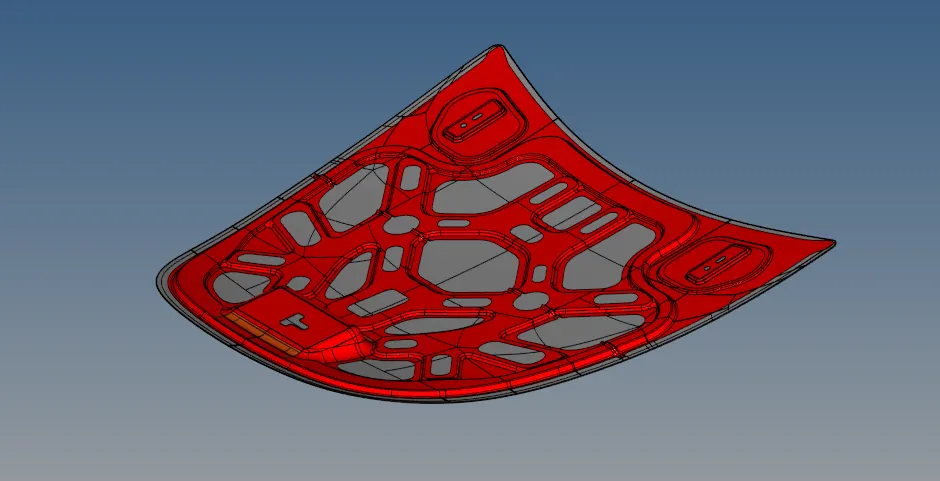
As the model consists of the various components we should extract the midsurface for the each components and do the topology clean up
There are five components in the model
Inner_extract_body1
outer_extract_body1
hinge_reinforcement_extract_body1
hinge_reinforcement_extract_body2
Latch_reinforcement_extract_body1
-
Midsurface extract
For the above five model the midsurface to be extracted and arrange them according
The midsurface is extracted for the each component using the midsurface option from the geometry menu

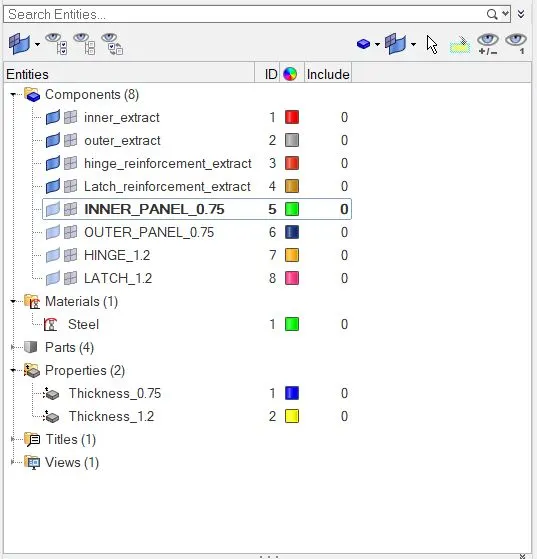
Now the midsurface as been extracted and renamed and given colour for each component As shown below
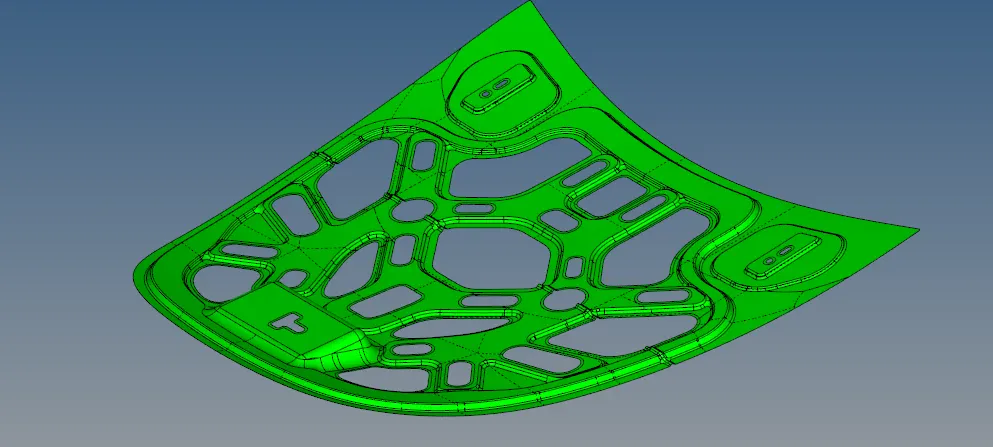
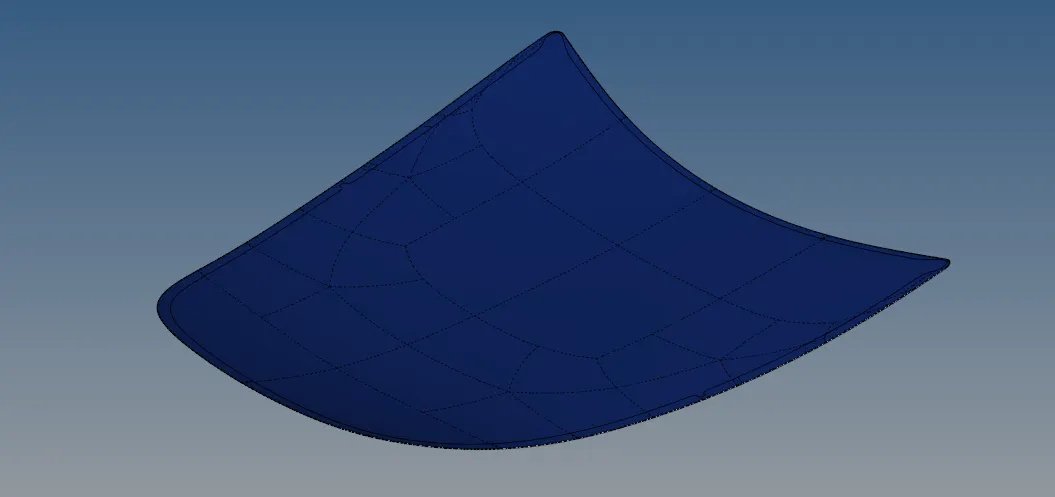
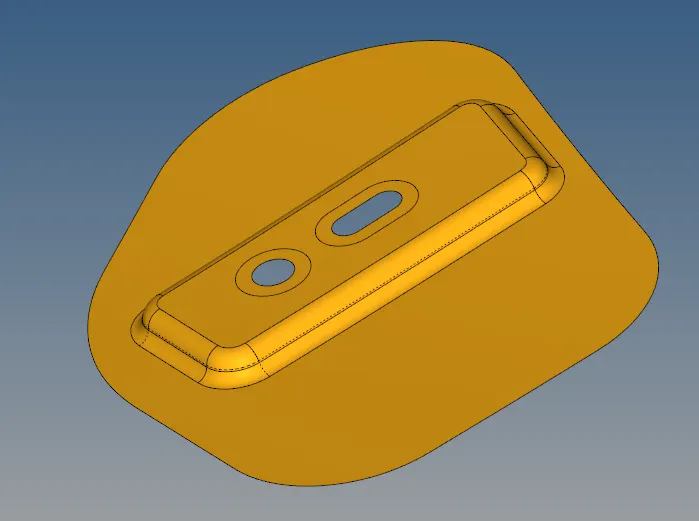
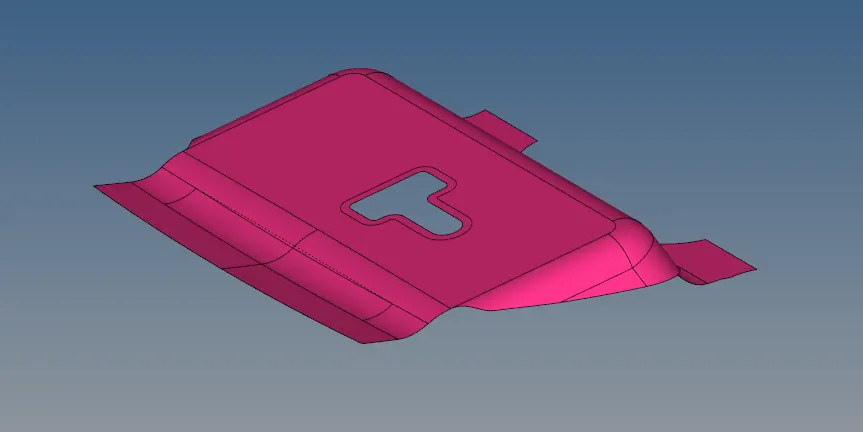
- Cleanup component
Now the cleanup has to be performed in the midsurface of the each component by checking for any defects in the mid surface by changing the geometry topology mode
Toggle the unnecessary lines by using toggle edge tool & create lines where is necessary by using the split surf node & split surf line tool.

- Meshing
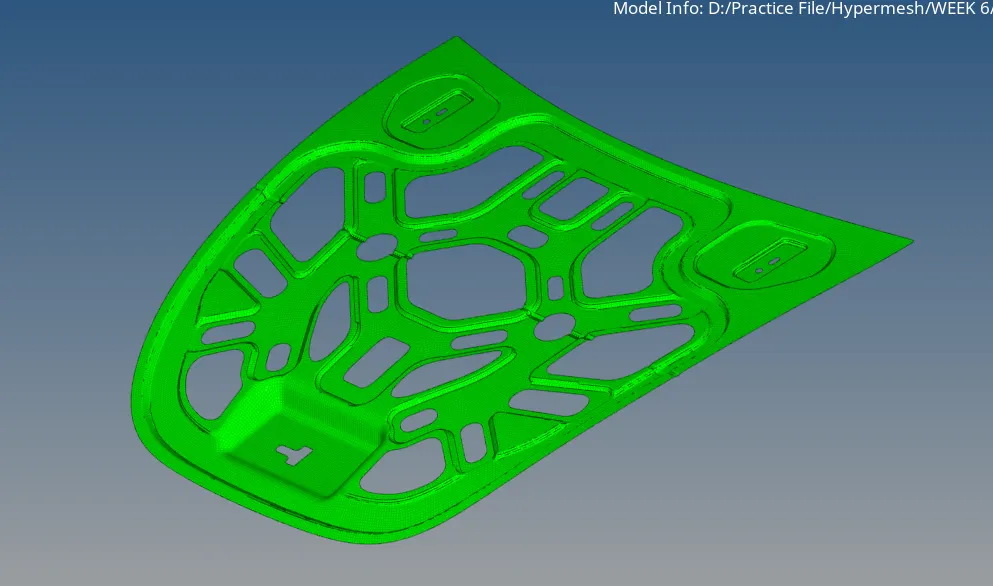
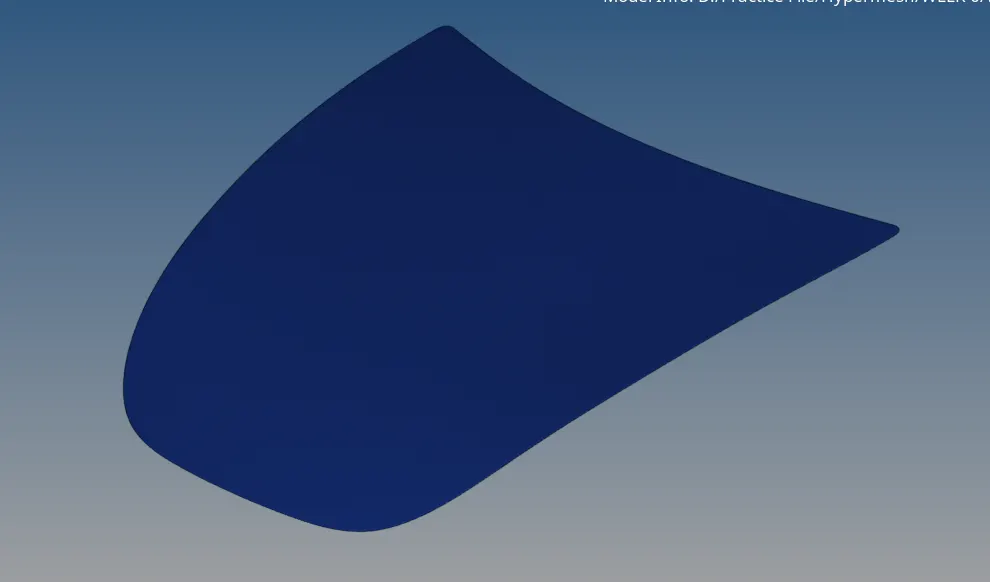
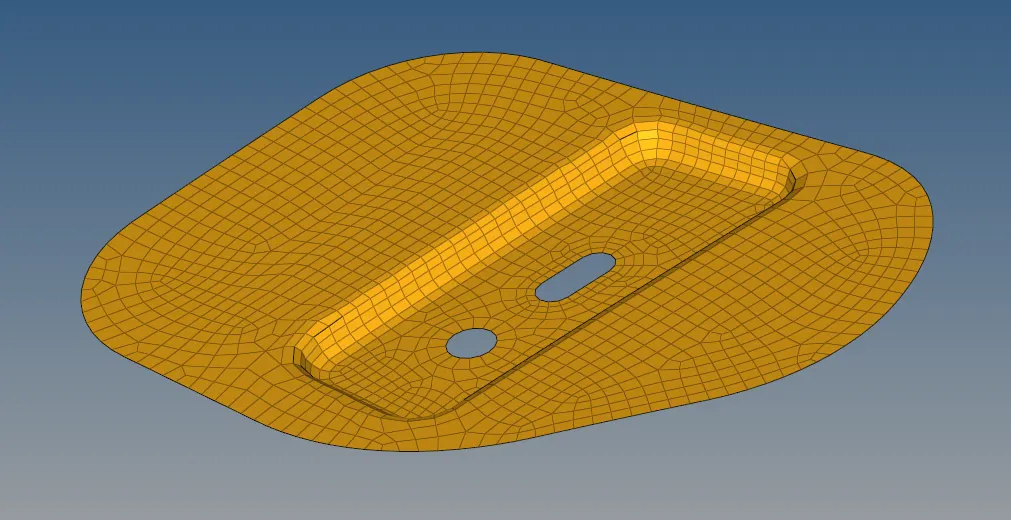
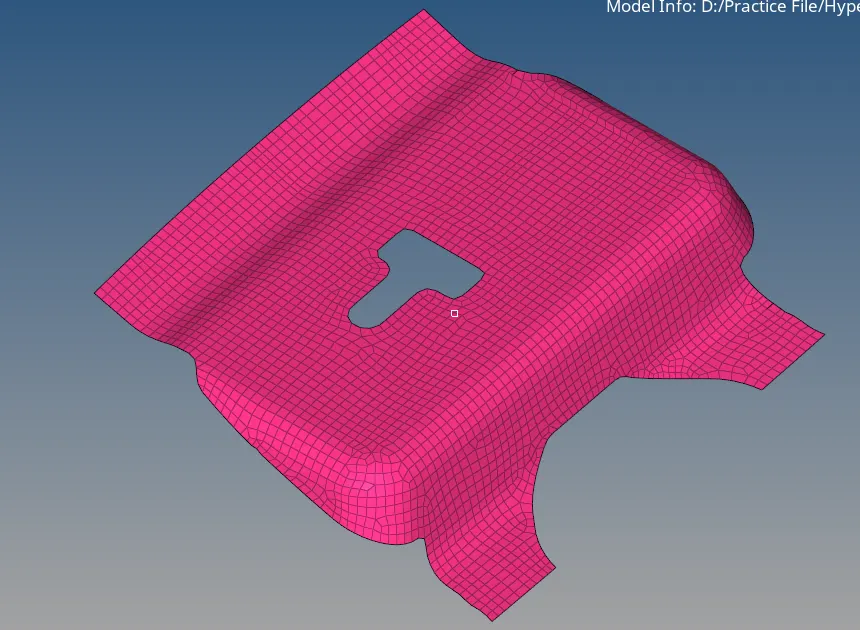
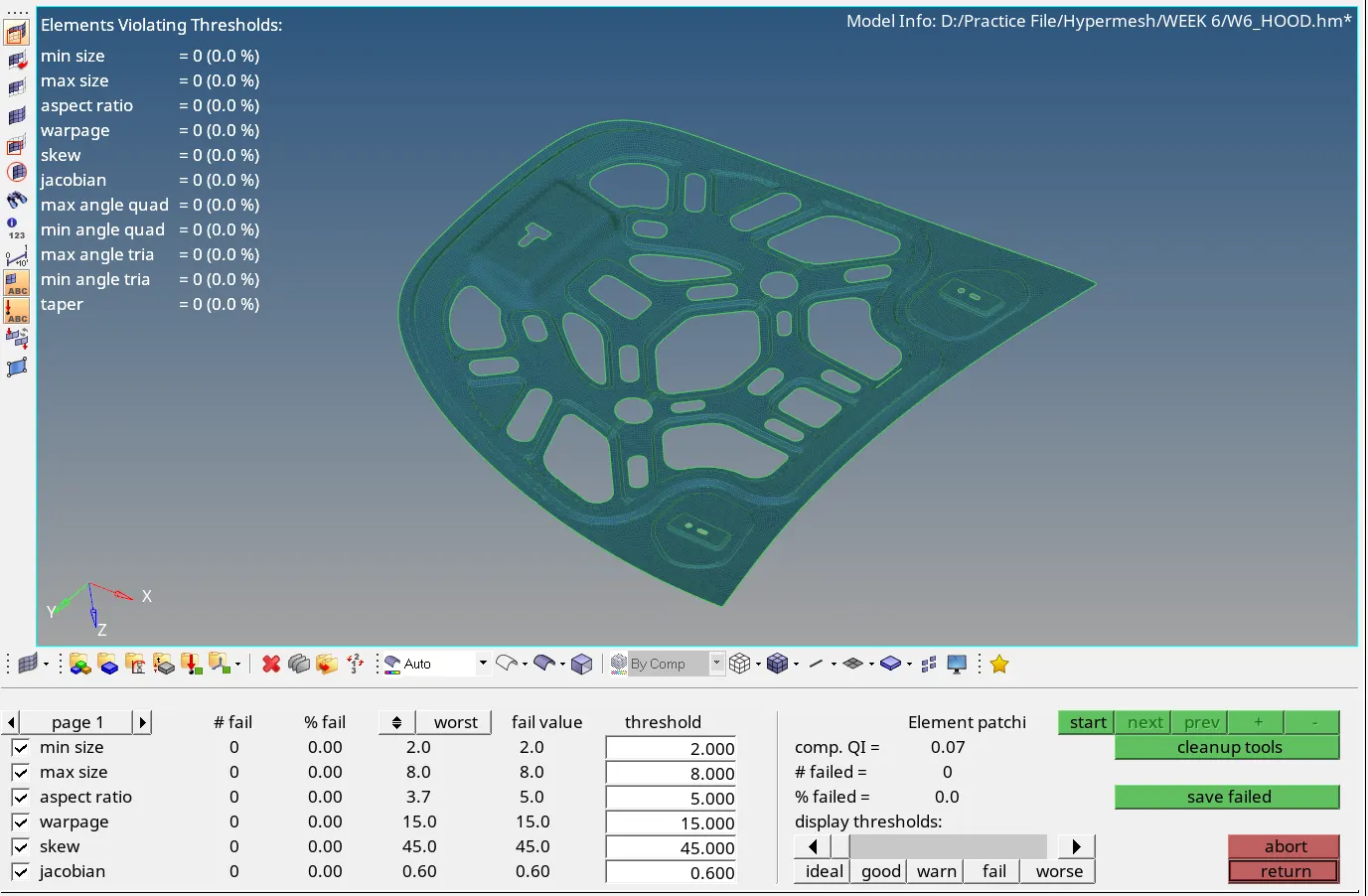
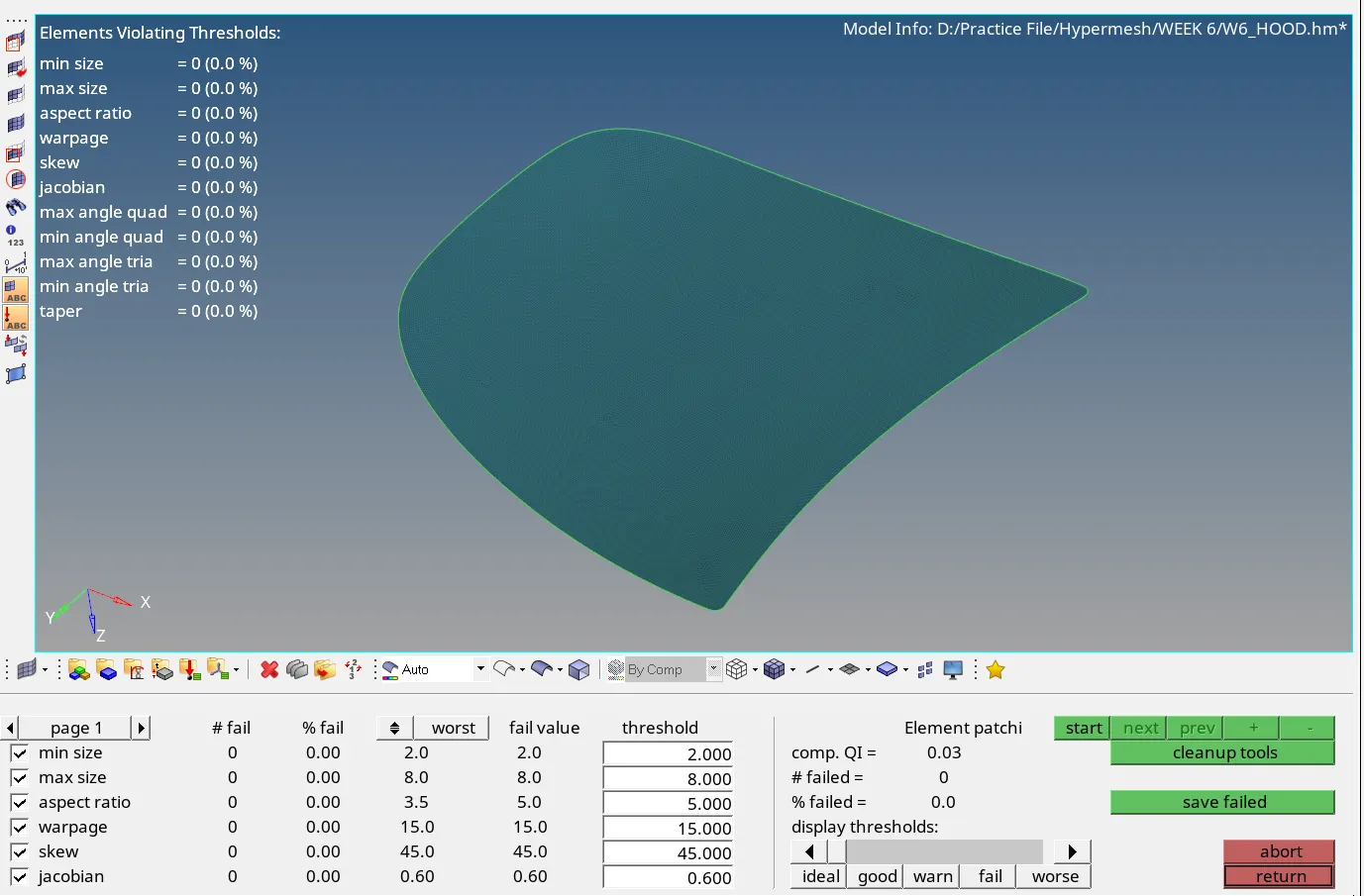
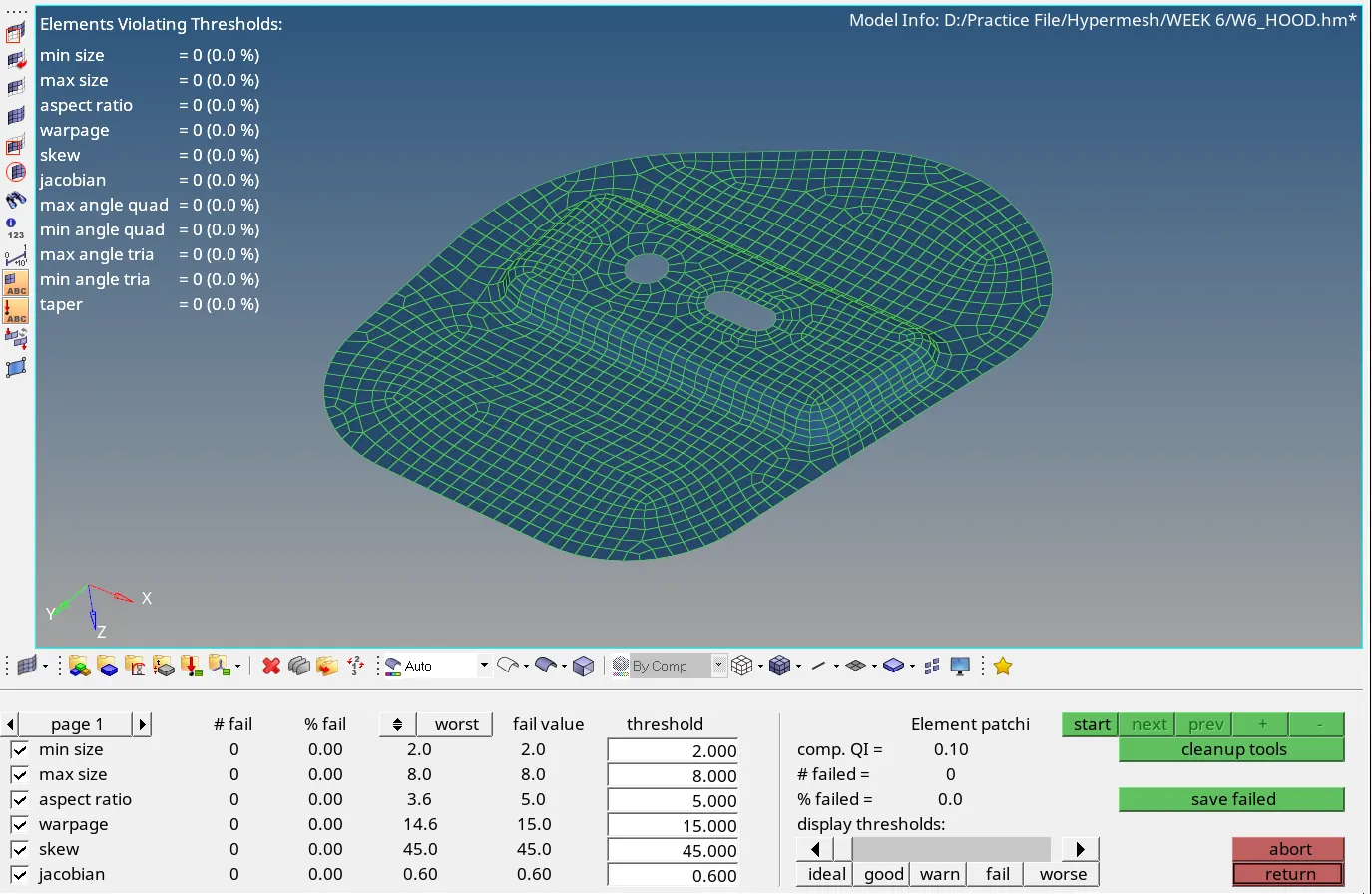
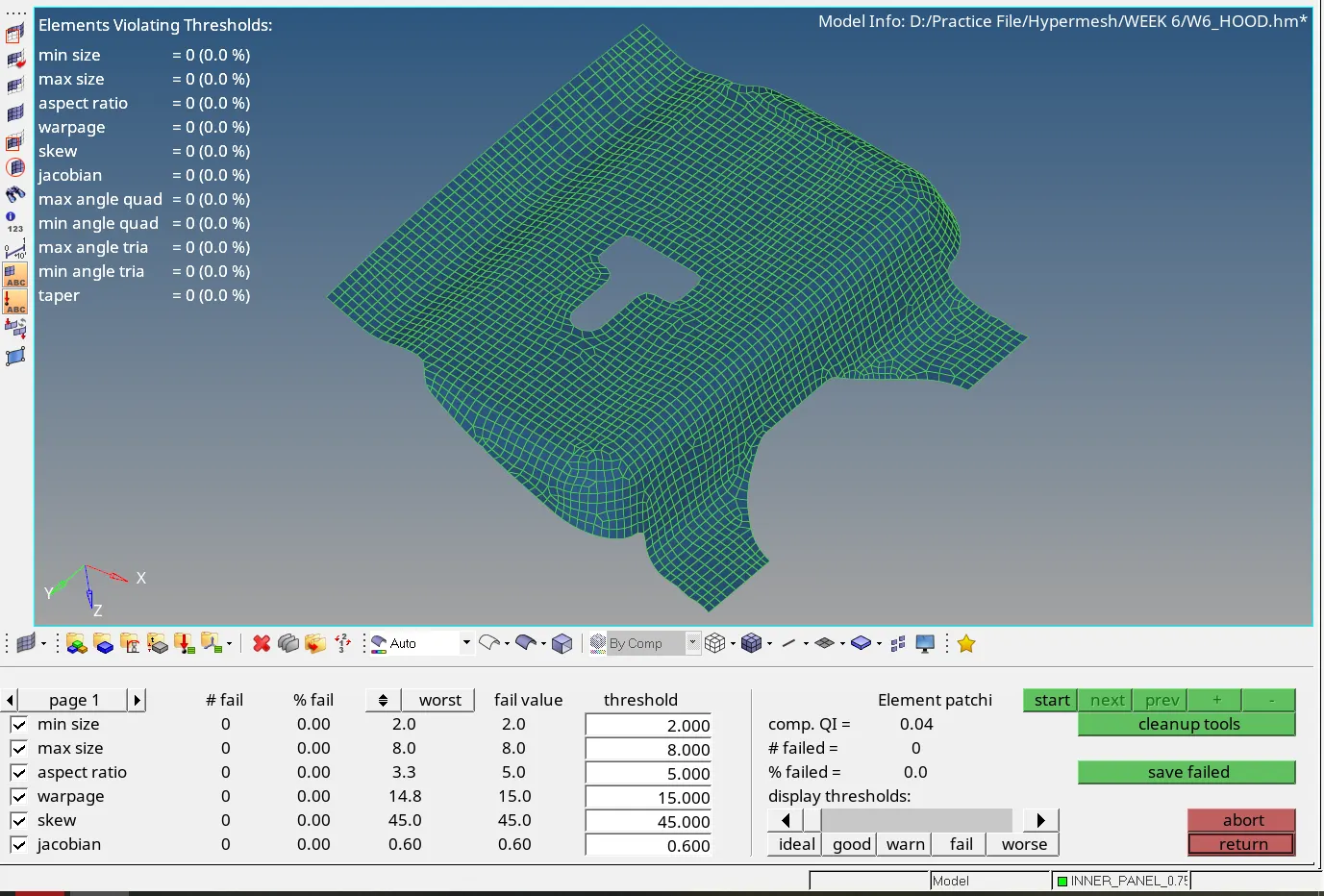
After the autocleanup, go to 2D mesh menu and select automesh option, change the element size to 5, element type to mixed and select the mid surface and click mesh to generate the mesh.
Now the mesh as been generated for the components as shown below;
- Check normal
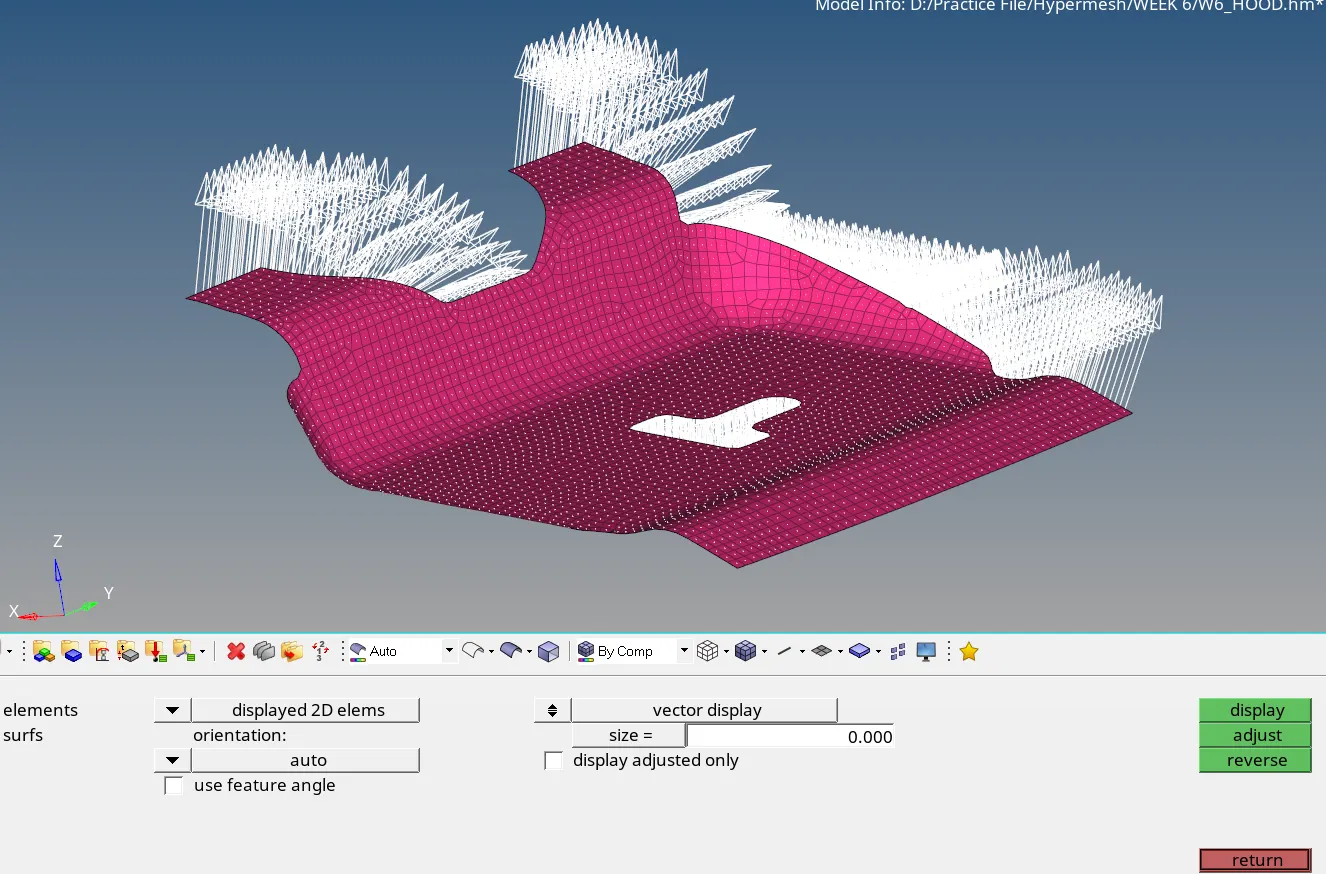
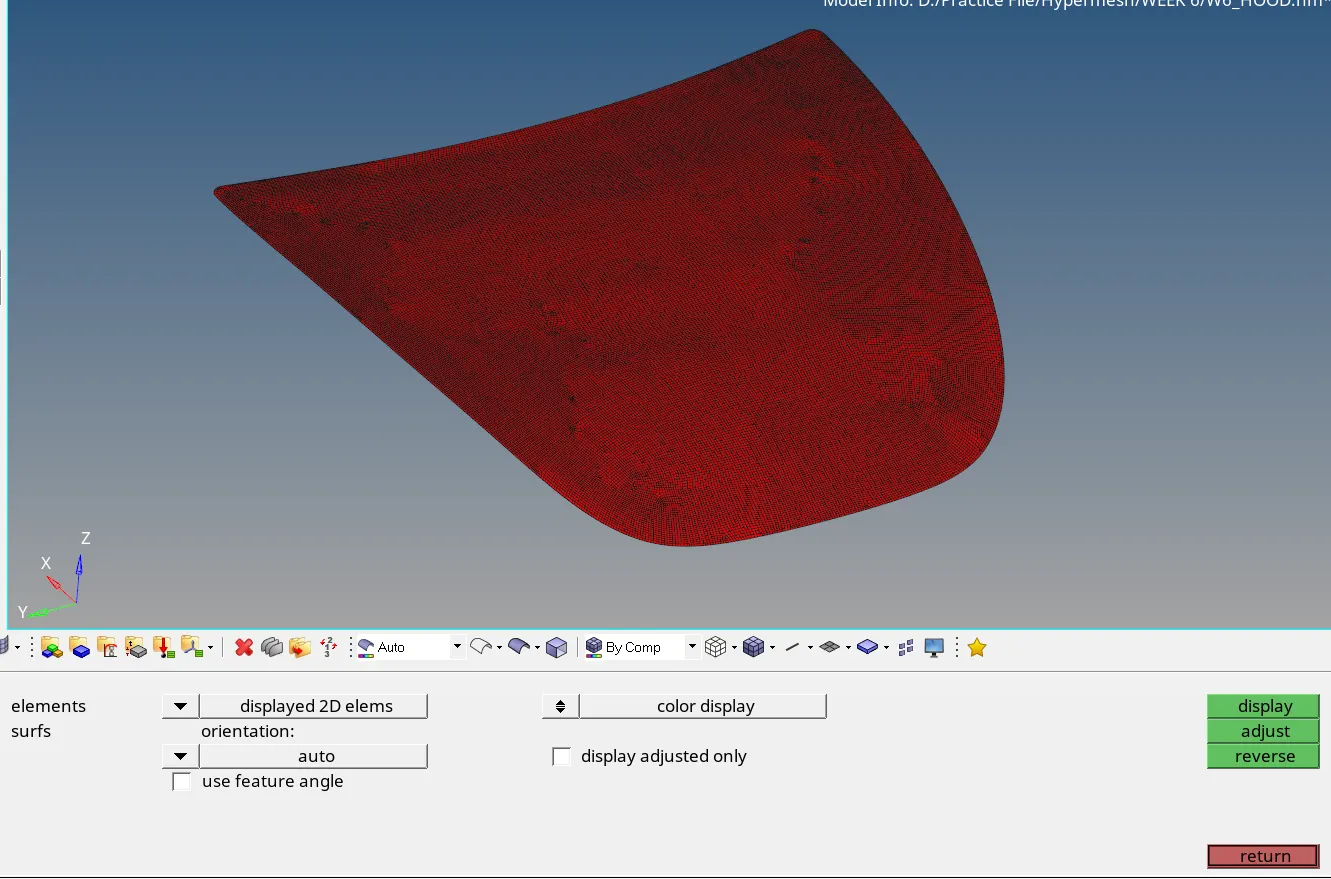
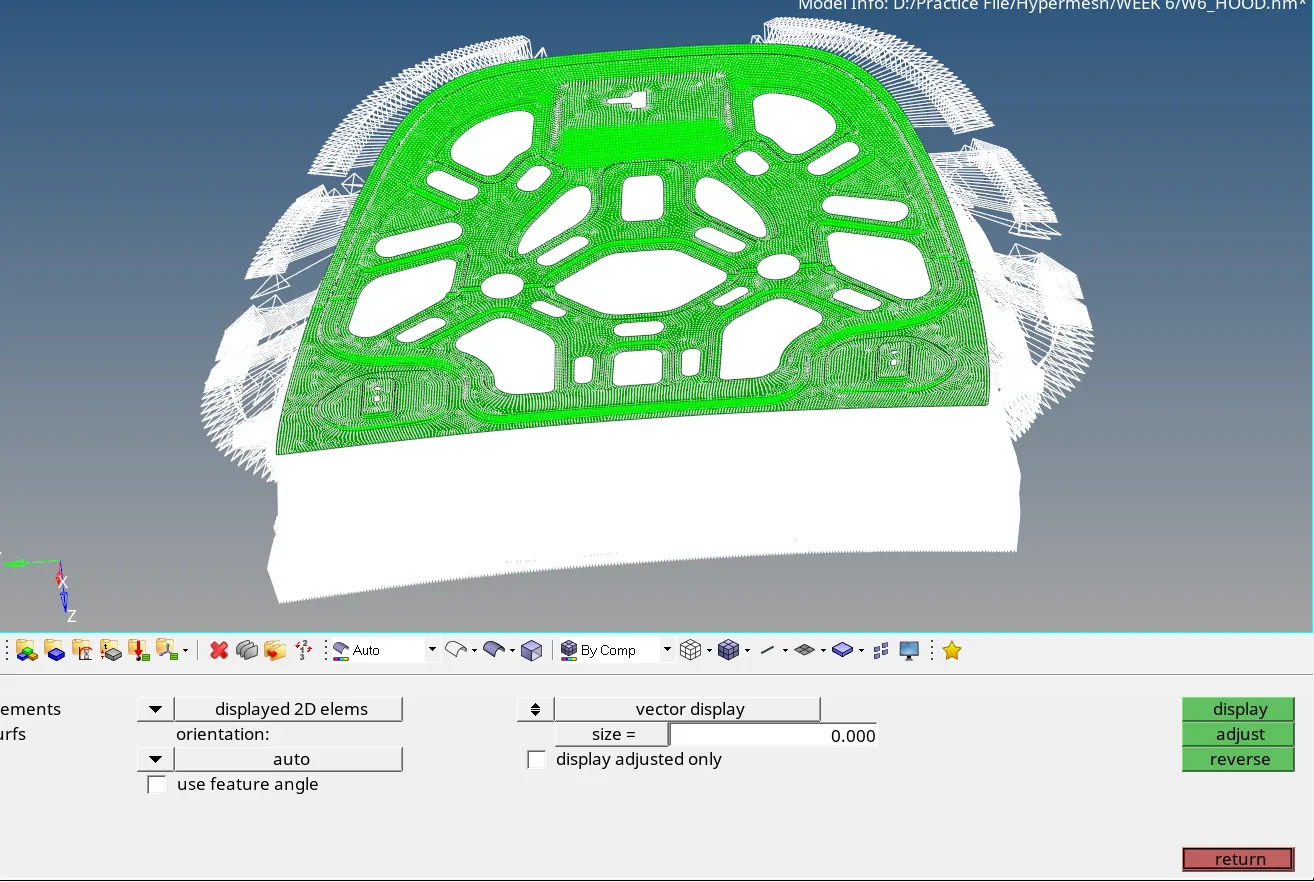
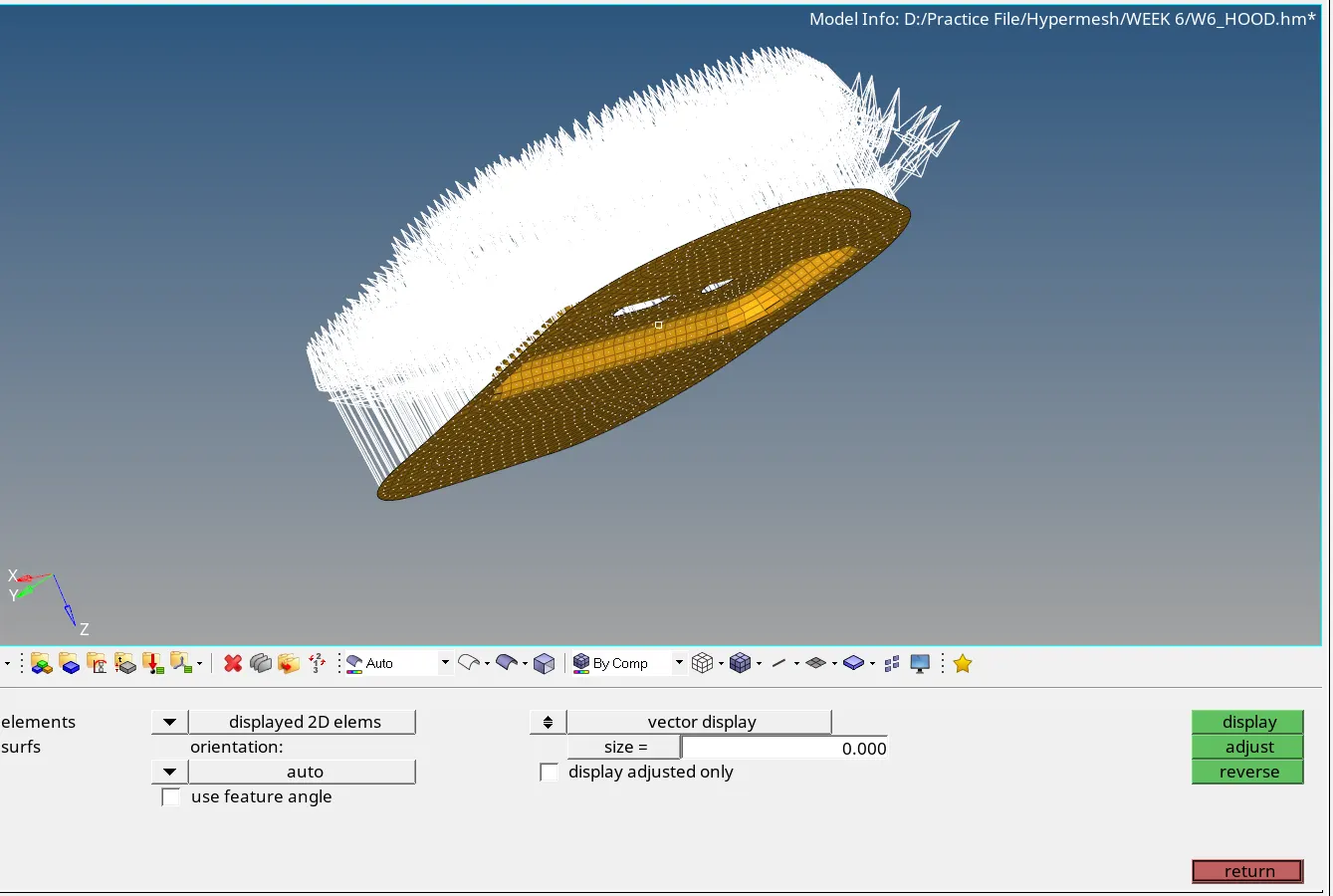
Result: The give hood assembly is successfully meshed according to the mesh quality provided and quality checked
Conclusion: In this challenge, we learn how to mesh the hood component