Thermal simulation of an electronic enclosure assembly - II
I. Aim
To perform thermal simulation of the given model of an electronic enclosure assembly.
II. Introduction
In the current project, steady-state simulation of the given model of an electronic enclosure assembly is performed using ANSYS Icepak. Suitable power generation values are assigned to various objects in the model in order to mimic an electronic device that is in operation. The internal fan present in the model manages the thermal dissipation of these objects by blowing air on them. The model also contains two grilles and one opening for air-ventilation. This kind of modeling and simulation is often done in the electronics industry to determine if a particular design is able to manage the thermal dissipation in its electronic circuit effectively.
III. Geometry
The image attached below shows the geometry of the given model of an electronic enclosure assembly.
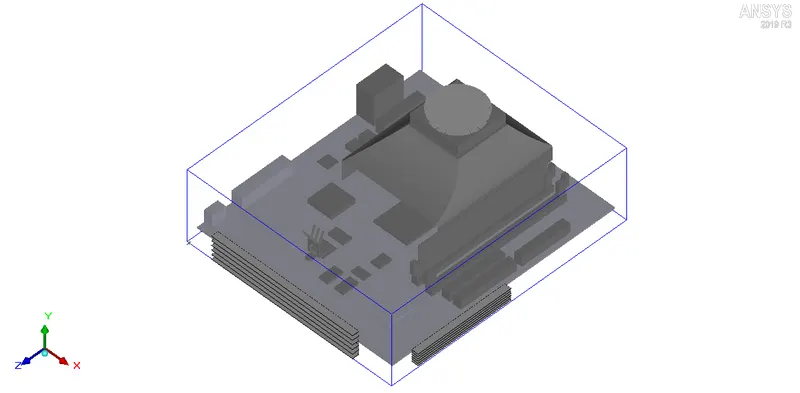
The geometry shows that the given Icepak model contains the following two CAD objects:
1. SheetMetal_HS
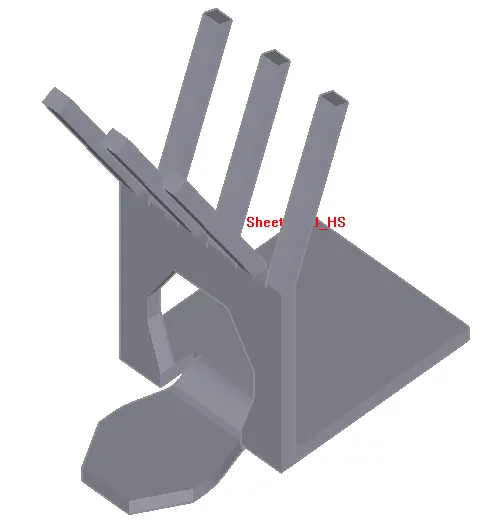
2. guide_sweep-0_1.1
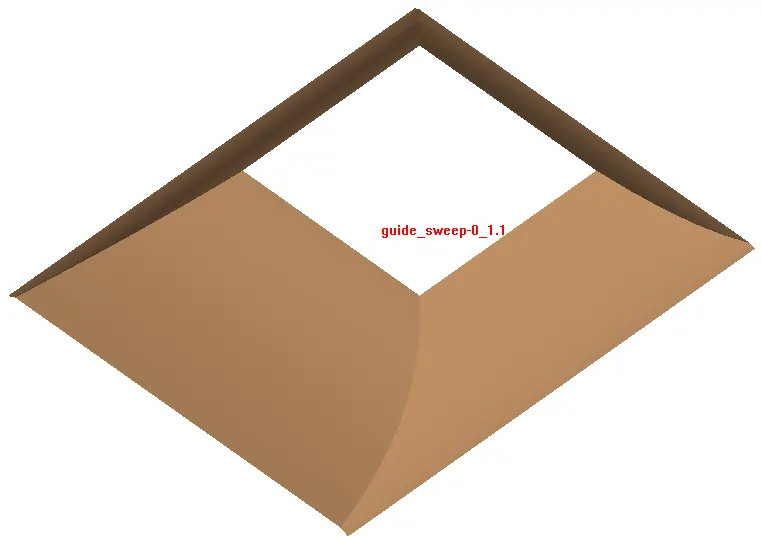
In order to capture these CAD objects effectively (without compromising their geometrical features) while keeping a moderate mesh count, multi-level meshing is employed in the current project. More details regarding the meshing techniques are provided in the following section.
IV. Meshing
The following meshing techniques are applied in the current project to discretize the computationaldomain:
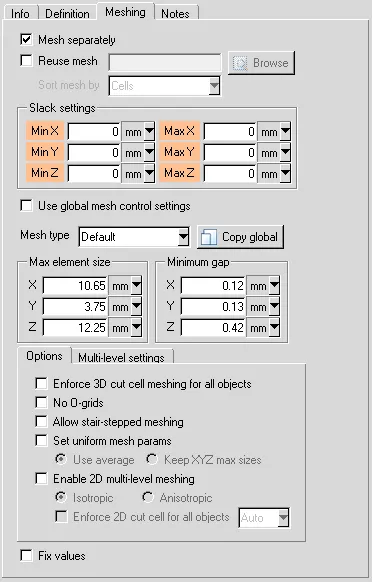
1. Non-conformal meshing allows the user to selectively refine the mesh within a sub-region around an assembly by selecting the "Mesh separately" option available in the "Meshing" tab of the assembly settings. A comparatively coarse mesh can be used for the rest of the model. Multiple assemblies, that employ non-conformal meshing, are defined in the model. The image attached below shows the assembly settings of one such assembly, "DIMMs.1".
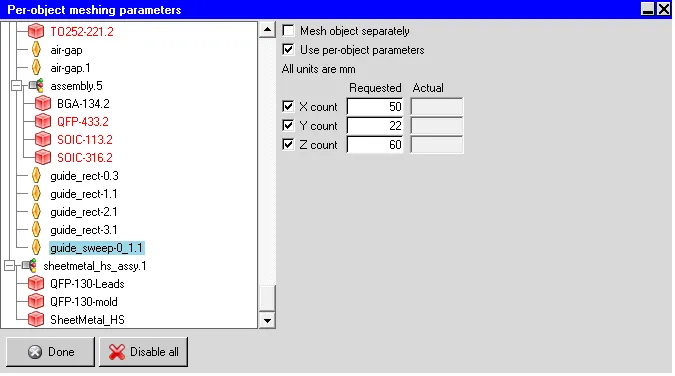
2. The "Object params" option available in the "Local" tab of the "Mesh control" window allows the user to refine the mesh locally near one or more objects/assemblies defined in the model. In the given model, "Per-object meshing parameters" are specified for multiple objects/assemblies in the model. The image attached below shows the settings applied in the "Per-object meshing parameters" window for one such object, "guide_sweep-0_1.1".
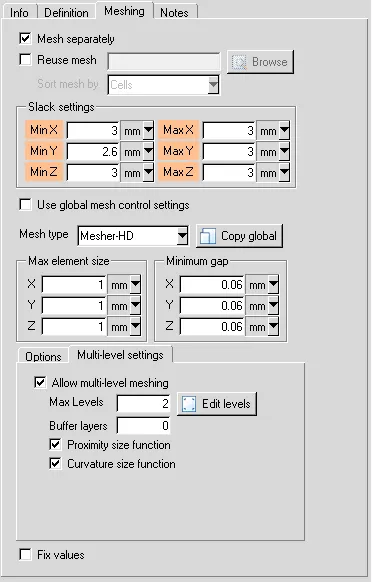
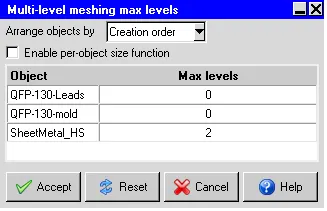
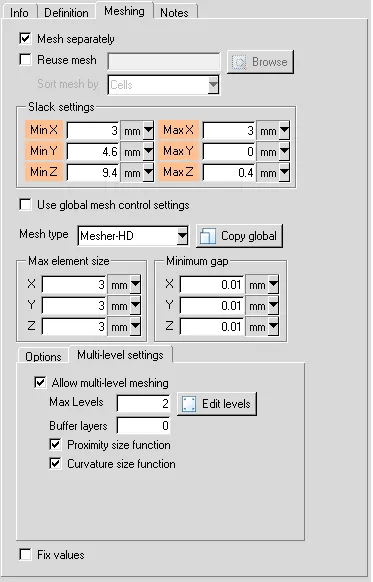
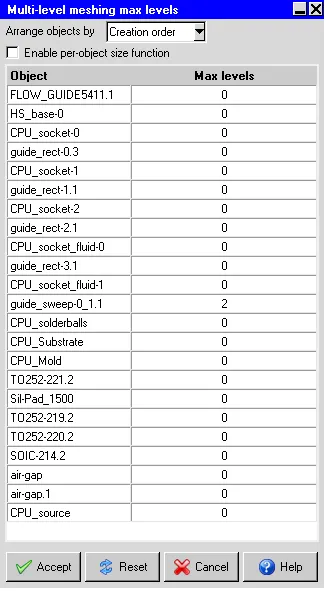
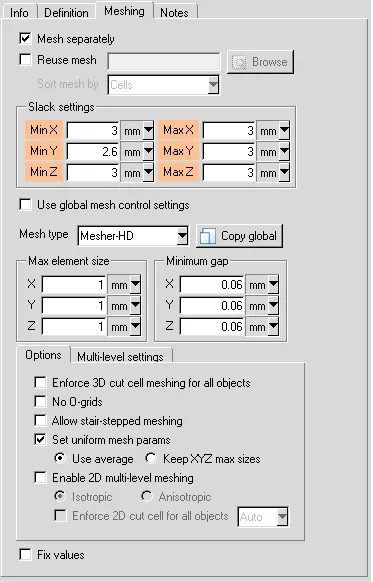
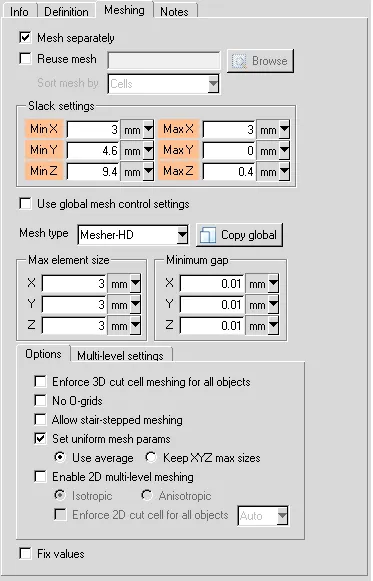
3. Multi-level meshing allows the user to refine the mesh locally in the areas where a higher mesh resolution is required to capture some geometrical features or gaps, while using a coarse Cartesian mesh in the rest of the model. The user can control the local mesh refinement using the "Max levels" option, which indicates the maximum number of levels that may be required to achieve the desired mesh refinement based on curvature/proximity. In the current model, multi-level meshing is allowed for the assemblies "sheetmetal_hs_assy.1" and "fan_guide.1". For both the assemblies, the "Max levels" option available in the "Multi-level settings" tab of the "Assemblies" window is set to 2. The objects "SheetMetal_HS" and "guide_sweep-0_1.1" are assigned "Max levels" equal to 2 in the "Multi-level meshing max levels" window for the assemblies "sheetmetal_hs_assy.1" and "fan_guide.1" respectively. For the assembly "sheetmetal_hs_assy.1", the maximum element size along each of the three coordinate directions (X, Y and Z) is set to 1 mm; the minimum gap along each of the three coordinate directions (X, Y and Z) is set to 0.06 mm. For the assembly "fan_guide.1", the maximum element size along each of the three coordinate directions (X, Y and Z) is set to 3 mm; the minimum gap along each of the three coordinate directions is set to 0.01 mm. The images attached below show the multi-level mesh settings applied for the assemblies "sheetmetal_hs_assy.1" and "fan_guide.1".
i. sheetmetal_hs_assy.1
ii. fan_guide.1
4. The "Set uniform mesh params" feature enabled with the "Use average" option allows the user to create uniform mesh with the same size along the three coordinate directions. The resultant mesh size is the average of the specified maximum element sizes along the three coordinate directions. The assemblies "sheetmetal_hs_assy.1" and "fan_guide.1" utilize the "Set uniform mesh params" feature with the "Use average" option as shown in theimages attached below.
i. sheetmetal_hs_assy.1
ii. fan_guide.1
After completing the above steps, the computational mesh is generated. The image attached below shows the "Mesh control" window.
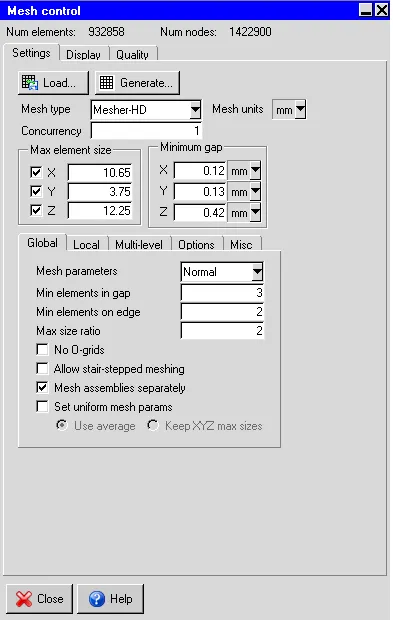
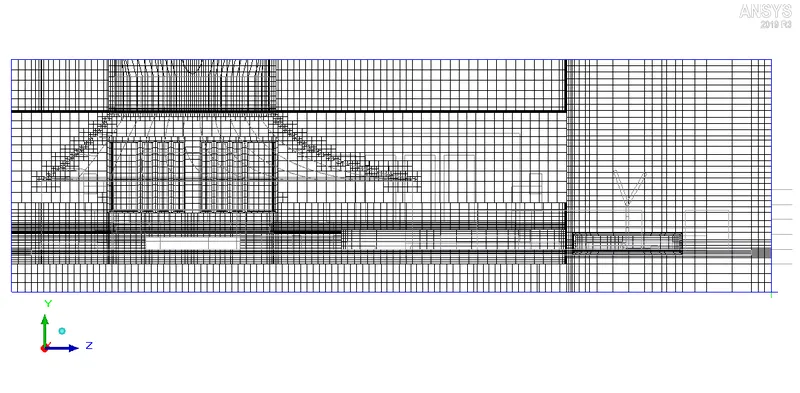
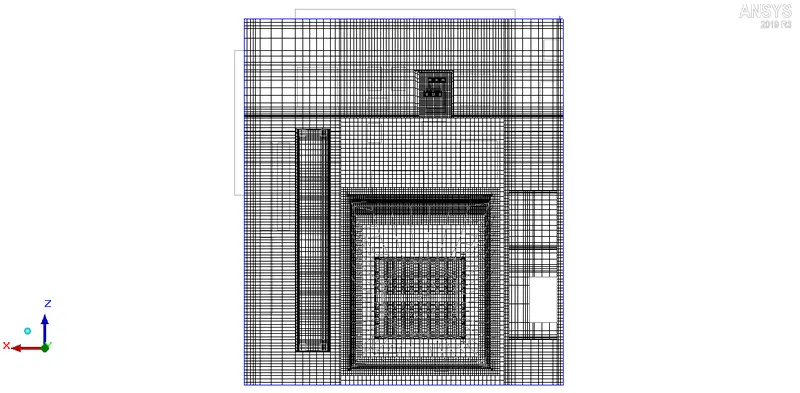
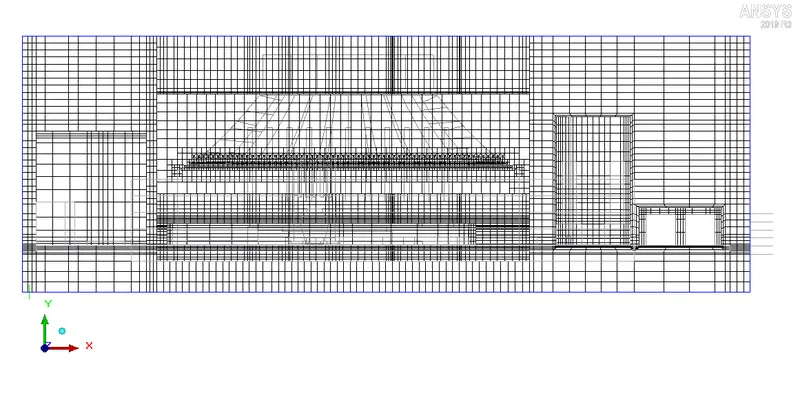
The image shows that the generated mesh yields 932858 elements and 1422900 nodes. The images attached below show the computational mesh plotted on three mutually perpendicular planes, each passing through the center of the cabinet.
1. X plane through center
2. Y plane through center
3. Z plane through center
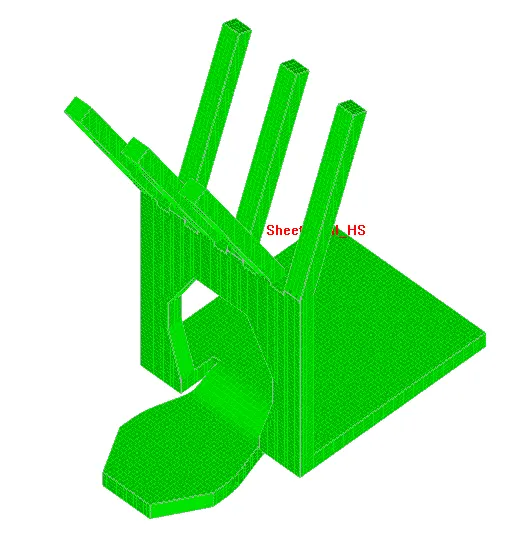
The images attached below show the surface mesh on the two CAD objects in the model:
1. SheetMetal_HS
2. guide_sweep-0_1.1
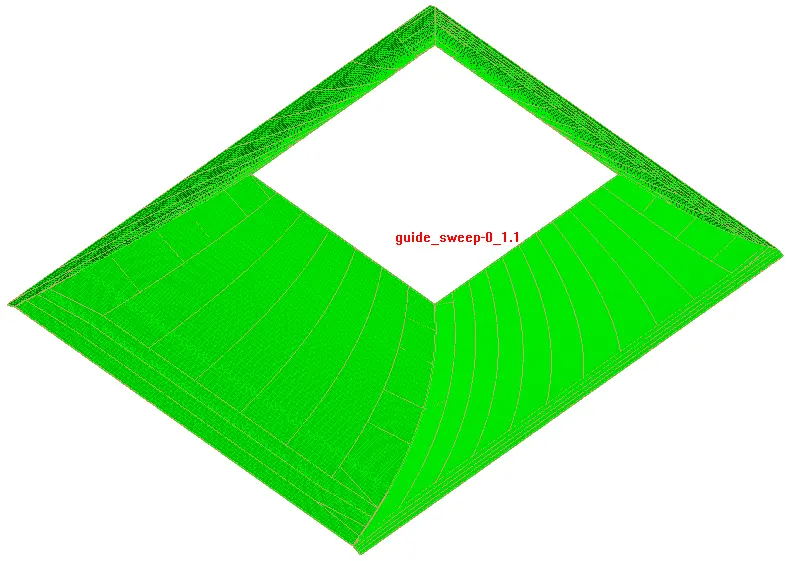
Visually the mesh appears to be fine. The images attached below show the histograms with the number of elements plotted along the X-axis and quality measures plotted along the Y-axis.
1. Face alignment
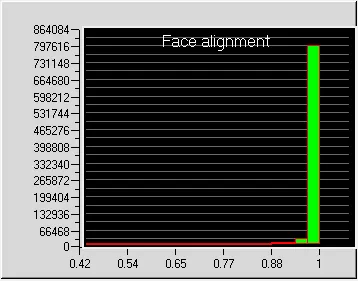
Values less than 0.05 indicate the presence of severely distorted elements in the mesh. For the current mesh, the minimum value of face alignment is 0.420109 which indicates that the mesh elements aren't severely distorted.
2. Volume
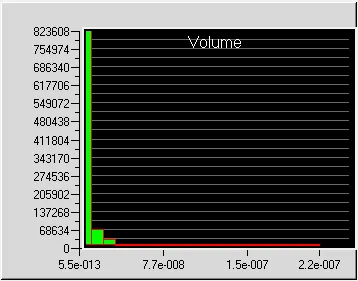
For a double precision solver, the minimum cell volume shouldn't be less than 1e-15 m3 otherwise the solver may face issues. The minimum cell volume in the current mesh is 5.46376e-13 m3 and hence the mesh elements aren't small enough to cause problems in the solver.
3. Skewness
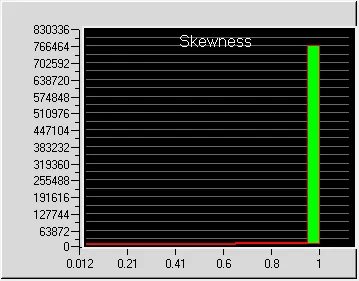
A skewness of 0 indicates that the mesh element is degenerate whereas a skewness of 1 indicates that the mesh element is ideal (equiangular/equilateral). For the current mesh, the minimum value of skewness is 0.0123784.
V. Solver
The three dimensional steady-state Navier-Stokes equations for the model are solved within the computational domain using the Fluent solver available in ANSYS Icepak. The following settings are applied to the solver:
1. Variables solved: Flow (velocity, pressure) and Temperature
2. Radiation: Off
3. Flow regime: Turbulent (Zero equation)
4. Time variation: Steady
5. Solution initialization
5.1. X velocity: 0
5.2. Y velocity: 0
5.3. Z velocity: 0
6. Number of iterations: 1000
7. Convergence criteria
7.1. Flow: 1e-7
7.2. Energy: 1e-10
7.3. Joule heating: 1e-7
8. Configuration: Parallel
9. Number of processors: 4
10. GPU computing: Enabled
11. Number of GPUs: 1
12. Precision: Double
Suitable heat generation values are assigned to various objects in the model and the fan is defined using the following settings:
1. Fan type: Internal
2. Flow direction: Normal (Negative)
3. Flow type: Non-linear. The image attached below shows the non-linear performance curve of the fan.
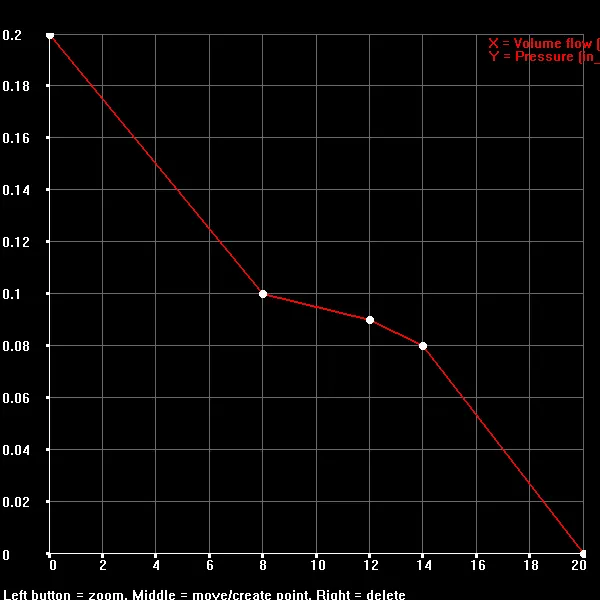
4. RPM: 4000 rpm
VI. Results
In the current section, the simulation results are discussed.
1. Residuals
The residuals for the following equations are plotted against the number of iterations:
i. Continuity equation
ii. X-momentum equation
iii. Y-momentum equation
iv. Y-momentum equation
v. Z-momentum equation
vi. Energy equation
The image attached below shows the residuals plotted against the number of iterations.
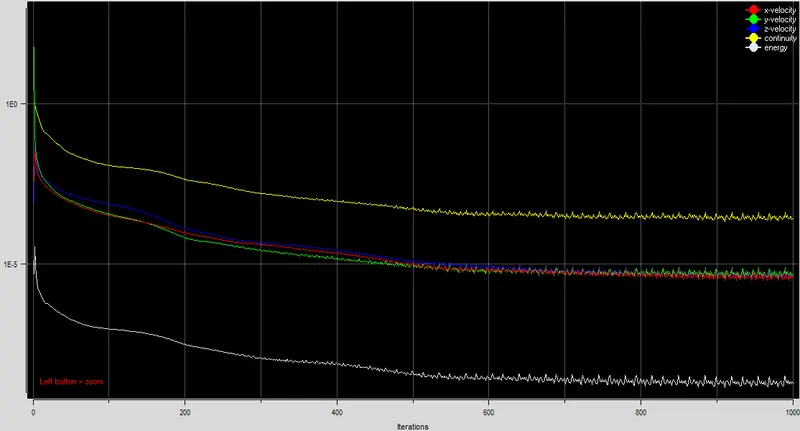
The plot show that the residuals don't change appreciably between 800-1000 iterations thereby indicating that the solution has reached a steady state. In the current project, the simulation results after 1000 iterations are considered as steady-state results.
2. Monitor plots
Temperature and velocity monitor points are set up at various key locations within the computational domain. Apart from providing information about the solution variables (such as velocity, temperature, pressure etc.) at important locations within the computational domain, the monitor plots also help the user to determine if the solution has reached a steady state. The following five monitor points are created within the computational domain:
i. BGA-134.2 - Temperature monitor point
ii. CPU_source - Temperature monitor point
iii. Chassis_grille-1 - Velocity monitor point
iv. Chassis_grille-2 - Velocity monitor point
v. TO252-219.2 - Temperature monitor point
The images attached below shows the output of the monitor points plotted against the number of iterations.
2.1. Temperature monitor plot
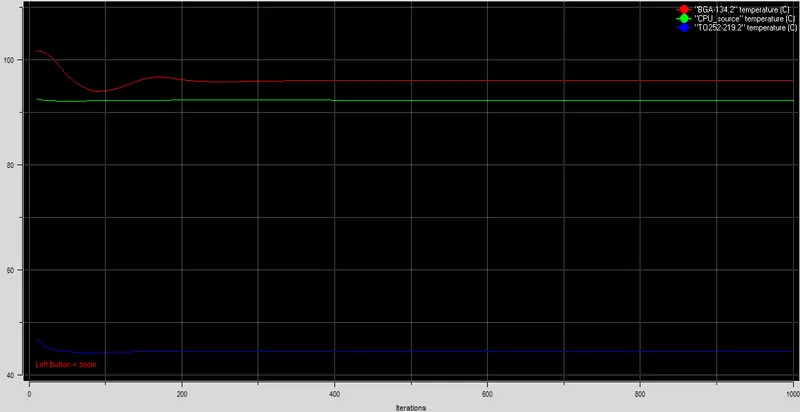
The plot shows that temperature values at the monitor points defined on the three objects, BGA-134.2, CPU_source and TO252-219.2, don't change appreciably beyond 400 iterations. This indicates that the energy equation has already converged, which is also shown by the small residual of the energy equation. According to the plot, the following steady-state temperature values are predicted by the monitor points defined in the model:
i. BGA-134.2: 95.98 deg. C
ii. CPU_source: 92.22 deg. C
iii. TO252-219.2: 44.45 deg. C
2.2. Velocity monitor plot
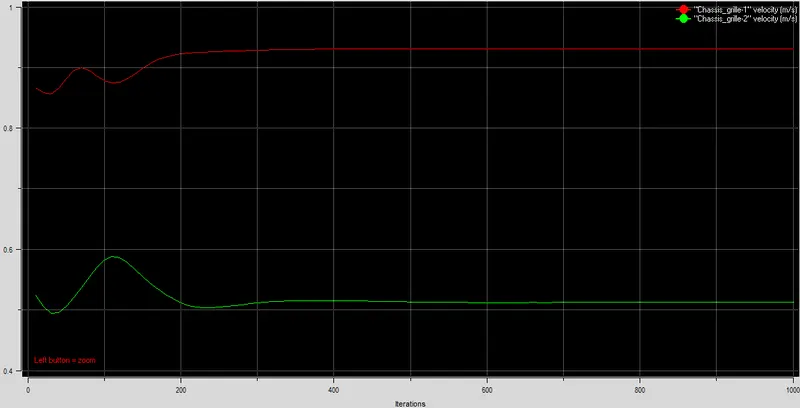
The plot shows that the velocity values at the monitor points defined on the two objects, Chassis_grille-1 and Chassis_grille-2, don't change appreciably between 800-1000 iterations. This indicates that the continuity and momentum equations have converged by 800 iterations. According to the plot, the following steady-state velocity values are predicted by the monitor points defined in the model:
i. Chassis_grille-1: 0.931 m/s
ii. Chassis_grille-2: 0.512 m/s
Since the governing equations are being solved for both flow and temperature, it can be said that the solution attains a steady-state by 800 iterations. Hence according to the monitor plots also the simulation results after 1000 iterations can be considered as steady-state results.
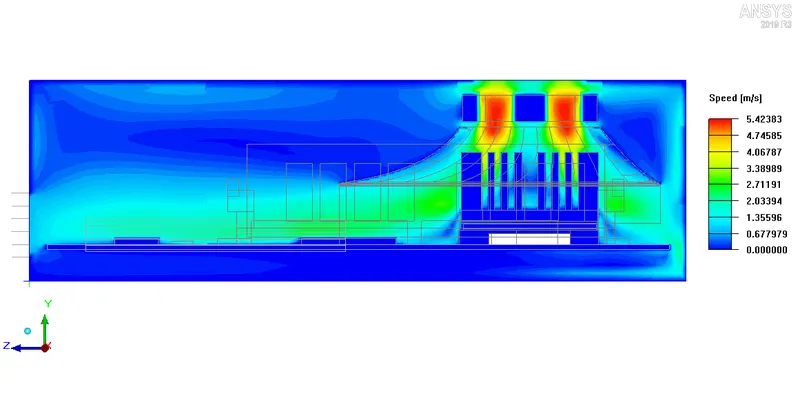
3. Velocity contours
The steady-state velocity contours are plotted separately on two mutually perpendicular planes, each passing through the center of the cabinet as shown in the images attached below.
3.1. X-plane through center
3.2. Y-plane through center
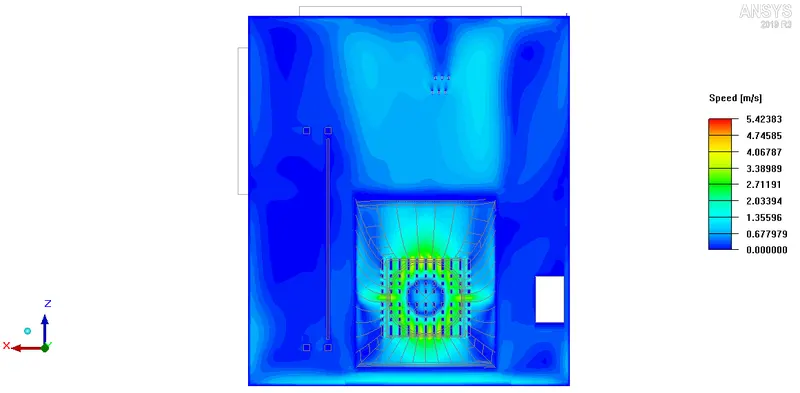
The contour plots show that the air velocity is highest as it moves through the fan. After passing through the fan, the air flows over different objects in the model (such as heat-sink, BGA etc.) which affect the flow field. Finally the air leaves the assembly through the two grilles. According to the contour plots, the maximum velocity within the computational domain is 5.42 m/s.
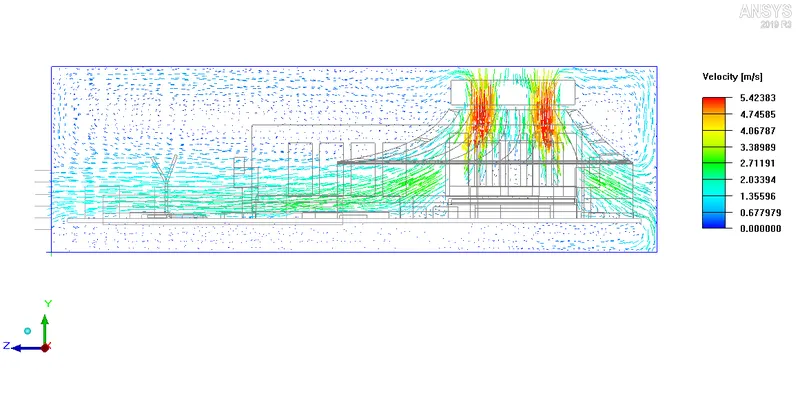
4. Velocity vectors
The steady-state velocity vectors are plotted on two mutually perpendicular planes, each passing through the center of the cabinet, as shown in the images attached below.
4.1. X-plane through center
4.2. Y-plane through center
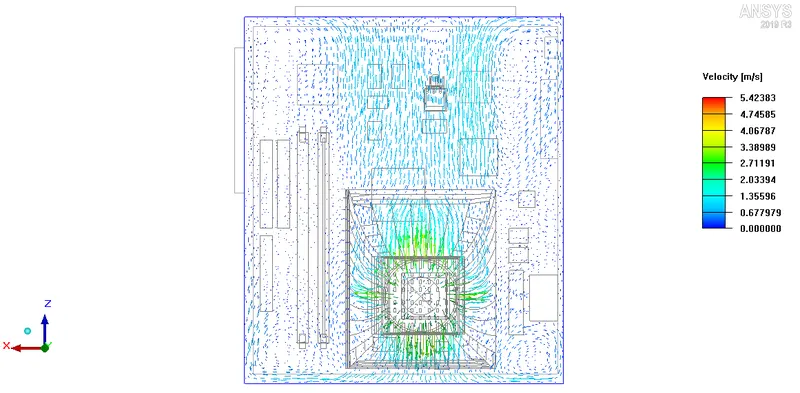
The vector plots show the velocity vectors for air at 5000 points distributed uniformly throughout the two planes (X-plane and Y-plane) passing through the center of the cabinet. The vectors are colored by the velocity magnitude. It is evident from the vectors that air achieves maximum velocity as it passes through the fan. The velocity vectors are also able to capture the recirculation zones established on the two planes (X-plane and Y-plane).
5. Temperature contours
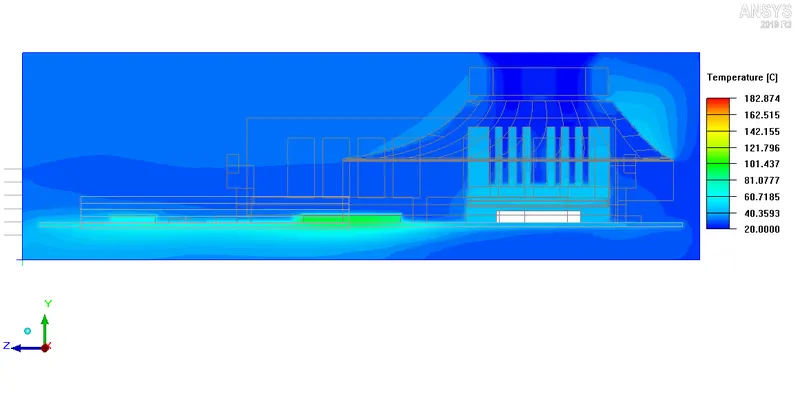
The steady-state temperature contours are plotted on two mutually perpendicular planes, each passing through the center of the cabinet, as shown in the images attached below.
5.1. X-plane through center
5.2. Y-plane through center
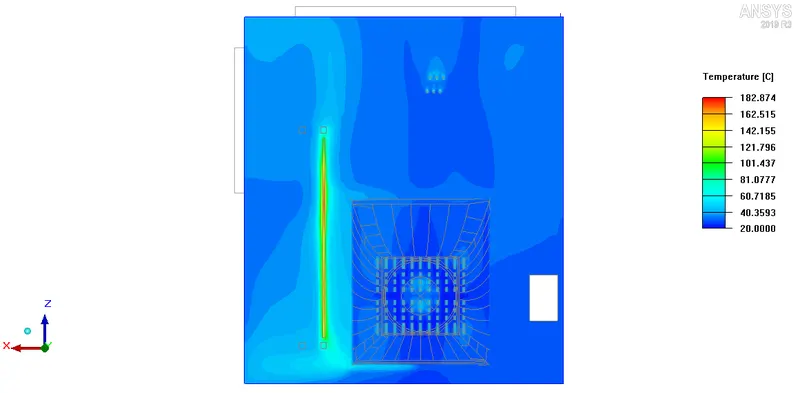
The contours show that the air inside the enclosure assembly is at a lower temperature than any other object. As it interacts with the hotter objects in the model, due to heat transfer from them, its temperature increases. As a result the air leaving the assembly is hotter than the air entering it. According to the plots the maximum temperature within the computational domain is 182.87 deg. C.
6. Object face temperature contours
The steady-state temperature contours are plotted on the faces of all the objects that are located within the cabinet, as shown in the image attached below.
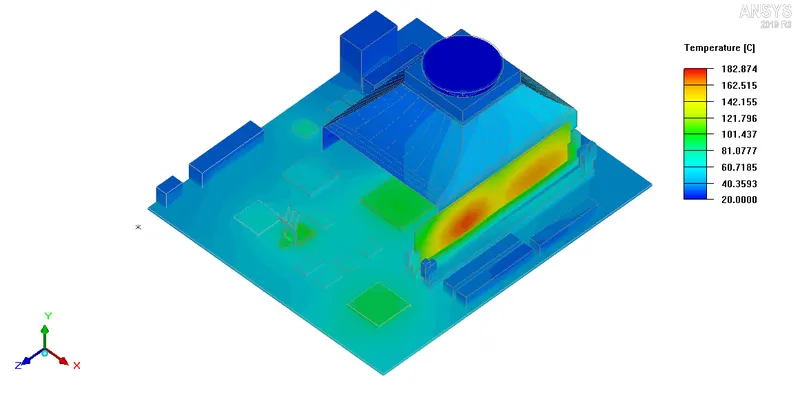
The contours show that the objects in the model that are assigned a power generation, attain higher temperatures at steady-state. Additionally the objects located near these power generating objects also attain relatively higher temperatures due to conduction heat transfer from them (power generating objects). According to the contours the maximum temperature attained by the objects within the cabinet is 182.87 deg. C.
7. Particle traces
The steady-state particle traces (colored by temperature) of 50 air particles originating at the top inlet are plotted within the computational domain, as shown in the animation attached below.
The animation clearly shows the pathlines traced by the air particles (originating at the top inlet) within the computational domain, at steady state. The color of a particle trace at a particular location indicates the temperature of the air particle that traces the pathline, atthat location.
VII. Conclusion
In the current project, the given model of an electronic enclosure assembly was unpacked using ANSYS Icepak. The computational domain was meshed using the following features available in the Icepak mesher: non-conformal meshing, per-object meshing parameters and multi-level meshing. The three dimensional steady-state governing equations for the model were solved for flow and temperature fields within the computational domain using the Fluent solver available in ANSYS Icepak. The following conclusions can be drawn based onthe simulation results:
1. Both the residual-plot and monitor-plot show that the results after 1000 iterations can be considered as steady-state results.
2. According to the steady-state temperature contours, the maximum temperature within the computational domain is 182.87 deg. C.
3. According to the steady-state velocity contours, the maximum air velocity within the computational domain is 5.42 m/s.