Week 4- Challenge
Objective
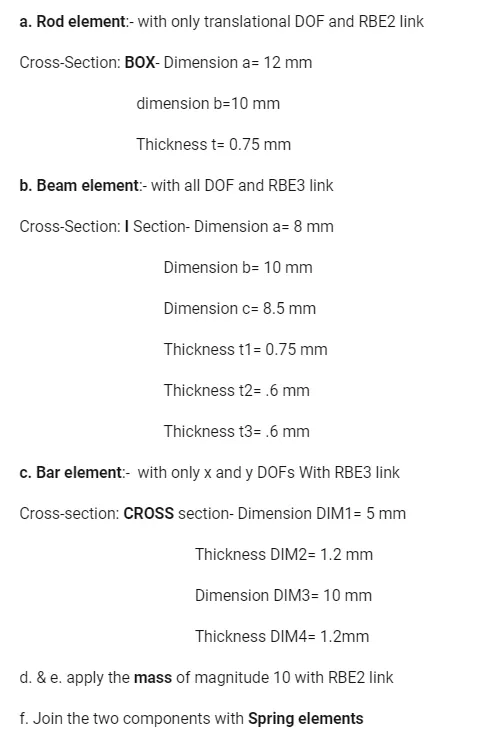
To create 1D elements with given cross-section and DOF.
Procedure
- First import the model that has given to you.
- Then generate mid surface of that model using mid surface option from geometry tool.
- Create properties and materials in model view.
- Assign the material that has been provided to you and also you can specify the name of material. Like here I have mentioned as steel.
- Like this in properties section also we have to mention as these are shell elements and materials as steel.
- As we have holes in our model need to do washer split for better meshing in curvature area.
Path: Geometry – Quick edit – Washer Split.
- Then go for meshing. Select the automesh option – select the surfaces for meshing – define element size – select the mesh type – then click on mesh.
- Then create rbe2 and rbe3 element, assign dofs on meshed model as per your requirement.
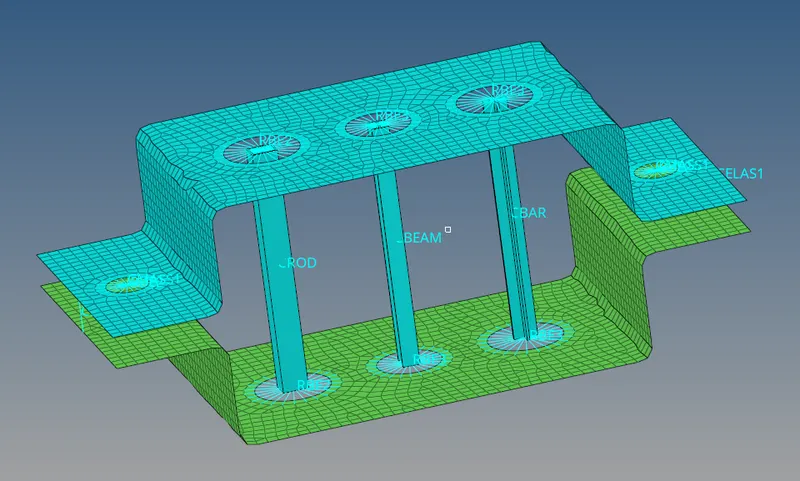
- Create 1D element by clicking elements from both brackets.
- Here I have provided CROD for box section, CBEAM for I-Section, CBAR for cross-section, and CELAS1 for spring.
- For defining of cross-section of each element go to hyper beam option. Create 3 different cross-section for box, I-Section and cross-section. Define dimension for each section as per given to you.
- For defining masses on the bracket click on the element and assign the magnitude you want to.
- In properties also we have to create for box, I-section and cross-section then only we can define 1d element as per given specification.
Snap shots of model
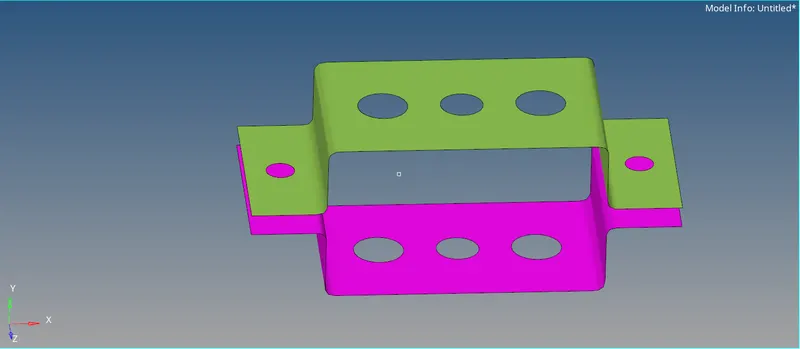
Model with Mid Surface
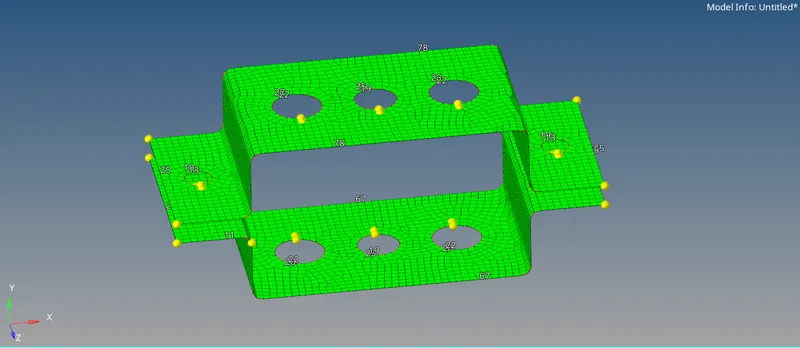
Model with Automeshing
Final Model
Please find the attachment for .hm file