Week - 4 - 2D meshing for Plastic components
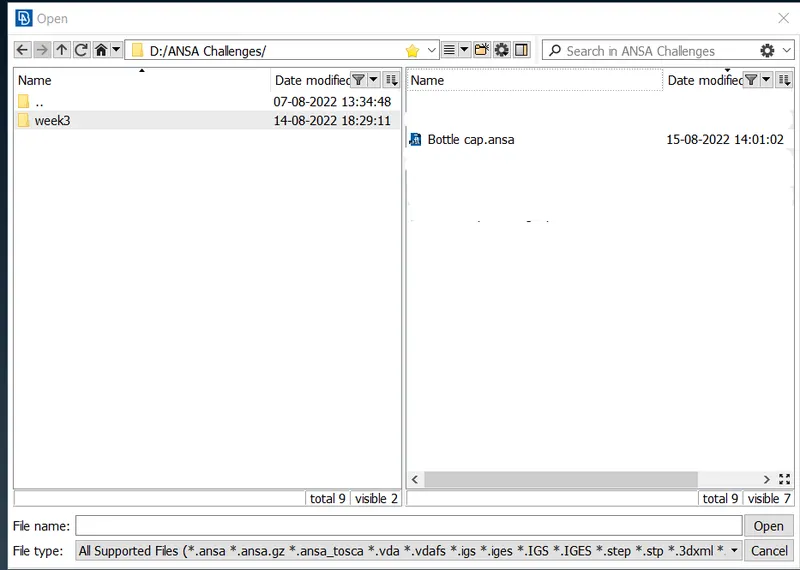
- First we are going to Import the geometry.
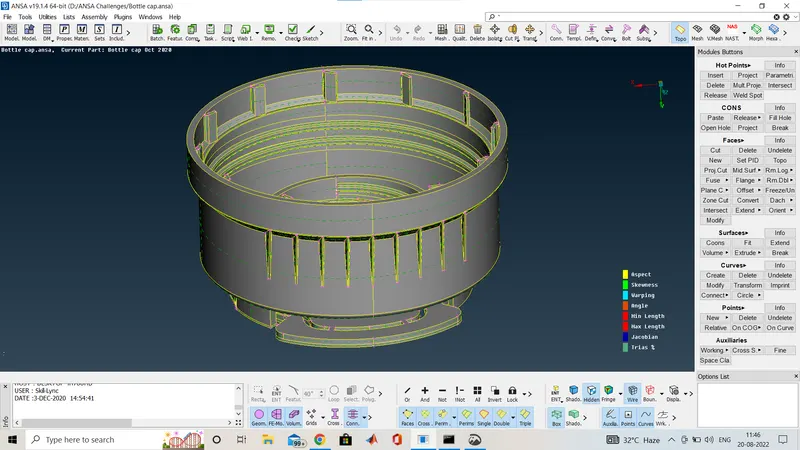
- The image given below is the CAD geometry after importing and this geometry is without topo cleaning or geometry cleanup.
- And the model is opened in toto mode .
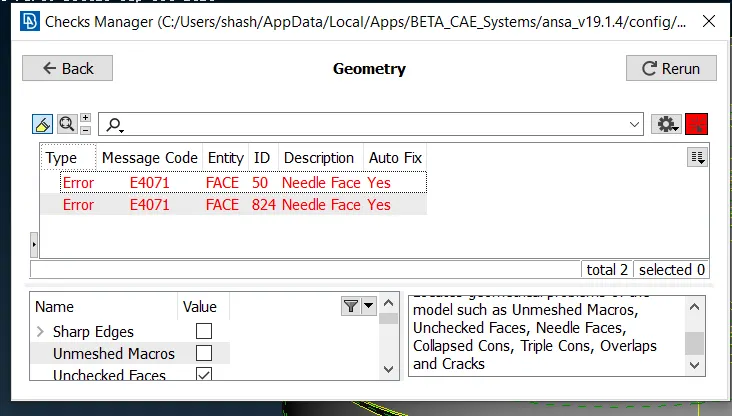
This is check manager where all types of checkes are listed or you can make your own check list.here we are going to open the geometry check for the geometry cleanup.
we can clean the geometry one by one also manually and ansa has a feature to clean it in once automatically.
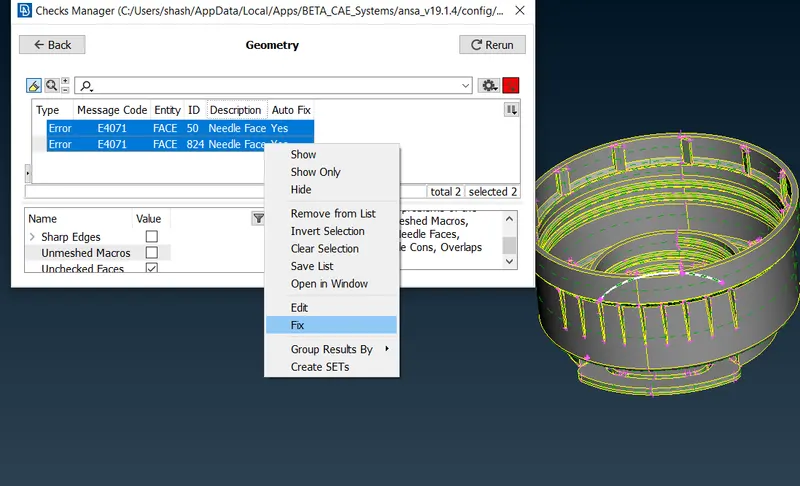
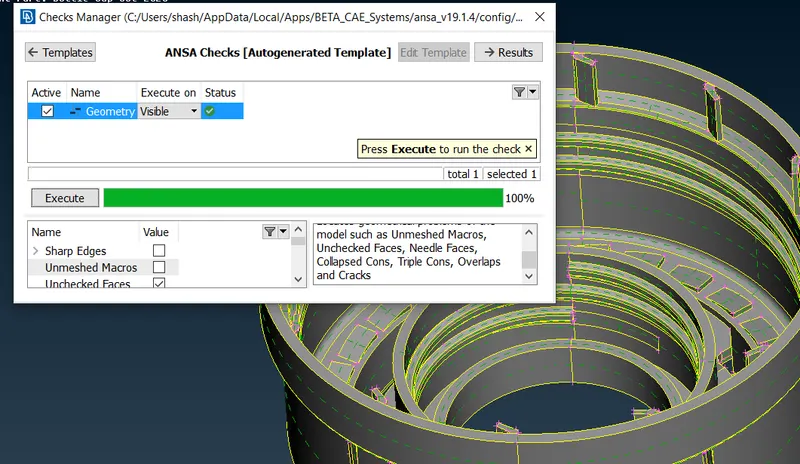
Here we checked the geometry again for that part so you can see no geometry cleanup required for this part and the same we cleane the rest of the parts.
Now we will proceed for the mid surface extraction here, it is very difficult to extract.
Here we will go for manual mid surface method and also auto mid surface or some features.
here i am showing a mid surface of one part of this plastic component.
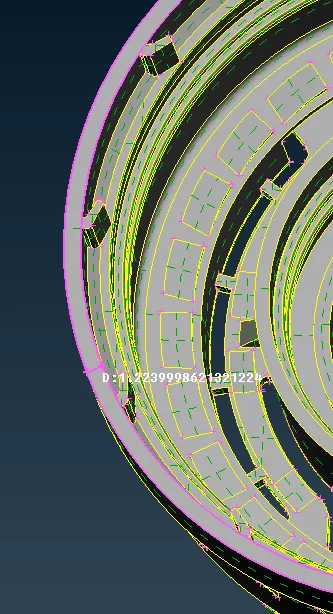
See first we will measure the thickenss first of that part and then offset that part.
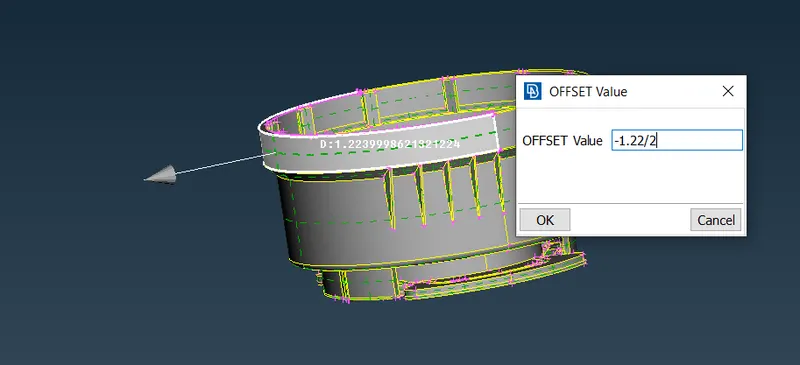
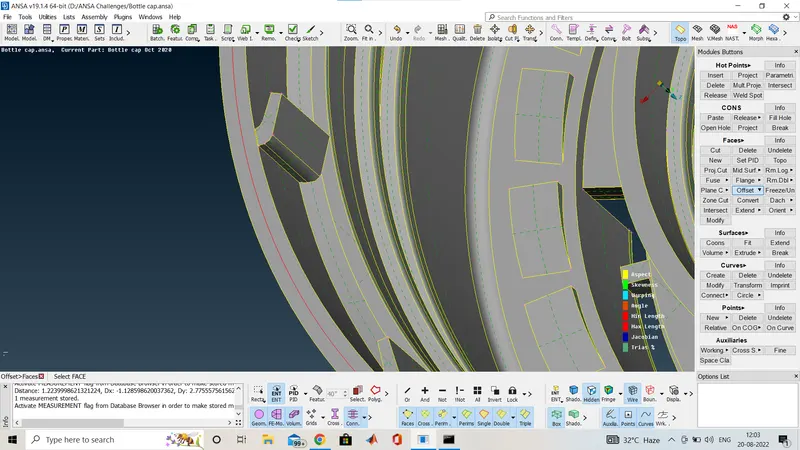
Here you can see that the red curve that is the mid surface of that part one more option i am showing you through Middle option in Faces
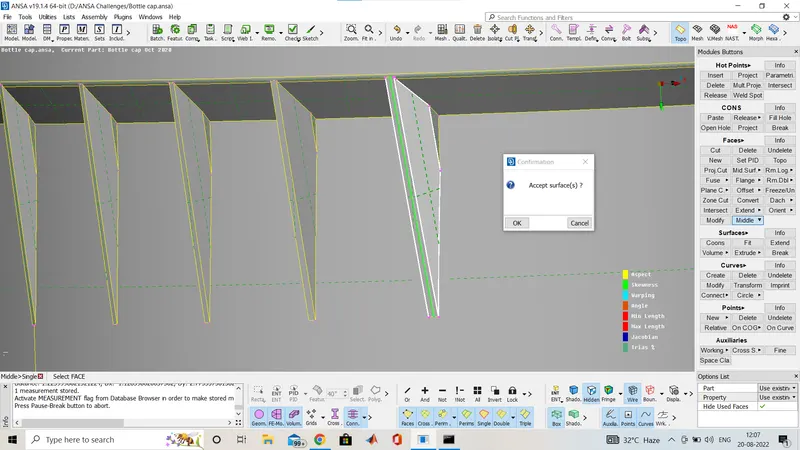
you can see that here i selected middle option in faces and we have to select the two sides of that faces and and automatically it will give the middle face of that part.
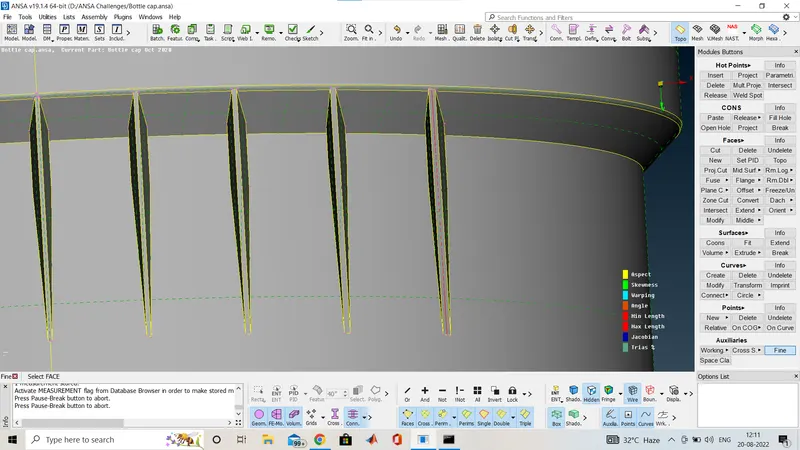
You can see here a mid surface red line in between now i am showing you the middle surface of various parts of the this component.
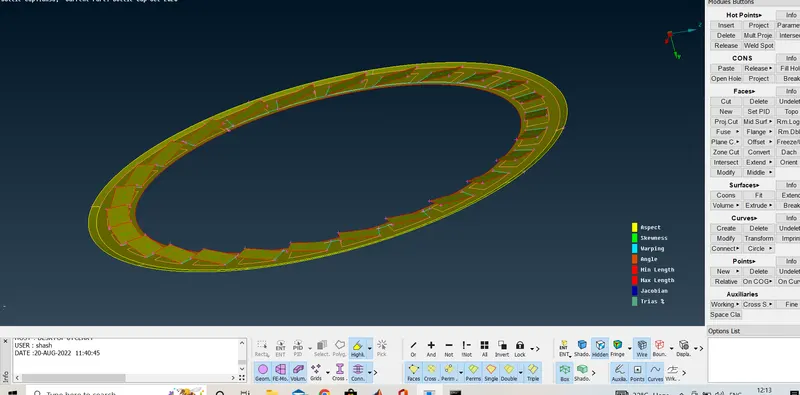
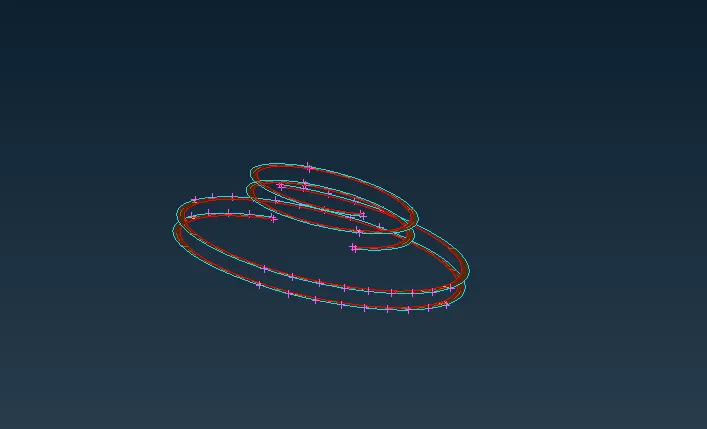
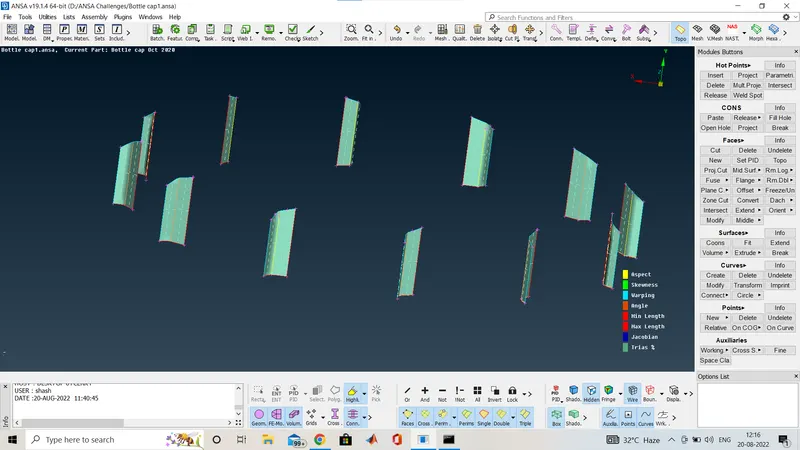
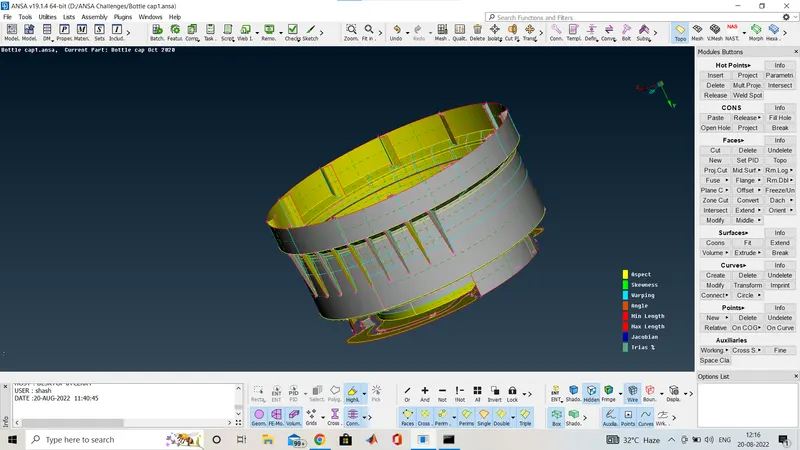
The whole mid curve of the component.
Now before meshing is done we have to give the quality criteria for mesh now we will go in quality
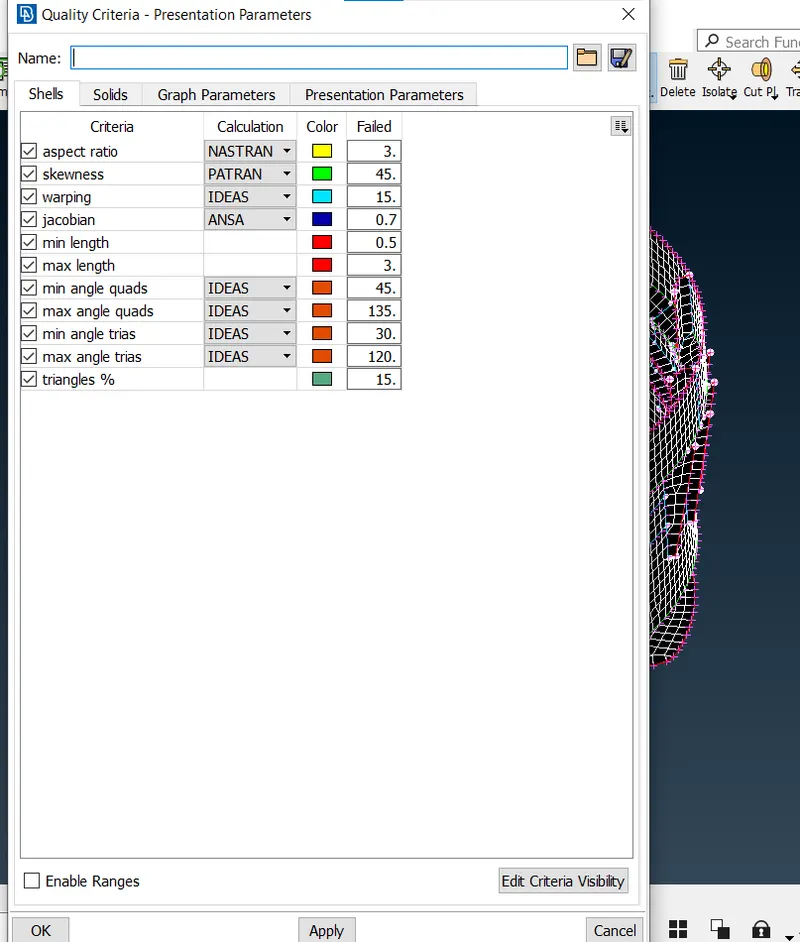
And now we have to give the mesh parametres.
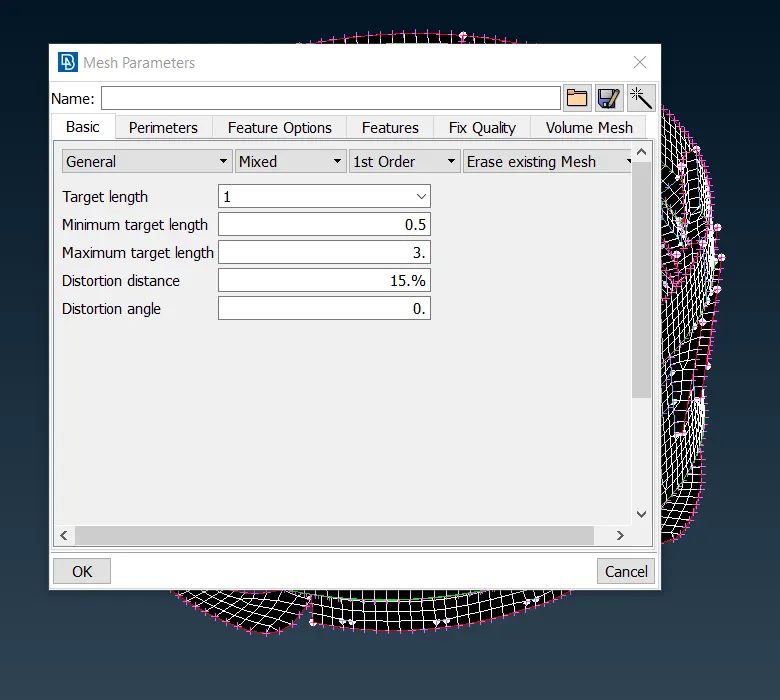
After quality input we are going to mesh the component .
We will use the split,reconstruct,swap,smooth option to improve the mesh quality and have less quality failure.
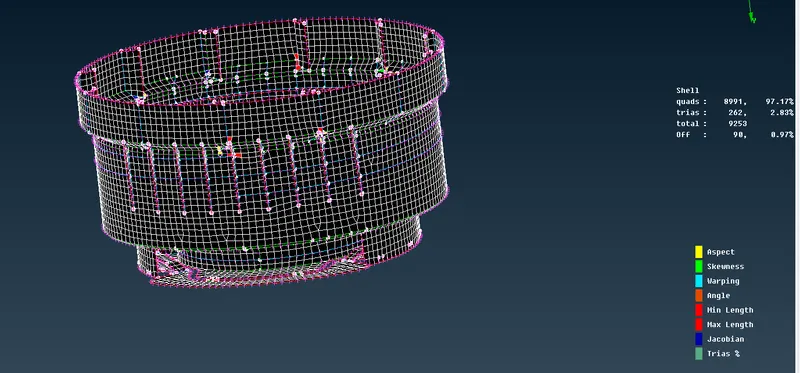
As i have some off element my quality is failing on some region also mention in the question due to the smaller reason near triple coon formed so some element may fails for quality.
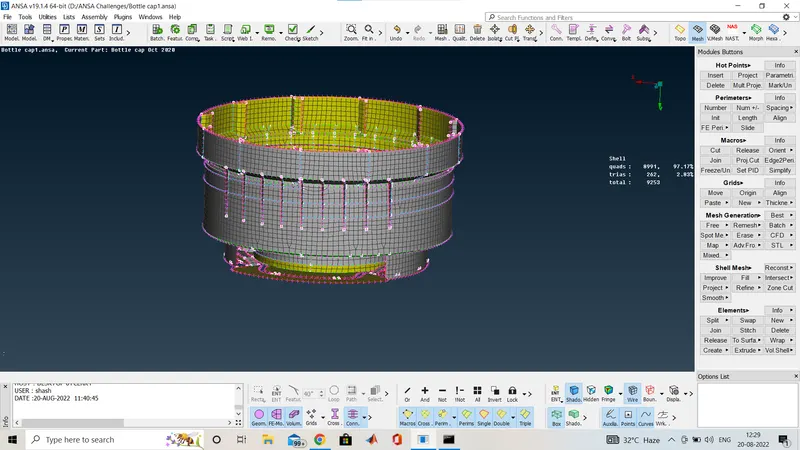
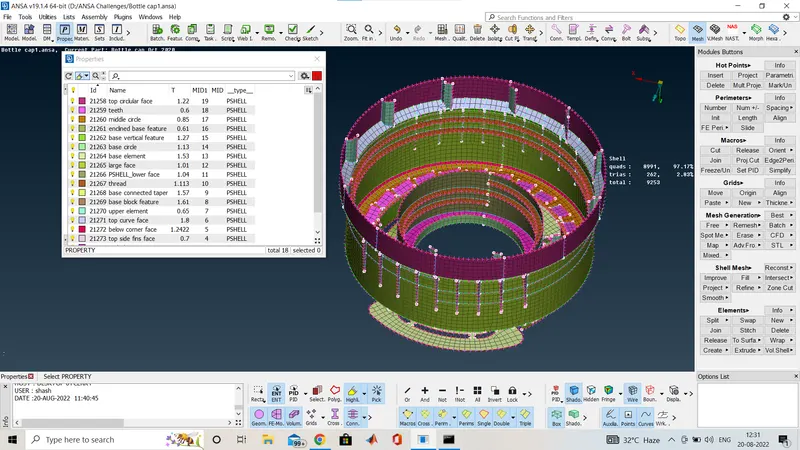
Now i am going to assign the property for different parts of different thickness.
we will use Set PID option in Faces
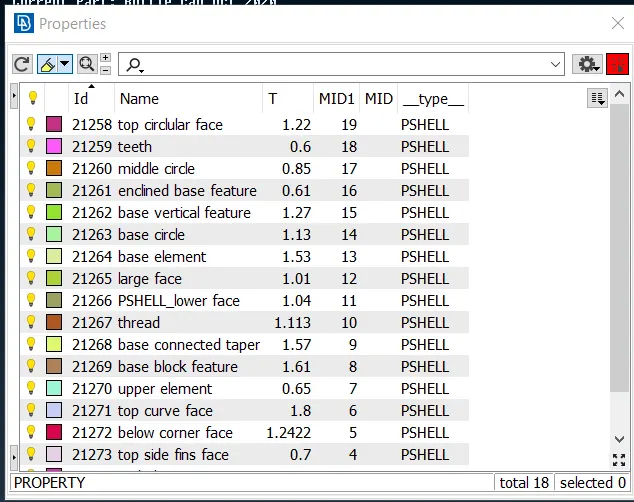
This is how i assign the different property for the various thickness .