Week 4-1D Element Creation Challenge
Aim:
To mesh the given component and create a 1D element like box, beam, bar, and spring.
Objective:
- To mesh the component with the size of 5 units.
- To create a 1D element like a rod, beam, and bar having a cross-section of the box, I-section, and X-section respectively, and DOF.
- To apply mass magnitude of 10 with RBE2 link.
- To join the two components with the spring element.
Procedure:
- First of all import the "IGES" file using the import geometry command.
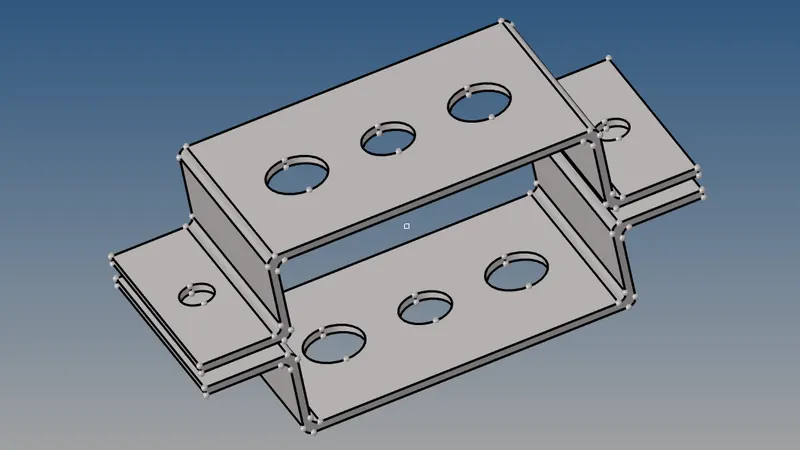
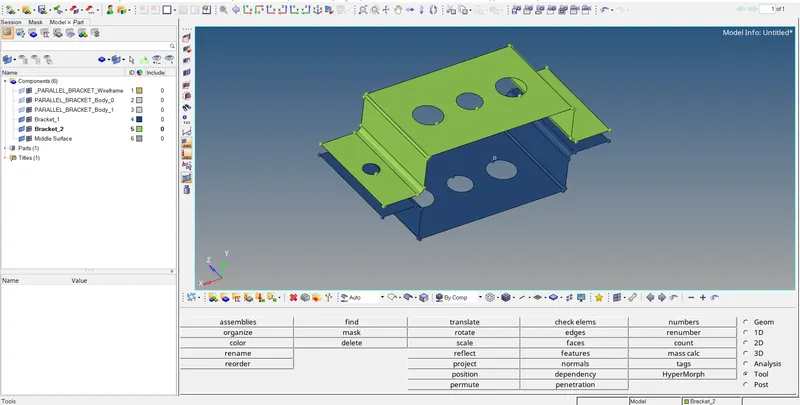
- Next step is to create a midsurface by choosing the "midsurface" option from geom. For that select "skin offset" and surface for which mid surface is to be created.
- To create midsurface for lower bracket create a new component and then by using "organize" in tool option assign the mid surface to the created component bracket_2.
Meshing
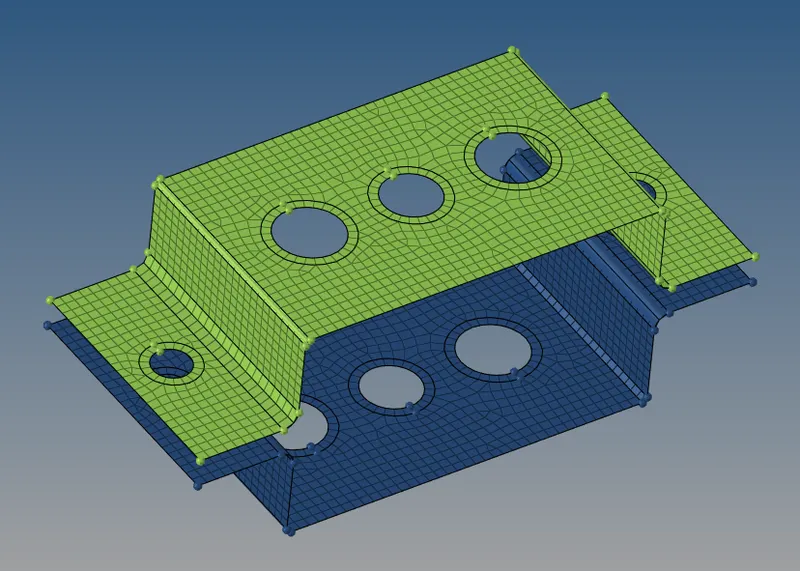
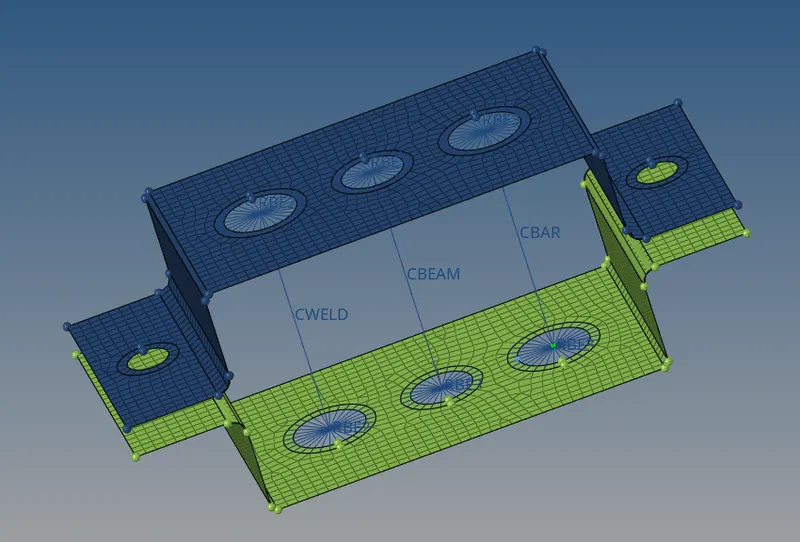
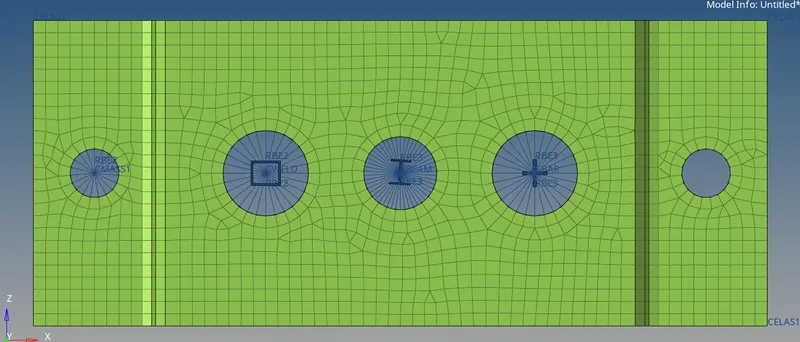
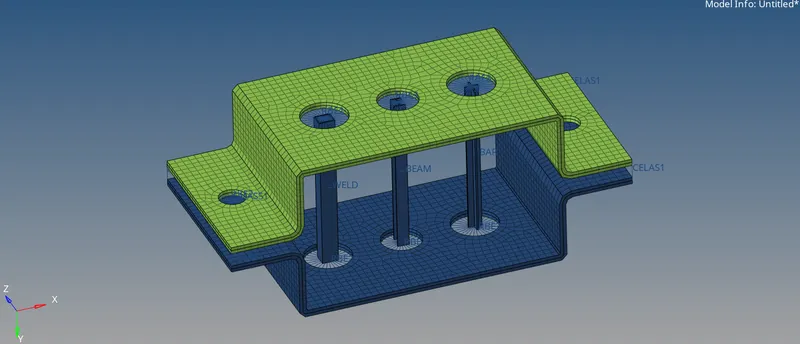
- Next step is to mesh the component with the size of 5 units using the "automesh" option in 2D. Give the holes washer split of 5 units to get uniform mest around it. The following image shows the meshed component.
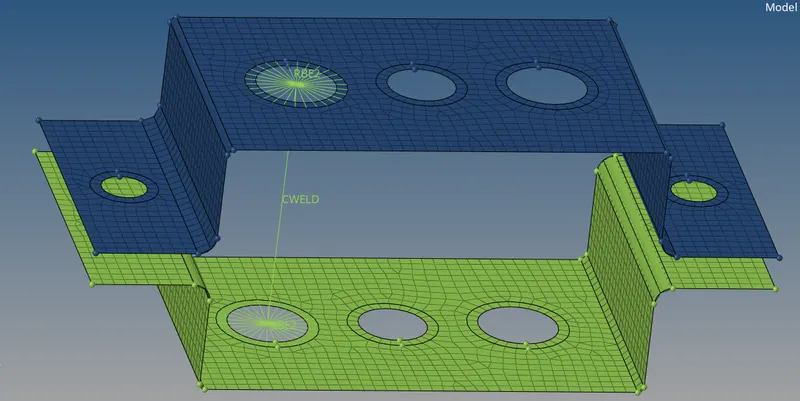
a. Rod Element having box section and translation DOF constrained with RBE2 link
- Rod element is used for tension and compression.
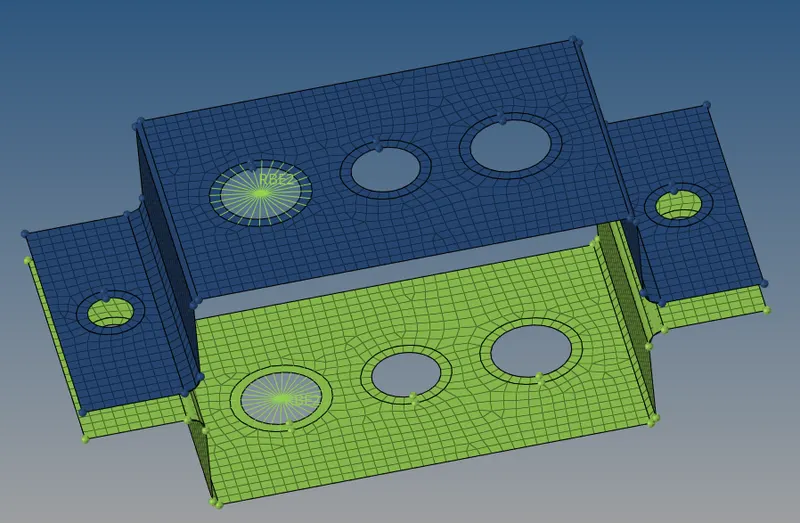
- RBE2 elements are rigid elements that do not move, rotate, or transform. To create the RBE2 link, go to 1D and choose the "rigids" option. To create a link select the multiple nodes option and select calculate nodes. Here we require translation DOF to be constrained so untick the rotational DOF (dof4, dof5, and dof6) and create the link.
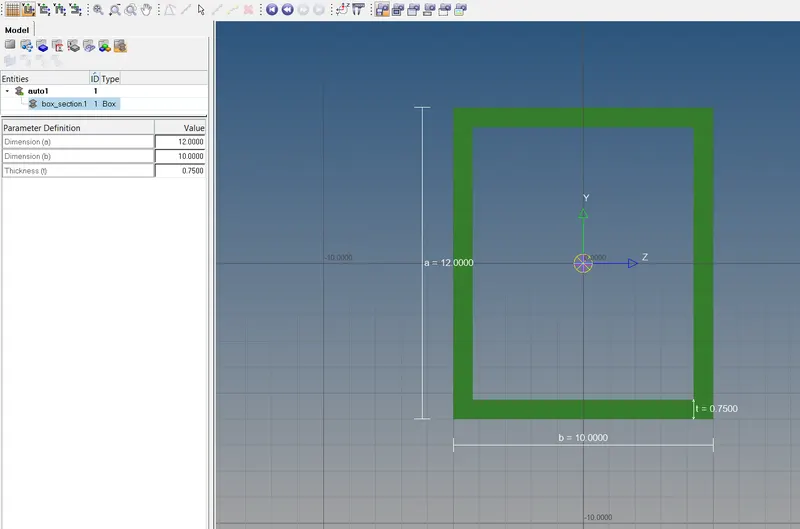
- To create rod element at these links select the "rods" option in 1D. To give the rod the shape of Box go to "HyperBeam" and select the standard section. Then choose the box section and create, which will then open the HyperBeam view option where we can give the desired dimension to the box.
b. Beam Elemen having I-section and all DOF constrained with RBE3 link
- Beam element has all 6 DOF in use and it is used for the unsymmetric section as well.
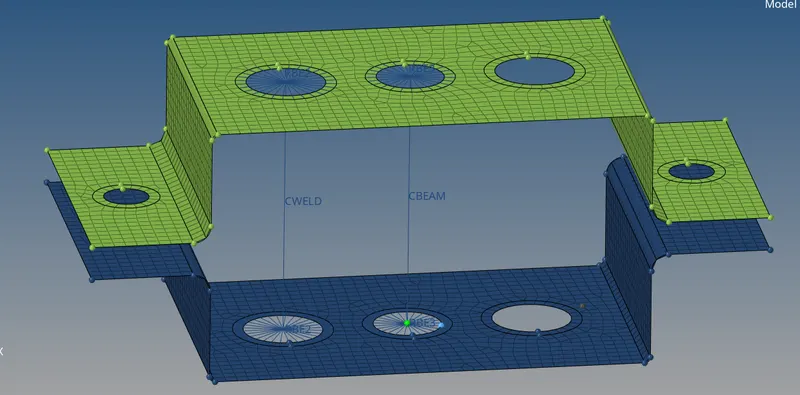
- RBE3 elements can move, rotate, or transform. To create an RBE3 link, go to 1D and choose the "rbe3" option. To create a link select the nodes require for the link and create. Here we require all DOF to be constrained so tick all DOF ie. (dof1, dof2, dof3, dof4, dof5, and dof6) and create the link.
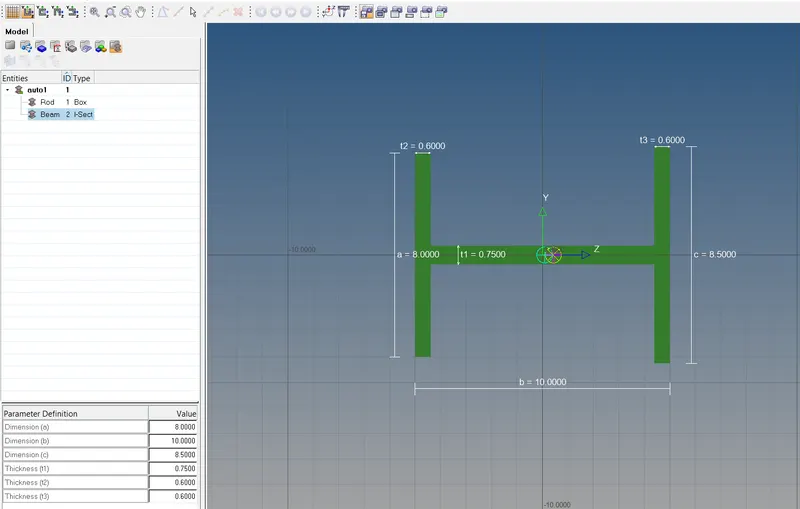
- To create beam element at these links select the "bars" option in 1D. In that select nodes and element type as CBEAM and create. To give I cross-section to beam goes to HyperBeam view and create new component having I section and give the desired dimension to the I-section.
c. Bar Element having X section and only X & Y DOF constrained with RBE3 link
- Bar element has all 6 DOF in use and it is used for symmetric section.
- Now create rbe3 link for 3rd hole as mentioned above but here constrain only x and y DOF ie untick dof3 and dof6.
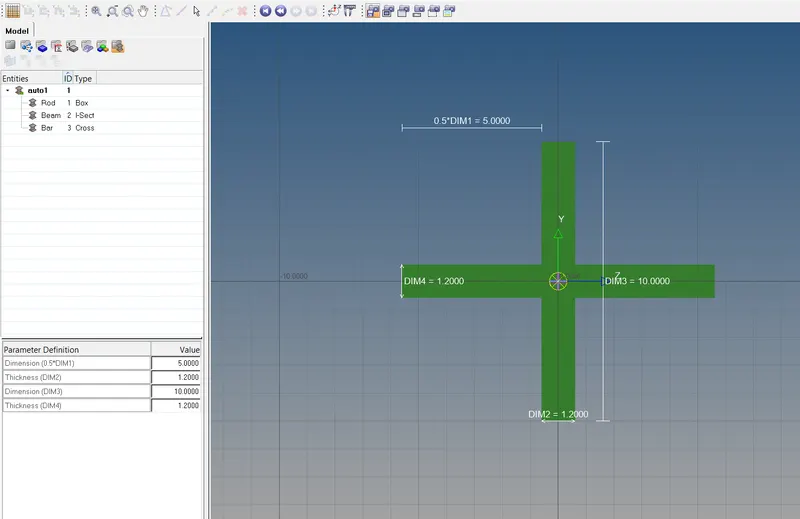
- To create a bar element at these links select the "bars" option in 1D. In that select nodes and element type as CBAR and create. To give the bar X cross-section, go to HyperBeam view, create a new component with an X section, and give the desired dimensions.
d & e. Apply mass magnitude of 10 with RBE2 link.
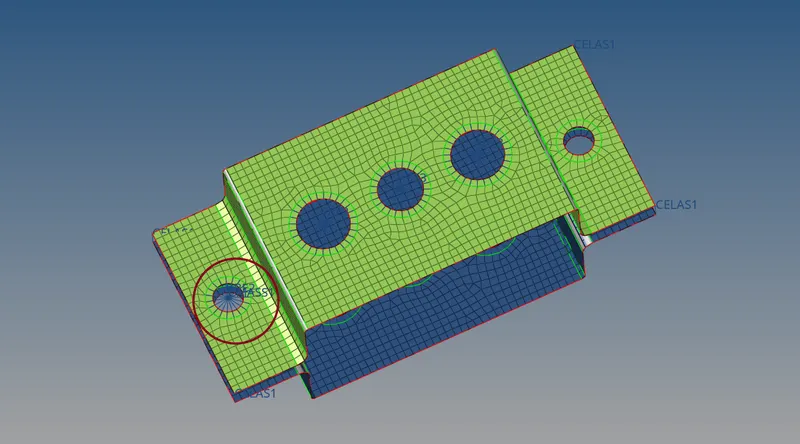
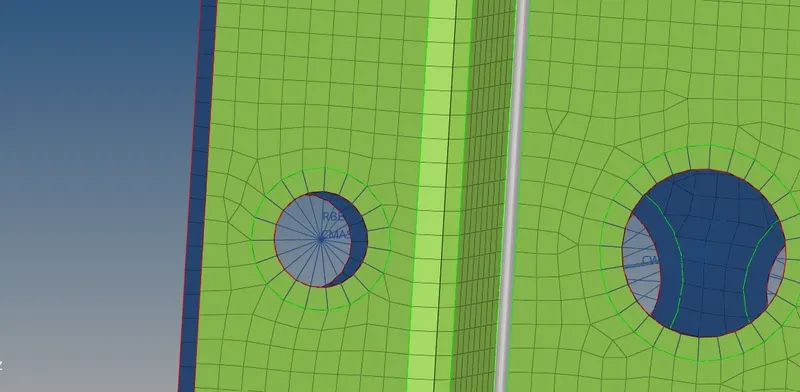
- To apply the mass of 10 units to the rbe2 link go to masses in 1D, create rbe2 link using the "rigids" option in 1D. Then select the "masses" option in 1D and choose nodes of the rbe2 link then provide mass and create. The following image shows the mass provided ie. CMASS1 to the rbe2 link.
- Here CMASS1 is a scalar mass element.
f. To create a spring element connecting the two brackets
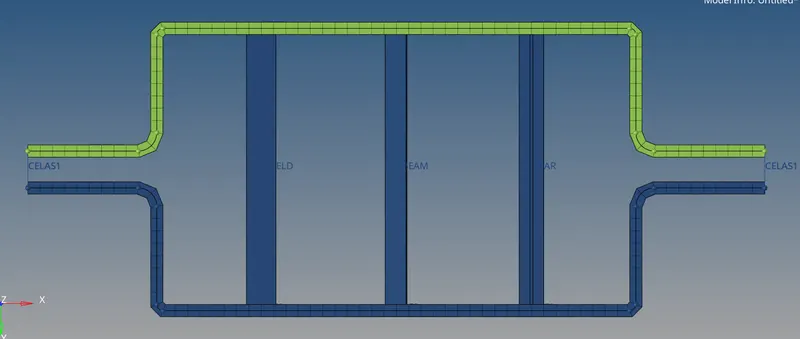
- To create the spring element, go to the "springs" option in 1D and select nodes where spring is to be created on the bracket. The following image shows the spring element as CELAS1 which is joining the two components.
- Here CELAS1 acts as a scalar spring element of the structural model.
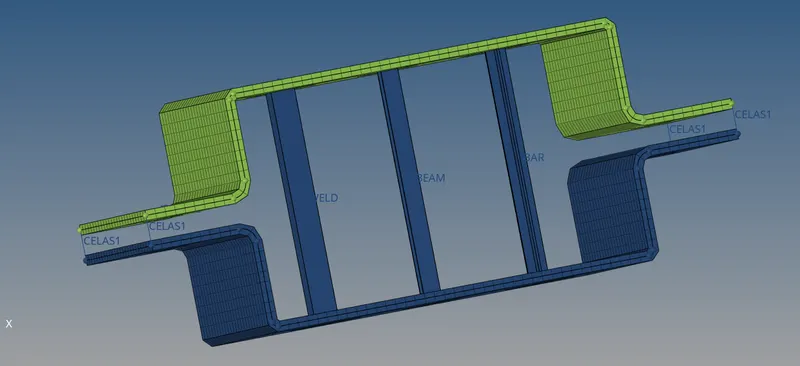
Final Model
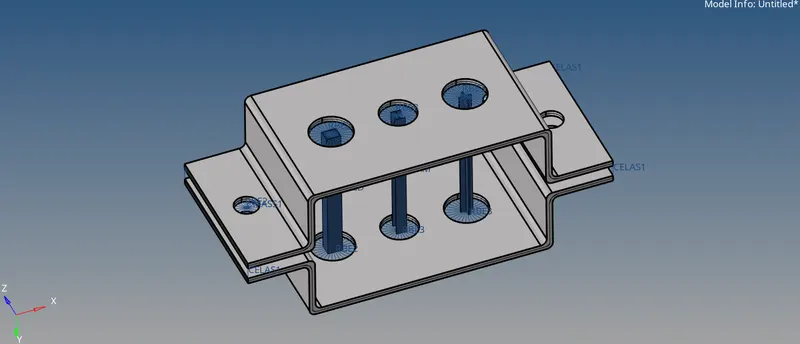
Conclusion:
- Components have meshed with the size of 5 units.
- 1D element like a rod, beam, and bar having a cross-section of the box, I-section, and X-section respectively and DOF has been created.
- Mass magnitude of 10 with RBE2 link has been applied.
- Spring element joining two components has been created.