Week 3 - 2D meshing for Sheet metal
Objective
For the given Hood model, Take the mid surface after checking the geometrical errors and mesh the mid surface with the given element Quality criteria. (Refer to the table below for the Quality criteria)
S.No | Quality Criteria | Value |
1 | Target/Average length | 5 |
2 | Minimum Length | 2 |
3 | Maximum Length | 7 |
4 | Aspect | 3 |
5 | Warpage | 15 |
6 | Skewness | 45 |
7 | Jacobian | 0.7 |
8 | Minimum Quad Angle | 45 |
9 | Maximum Quad Angle | 135 |
10 | Minimum Tria Angle | 30 |
11 | Maximum Tria Angle | 120 |
10 | Tria Percentage | 15 |
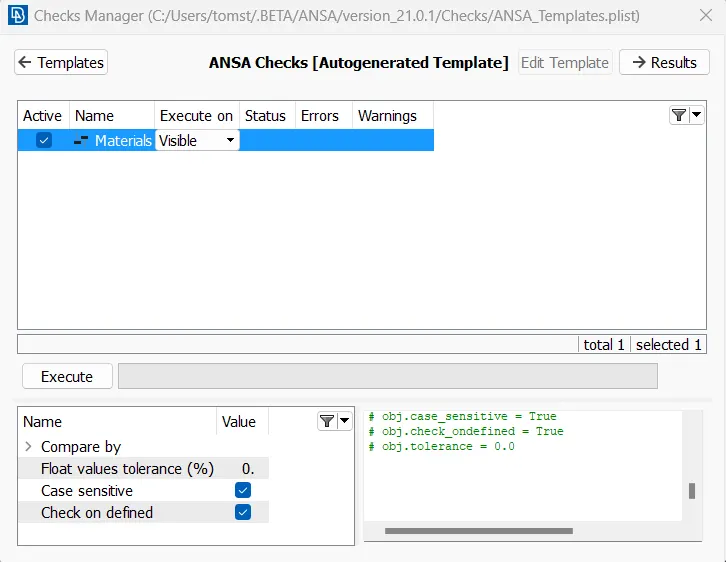
The first step after importing the model is to properly analyze and understand the geometry. When a CAD model is imported into the ANSA, there might be several geometrical errors like missing/distorted surfaces, intersecting surfaces, etc. due to the format conversion process or inherent bad model. And, it is important to clear all these errors before starting meshing. So, the next step is to clean up the geometry. To ensure that all the surfaces are connected properly Faces>Topo tool is used for all the edges of each individual component at a time. Next, do the material check and geometry check is performed by going to Checks> material, Checks>Geometry and running it for parameters as shown in the image below. Another image shows the errors detected.
material check
Geometry check
Most of the errors were fixed automatically by right-clicking on the error>fix. Next, the orientation of all the faces is modified by going to Faces>Orient. This ensures that all faces are oriented similarly.
The next, step is to extract the mid surfaces for each component and keep them in separate property id. Midsurfaces are extracted using the manual method i.e. offsetting the surfaces of either face to the middle. First, the thickness of each component is measured using the Measure tool from Utilities>Measure. The outer panel and inner panel were found to be 0.75mm thick ,
Next, the mid surface is extracted using the Offset tool by going to Faces>Offset and selecting all the surfaces on one face. Then, half of the thickness is given as the offset value, the direction is checked and offset. Now, the property is assigned to the extracted mid surface by going to Faces>Set PID and assigning to the respective property. Similarly, all mid surfaces are extracted and property assigned for all the components.
Next, meshing is done using the Mesh generation>Best tool. This tool generates the mesh using the best algorithm applicable. Then, the created mesh is refined using the Shell Mesh>Reconstruct tool. It is ensured that there are no rotating quads. Also, trias are kept as low as possible. While dealing with trias, the following things need to be ensured.
- No back to back trias touching each other
- No opposite trias
- No trias touching the edges
- No trias on a feature
- Low concentration of trias in a region
To deal with trias, the following tools are used,
- Grid>Paste, to paste the nodes and move tria backward
- Elements>Split, to split an element and move tria forward
- Elements>Swap, to move the tria left or right
- Elements>Join, to join two trias to make a quad
After modifying the mesh, Shell Mesh>Smooth tool is used to smoothen the flow of the mesh. Any elements failing for quality criteria are also fixed by either remeshing or smoothing the elements. The created mesh is shown below,
Conclusion:
Geometry cleanup, mid surface extraction, and 2D meshing of the given hood model were successfully done. And all the elements pass the quality criteria. All the features in the model are captured properly with good mesh flow. Tria concentration is kept low.
(My ansa version is not allowing to save model & mid surface to iges and step file)