Week 2 Challenge : Surface meshing on a Pressure valve
Report for all 3 models is mentioned below :-
MODEL 1 WITH 1MM MESH LENGTH
Aim/Objective – To check the geometrical error and perform topology cleanup accordingly and mesh the model.
Target length = 1mm (Case 1)
Element type = Tria
Procedure –
- Open the model from the top left corner tab.
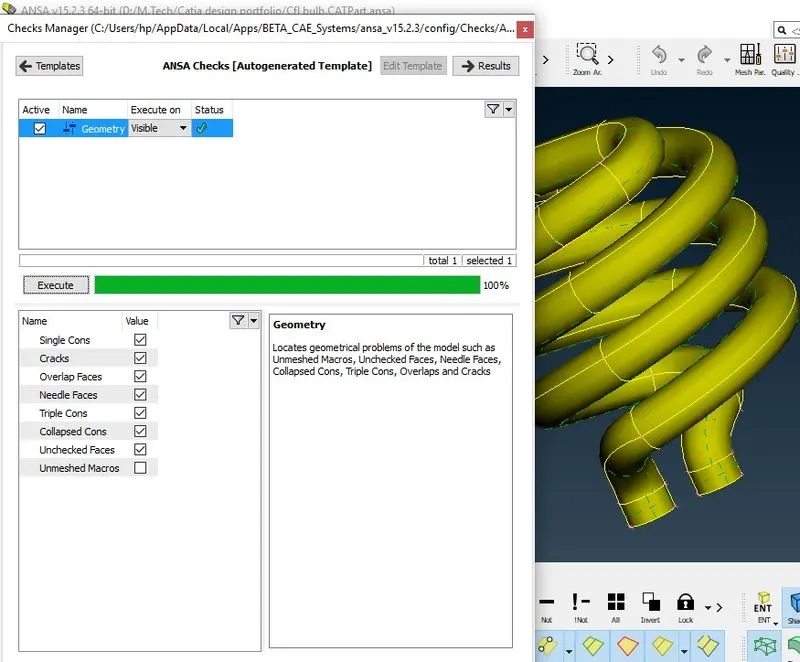
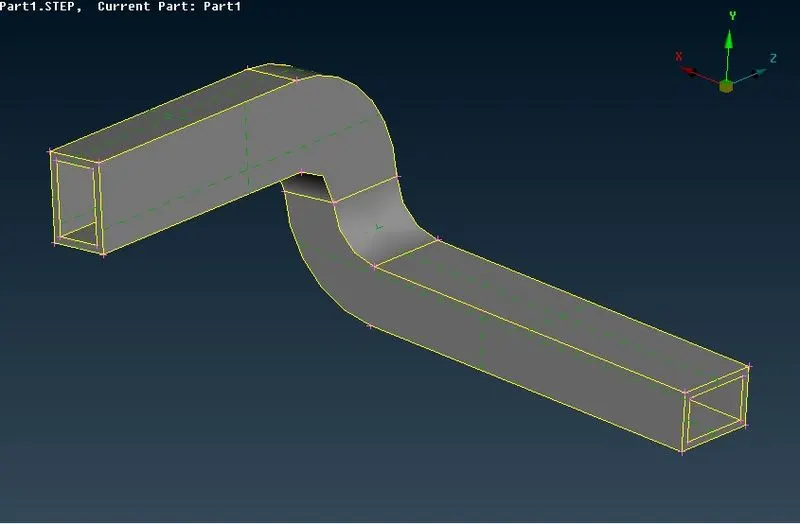
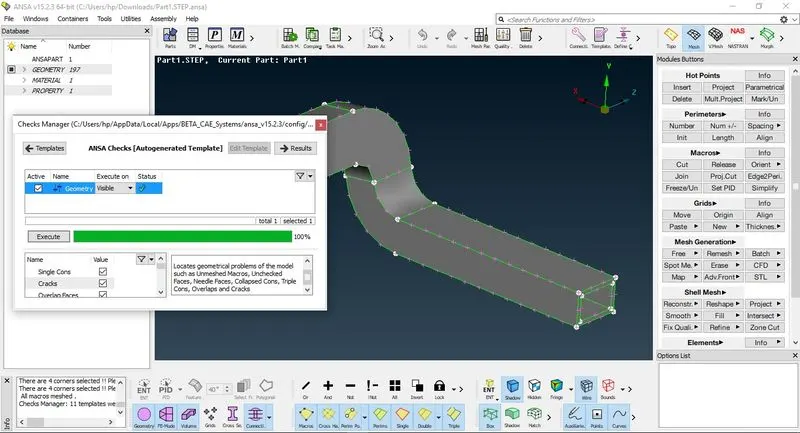
- Most important step is to check the geometry i.e. Geometry check. It can be done by using the auto generated template then by executing if any error is present then It can be shown or else you can see green tick over there. In this case we need triple coon so expect that there are no errors present.
- If there are single coons present, then they should be removed i.e. geometry clean up should be done. In this case no single coons are present.
In CFD we use closed model so that volumetric mesh can be used and it can be easy to simulate.
- If there are no errors present, then meshing can be done.
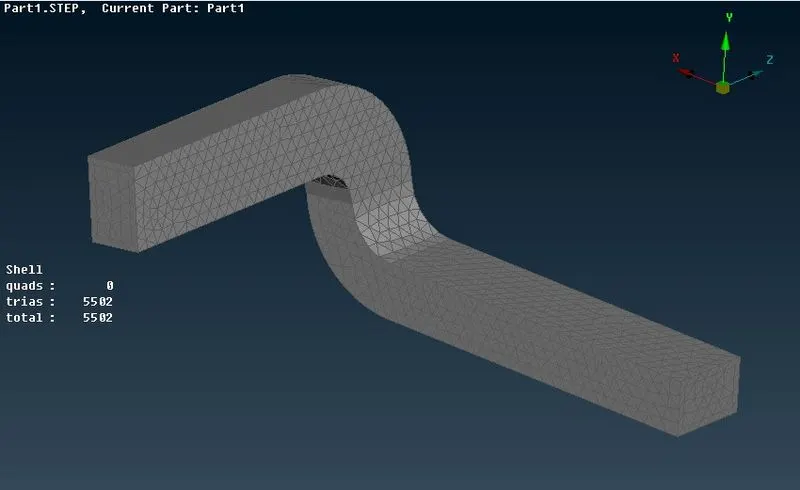
- For meshing go to mesh mode < Perimeters < length < a. Perimeter= 1mm b. Macros=1mm < Mesh parameters < Tria element < Target length=1mm < Mesh generation (To deploy the mesh) < SPOT mesh < select face or visible < middle click.
Learning outcome –
- Geometry clean up
- New command – a. Faces b. Surface type c. Fill hole
- Boolean Operation – a. Neighbor c. Or d. !Not
Results – Shell quads: 0
Trias: 5502
Total: 5502
Conclusion –
- With the minimum mesh length more fine mesh is obtained
- Learned about geometry clean up (As it is most important step before moving ahead)
MODEL 2 WITH 2MM MESH LENGTH
Aim/Objective – To check the geometrical error and perform topology cleanup accordingly and mesh the model.
Target length = 3mm (Case 2)
Element type = Tria
Procedure –
- Open the model from the top left corner tab.
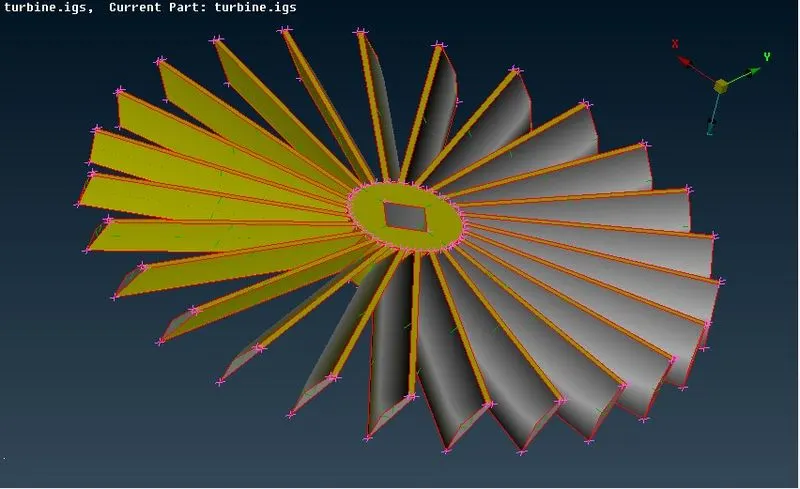
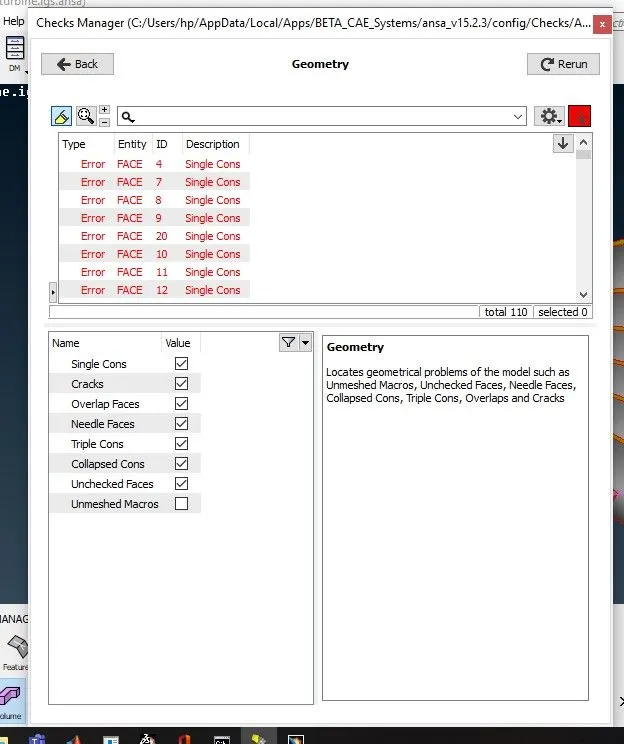
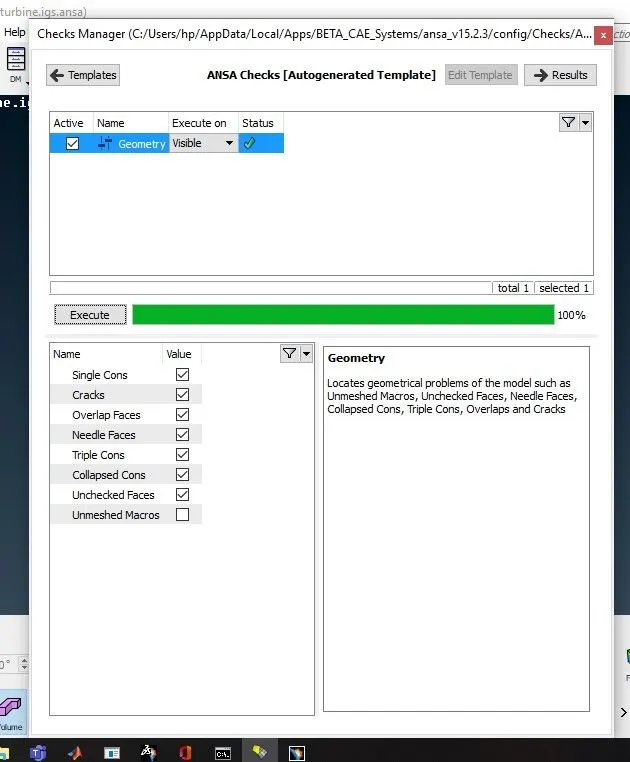
- Most important step is to check the geometry i.e. Geometry check. It can be done by using the auto generated template then by executing if any error is present then It can be shown or else you can see green tick over there. In this case single coons are present that needs to be rectified.
In CFD we use closed model so that volumetric mesh can be used and it can be easy to simulate.
- For getting rid of coons in TOPO mode < Faces < TOPO command is used after this one more time geometry check has to be done for the conformation that there are no errors.
- If there are no errors present, then meshing can be done.
- For meshing go to mesh mode < Perimeters < length < a. Perimeter= 3mm b. Macros=3mm < Mesh parameters < Tria element < Target length=3mm < Mesh generation (To deploy the mesh) < SPOT mesh < select face or visible < middle click.
Learning outcome –
- Geometry clean up
- Topo mode < Faces < Topo (perform topology)
- Boolean Operation
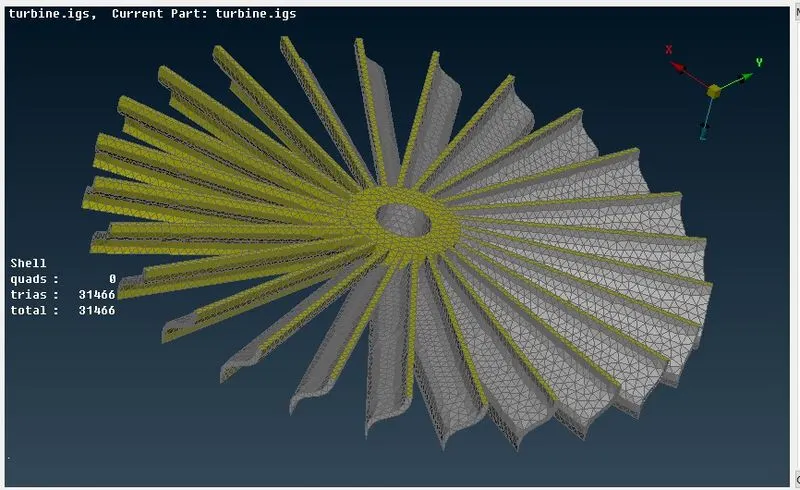
Results – Shell quads: 0
Trias: 31466
Total: 31466
Conclusion –
- With the given mesh length more fine mesh is obtained
- Learned about geometry clean up (As it is most important step before moving ahead)
MODEL 3 WITH 5MM MESH LENGTH
Aim/Objective – To check the geometrical error and perform topology cleanup accordingly and mesh the model.
Target length = 5mm (Case 3)
Element type = Tria
Procedure –
- Open the model from the top left corner tab.
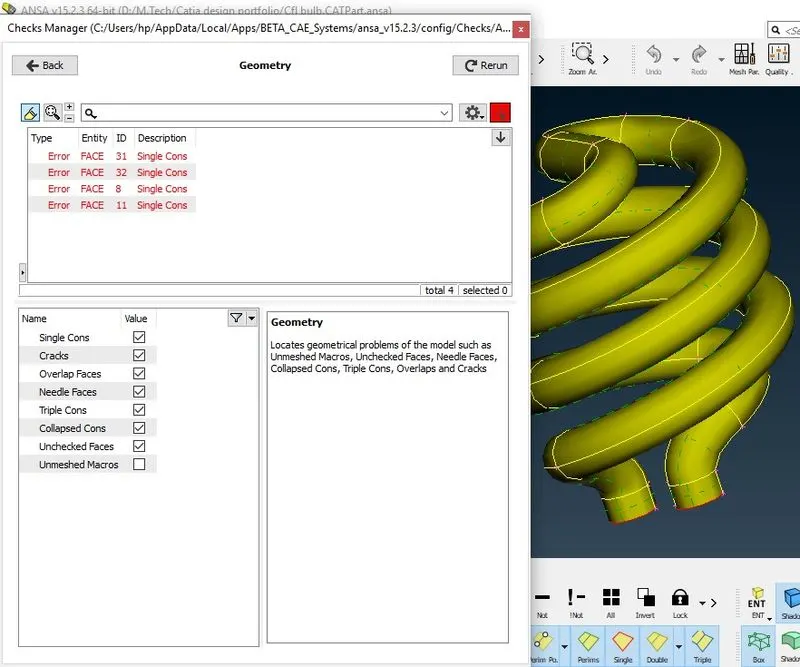
- Most important step is to check the geometry i.e. Geometry check. It can be done by using the auto generated template then by executing if any error is present then It can be shown or else you can see green tick over there. In this case single coons are present that needs to be rectified.
In CFD we use closed model so that volumetric mesh can be used and it can be easy to simulate.
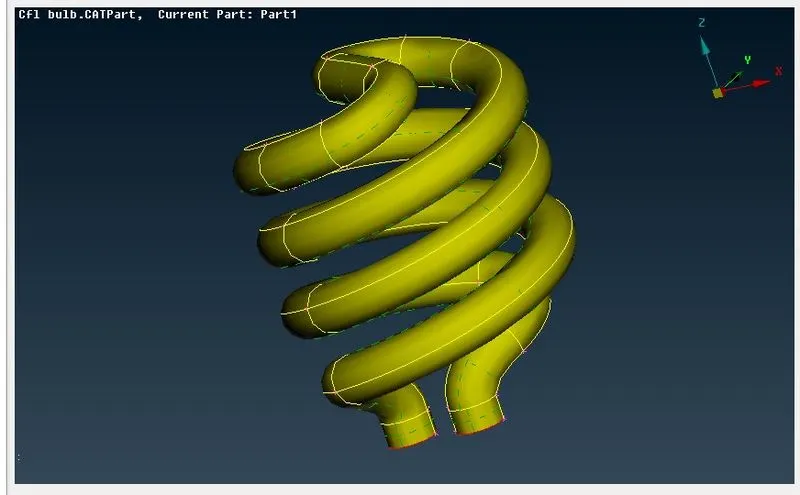
- Two bottom holes where open so to fill them Fill hole command is used.
- For getting rid of single coons TOPO mode < Faces < TOPO command is used after this one more time geometry check has to be done for the conformation that there are no errors.
- If there are no errors present, then meshing can be done.
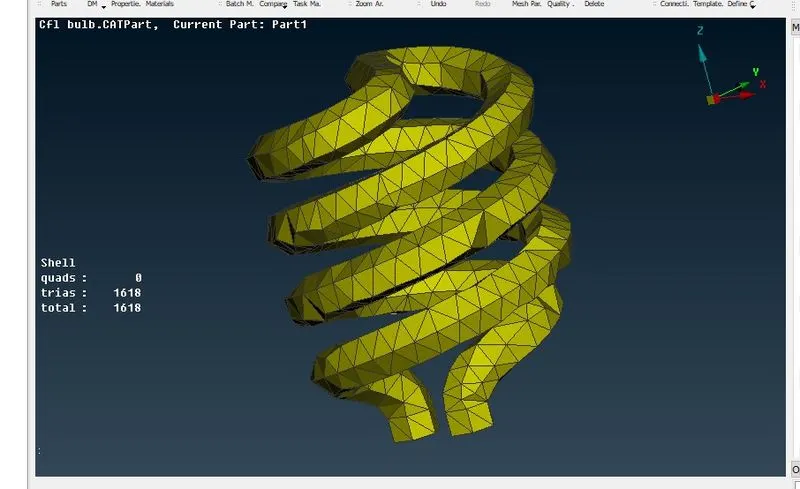
- For meshing go to mesh mode < Perimeters < length < a. Perimeter= 5mm b. Macros=5mm < Mesh parameters < Tria element < Target length=5mm < Mesh generation (To deploy the mesh) < SPOT mesh < select face or visible < middle click.
Learning outcome –
- Geometry clean up
- Fill hole command
- Topo mode < Faces < Topo (perform topology)
- Boolean Operation
Results – Shell quads: 0
Trias: 1618
Total: 1618
Conclusion –
- With the given mesh length more fine mesh is not obtained because for fine mesh, mesh length should be smaller.
- Smaller mesh length = More fine mesh
- Large mesh length = Smaller mesh
- Learned about geometry
- clean up (As it is most important step before moving ahead)