Week - 12 - Creating the locator, writing and reading the node data
Objective:
To write a script which does the following,
- Connector
- Create a GUI with 4 buttons, which creates spider weld, spot weld and x, y, z locators with appropriate dof and the connectors are moved to the specific collectors
- Reading nodes from a file
- Create a macro to write the coordinates of the selected nodes to a file and to read the same file and create nodes on the specified coordinates
- Identical component identifier
- Create a macro which accepts a component from the user and checks the model for a similar components
Problem Statement:
- Connector
- The standard option available in the hypermesh to create connections are laborious as the same panel is to be used for all the connection types, there are various options that are to be changed depending on the connection type. Instead by creating a specific procedure for the given connection type, lead time in creating connectors could be reduced.
- Reading nodes from a file
- To perform any operation on a model nodes are used to highlight the specific location. Most often the coordinates of the nodes are obtained in a text file. It is a tedious process to create nodes by copying the coordinate. This process could be automated by reading the file with the coordinates and creating nodes on the specified locations
- Identical component identifier
- It is important to find the similar components in a model as these components need not be meshed twice. For a model with many components, it is difficult to identify duplicate components. This could be solved by comparing the number of surfaces in each component
Procedure to use the script:
- Connector
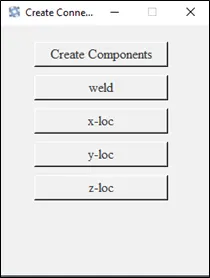
On the executing the file named ‘Week12-Challenge-1-Connector’, a GUI will appear as shown in the image
-Click create components button to create, weld and locator collectors
-Click weld or x, y, z locators to create the respective connections
-Pick the desired nodes for which the connection are to be performed
- Reading nodes from a file
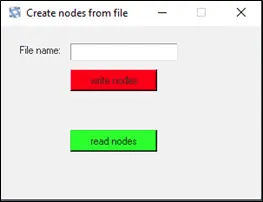
On the executing the file named ‘Week12-Challenge-2-Create_nodes.tcl’, a GUI will appear as shown in the image
-To get the coordinates of the selected nodes and write it in a file, enter the name of the file in the ‘File name:’ text field, select the nodes and click ‘write nodes’ button
-Coordinates of the selected nodes will be written in a file and with user-defined file name, will be saved in the current directory
-On clicking ‘read nodes’ button nodes will be created on the coordinates specified in the selected file
- Identical component identifier
-On the executing the file named ‘Week12-Challenge-3-Identical-comp.tcl’, the user will be asked to pick a component which must be checked for the duplicates
-Selected component will be checked with all the other existing components if a similar component is found, those components will be displayed
TCL Command Explanation
- Connector
1.A GUI was created with 5 buttons, create components, weld, x-loc, y-loc, z-loc
2.A procedure ‘New_Comp’ was created to create desired components
-Creates a list of all the existing component names and saved in the list ‘comp_names’
-If the desired names doesn’t exist in the model, a new component is created by the name
3.A procedure ‘weld_proc’ was created to create spider weld on the selected nodes
-User was asked to select the nodes to create spider weld by the command ‘*createmarkpanel’
-Spider weld was created using the command ‘*rigidlinkinodecalandcreate’ and the created entities were moved to ‘weld’ component
4.A procedure ‘locator’ was created to create x, y, or z locators with component name and dof based on the locator type are passed as arguments
-User was asked to select master and slave nodes for creating locators by the command ‘*createmarkpanel’
-Based on the passed arguments connections are performed on the selected nodes by the command ‘*rigid’
-Created elements are placed in the appropriate components
- Reading nodes from a file
1.A text box was created to get the file name from the user and saved to the global variable ‘::name’
2.Two more buttons as, ‘write nodes’ and ‘read nodes’ were created
3.‘write nodes’ button was linked to the procedure ‘write_nodes’, which does the following,
-Accepts nodes from the user by the command ‘*createmarkpanel’
-Coordinates of the selected nodes were obtained by the command ‘hm_getvalue’
-The coordinates of all the selected nodes were written to a file and the file was closed
4.‘read nodes’ button was linked to the procedure ‘write_nodes’, which does the following,
-User was asked to select the file containing the coordinates of the nodes by the command ‘tk_getOpenFile’
-Selected file was opened in read mode
-Contents of the file was accessed through the while loop and the loop was executed until the end of file
-Nodes was created by the command ‘*createentity’
- Identical component identifier
-On the executing the file named ‘Week12-Challenge-3-Identical-comp.tcl’, the user will be asked to pick a component which must be checked for the duplicates
-Name of all the components in the model was stored in a list ‘all_comps’
-Number of surfaces in each of the components were calculated and assigned to a list ‘surf_count’
-Similarly, number of surfaces in the user selected component was obtained
-Thus, obtained number was compared with the ‘surf_count’ list using the ‘lsearch’ command
-The components with same number of surfaces as the user selected component was displayed, while all the other components were hidden
Conclusion:
Three macros were written which does the following,
1.Creates a connectors such as spider welds and locators between the selected nodes and these connectors were moved to their respective components
2.Coordinates of the selected nodes were saved in a file and the same file was read and the nodes were created on the defined coordinates
3.Duplicate components of the user selected component was found and displayed from all the components in the model