Usage of Navigation tool , Timeliner and Clash Detection test using Naviswork
1.
AIM:- To export the revit architecture and structure model to Navisworks Manage 2023 which has been previously created in week 6 to week 8.
INTRODUCTION:- Export the revit architecture and structure model to Navisworks Manage 2023 is going to be explained with step by step procedure.
PROCEDURE:-
- Open the revit and architecture linked file which has been which has been saved earlier
- Go to file > Export > NWC file
- Save the file to the required destination
- Noew the file is opened in Navisworks Manage 2023.
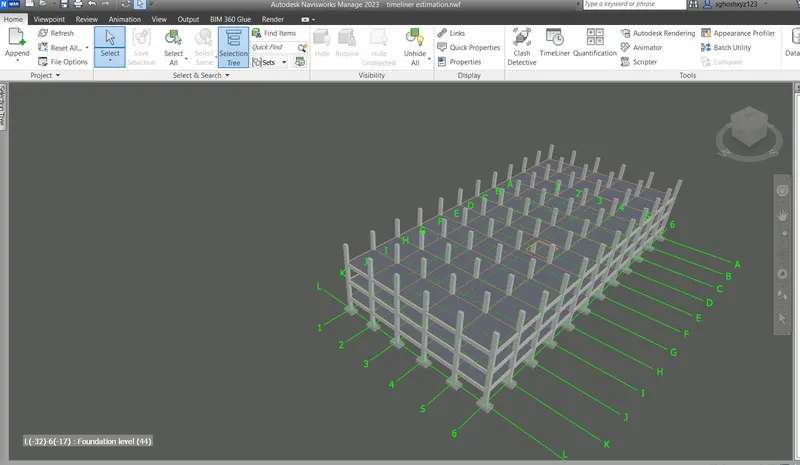
RESULT:- Export the revit architecture and structure file to NWC file format has been explained with step by step procedure.
2.
AIM:- To use navigate tool to walk around the model and walk through the rooms created by Navisworks Manage 2023.
INTRODUCTION:- Use of navigate tools to walk around the model and walk through the room is going to be explained with step by step procedure.
PROCEDURE:-
- Open the Navisworks Manage 2023
- Go to viewpoint > Save viewpoint with appropriate names
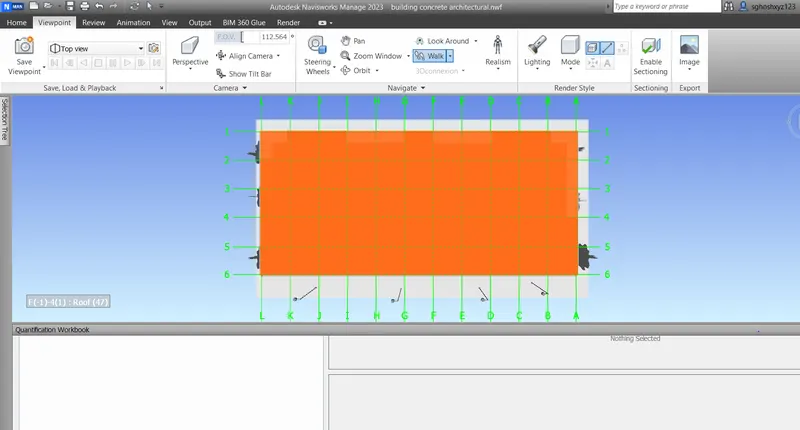
Top View
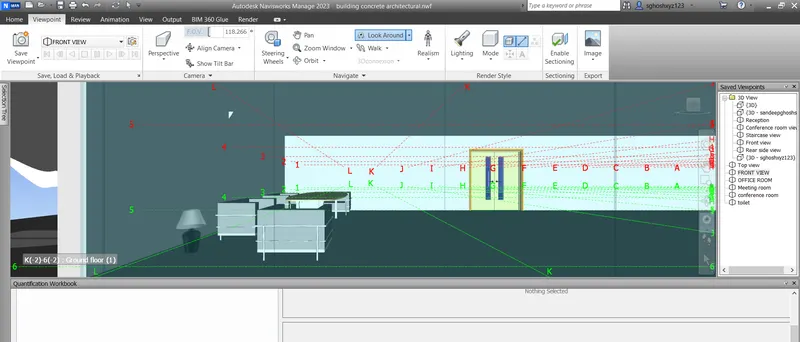
Front view
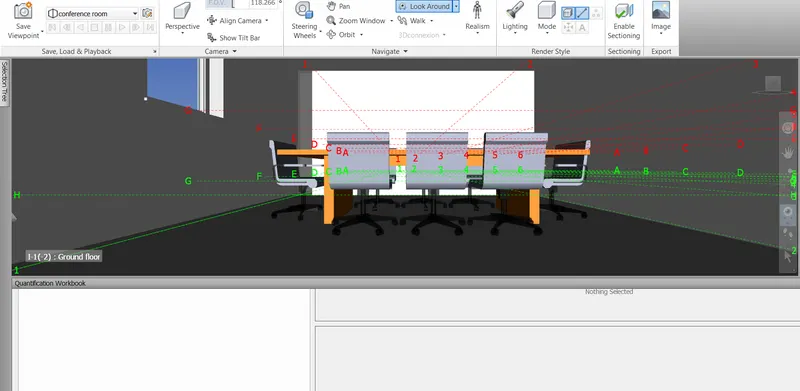
Conference room
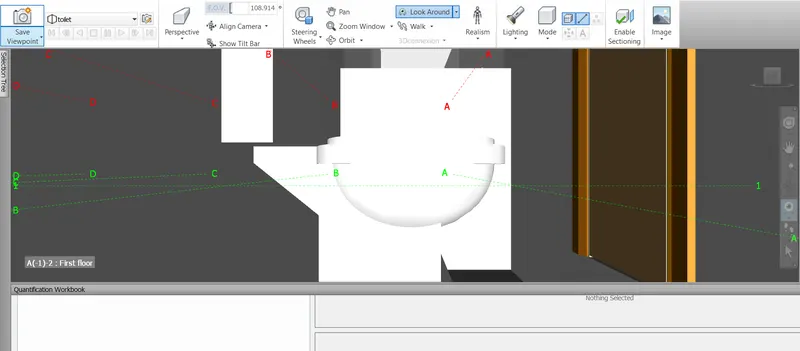
Toilet
RESULT:- Use of navigate tools to walk around the model and walk through the room has been explained with step by step procedure.
3.
AIM:- To use navigate tools to walk through the model with the use of Navisworks Manage 2023
PROCEDURE:-
- Open Navisworks Manage 2023
- For realism point of view, go to viewpoint> Realism > Third person
- Select the third person and walk around the building
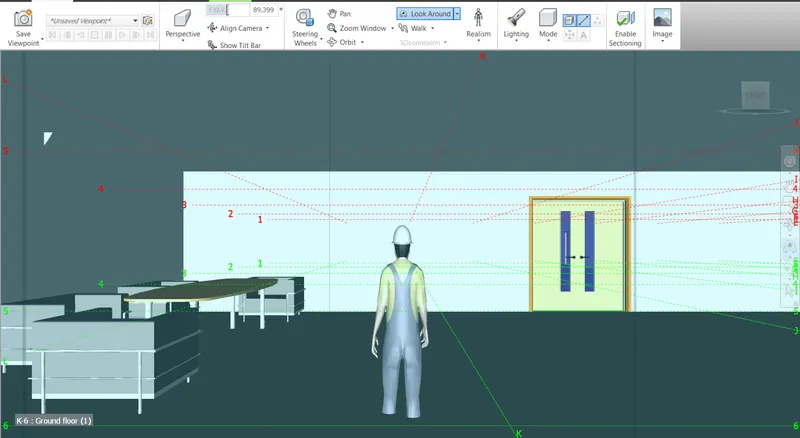
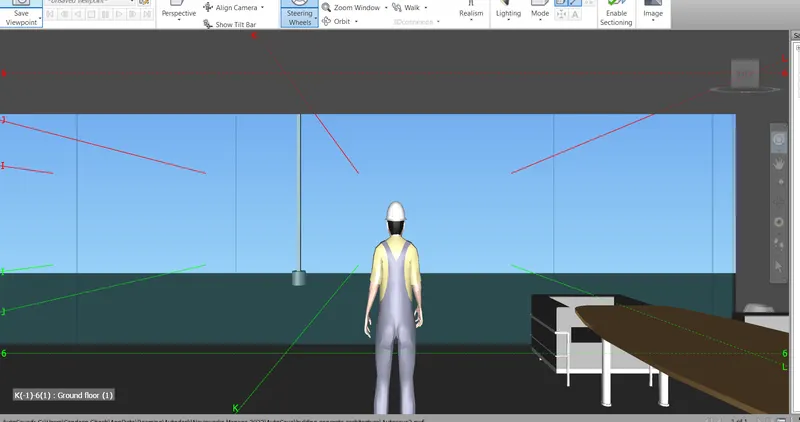
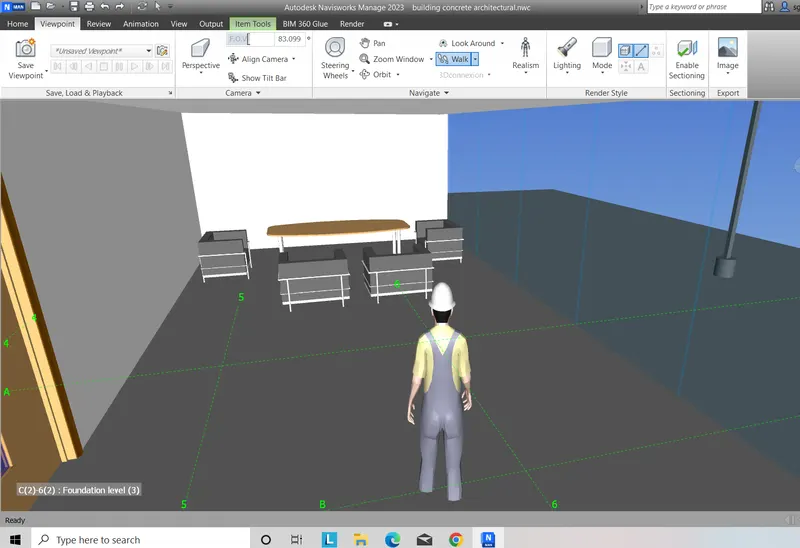
RESULT:- Use of navigate tools to walk around the model and walk through the room has been explained with step by step procedure.
4.
a. Run the Clash Detection Test
b. Study the clashes between the two models
c. List which of the clashes could be approved
d. List which of the clashes could be neglected ( will be taken care later)
e. List which of the clashes can be resolved
f. Save the results after color coding the clashes to the Navisworks file
g. In case of resolution annotate the clash and save the view to defined views in Navisworks
AIM:-To create a clash detection between the structural and architectural models with the use of Navisworks Manage 2023
INTRODUCTION:- Clash detection between the structural and architectural is going to be explained with step by step procedure.
PROCEDURE:-
- Open the architectural file and structural file and append it
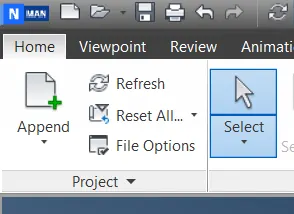
- Click on clash detective under the Home tab
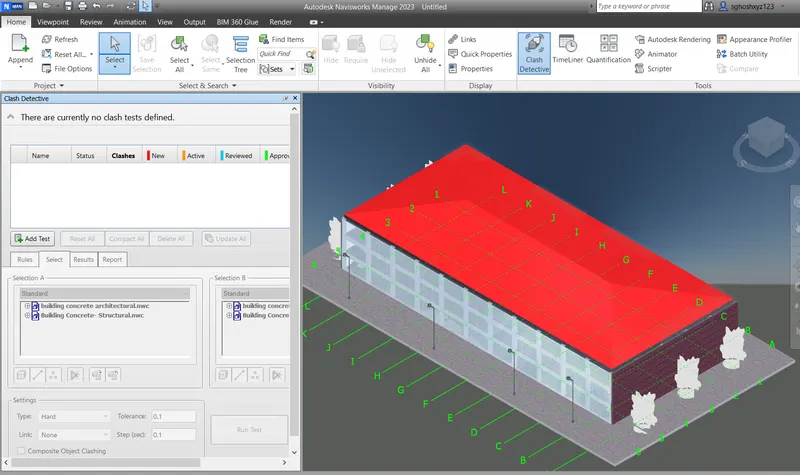
- Select Building concrete architecture under selection A and Select building concrete structure under selection B
- Rename the test it as Architecture vs Structure
- Run the test
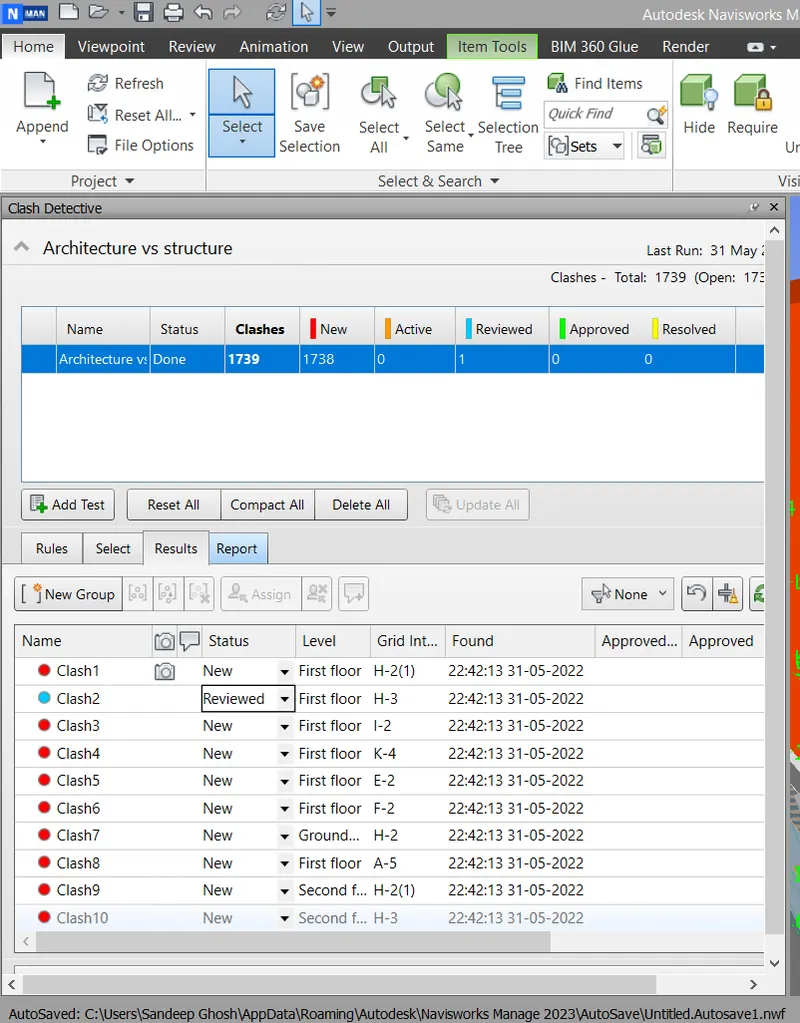
- Clash detection have appeared on the screen
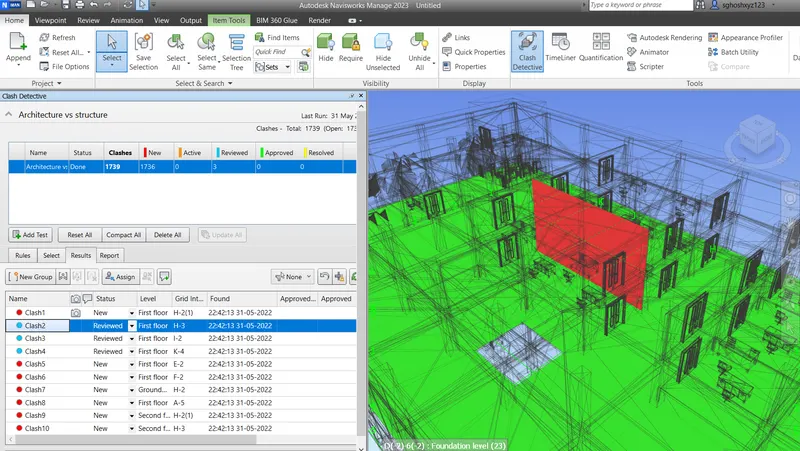
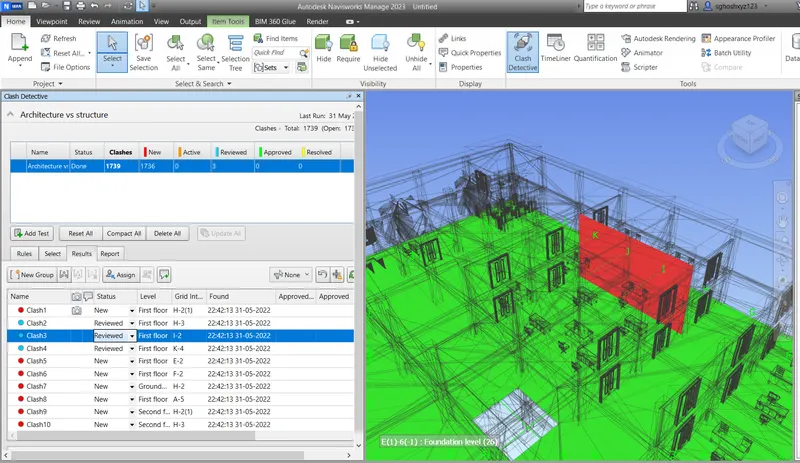
- Some of the detection can be easily corrected . Its not amajor issue
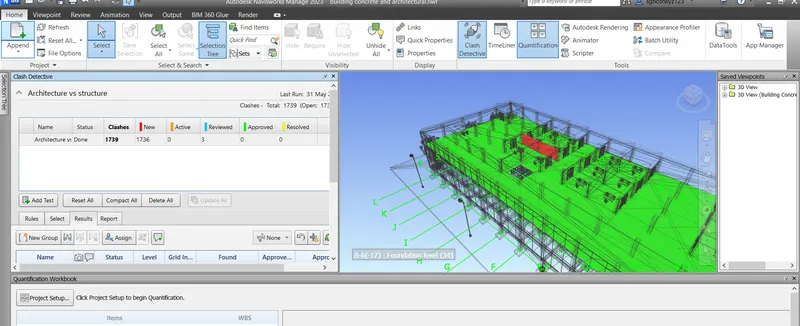
- Clashes are being appeared in red colour
RESULTS:- Clash detection between the structural and architectural has been explained with step by step procedure.
5.
AIM:- To prepare a schedule for the project using the timeline features in Navisworks
INTRODUCTION:- Scheduling a project using Navisworks is going to be explained with step by step procedure.
PROCEDURE:-
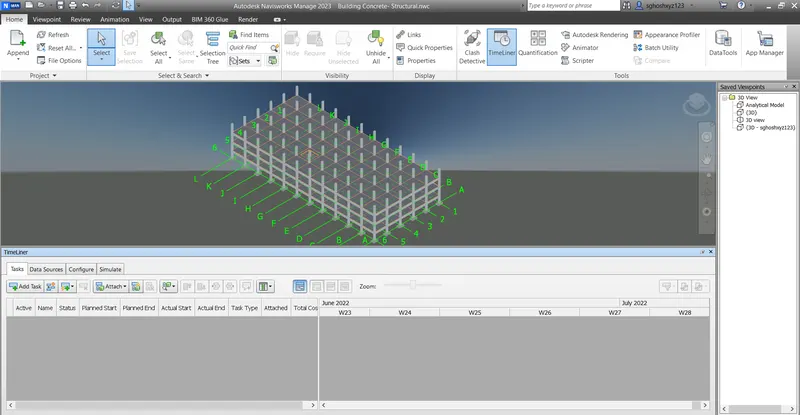
- Open Navisworks Manage 2023 structural file.
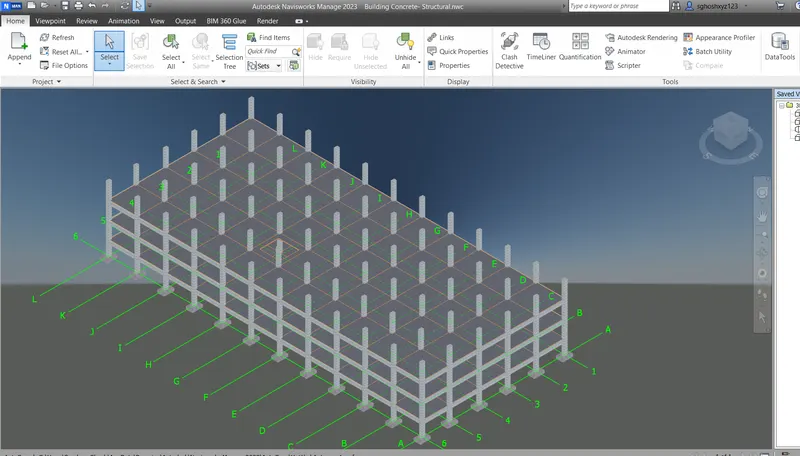
- Go to timeliner under the home section tab
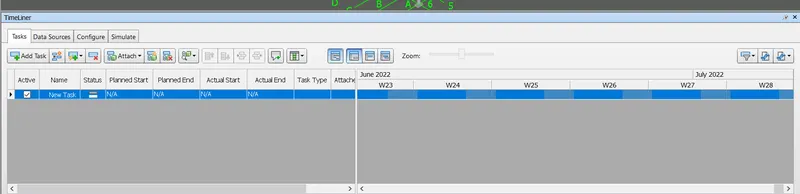
- Select Add task
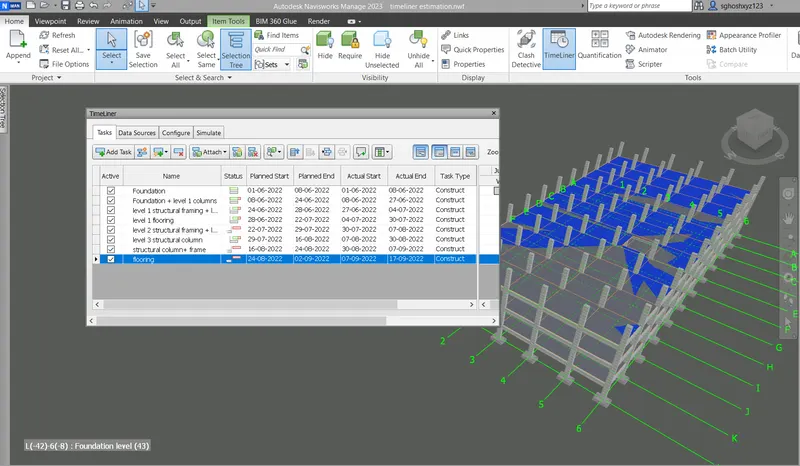
- Type all the tasks in sequential manner as per actual construction practices
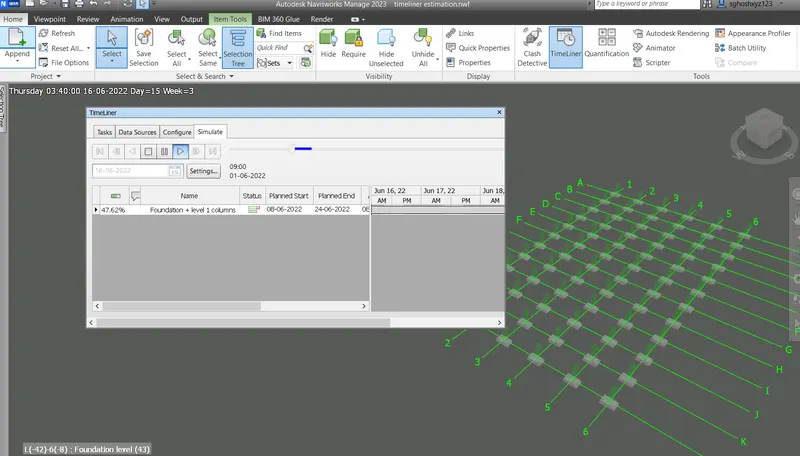
- Simulate the given task as given below
RESULTS:- Scheduling a project using Navisworks has been explained with step by step procedure.