Usage of Navigation tool , Timeliner and Clash Detection test using Naviswork
Q1.
AIM: To use the architecture/structural project file developed from week 6-8, Export the Revit file to Navisworks cache file.
TOOLS/COMMANDS USED :
- Architectural file.
- file.
- Open
- Export.
- NWC.
- Navisworks.
- View.
- 3D view.
PROCEDURE :
1.the Revit file which is to be exported to the Navisworks file is to be opened with the help of the file icon.
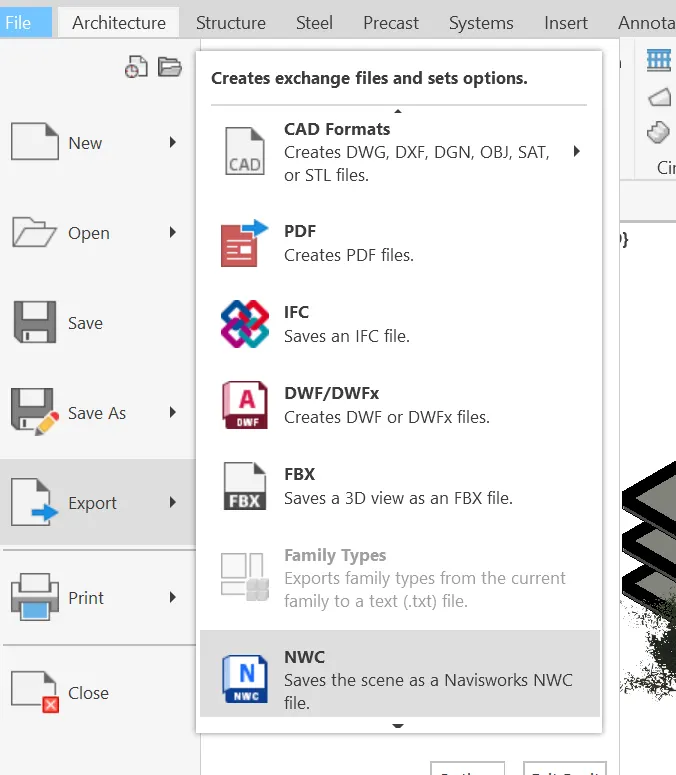
2.Click on File and select export option and choose NWC, the exporting work gets finished, Now open Navisworks software and click on open tool from the file menu.
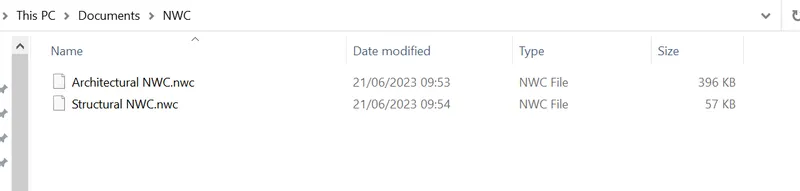
3.Open dialog box appears, select the file which we want to open in Navisworks and select the NWC extension and click on ok.
4.The Revit file gets opened in the Navisworks software, then we can manage the components in the Navisworks and perform necessary changes.
RESULT :
We have successfully exported Revit architectural and structural model to Navisworks cache file with the help of Navisworks software.
Q2.
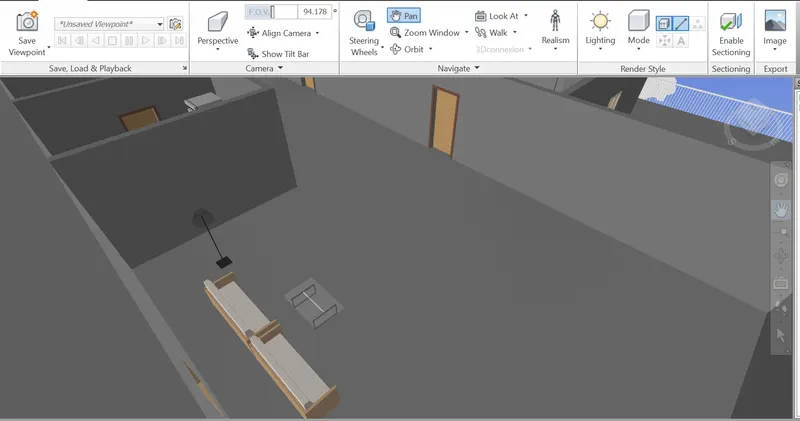
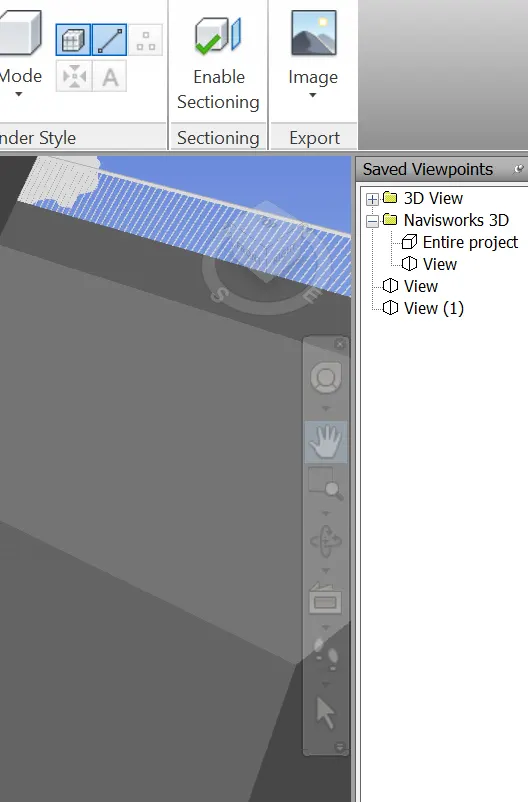
A) AIM: Use navigate tool to walk around the model and walk through the rooms cheated and record the moving as animation in the Navisworks file.
TOOLS USED :
- Architecture file.
- Navisworks.
- Viewpoint.
- save viewpoint.
- Walk.
- Record.
- Stop.
- Arrow keys for movement.
PROCEDURE :
- Open the architecture file which we want to export to Navisworks.
RESULT :
with the help of navigate tool we have created walk through to rooms and recorded moving as animation in Navisworks file.
Q3.
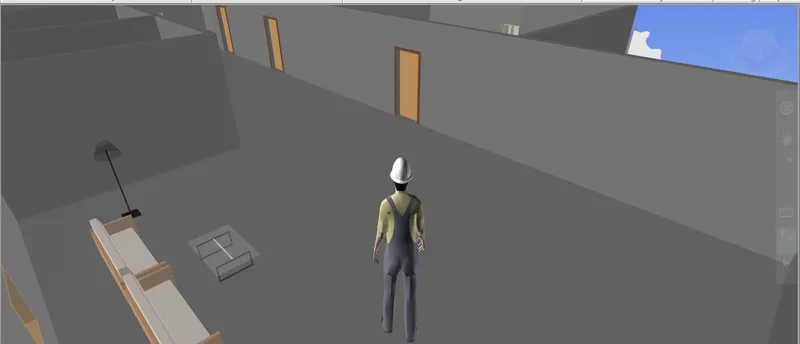
A) AIM: To use navigate tool to use the realistic feature to walk through the model and record our movings as animation in navisworks file.
TOOLS USED :
- Navisworks.
- Viewpoint.
- Save view point.
- Walk.
- Record.
- Stop.
- Arrow keys for movement.
PROCEDURE :
- the architecture file which we want to export to the Navisworks is to be opened.
- Then click on viewpoint tool and followed by selecting save view point option.
RESULT :
with the help of Navigation tool, we have used realistic feature to walk through the model and recorded our movings as animation in Naviswork file.
Q4.
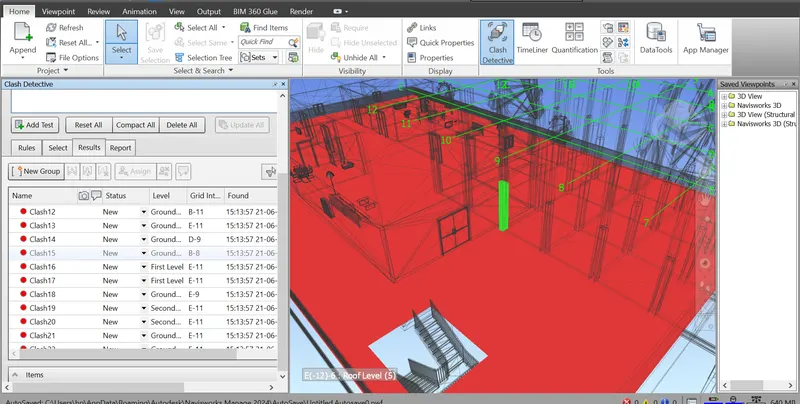
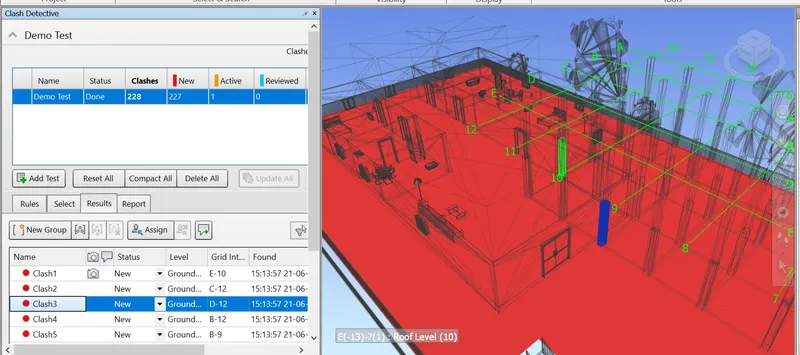
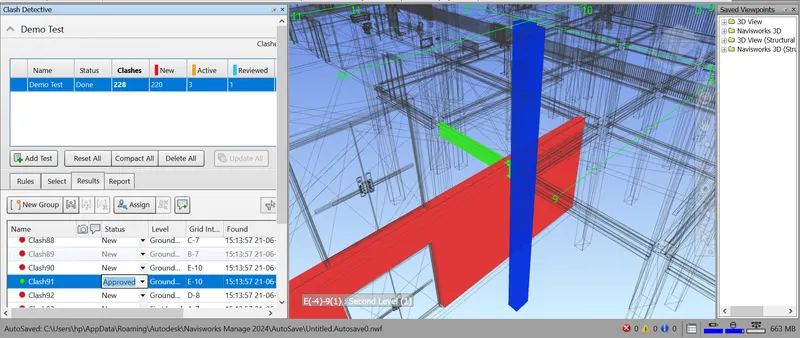
A) AIM: To create a clash detection test between the architectural and structural model.
a. Run the Clash Detection Test
b. Study the clashes between the two models
c. List which of the clashes could be approved
d. List which of the clashes could be neglected ( will be taken care later)
e. List which of the clashes can be resolved
f. Save the results after color-coding the clashes to the Navisworks file
g. In case of resolution annotate the clash and save the view to defined views in Navisworks.
TOOLS USED :
- Open.
- architecture file
- home
- add test
- Append.
- Clash detection.
- clash detection dialog box
- Run test.
PROCEDURE :
a)
Once load and open the structure and architecture files, we can start the clash test.
Then Go to home menu and select clash detective, Clash detective dialog box appears.
RESULT :
we have successfully performed the clash detection test where we can resolve the problems and send the file to the design engineer for corrections.
Q5.
A) AIM: using the Timeliner feature in Navisworks we can prepare a schedule for the project by adding reasonable assumptions like taks start and end date and simulate the task.
TOOLS USED :
- Home.
- Navisworks
- Timeliner dialog box
- simulate
- Timeliner.
- Add task.
- Selection tree.
PROCEDURE :
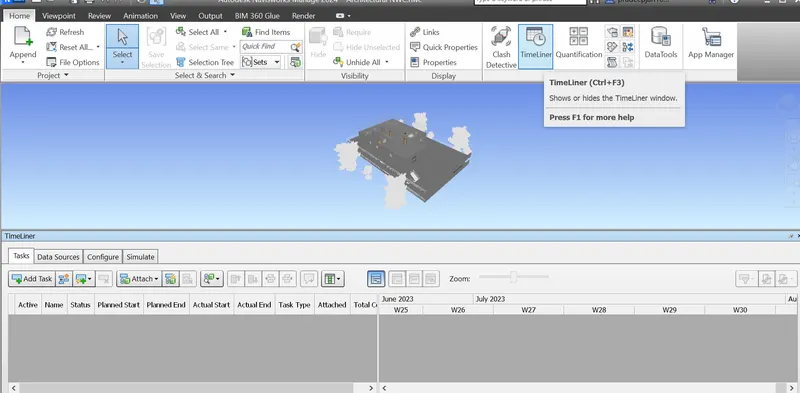
1. Open the Navisworks file and click on timeliner tool from the home menu, Now timeliner dialog box appears.
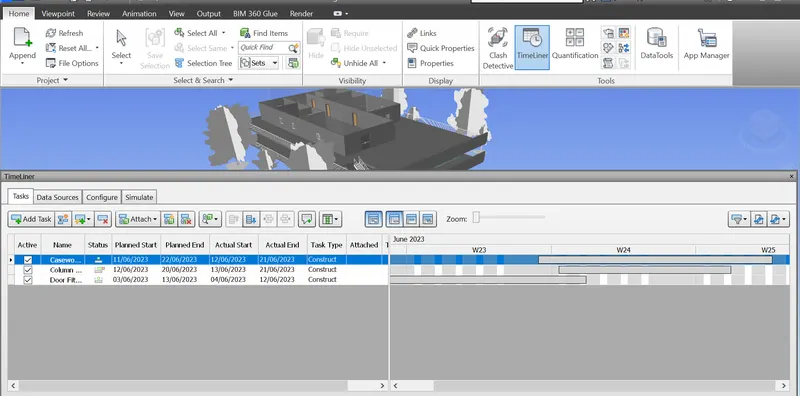
5.The simulation begins and we can see the construction from the starting date to ending date in the form of video.
RESULT :
we have used timeliner feature in navisworks to prepare a schedule for the project developed in previous weeks and added some reasonable assumptions for the task like start date and end date and simulated the task completion as a visual simulation and saved the timeliner simulation to Navisworks file