Usage of Navigation tool , Timeliner and Clash Detection test using Naviswork
1A)
AIM: To use the architecture/ structure project file to export revit architecture and structural model to Naviswork cache file
TOOLS USED:
- FILE
- EXPORT
- NWC
PROCEDURE:
- open an architectural model created in week 8
- click on 3D view
- go to file
- click on export and save as NWC
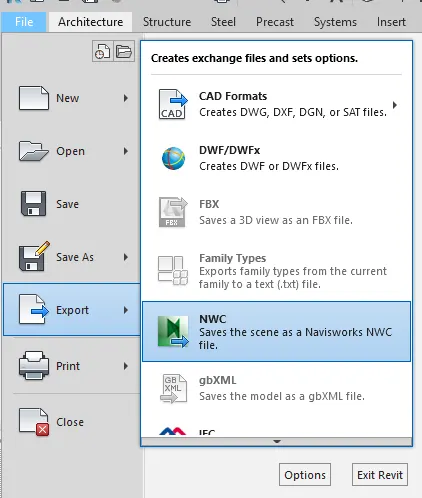
- repeat it for both architctural and structural model
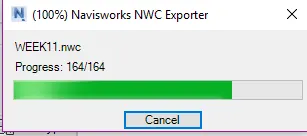
- open the filesin NAVISWORK Software
RESULT: revit architecture and structural model has been exported to Naviswork cache file.
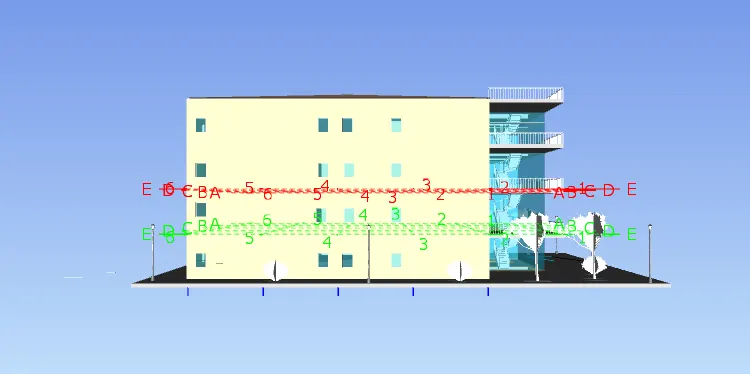
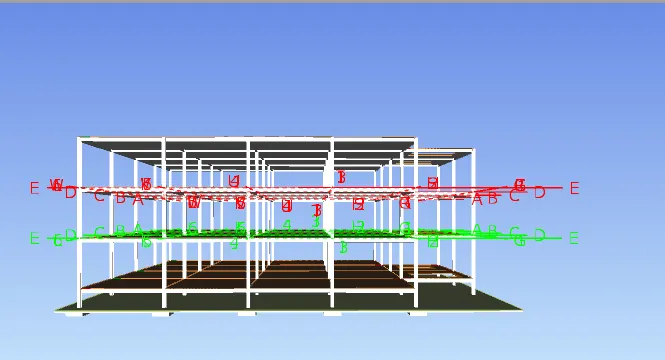
2A)
AIM:To Use Navigate Tool to walk around the model and walk through the rooms created and record my moving as animation in Navisworks file
TOOLS USED:
- NAVISWRKS
- VIEW POINT
- WALK
- RECORD
- STOP
PROCEDURE:
- Open the file exported previously
- clik on view point
- click on walk
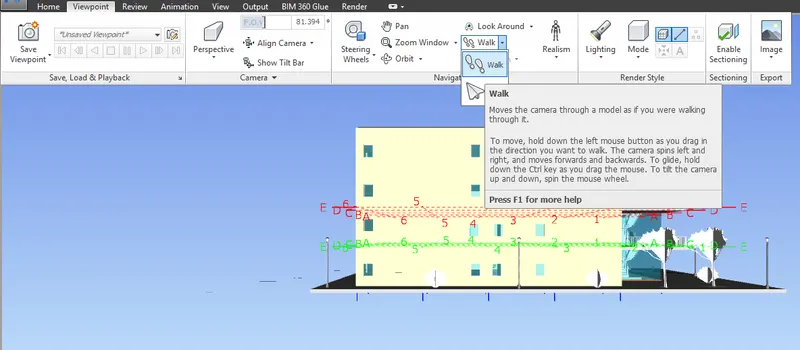
- go to animation tab click on record and it will star recording

- walk throughly all the rooms
- click on stop after finishing
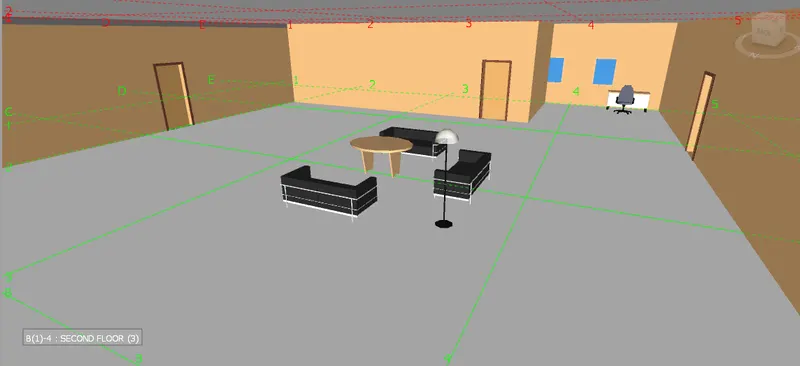
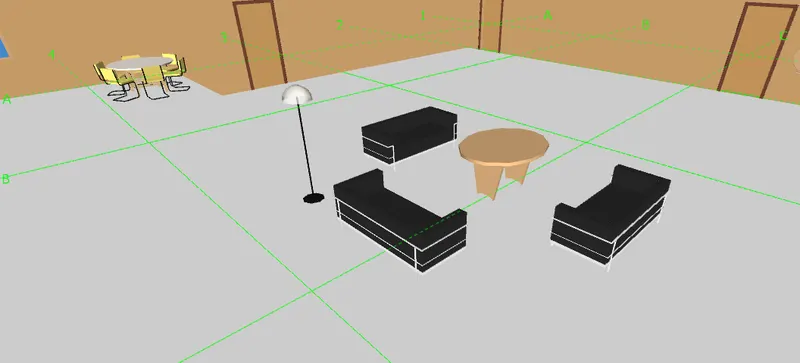
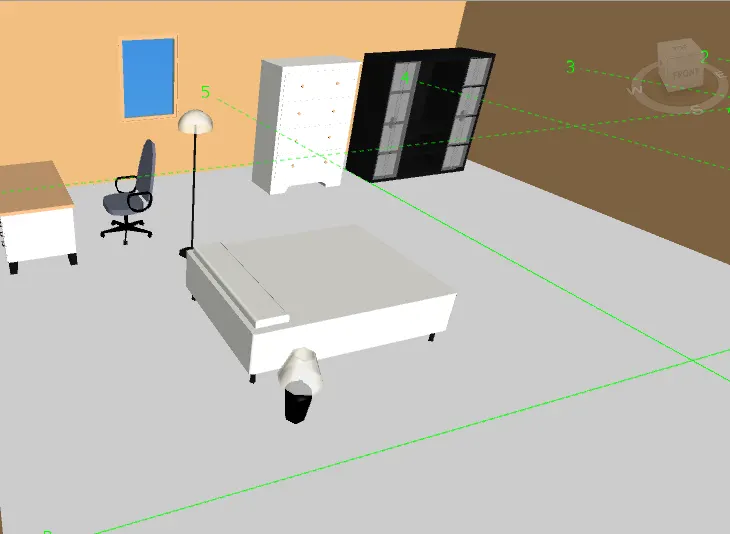
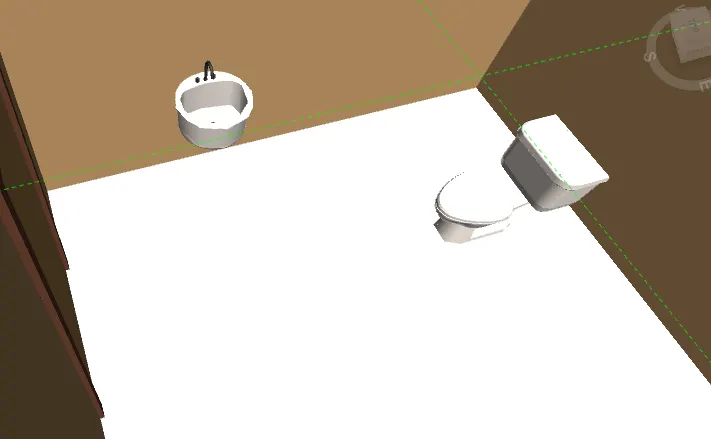
RESULT: Animation is recorded for the rooms walked thorugh and stored in saved view points
3A)
AIM: Using navigate tool to use realism feature to walk through the model and record moving as aniation in Navisworks file
TOOLS USED:
- VIEW POINT
- REALISM
- WALK
- STOP
PROCEDURE:
- open the architectural model in naviswork
- click on view point and select the view
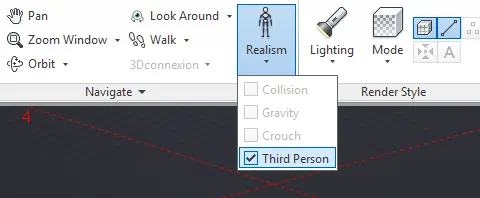
- click on realism command
- check on third person and select the record option
- select walk
- walk through all the rooms of model
- click on stoP
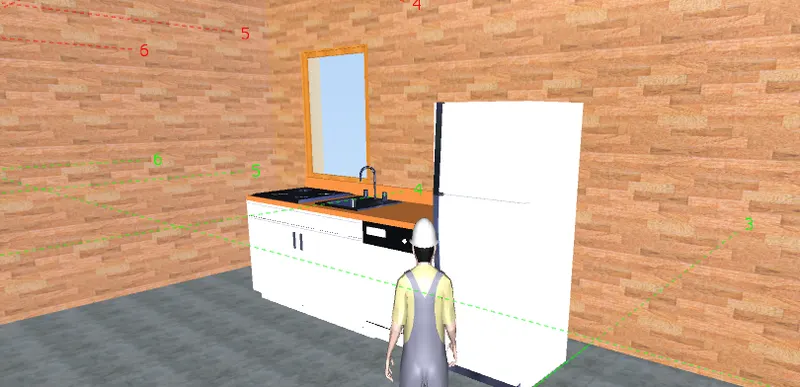
RESULT: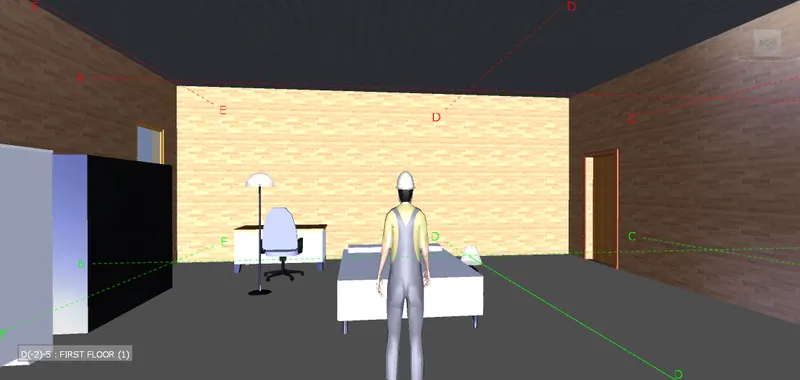
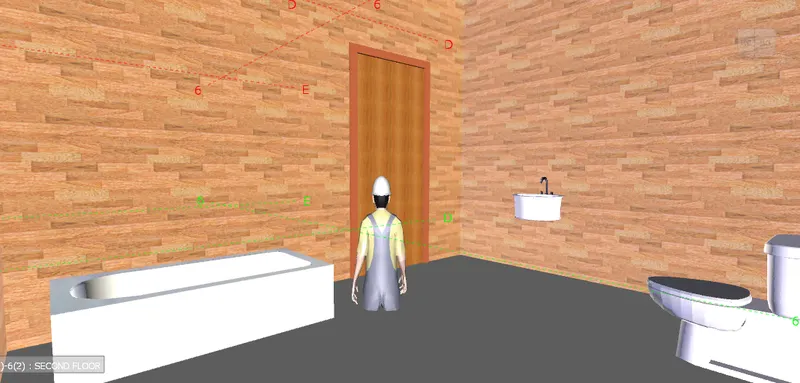
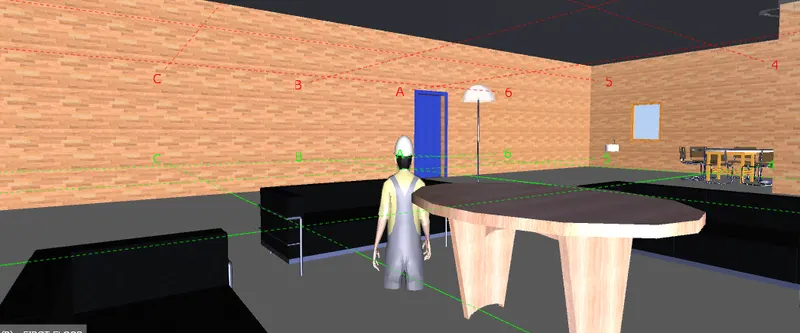
4A)
AIM: To embed both architectural and structure *.nwc file to navisworks file and create a clash detection between thhe two models
TOOLS USED:
- HOME
- OPEN
- APPEND
- CLASH DETECTION
- RUN TEST
PROCEDURE:
- Open the architectural file in naviswork
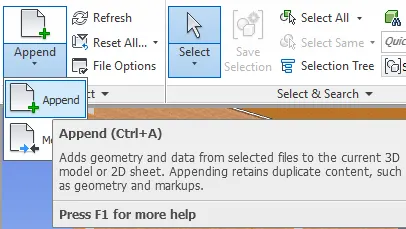
- click on append in home tab
- select the structural model to identify clashes between models
- click on clash detective
- select the architectural in one section and structural in other section
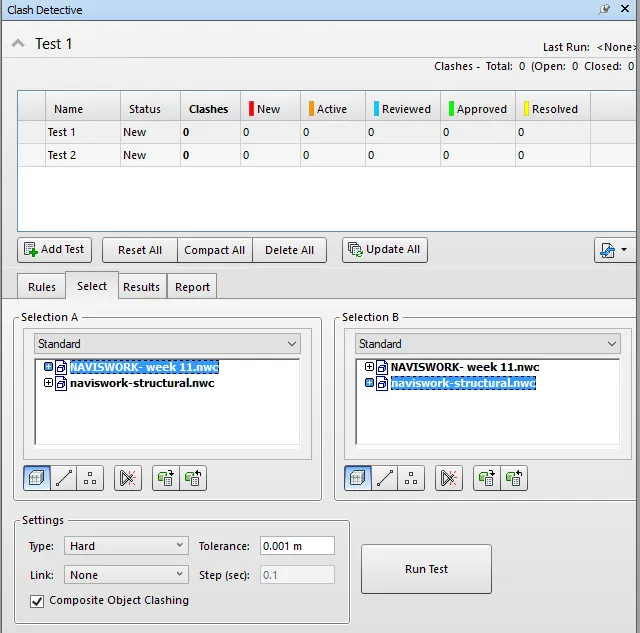
- click on run test
- after test study aboout clashes like beams colukns etc.,
- list the clashes which can be approved,reviewed,resolved by selcting them in drop down menu
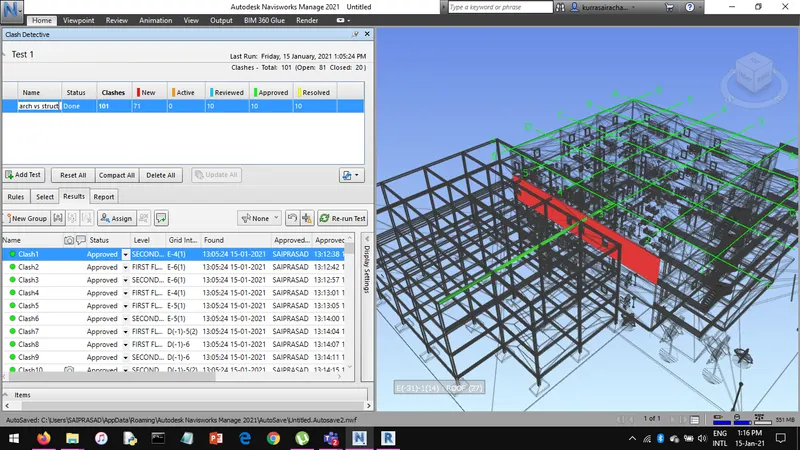
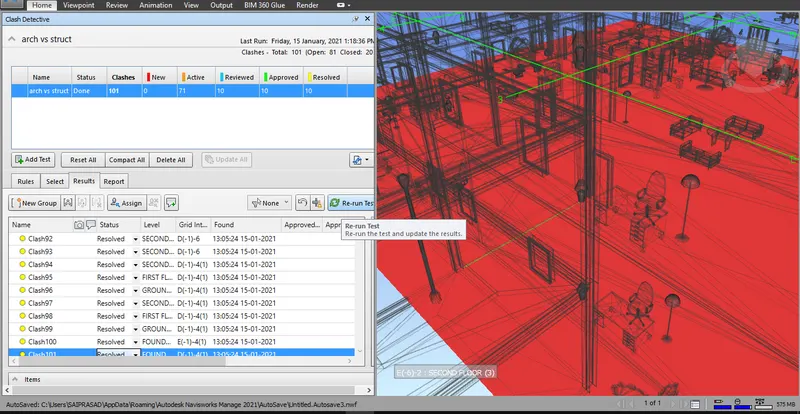
RESULT:
both architectural and structural files has been embed and clash detectin has done and they are studied and clashes which can be reviewed,approved,resolved are listed and saved in naviswork file.
5A)
AIM: To use timeline feature in naviswork and prepare a schedule for the project developed in week 6 to 8 by addding reasonable assumptions for taskdate and end date and simulate the task completion as a visual simulation.
TOOLS USED:
- HOME
- TIMELINER
- ADD TASK
- ATTACH THE MATERIALS
PROCEDURE:
- open the structual file in naviswork exported from revit
- go to home
- click on timeliner
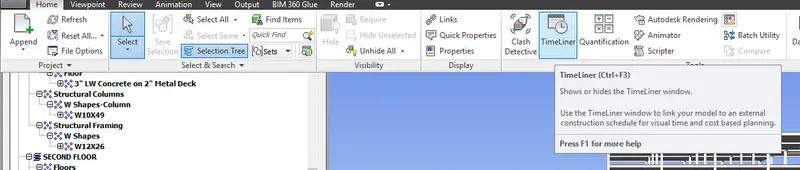
- add tasks and attach the materials by clicking on selection tree
- assign planned and actual start and ends dates to task
- Follow the the same procedure for entire building in which order the tasks have to complete
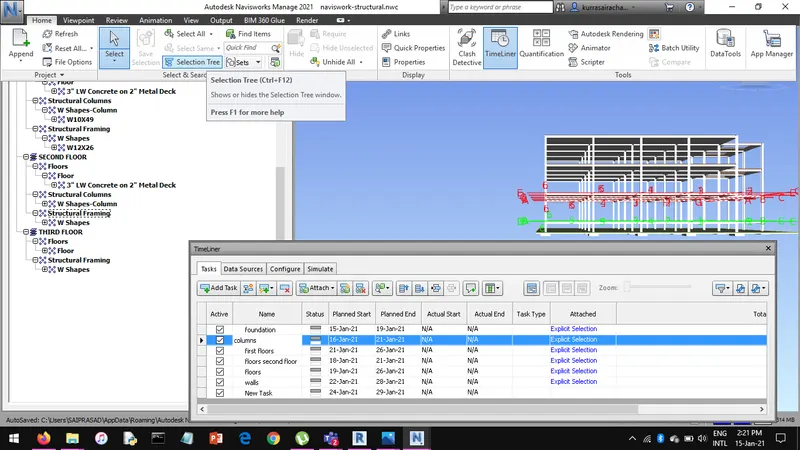
- click on record
- click on simulate to play recorded tasks and stop recording
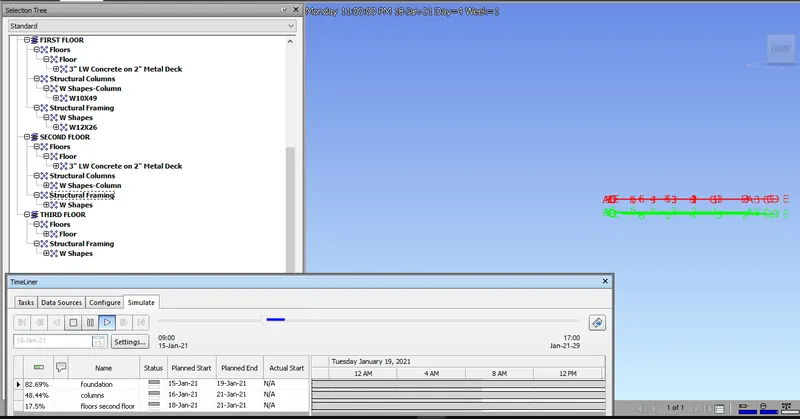
- save the project
RESULT:
Schedule has been done using timline features in naviswork.