Tool Test-2
Objectives:
- To clean up the given topology of Rear view mirror using ANSA.
- To generate tetra mesh using proper meshing tools in ANSA
Procedure:
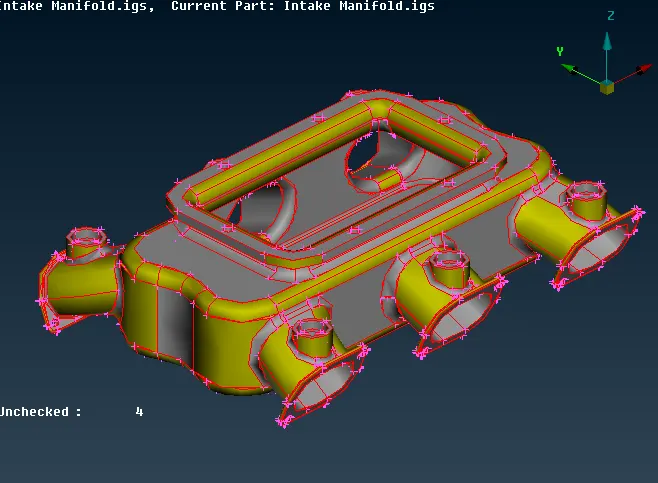
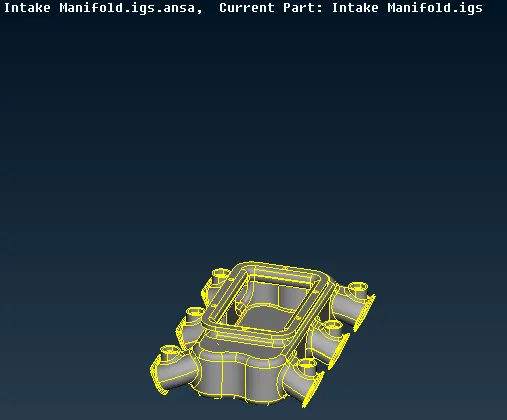
- Clean up the geometry if there are any irregularities.
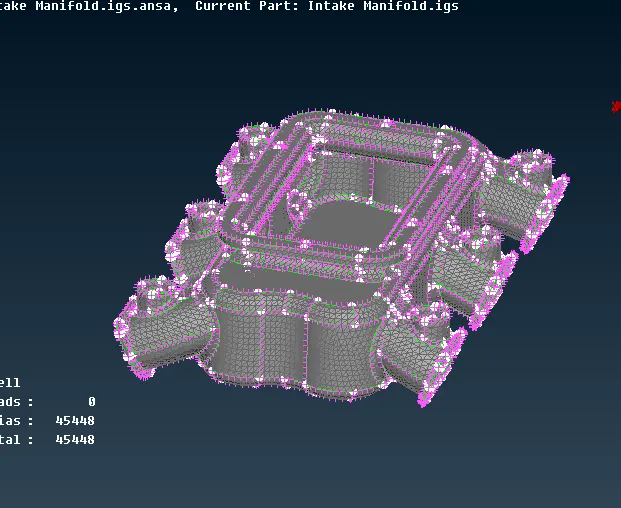
- Generate surface mesh for the given component
- Check for quality failures
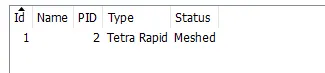
- Define volume for the given component
- Generate tetra mesh using appropriate methods
The following tools were used in the meshing process:
Topological tools:
The different tools that were used and there functions are given below:
(1) Cut: This function cuts (splits) an existing Face or joins if inverse operation is applied (right mouse button). In order to achieve this, two Hot Points must exist on the boundary at the positions where the Face has to be split. A Face may also be cut by selecting Welding Spots instead of Hot Points.
- Heal Cut: it is an option that allows the user to close openings along the perimeter of a face.
(2) Delete: This function deletes selected Faces. As the Face is deleted the neighboring topological conditions change. If the picked Face to be deleted serves as a parent Face to other linked Faces, then extra confirmation is required for the deletion, and an option to convert all linked Faces to geometry is given.
(3) TOPO>Faces>Topo: This function automatically creates topological conditions between selected adjacent CONS.
Meshing tools:
Different tools that were used to setup mesh were given below:
(1) MESH>Perimeters>Length: This function defines the element length on selected perimeter segments. The element length may be explicitly declared or may be declared as a factor to be multiplied by the existing element length.
(2) MESH>Shell Mesh>SMOOTH : This function automatically applies Smoothing attributes so as to 'relax' the mesh on already meshed Macro Areas or on FE-model shell mesh. The function may be applied to selected meshed Macro areas (Geometry) and/or FE-model shell mesh according to the chosen sub-option.
(3) Cut: This function cuts an existing Macro Area. Two Hot Points or nodes on the Macro Area perimeter are needed at the positions where it is to be cut.
(4) MESH>Hot Points>Insert: This function defines a new Hot Point, on a Macro Area's perimeter, using the mouse.
(5)Mesh>Grids> MV Free: This function moves a single or a group of nodes freely on the plane of the screen, based on the global, a local or an element'scoordinate system.
(6) MESH>Shell Mesh>Reconstruct: The Re-construction function is a powerful tool for the creation of a high quality surface mesh. It examines a given mesh and performs re-meshing to correct problematic areas and optimize the overall quality of the mesh according to the mesh parameters. For Geometry Mesh (Macro Areas) all modifications are made on the underlying CAD surface.
For FE-model mesh, all modifications are made on the surface defined by the shell elements. The function may be applied to selected or to all visible meshed Macro Areas and FEM mesh according to the chosen option.
With the option "Advanced" the Advanced Selection window opens where the user selects where to apply the Reconstruction. Note that the option "Violating" is associated with the mesh quality creteria in the F11 card whereas, all the rest obey to the Mesh Parameters. The Expand Level controls the number of zones around the affected elements.
Applied on Geometry mesh the perimeters will be visible as feature lines, which cannot change, but the user can add or remove more edges as perimeters. Applied on FE mesh, the user is able to modify all feature lines during preview stage.
(7) MESH>Elements>Split: This function splits quadrilateral and triangular shell elements into smaller ones. Element splitting is performed between selected nodes and/or inserted nodes along selected element edges. The function can be applied on individual or groups of shell elements in order to improve the mesh orientation, reduce the number of triangles, or refine locally or globally the mesh of a part. Refer to ANSA User's Guide for a detailed description of the use of the function.
(8) Mesh>Elements>Swap: The Mesh>Elements>Swap function rotates the shell edge picked by the user, inside the two shells which have that edge as common.
(9) MESH>Macros>Join: This function eliminates a Macro Area boundary segment between two adjacent Macro Areas. This way, two Macro Areas are joined to be treated as one, larger Macro Area.
Procedure:
Before topo clean up:
After clean up:
Generation of surface mesh:
Defining Volume:
Tet generation:
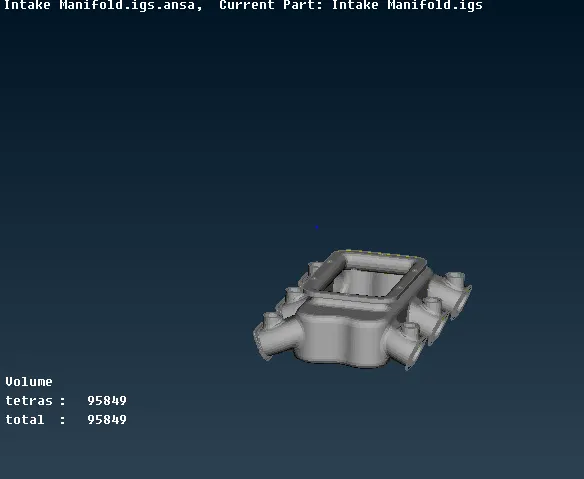
Result:
Tetra mesh for the rear view mirror was succesfully generated