To Design RC column and beam for RC residential structure using TSD
Que: Based on the analysis design RC column and beam.
AIM: To run the analysis of the structure and design reinforced concrete beam and column
*********Design of Reinforced Concrete COLUMN*********
INTRODUCTION:
The structural design of reinforced concrete (R.C.) columns involves the provision of adequate compression reinforcement and member size to guaranty the stability of the structure.
In typical cases, columns are usually rectangular, square, or circular in shape.
PROCEDURE:
STEP: 1
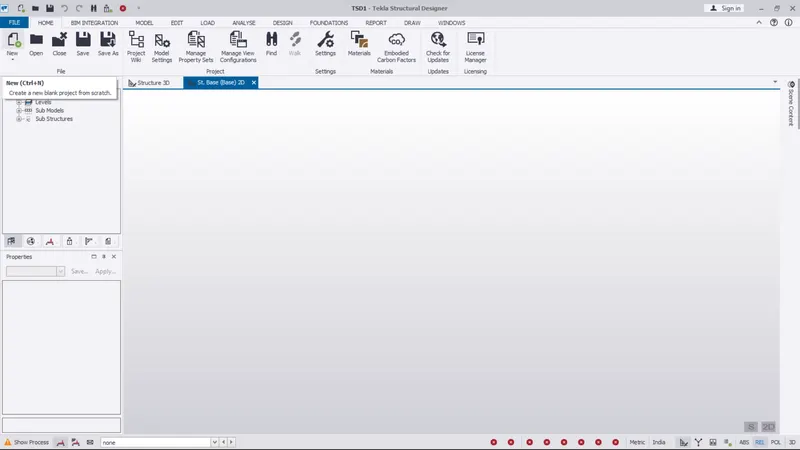
- Oopen the TDS software
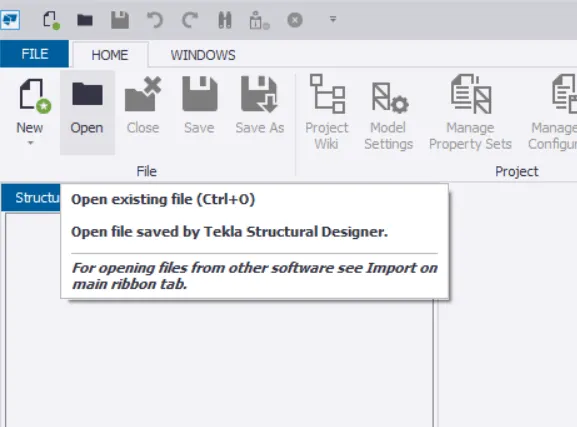
- Click on open
- Open the file from previous
- Open the tekla model
- Then run the analysis
STEP:2
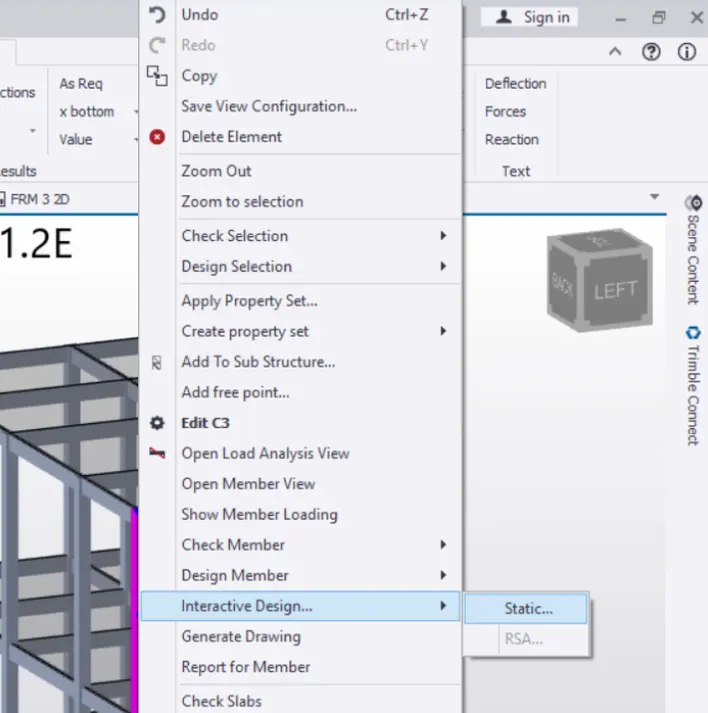
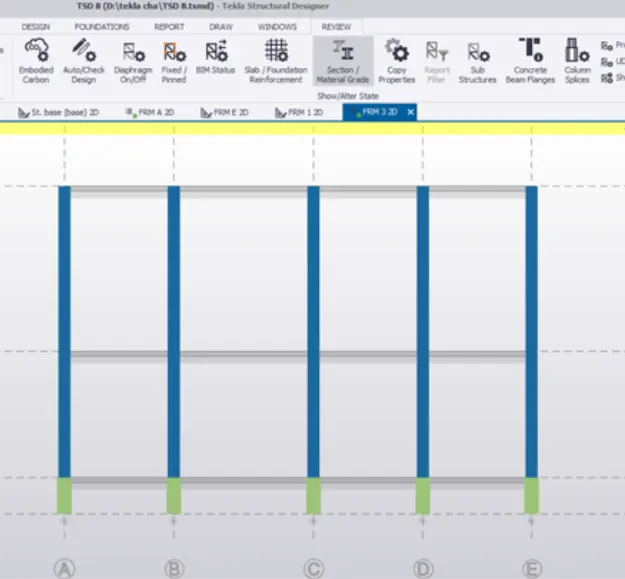
- Now select any of the column member
- Right click on the selected member
- Then select the interactive design from the given option --> static.
- check whether the member is passing through all the design checks
STEP: 3
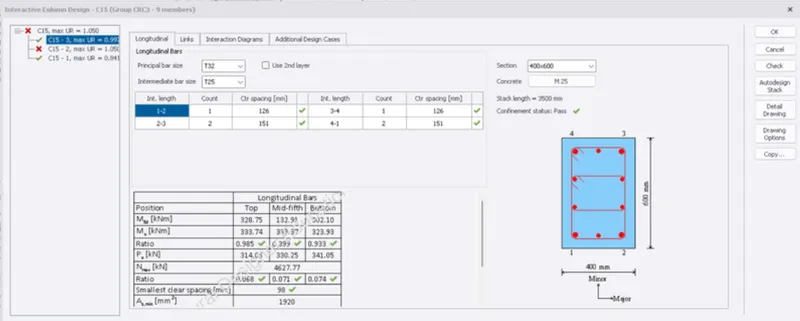
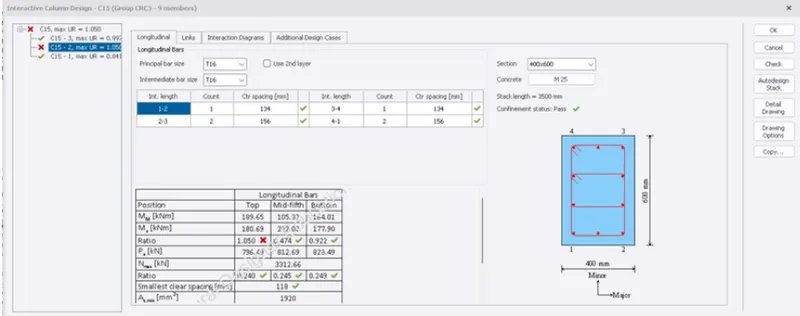
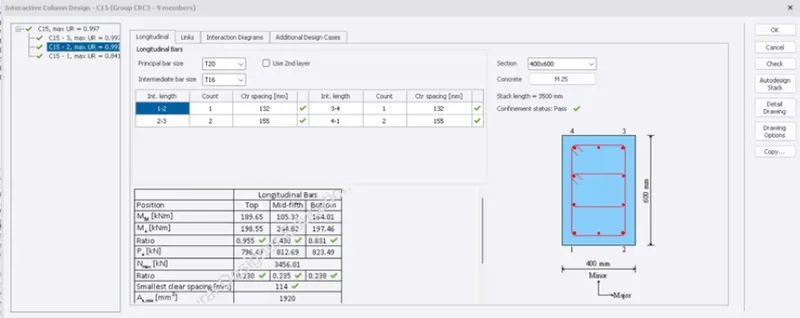
COLUMN NO :15
- here we can see that the ratio of longitudinal bars is greater than 1
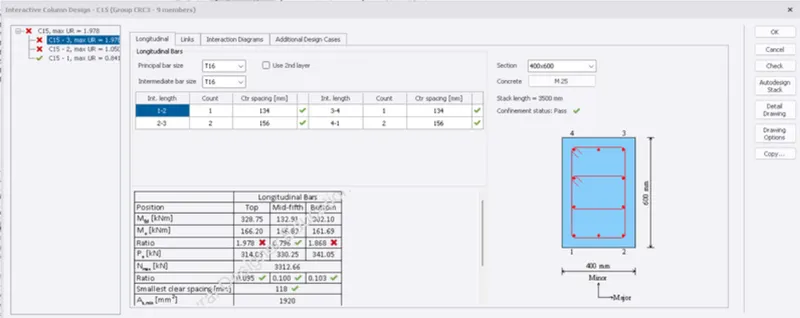
- edit the rebar details to obtain the ratio of longitudinal bars as 1
- try to change the rebar details of the top reinforcement and bottom reinforcement
STEP: 4
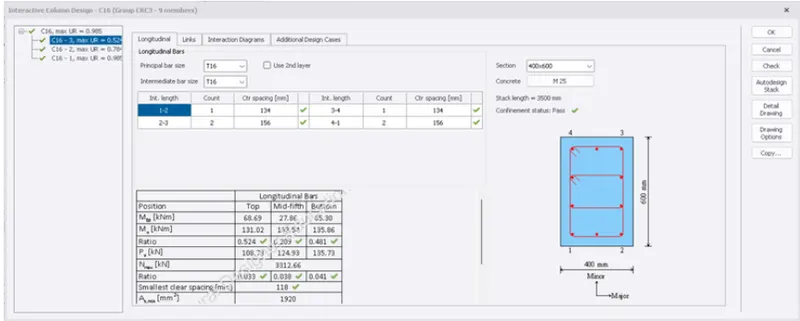
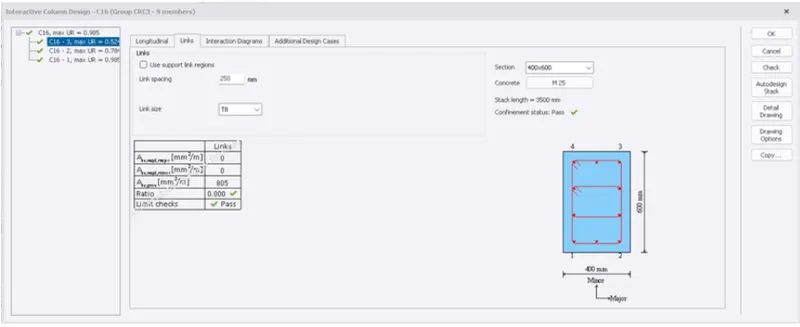
COLUMN NO: 16
- here we can see that the column is safe in design and consider the reinforcement details
RESULT:
Hence, the design of the columns is done and verified with the design checks
********Design of Reinforced Concrete BEAM*********
AIM: To run the analysis of the structure and design reinforced concrete beam and column
INTRODUCTION:
The design of a reinforced concrete (R.C.) beam involves the selection of the proper beam size and area of reinforcement to carry the applied load without failing or deflecting excessively.
PROCEDURE:
STEP: 1
- Oopen the TDS software
- Click on open
- Open the file from previous
- Open the tekla model
- Then run the analysis
STEP: 2
- Here we want to adjust the beam designs
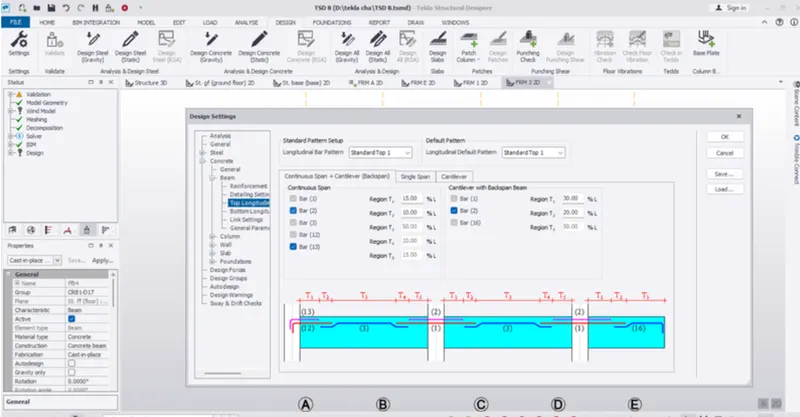
- First go to the design setting under the design tab
- Go to the concrete --> Beam --> Top longitudinal bar --> select the (Bar 2)
STEP: 3
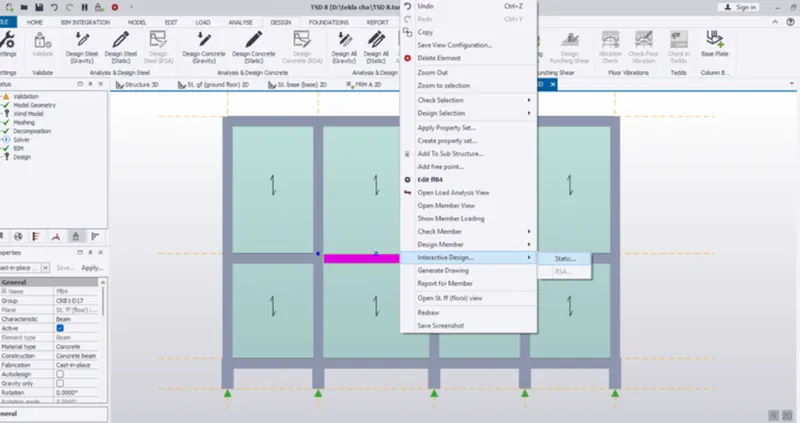
- Now select any of the beam member
- Then right click on selected member
- Then select the interactive design from the given option --> static
- check whether the member is passing through all the design checks
STEP: 4
- First we want to check the errors
- And they have any errors shown
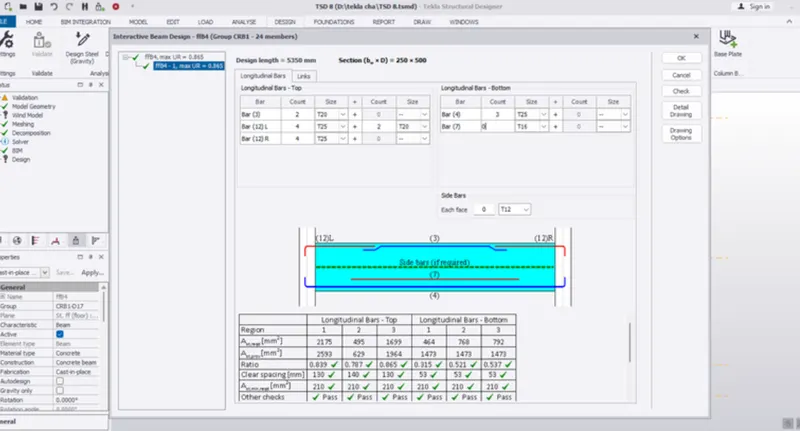
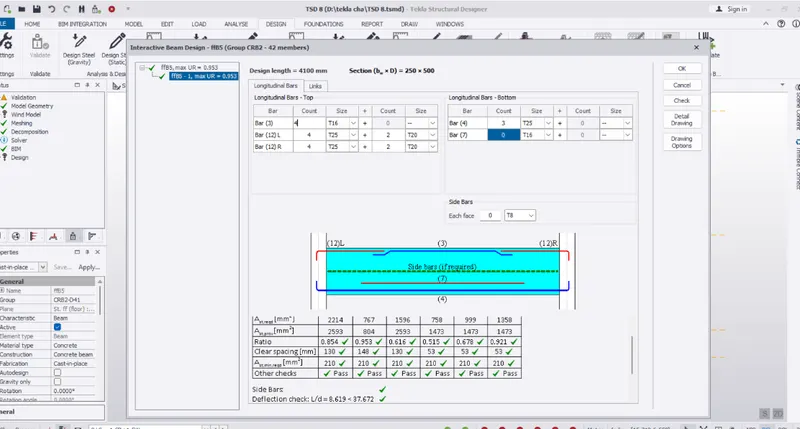
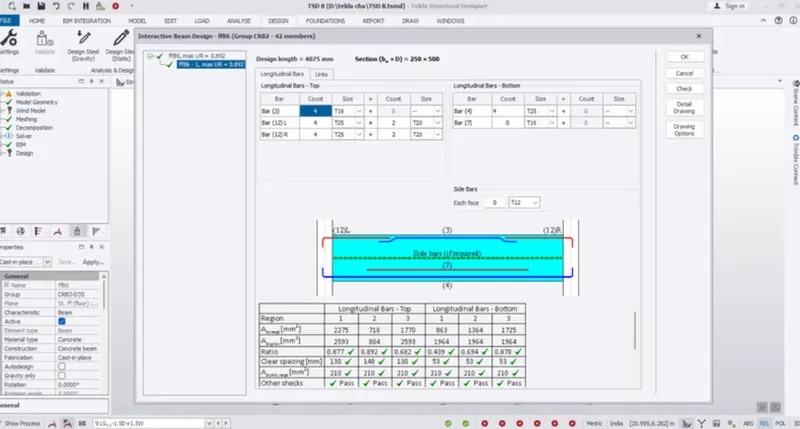
- First adjust the size and count still the beam as been passed
BEAM NO.: 4
BEAM NO.: 5
BEAM NO.: 6
STEP: 5
- Repeat the same procedure for all the beams
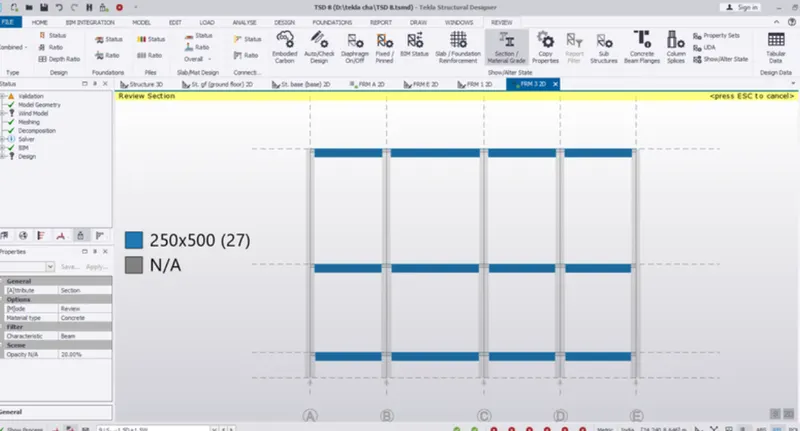
- After finish all the beams we want select the status
- check the member are all passed
RESULT:
Hence, the beam design is checked and necessary correctopns have been done.