Radar Mast & Final Assembly of Yacht
AIM:-
In this challenge, you need to model the Radar mast and assemble the Yacht using SolidWorks and upload the files to the Browse Section available below Answer Box for evaluation purposes.
1). RADAR_MAST:-
ANSWER:-
- The Radar mast is designed as per the dimensions given in the Ebook. A snapshot of the designed Radar mast is given below:-
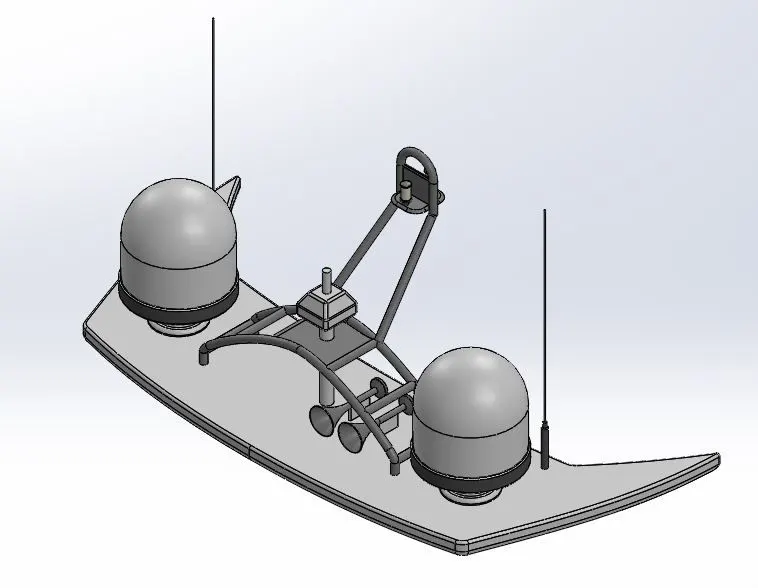
For Sketching, we used:-
- Line
- Circle
- Three-Point Arc
- Rectangle
- Copy Entities
- Offset Entities
- Convert Entities
Features used for creating the Radar mast in Solidworks:-
- Extrude Boss
- Revolve Boss
- Projected Curve
- Extrude Cut
- Fillet
- Dome
- Mirror
- Sweep Boss
- Chamfer
- Planes
- A snapshot of the feature tree is given below:-
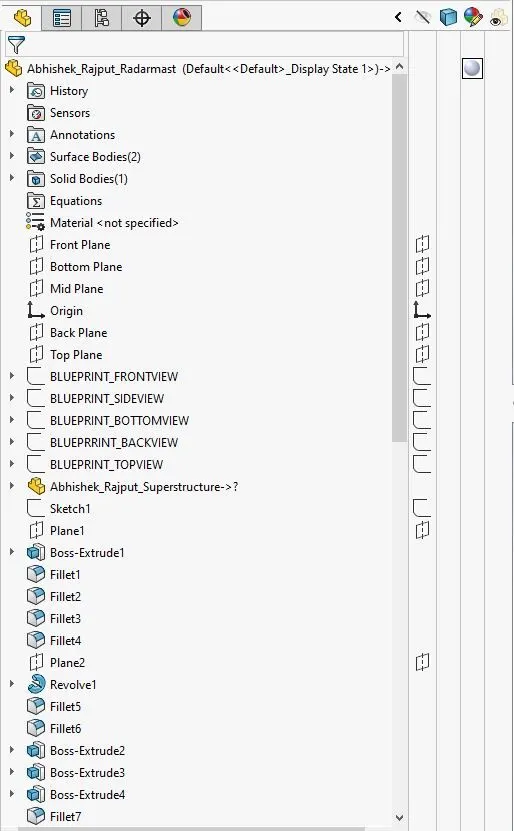
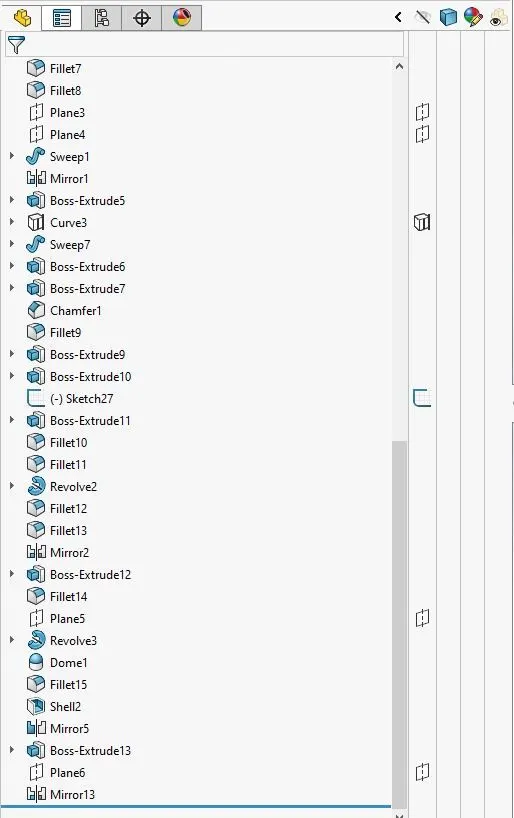
- Four views of the Radar Mast are given below:-
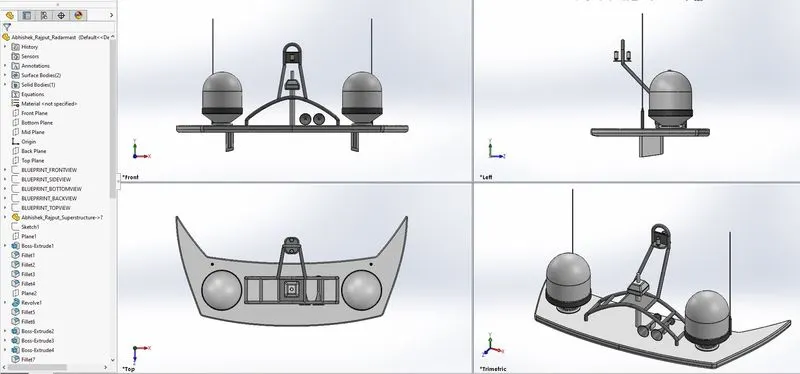
2). ASSEMBLY OF YACHT:-
AIM:-
The Project Report is about the Designing, Modelling, and Photo Rendering of Yacht using Solidworks 2021 and Solidworks Visualize 2021.
OBJECTIVE:-
To Design and model each component required to make assembly of a Yacht in Solidworks and finally make a Photorealistic Rendering of the complete assembly of Yacht. And to get a better insight of the features and tools which are used for modeling of the part and to know how exactly they work and also to get familiar with the user interface of the Solidworks.
Methodology:-
All the parts for the assembly of the Yacht were made separately first and then were assembled in Solidworks.
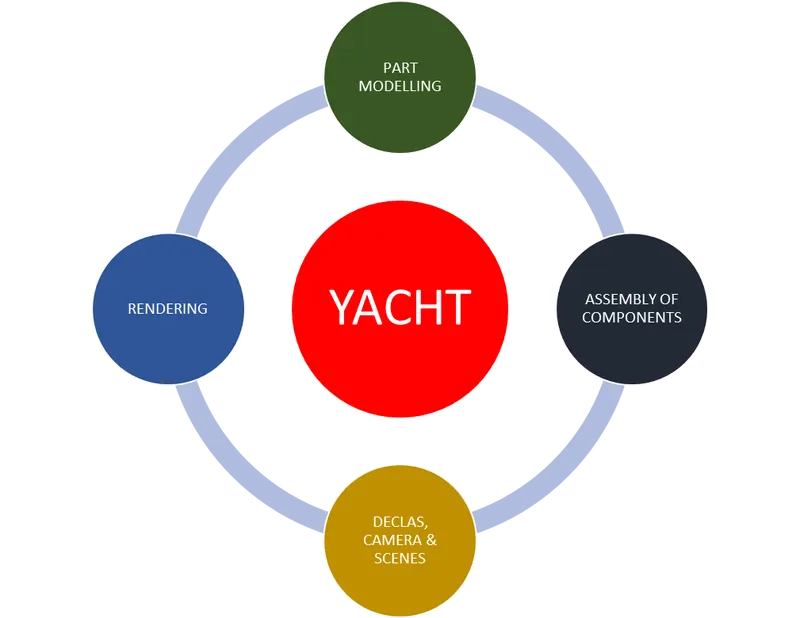
The flow of Action for Designing the Yacht:-
- Part modeling of components of Yacht.
- Assembly of designed components of Yacht.
- Adding Scenes, Decal.
- Rendering.
Different components of the Yacht:-
- Hull
- Front Seat
- Middle Seat
- Rear Seat
- Propeller
- Radar
- Radar mast
- Superstructure
- Garage Door
COMMANDS USED TO DESIGN THE COMPONENTS OF THE YACHT:-
- Line: This feature allows us to create a straight line. The line could be solid or constructed.
- Circle:- This feature allows us to create a circle.
- Arc:- This command help us to create an arc.
- Rectangle:- This feature allows us to create Squares or rectangles.
- Spline:- This command allows us to create a curved line.
- Curve Projection:- This is used for the projection of the curves made in different planes to create an intersected curve.
- Split:- This feature is used to split bodies using a 2D sketch.
- Projected Curve:- Create a Curve as the intersection of two projected sketches. Note that the projections from one sketch must intersect the other in one continuous curve for this operation to succeed. The resulting Curve feature is listed in the Feature list and the curve itself is listed in the Parts list (when selecting a curve, use the Parts list).
- Trim:- This command is used to trim the sketches. You can use Power trim to trim multiple, adjacent sketch entities by dragging the pointer across each sketch entity.
- Extend:- This feature allows us to extend the sketches.
- Extrude Boss:- This command is used to create solid bodies.
- Extrude Cut:- This feature allows us to cuts any shape in the solid bodies.
- Swept Boss:- Sweep creates a base, boss, cut, or surface by moving a profile (section) along a path. A sweep can be simple or complex.
- Mirror:- This feature allows us to create an exact copy of the solid body using a reference plane or face.
- Revolve:- Revolves add or remove material by revolving one or more profiles around a centerline. You can create revolved boss/bases, revolved cuts, or revolved surfaces. The revolving feature can be a solid, a thin feature, or a surface.
- Linear Pattern:- This feature allows us to create a pattern in a straight line.
- Circular Pattern:- This feature allows us to create a pattern in a circular path.
- Fillet:- This is creating a rounded internal or external face on the part. We can fillet all edges of a face, selected sets of faces, selected edges, or edge loops.
- Chamfer:- This is used to create an inclined edge.
- Plane:- This feature is to create a new reference plane.
- Loft:- Loft creates a feature by making transitions between profiles. Aloft can be a base, boss, cut, or surface. We create a loft using two or more profiles. Only the first, last, or first and last profiles can be points. All sketch entities, including guide curves and profiles, can be contained in a single 3D sketch.
- Dome:- This feature allows us to create a dome shape on one or more faces on the same model.
- Shell:- The Shell definition is used to defining the thickness of thin shell elements.
- Convert Entities:- You can create one or more curves in a sketch by projecting an edge, loop, face, curve, or external sketch contour, set of edges, or set of sketch curves onto the sketch plane.
- Mirror Entities:- This command is used to mirror the 2D elements or sketch about the axis or plane.
- Surface Trim:- We can use a surface, plane, or sketch as trim intersecting surfaces. You can also use a surface in conjunction with additional surfaces, as mutual trim tools.
- Surface Knit:- This feature is used to combine two or more faces and surfaces into one.
- Filled Surface:- This feature constructs the surface patch with any number of sides, within the boundary defined by existing model edges, sketches, or curves, including composites curves.
- Ruled Surface:- This feature is used to obtain the extruded surface perpendicular to the plane and can be tilted at a certain angle.
- Rollback:- We can add new features or edit existing features while the model is in the rolled-back state. We can save models with the rollback bar placed anywhere.
- Delete/Keep Body:- This feature is very helpful when we working with multibody parts. We can select bodies to keep or delete by using the Delete/Keep body feature.
- Delete Surface:- We can select the surface and delete the surface and patch according to our need.
- Insert Part for the Reference.
Combine Tool:- In a multibody part, you can combine multiple solid bodies to create a single-bodied part or another multibody part. You can add or subtract bodies, or keep material that is common to the selected bodies.
- ADD:- Combines solids of all selected bodies to create a single body.
- SUBTRACT:- Removes overlapping material from a selected main body.
- COMMON:- Removes all material except that which overlaps.
1). PROPELLER:-
ANSWER:-
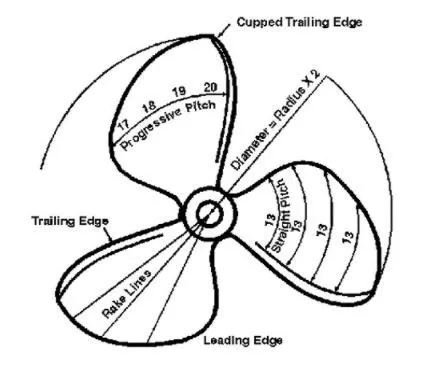
- What is a Propeller?
An oversimplified explanation describes boat propeller theory as being similar to a rotating screw. But, it actually involves more than a turning screw. There are forces created by moving the water away from the blades of the propeller and these forces are what help move the propeller forward, thus moving the boat.
Boat propellers include blades that turn on a shaft, which is powered by the motor. Propellers can have 3, 4, or 5 blades. Typically, the more blades on the propeller, the more propulsion can be achieved. While the motor provides the power, the propeller is where all the action takes place. Propeller blades displace water, to create the forces that move a boat forward.
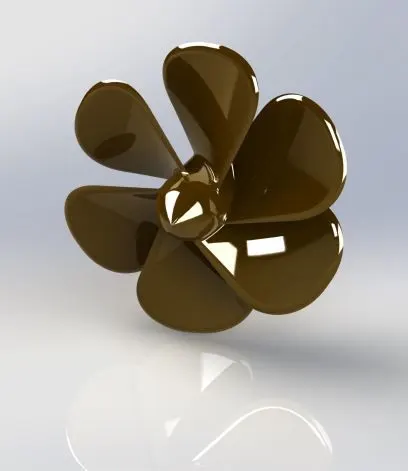
- The Propeller is designed as per the dimensions provided in the book. A snapshot of the designed Propeller is given below:-
For Sketching, we used:-
- Line
- Spline
- Circle
- Offset
- Three-Point Rectangle
- Spline commands.
- Convert Entities
Features used for creating the Propeller in Solidworks:-
- Revolved Boss/Base
- Extruded Boss/Base
- Extruded Cut
- Planes
- Fillet
- Circular Pattern
- Lofted Boss/Base
2). RADAR:-
ANSWER:-
- What is a RADAR?
Radar (radio detection and ranging) is a detection system that uses radio waves to determine the distance (ranging), angle, or velocity of objects. It can be used to detect aircraft, ships, spacecraft, guided missiles, motor vehicles, weather formations, or terrain. A radar system consists of a transmitter producing electromagnetic waves in the radio or microwaves domain, a transmitting antenna, a receiving antenna (often the same antenna is used for transmitting and receiving), and a receiver and processor to determine properties of the object(s). Radio waves (pulsed or continuous) from the transmitter reflect off the object and return to the receiver, giving information about the object's location and speed.
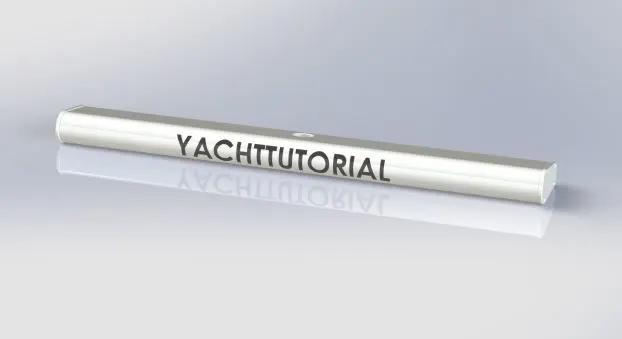
- The Radar is designed as per the dimensions. A snapshot of the designed Radar is given below:-
For Sketching, we used:-
- Line
- Spline
- Circle
- Offset
- Polygon
- Points
- Text
- Convert Entities
Features used for creating the Radar in Solidworks:-
- Revolved Boss/Base
- Extruded Boss/Base
- Extruded Cut
- Planes
- Fillet
- Mirror
- Sketch-Driven Pattern
- Lofted Boss/Base
- Split Line
3). Yacht_Hull:-
ANSWER:-
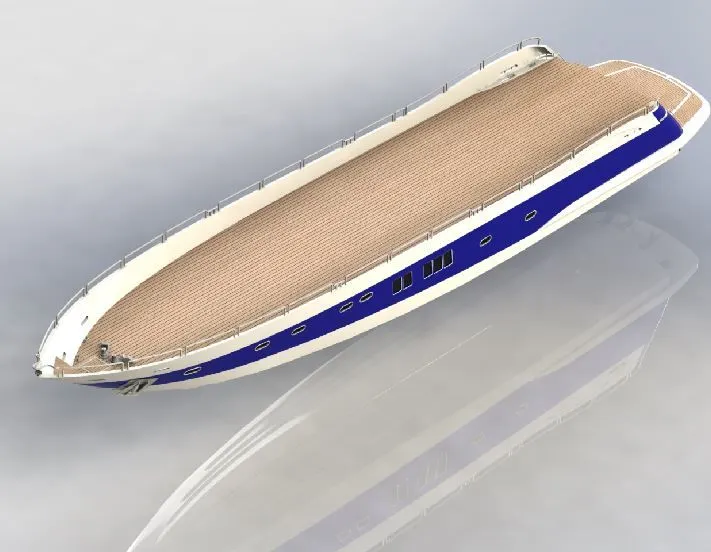
- The Hull is designed as per the dimensions given in the Ebook. A snapshot of the designed Yacht_Hull is given below:-
For Sketching, we used:-
- Line
- 3D Sketch
- Circle
- Ellipse
- Three-Point Arc
- Rectangle
- Straight Slot
- Copy Entities
- Offset Entities
- Spline commands.
- Offset
- Mirror Entities
- Helix/Spiral
- Convert Entities
Features used for creating the Hull in Solidworks:-
- Revolve Boss
- Extrude Boss
- Extrude Cut
- Fillet
- Delete Face
- Dome
- Mirror
- Surface Loft
- Surface Trim
- Surface Knit
- Shell
- Sweep
- Circular Pattern
- Linear Pattern
- Move/Copy
- Chamfer
- Projected Curve
- Planes
- Delete/Keep Body
- Split Line
- Text
- Offset Surface
4). Yacht_Garage Door:-
ANSWER:-
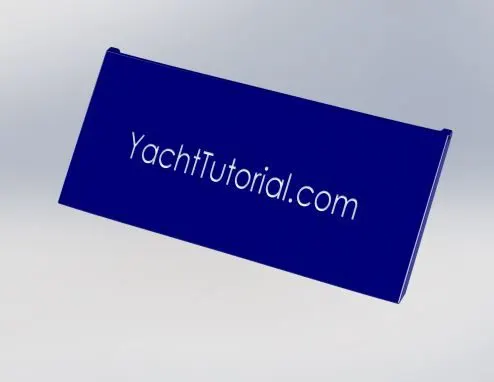
- The Garage Door is designed as per the dimensions given in the Ebook. A snapshot of the designed Yacht Garage Door is given below:-
For Sketching, we used:-
- Line
- Circle
- Text
- Convert Entities
Features used for creating the Garage Door in Solidworks:-
- Cut Extrude
- Shell
- Fillet
- Mirror
- Plane
5). FRONT_SEAT:-
ANSWER:-
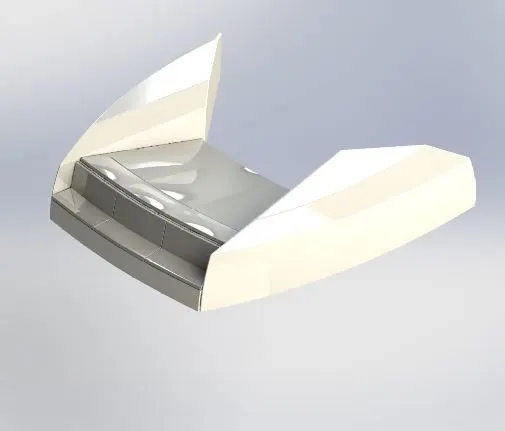
- The Front Seat is designed as per the dimensions given in the Ebook. A snapshot of the designed Front Seat is given below:-
For Sketching, we used:-
- Line
- Three-Point Arc
- Rectangle
- Copy Entities
- Offset Entities
- Spline commands.
- Offset
- Mirror Entities
- Convert Entities
Features used for creating the Front Seat in Solidworks:-
- Revolve Boss
- Extrude Boss
- Extrude Cut
- Fillet
- Surface Loft
- Delete Face
- Surface Fill
- Surface Extend
- Mirror
- Surface Trim
- Surface Knit
- Sweep
- Chamfer
- Projected Curve
- Planes
- Offset Surface
6). MIDDLE_SEAT:-
ANSWER:-
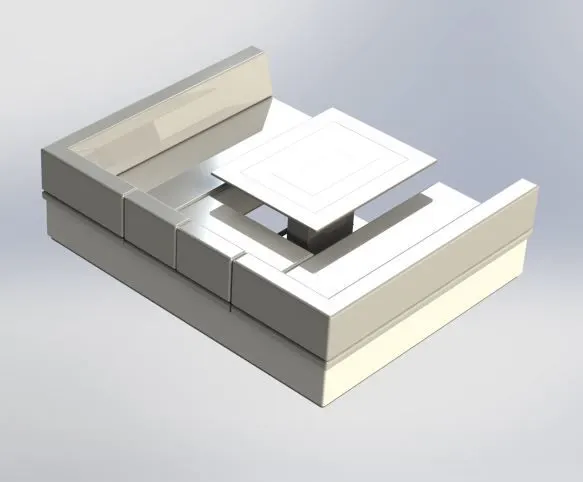
- The Middle Seat is designed as per the dimensions given in the Ebook. A snapshot of the designed Middle Seat is given below:-
For Sketching, we used:-
- Line
- Circle
- Three-Point Arc
- Rectangle
- Copy Entities
- Offset Entities
- Convert Entities
Features used for creating the Middle Seat in Solidworks:-
- Extrude Boss
- Ruled Surface
- Extrude Cut
- Fillet
- Mirror
- Sweep
- Chamfer
- Planes
7). REAR_SEAT:-
ANSWER:-
- The Rear Seat is designed as per the dimensions given in the Ebook. A snapshot of the designed Rear Seat is given below:-
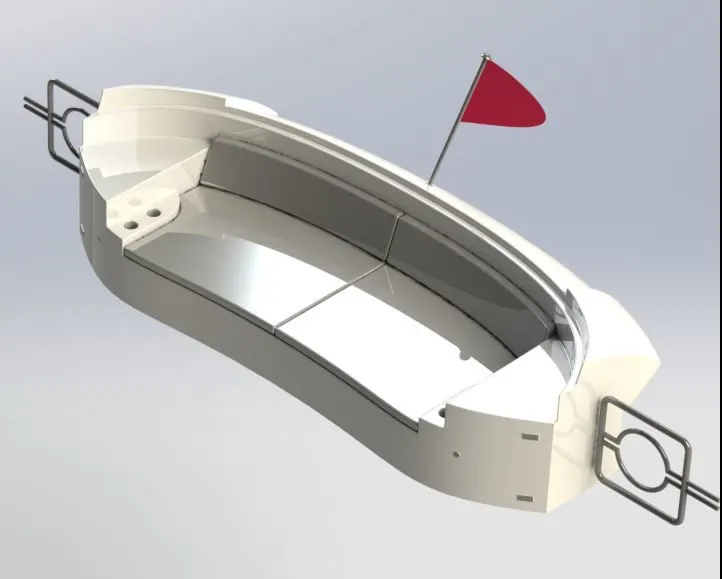
For Sketching, we used:-
- Line
- 3D Sketch
- Circle
- Three-Point Arc
- Rectangle
- Straight Slot
- Copy Entities
- Offset Entities
- Spline commands.
- Offset
- Mirror Entities
- Convert Entities
Features used for creating the Rear Seat in Solidworks:-
- Revolve Boss
- Extrude Boss
- Ruled Surface
- Extrude Cut
- Fillet
- Surface Loft
- Delete Face
- Surface Fill
- Surface Extend
- Mirror
- Surface Trim
- Surface Knit
- Sweep
- Chamfer
- Projected Curve
- Planes
- Offset Surface
8). RADAR_MAST:-
ANSWER:-
- The Radar mast is designed as per the dimensions given in the Ebook. A snapshot of the designed Radar mast is given below:-
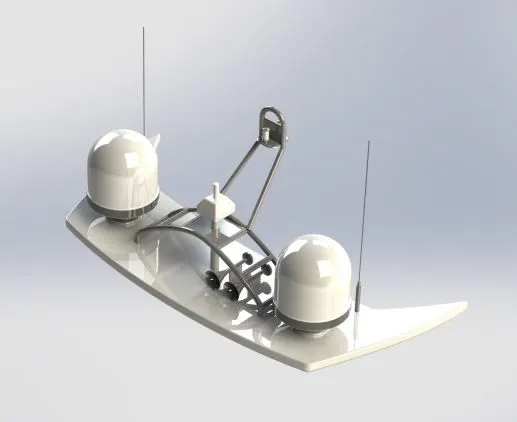
For Sketching, we used:-
- Line
- Circle
- Three-Point Arc
- Rectangle
- Copy Entities
- Offset Entities
- Convert Entities
Features used for creating the Radar mast in Solidworks:-
- Extrude Boss
- Revolve Boss
- Projected Curve
- Extrude Cut
- Fillet
- Dome
- Mirror
- Sweep Boss
- Chamfer
- Planes
9). SUPERSTRUCTURE:-
ANSWER:-
- The Superstructure is designed as per the dimensions given in the Ebook. A snapshot of the designed Superstructure is given below:-
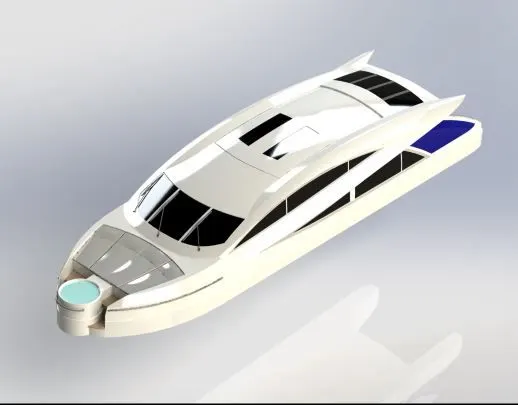
For Sketching, we used:-
- Line
- 3D Sketch
- Circle
- Three-Point Arc
- Rectangle
- Straight Slot
- Copy Entities
- Offset Entities
- Spline commands.
- Offset
- Mirror Entities
- Convert Entities
Features used for creating the Rear Seat in Solidworks:-
- Revolve Boss
- Extrude Boss
- Ruled Surface
- Extrude Cut
- Fillet
- Surface Loft
- Delete Face
- Surface Fill
- Surface Extend
- Mirror
- Surface Trim
- Surface Knit
- Sweep
- Chamfer
- Projected Curve
- Planes
- Offset Surface
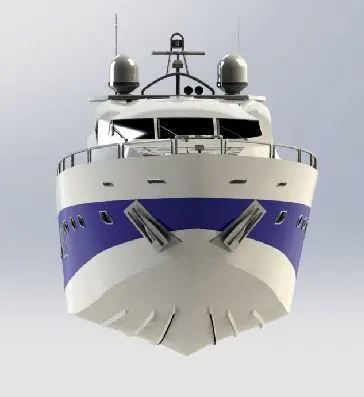
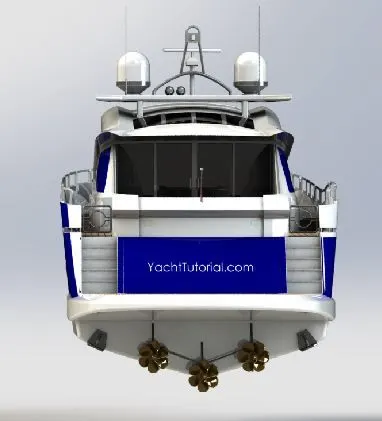
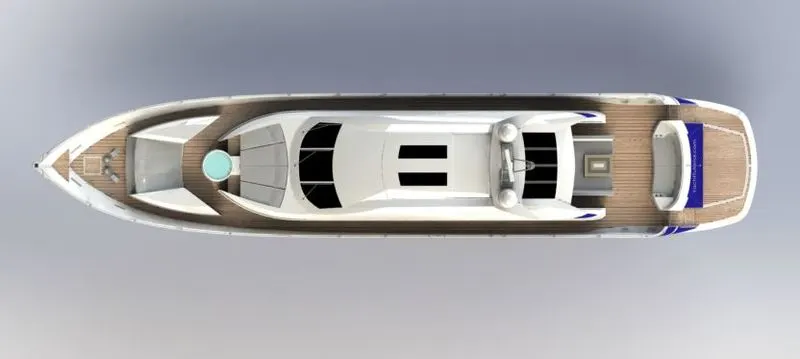
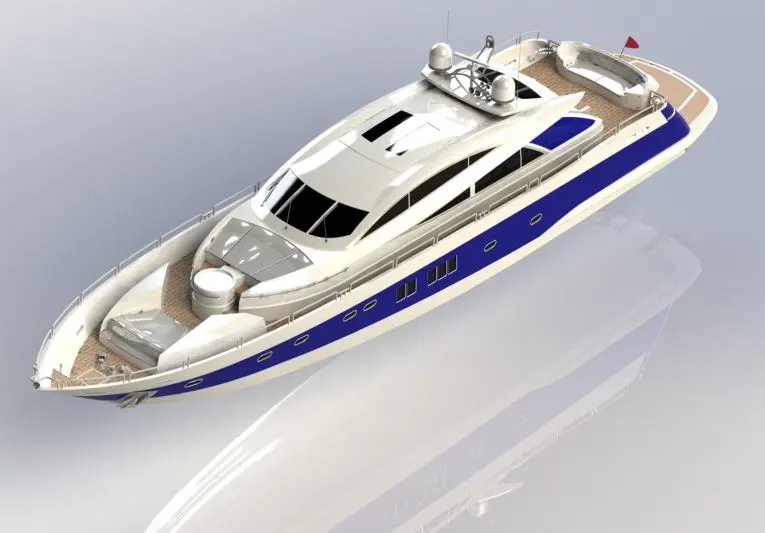
ASSEMBLY OF THE YACHT:-
- All the parts which are designed in the parts file are to be inserted into the assembly file one by one as per the requirements.
- And then apply mates to each individual part with other parts for proper alignment.
FRONT VIEW:-
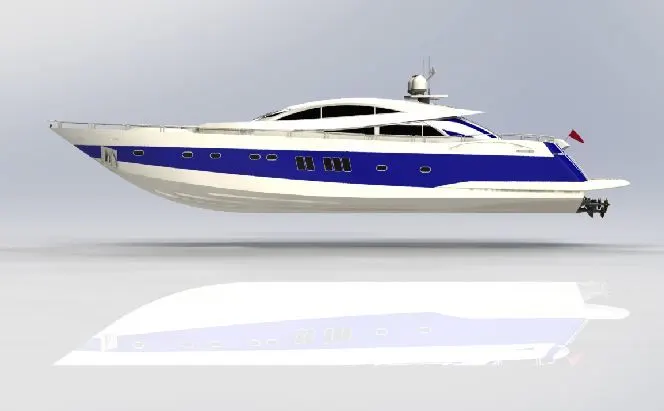
SIDE VIEW:-
TOP_VIEW:-
ISOMETRIC_VIEW:-
CAMERA_SETUP_VIEW:-
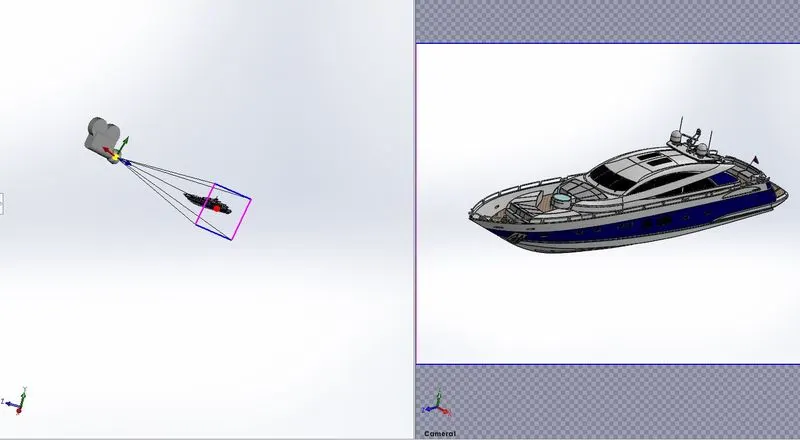
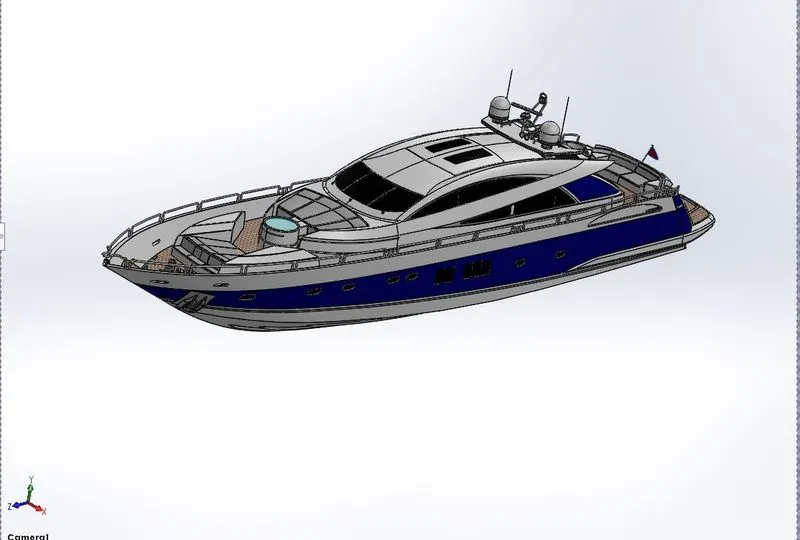
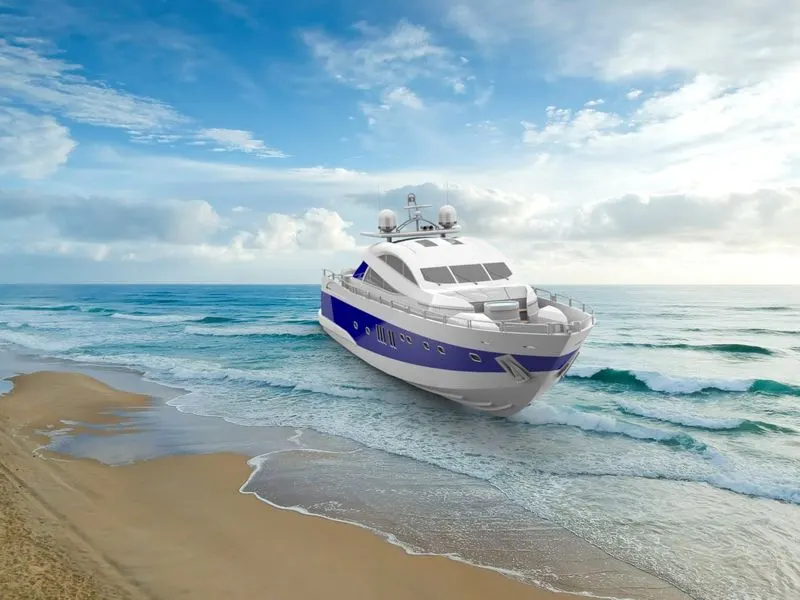
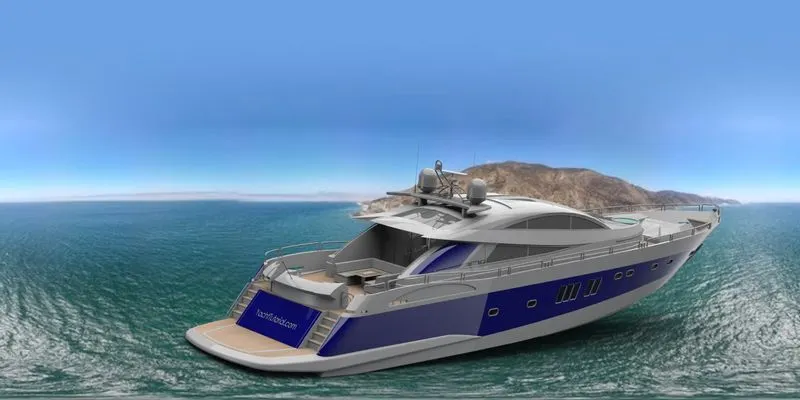
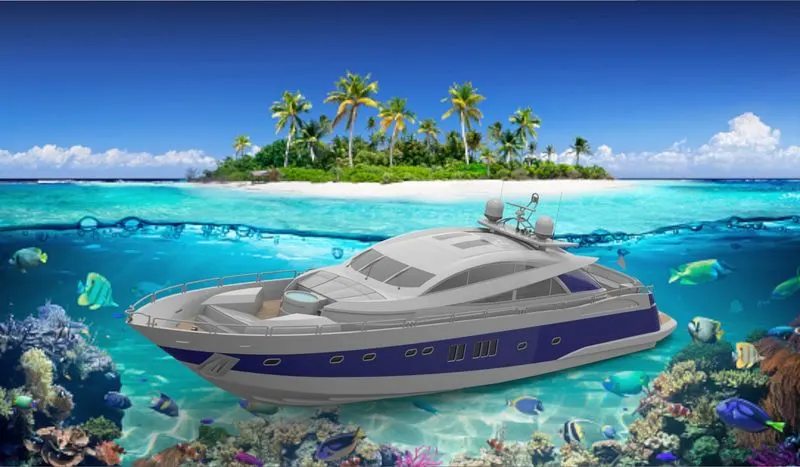
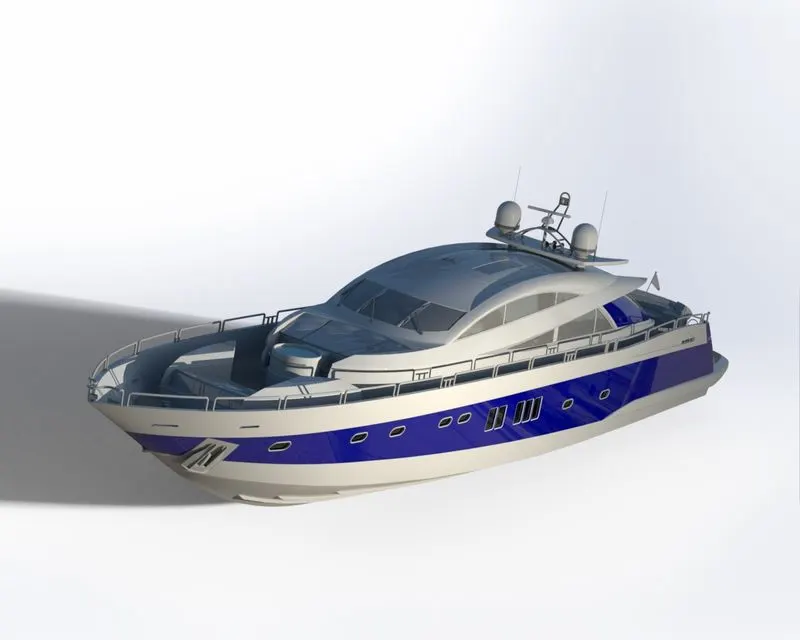
RENDERING PROCESS:-
- Step_1:- Import the assembly file into the Solidworks Photo Visualize.
- Step_2:- Give the appearance to parts to make it more realistic.
- Step_3:- Add Scenes for the background.
- Step_4:- Make a fast Rendering and check the output.
FINAL_RENDERING_IMAGE:-
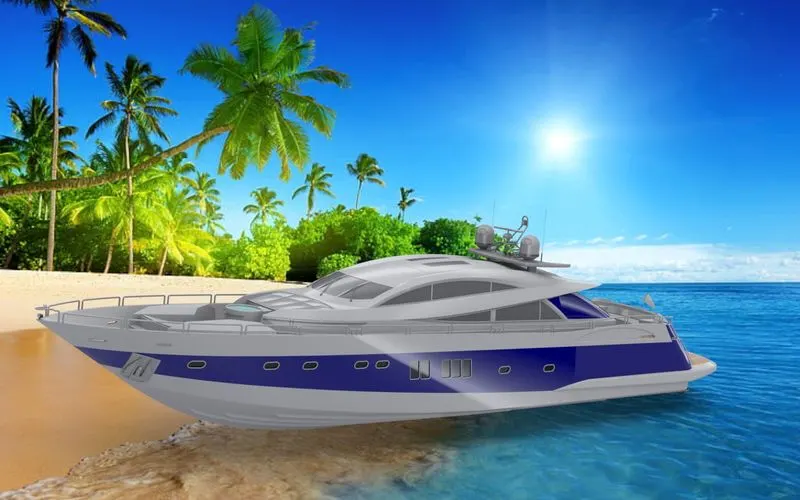
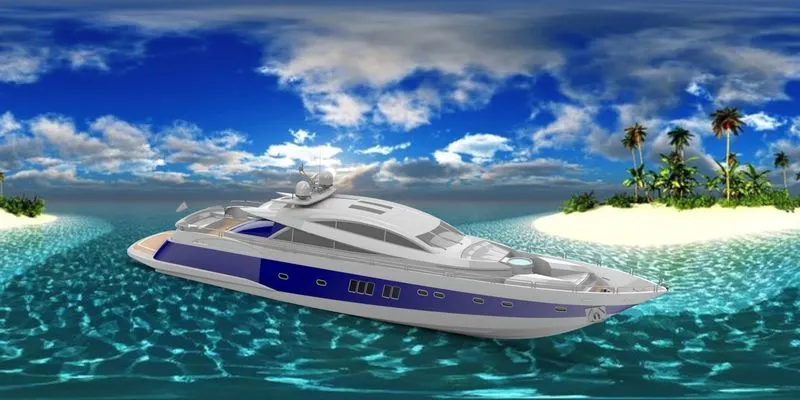
GOOGLE DRIVE LINK:- https://drive.google.com/file/d/19g5bAII4shIKcp_wAPsjNRW05Rfjg28A/view?usp=sharing
CONCLUSION:-
At the end of the project, each component is designed individually in part files and assembled to complete the Yacht Design. And to set up an additional appearance like Decals, Cameras, Lights, etc to make it more Photo Realistic.