Project - Analysis of mobile or Wifi network using an android app
Analysis of wifi using android app:
First of all we study that how we can fullfill this goal (Analysis of wifi using android app) .Here is the details to do this .
Certainly! Here's a more detailed breakdown of the Wi-Fi Analyzer Plus project, including additional features, implementation details, and user interface considerations:
1. Introduction:
Wi-Fi Analyzer Plus is an Android application designed to analyze and optimize Wi-Fi networks. It provides users with comprehensive insights into nearby Wi-Fi networks, including signal strength, channel usage, interference, and security protocols. By offering actionable recommendations, the app helps users improve their Wi-Fi performance and security.
2. Objectives:
- Develop a feature-rich Android app for Wi-Fi network analysis.
- Enable real-time scanning of nearby Wi-Fi networks and display essential information.
- Implement advanced analysis algorithms to identify optimization opportunities.
- Provide intuitive visualizations and recommendations for users to enhance their Wi-Fi experience.
3. Features:
a. Network Scanner:
- Scan nearby Wi-Fi networks and display SSID, signal strength, encryption type, and channel information.
- Allow users to refresh the scan results manually or automatically at regular intervals.
b. Signal Strength Analysis:
- Visualize signal strength using line charts or bar graphs to identify areas with weak signals.
- Highlight signal strength changes over time to track network performance trends.
c. Channel Usage Analysis:
- Analyze Wi-Fi channel occupancy and identify channels with high congestion.
- Recommend less crowded channels for users to optimize their Wi-Fi performance.
d. Interference Detection:
- Detect sources of interference such as neighboring Wi-Fi networks, Bluetooth devices, or electronic appliances.
- Provide suggestions to mitigate interference and improve network stability.
e. Security Analysis:
- Check the security protocols (WEP, WPA, WPA2) used by nearby networks.
- Alert users about networks with weak or no encryption and recommend securing their connections.
f. Speed Test:
- Conduct speed tests to measure the user's current Wi-Fi download and upload speeds.
- Display speed test results and compare them with expected speeds for the user's network plan.
g. Network Map:
- Visualize nearby Wi-Fi networks on a map interface, showing their locations and signal strengths.
- Allow users to explore network details by tapping on individual network markers on the map.
4. Implementation:
a. Development Environment:
- Use Android Studio IDE for app development.
- Utilize Java or Kotlin programming languages for Android development.
b. APIs and Libraries:
- Use Android's Wi-FiManager API for accessing Wi-Fi functionalities.
- Implement graphical representations using MPAndroidChart for charts and Google Maps API for network mapping.
c. User Interface (UI):
- Design a modern and intuitive user interface with Material Design principles.
- Ensure seamless navigation and responsiveness across various screen sizes and orientations.
5. Testing:
a. Unit Testing:
- Write unit tests to validate the functionality of individual app components.
- Use JUnit and Mockito frameworks for unit testing.
b. Integration Testing:
- Perform integration tests to verify the interaction between different app modules.
- Test various scenarios to ensure app stability and reliability.
6. Deployment:
a. Google Play Store:
- Deploy Wi-Fi Analyzer Plus on the Google Play Store for easy access by users.
- Comply with Google Play policies and guidelines for app distribution.
b. User Feedback:
- Encourage users to provide feedback and suggestions through in-app feedback forms or reviews.
- Regularly update the app based on user feedback and emerging technologies.
7. Conclusion:
Wi-Fi Analyzer Plus is a powerful tool for Android users to optimize their Wi-Fi networks. By offering detailed analysis and actionable recommendations, the app empowers users to enhance their network performance, security, and overall Wi-Fi experience.
This detailed project plan provides a roadmap for developing Wi-Fi Analyzer Plus, focusing on functionality, usability, and performance optimization to meet the needs of modern Android users.
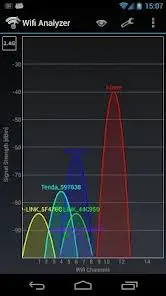
Here is wifi analysis image.
What is SSIDs:
Service Set Identifier (SSID): In simple terms, an SSID is the name of a WiFi network. It’s what you see when you want to select a WiFi network to log in a new device. The maximum allowed length of an SSID is 32 characters, and SSIDs are case sensitive, which means that "abc" isn’t the same as "aBc".
Band: Most WiFi networks are broadcasted on 2.4 GHz and 5 GHz bands. Older WiFi routers typically support only the 2.4 GHz band, but most newer routers support both bands. Since the 2.4 GHz band has been in use for some time, it can be very cluttered.
WiFi channels waves
Channel: The 2.4 GHz band is divided into 11 channels, three of which are non-overlapping. The 5 GHz band offers far more non-overlapping channels. Selecting a non-overlapping channel is important for avoiding signal interference caused by other WiFi networks on the same channel.
Wi-Fi channels
Security: A capable WiFi scanner should be able to obtain information about the security settings of a WiFi network so that you can find unsecured networks in your area and evaluate whether they’re posing a threat.
Signal: One of the most important pieces of information that a WiFi scanner can obtain is the strength of a specific WiFi signal. This information can help you optimize the performance of your own WiFi network eliminated signal weak spots.
To discover what else can a WiFi scanner tell you about a wireless network, go to the end of this article, were we talk in more detail about information provided by NetSpot.
What is fading causes:
In the context of Wi-Fi networks, fading refers to the phenomenon where the signal strength of the wireless connection fluctuates or decreases due to various factors. These fading causes can impact the reliability and performance of the Wi-Fi network. Here are some common fading causes:
1. Multipath Propagation:
- Multipath propagation occurs when Wi-Fi signals bounce off obstacles or surfaces in the environment, such as walls, floors, or furniture.
- As the signals reflect and refract off different surfaces, they may arrive at the receiver with slight delays, causing interference and signal fading.
2. Absorption by Building Materials:
- Building materials such as concrete, brick, and metal can absorb Wi-Fi signals, leading to attenuation and signal loss.
- Thick walls, metallic structures, and dense materials can significantly reduce the signal strength, especially at longer distances from the router.
3. Distance from the Router:
- Wi-Fi signals weaken as they travel through space, so the farther away a device is from the router, the weaker the signal strength.
- Increased distance can result in signal attenuation and fading, particularly in large homes or buildings with multiple rooms.
4. Interference from Other Devices:
- Interference from other electronic devices operating in the same frequency band can disrupt Wi-Fi signals and cause fading.
- Common sources of interference include microwave ovens, cordless phones, Bluetooth devices, and neighboring Wi-Fi networks.
5. Environmental Factors:
- Environmental factors such as weather conditions, humidity, and atmospheric disturbances can affect Wi-Fi signal propagation.
- Rain, snow, and fog can attenuate Wi-Fi signals, leading to signal fading, especially in outdoor environments.
6. Dynamic Interference:
- Wi-Fi networks operate in shared frequency bands, and dynamic interference from neighboring networks or devices can cause signal fading.
- Changes in network usage or the addition of new devices in the vicinity can lead to fluctuations in signal strength and interference.
Understanding these fading causes is essential for diagnosing and mitigating Wi-Fi performance issues. By identifying the specific factors contributing to signal fading in a particular environment, users can implement targeted solutions to improve Wi-Fi coverage and reliability.
What is network blackhole:
In the context of Wi-Fi networks, a network blackhole refers to an area within the coverage range where the Wi-Fi signal is either extremely weak or completely absent. In other words, devices within a network blackhole experience difficulties in establishing a stable and reliable connection to the Wi-Fi network. Here are some characteristics and causes of network blackholes:
1. Weak Signal Strength:
- In a network blackhole, the signal strength of the Wi-Fi network is significantly lower than in surrounding areas.
- Devices within the blackhole may detect the Wi-Fi network, but the signal strength is too weak to establish a reliable connection.
2. Intermittent Connectivity:
- Devices located within a network blackhole may experience intermittent connectivity issues.
- The connection may drop frequently, leading to disruptions in data transmission and a poor user experience.
3. Complete Signal Loss:
- In severe cases, a network blackhole may result in complete signal loss, where devices are unable to detect the Wi-Fi network at all.
- This can occur in areas with significant signal attenuation or interference, making it impossible for devices to establish a connection.
4. Causes of Network Blackholes:
- Distance from the Router: Devices located far away from the Wi-Fi router may fall into a network blackhole due to signal attenuation over long distances.
- Signal Obstruction: Physical obstacles such as walls, furniture, or large appliances can block or attenuate Wi-Fi signals, creating blackhole areas.
- Interference: Strong interference from neighboring Wi-Fi networks, electronic devices, or environmental factors can disrupt Wi-Fi signals and contribute to network blackholes.
- Router Placement: Improper placement of the Wi-Fi router, such as in a corner or behind obstacles, can result in uneven signal distribution and the formation of blackhole areas.
- Environmental Factors: External factors such as weather conditions, electromagnetic interference, or structural materials in the building can affect Wi-Fi signal propagation and contribute to blackholes.
Network blackholes can significantly impact the performance and usability of a Wi-Fi network, especially in large or complex environments. Identifying the causes of blackholes and implementing strategies to mitigate them, such as optimizing router placement, reducing signal obstructions, or using Wi-Fi range extenders, can help improve overall network coverage and reliability.
Suggest ways to improve the coverage of the WIFI in your home are:
1) Choose a central location:
central location provide the best signal strength accross your home. Place the router access point is on the 1st floor .Place the router at access point high on a shelf to provide stronger signal.
2) Replace the router off the floor:
Router antennas are usually omnidirectional, meaning they broadcast in all directions. So if you place a router near an outside wall you end up broadcasting half of your wireless signals to the outside world. Many routers, however, come with removable antennas. If you replace the omnidirectional antenna with a high-gain antenna, you can aim the router’s wireless signal in the direction you want.
3) Replace your device wireless card-based network adapter:
Wireless network signals are sent to and from your computer. Devices with built-in wireless networking typically have excellent antennas. Sometimes, however, the router can broadcast to your device, but your device can't send signals back to the router. To resolve this issue, replace your card-based wireless network adapter with a USB wireless network adapter that uses an external antenna.
4) Add a wireless repeater:
Wireless repeaters are handy devices that rebroadcast a wireless signal, strengthening the signal from your router to other floors or the opposite side of a building. You can place one anywhere there's an outlet, but look for locations that are halfway between your router, modem, or access point and your device. Research these products before investing in one. Some wireless repeaters can be difficult to configure and can drag down your network's performance.
Frequency bands to impove the signal strength . it provides the two different channnels so that more user can connect at a time without any interauption . and with help of this we can easly connect more device at a time . and with the help of this we can connect IOT .
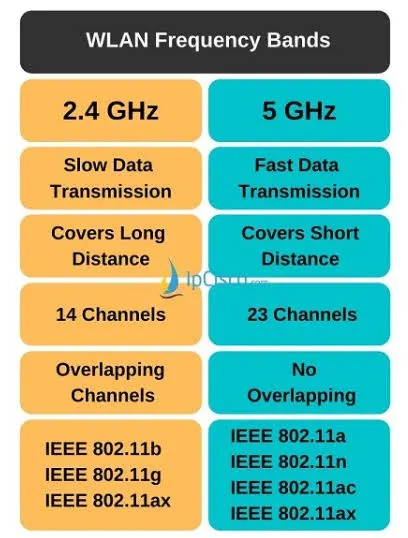
Wi-Fi channels are specific frequencies within the 2.4 GHz and 5 GHz bands that Wi-Fi routers use to transmit data wirelessly. Each channel represents a different frequency, and selecting the right channel can significantly impact Wi-Fi performance and minimize interference. Here are the common Wi-Fi channel numbers and reasons for selecting them:
2.4 GHz Band:
1. Channel 1 (2.412 GHz):
- Reason: It is the default channel used by many routers and provides good coverage with minimal interference.
2. Channel 6 (2.437 GHz):
- Reason: This channel is also widely used and can be less congested than other channels in some areas.
3. Channel 11 (2.462 GHz):
- Reason: Similar to channels 1 and 6, channel 11 is less congested in many environments and provides good coverage.
Reasons for Channel Selection in the 2.4 GHz Band:
- Avoiding Interference: Channels 1, 6, and 11 are non-overlapping channels, meaning they don't interfere with each other. Choosing one of these channels reduces co-channel interference.
- Minimizing Adjacent Channel Interference: Adjacent channels overlap with each other to some extent. By selecting channels 1, 6, or 11, you minimize interference from adjacent channels.
- Balancing Channel Congestion: Channels 1, 6, and 11 are commonly used and can be congested, but they are still preferable due to their non-overlapping nature. Choosing the least congested of these channels is ideal.
5 GHz Band:
1. Channel 36 (5.180 GHz):
- Reason: This channel is often used as the default starting channel for many routers in the 5 GHz band.
2. Channel 40 (5.200 GHz):
- Reason: Similar to channel 36, channel 40 is commonly used and may offer good performance in some environments.
3. Channel 149 (5.745 GHz):
- Reason: Channels in the higher range of the 5 GHz band are less congested and may offer better performance in areas with many Wi-Fi networks.
Reasons for Channel Selection in the 5 GHz Band:
- Less Congestion: The 5 GHz band typically has more available channels compared to the 2.4 GHz band, allowing for better channel selection and less interference.
- Higher Throughput: Channels in the 5 GHz band often offer higher data rates and less interference from non-Wi-Fi devices, resulting in improved performance.
- Dynamic Channel Selection: Many modern routers support dynamic channel selection, allowing them to automatically choose the best available channel based on the surrounding Wi-Fi environment.
When selecting Wi-Fi channels, it's essential to consider factors such as channel congestion, interference, and the capabilities of your router and client devices. Conducting a Wi-Fi site survey or using a Wi-Fi monitoring app can help identify the least congested channels in your area and optimize your Wi-Fi network for better performance and reliability.
Coverage improvements of wifi:
Improving the coverage of your Wi-Fi network is crucial for ensuring reliable and high-speed connectivity throughout your home or office. Here are several strategies to enhance Wi-Fi coverage:
1. Optimal Router Placement:
- Place your Wi-Fi router in a central location within your home or office.
- Elevate the router to minimize obstructions and ensure better signal propagation.
- Avoid placing the router near thick walls, large furniture, or electronic appliances that can block or absorb Wi-Fi signals.
2. Upgrade Router Antennas:
- Consider upgrading the antennas on your router to high-gain antennas.
- High-gain antennas can extend the range and coverage of your Wi-Fi network by focusing the signal in specific directions.
3. Use Wi-Fi Extenders or Repeaters:
- Install Wi-Fi extenders or repeaters in areas with weak signal coverage.
- Wi-Fi extenders amplify the existing Wi-Fi signal and rebroadcast it to extend coverage to areas that were previously unreachable.
4. Mesh Wi-Fi Systems:
- Deploy a mesh Wi-Fi system for seamless coverage throughout your home or office.
- Mesh Wi-Fi systems consist of multiple access points that work together to create a single, unified Wi-Fi network with consistent coverage.
5. Channel Optimization:
- Analyze Wi-Fi channel congestion using a Wi-Fi analyzer app and select the least congested channel.
- Channels 1, 6, and 11 are non-overlapping channels in the 2.4 GHz band and are commonly recommended to minimize interference.
6. 5 GHz Band Utilization:
- Take advantage of the 5 GHz band for less interference and faster speeds.
- Devices operating on the 5 GHz band may experience better performance and coverage compared to the congested 2.4 GHz band.
7. Quality of Service (QoS) Settings:
- Configure Quality of Service (QoS) settings on your router to prioritize certain types of traffic, such as video streaming or online gaming.
- QoS settings can help ensure that critical applications receive sufficient bandwidth and improve overall network performance.
8. Firmware Updates:
- Regularly update the firmware of your router to ensure compatibility with the latest Wi-Fi standards and security patches.
- Firmware updates may include performance improvements and bug fixes that can enhance Wi-Fi coverage and stability.
9. Optimize Client Devices:
- Ensure that client devices such as smartphones, laptops, and tablets have up-to-date Wi-Fi drivers and firmware.
- Position client devices within the optimal range of the Wi-Fi router to maximize signal strength and coverage.
10. Professional Site Survey:
- Consider hiring a professional to conduct a Wi-Fi site survey to identify coverage gaps and optimize your network for maximum performance.
By implementing these coverage improvement strategies, you can extend the reach and reliability of your Wi-Fi network, providing seamless connectivity for all your devices.