Project 2 - V&V SW Analysis II
STATIC CODE REVIEW ANALYSIS
USER USED IN LDRA SERVER USER - 18
file location paths are in Screen shots
Running Static Code Review Analysis with LDRA Tool Suite
Introduction:
Static code review analysis involves reviewing source code for potential issues without executing the code.
LDRA provides tools that aid in static code analysis.
The following steps guide you through the process of using the LDRA Tool Suite to analyze source code and generate a comprehensive report.
Procedure:
1. Launch LDRA Tool Suite:
- Open the LDRA Tool Suite application.
2. Create a New Project:
- Create a new project in LDRA Tool Suite.
- Provide necessary project details such as the project name, location, and the source code location.
3. Add Source Code:
- Add the source code file `Testrain.c` to the project.
- Ensure all related source code files and dependencies are included in the project.
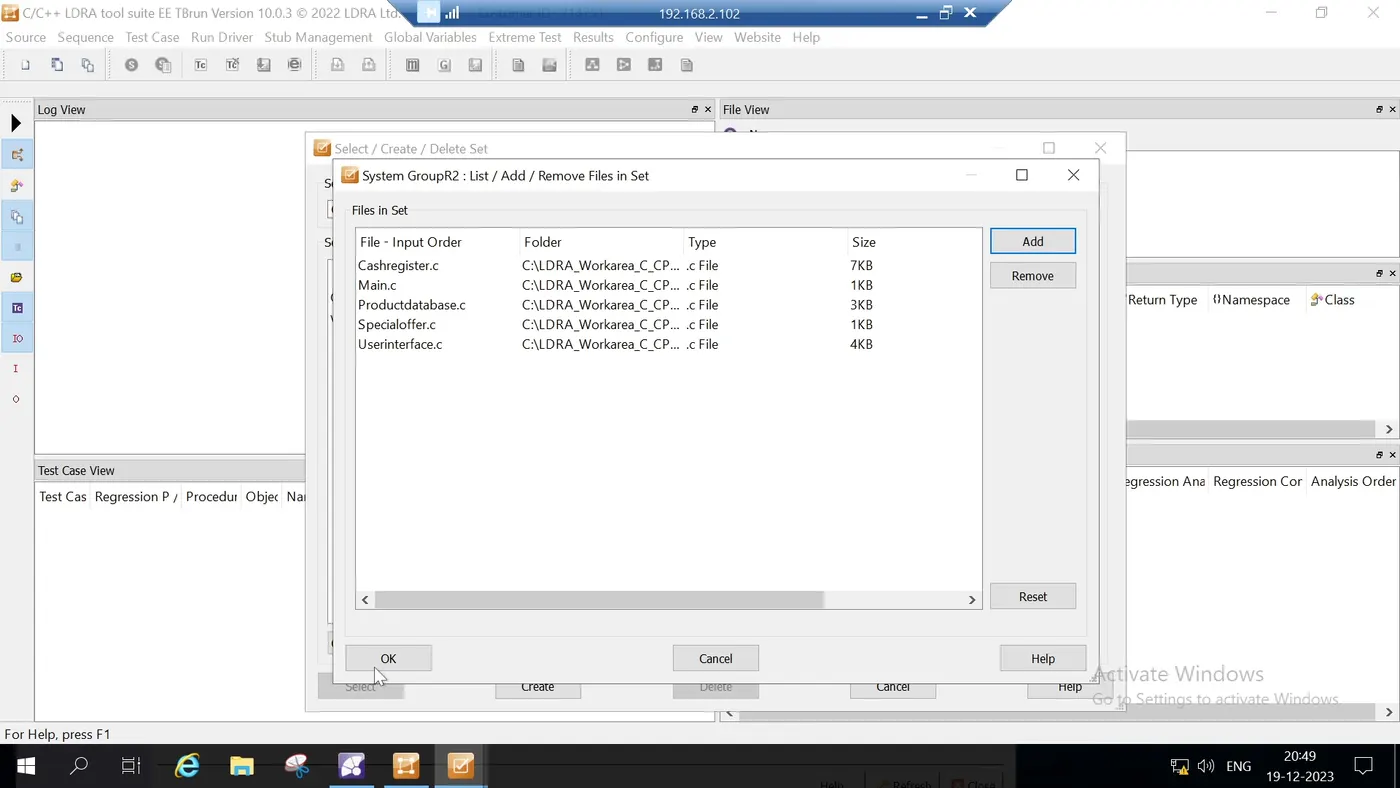
1.SELECTING MULTIPLE FILES AND INCLUDING
4. Configure Analysis Settings:
- Configure analysis settings according to your requirements. This may involve setting coding standards, rules, and
guidelines for LDRA to use during analysis.
5. Run Static Analysis:
- Run static analysis on the source code using the LDRA tool suite.
- The tool will scan the code for issues like coding violations, potential bugs, and security vulnerabilities.
6. Review Analysis Results:
- Review the analysis results provided by LDRA. The tool will generate a list of findings and issues found in the code.
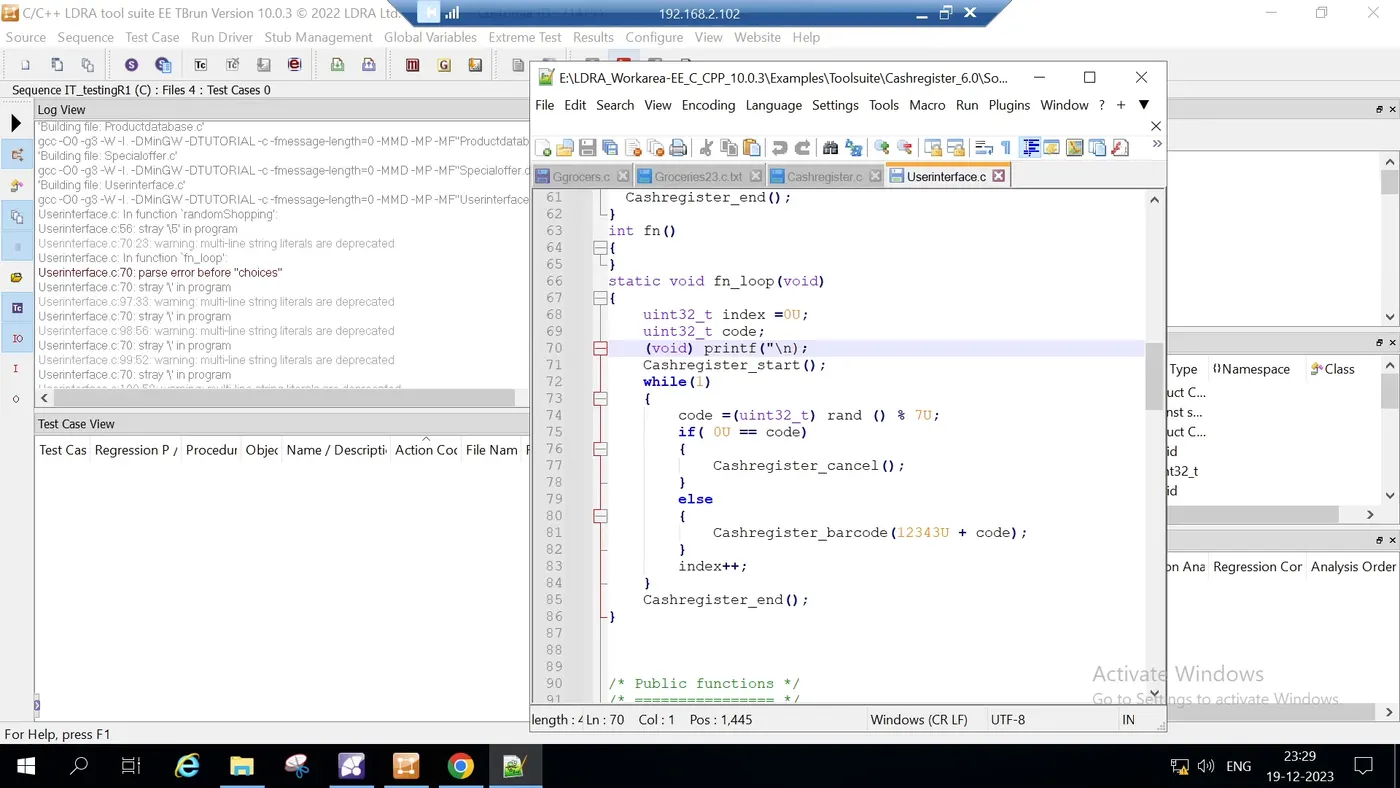
2.RECTIFYING THE PARSE ERROR ( A COLLEN MISSING IN PRINT STATEMENT )
7. Generate Code Review Report:
- Use the LDRA tool suite to generate a code review report.
- The report will summarize analysis results, including issues found, severity levels, and recommendations for remediation.
8. Export the Report:
- Export the generated code review report to a desired format (PDF, HTML, etc.).
- Choose an appropriate location to save the report file.
9. Upload the Report:
- Once the code review report is generated and saved, upload it to your desired location.
This could be a shared drive, version control system, or a document management platform.
10. Notify Stakeholders:
- Notify relevant stakeholders, such as developers, project managers, and quality assurance team members, about the completion
of the code review analysis and the availability of the report.
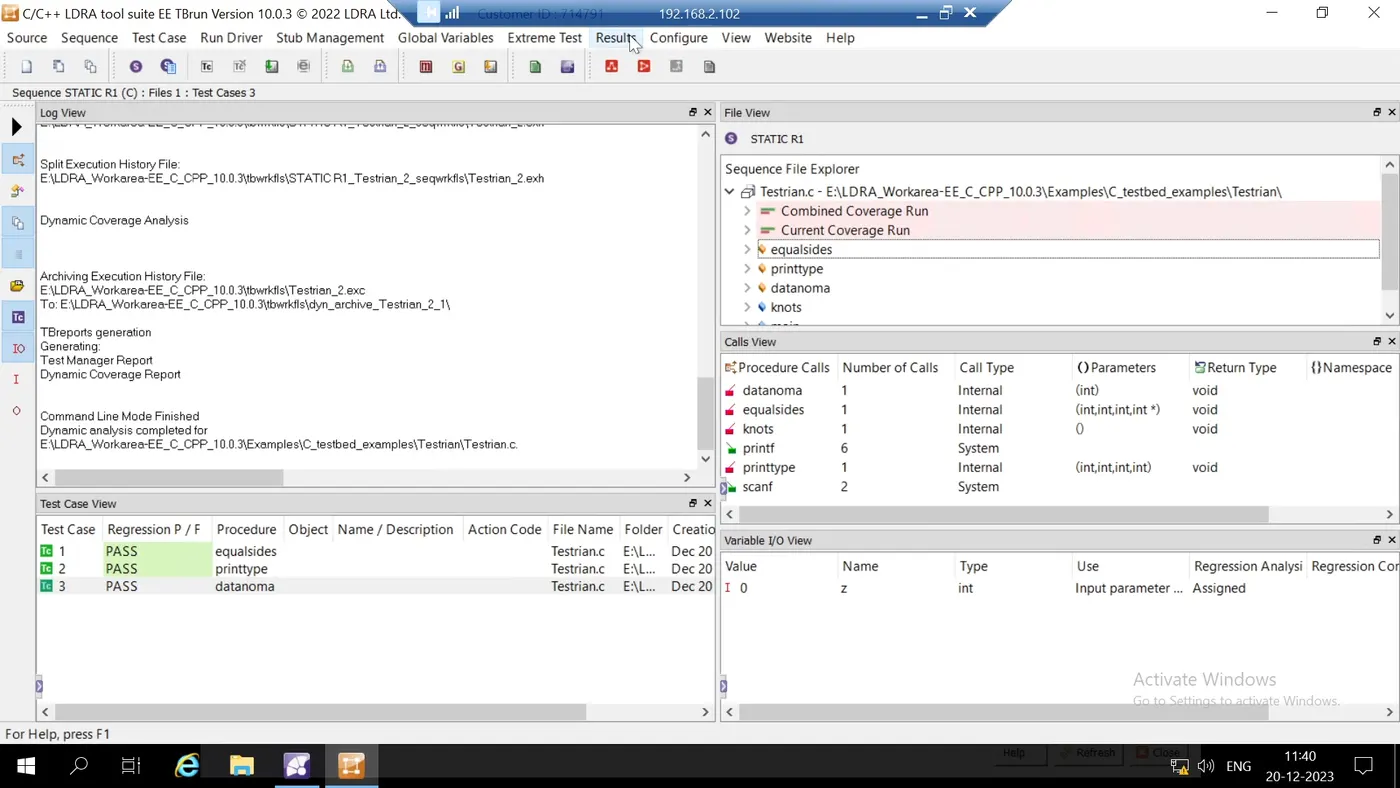
Running Static Code Review Analysis (Detailed Steps):
1. Run "LDRA_TBrun.exe."
2. Go to `Source` => Select `Single File` => Choose `Testrain.c`.
3. Go to `Sequence` => Create new sequence => Choose "woof." Click `OK`.
4. In the `File View`, right-click on `Testrain.c` and set it as white box.
5. Go to `Source` and run static code analysis.
6. Once the code execution finishes (check log view), go to `Result` => `View Test Manager Result`.
7. Open the Test Manager result using an internet browser. Here, you can visualize various parameters.
This consolidated document combines your friend's provided information into a structured guide for
running static code review analysis with the LDRA Tool Suite.
************************************************************************************
2.Procedure for Integration Testing with LDRA Tool Suite
Integration testing is a critical phase in software development to ensure that different components work together seamlessly.
The LDRA Tool Suite provides features for integration testing. Follow the steps below to perform integration testing:
Procedure
1. Run LDRA_TBrun.exe:
- Execute "LDRA_TBrun.exe" to launch the LDRA Tool Suite.
2. Set Up Multiple Files for Integration Testing:
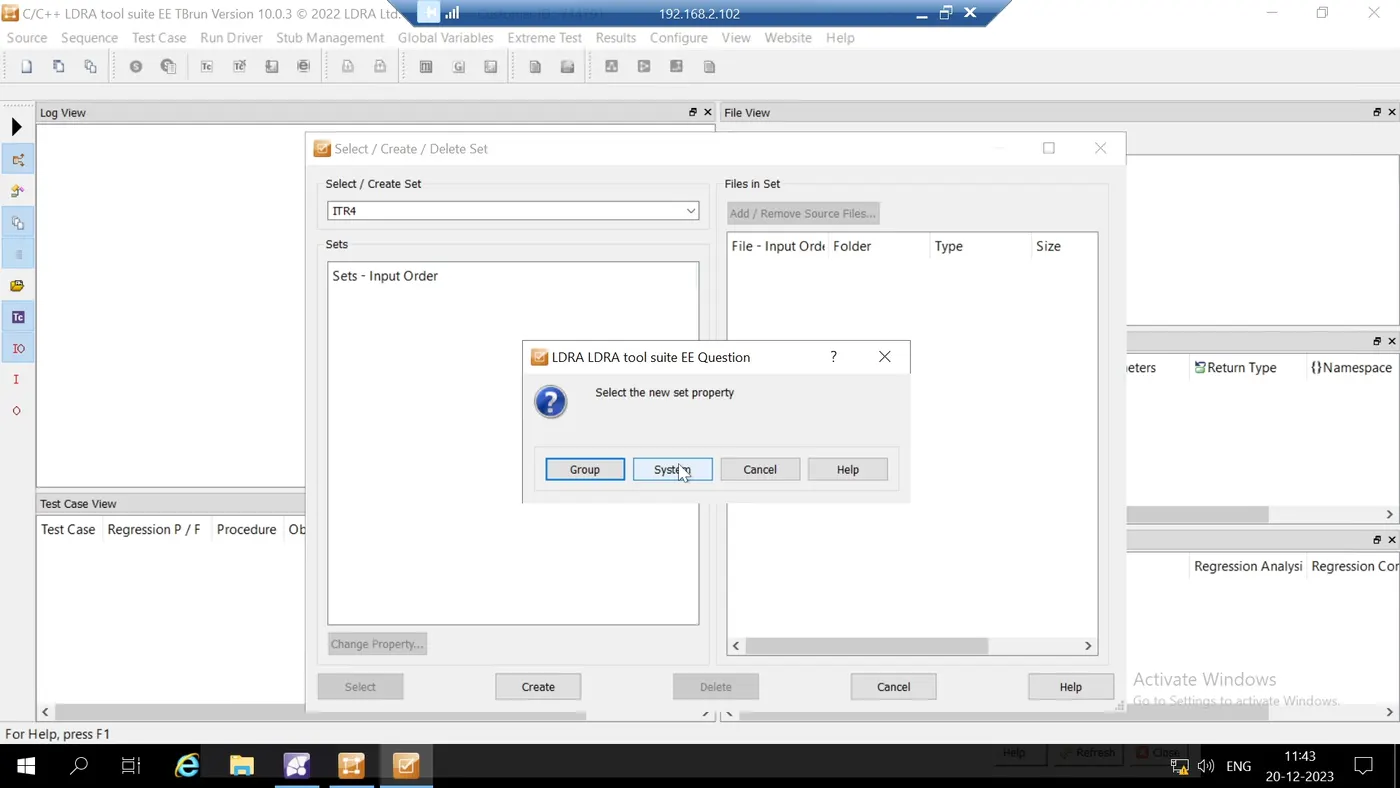
- Go to `Source` => Select `Multiple Files` => Create a name (e.g., "jerry") to group files for testing functionality between .C files.
- Specify 'system' to test functionality across .C files.
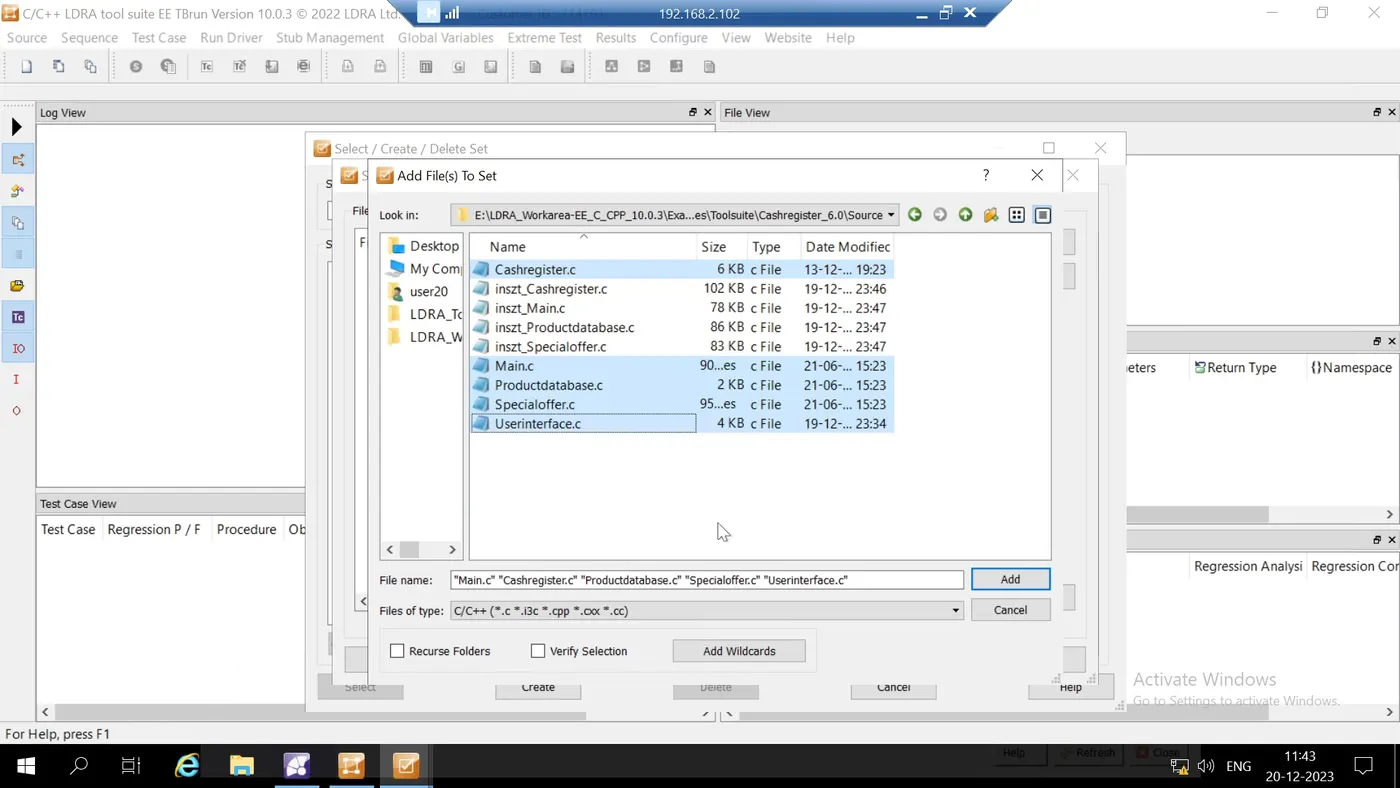
3. Add Files for Integration:
- Click `Add` and navigate to the respective folder containing .C files.
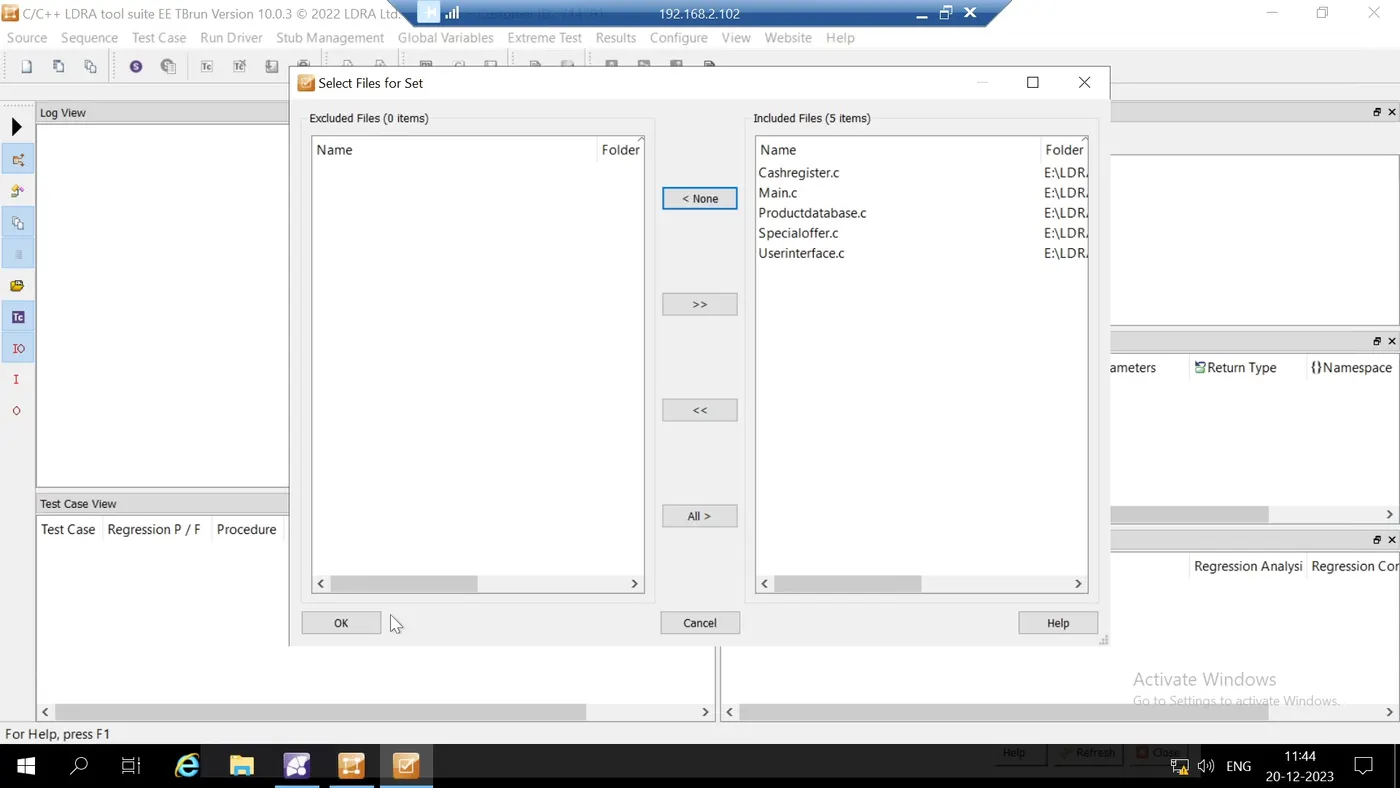
- Select all relevant .C files.
- Click `OK` and choose `NO` for LDRA test bed static code analysis.
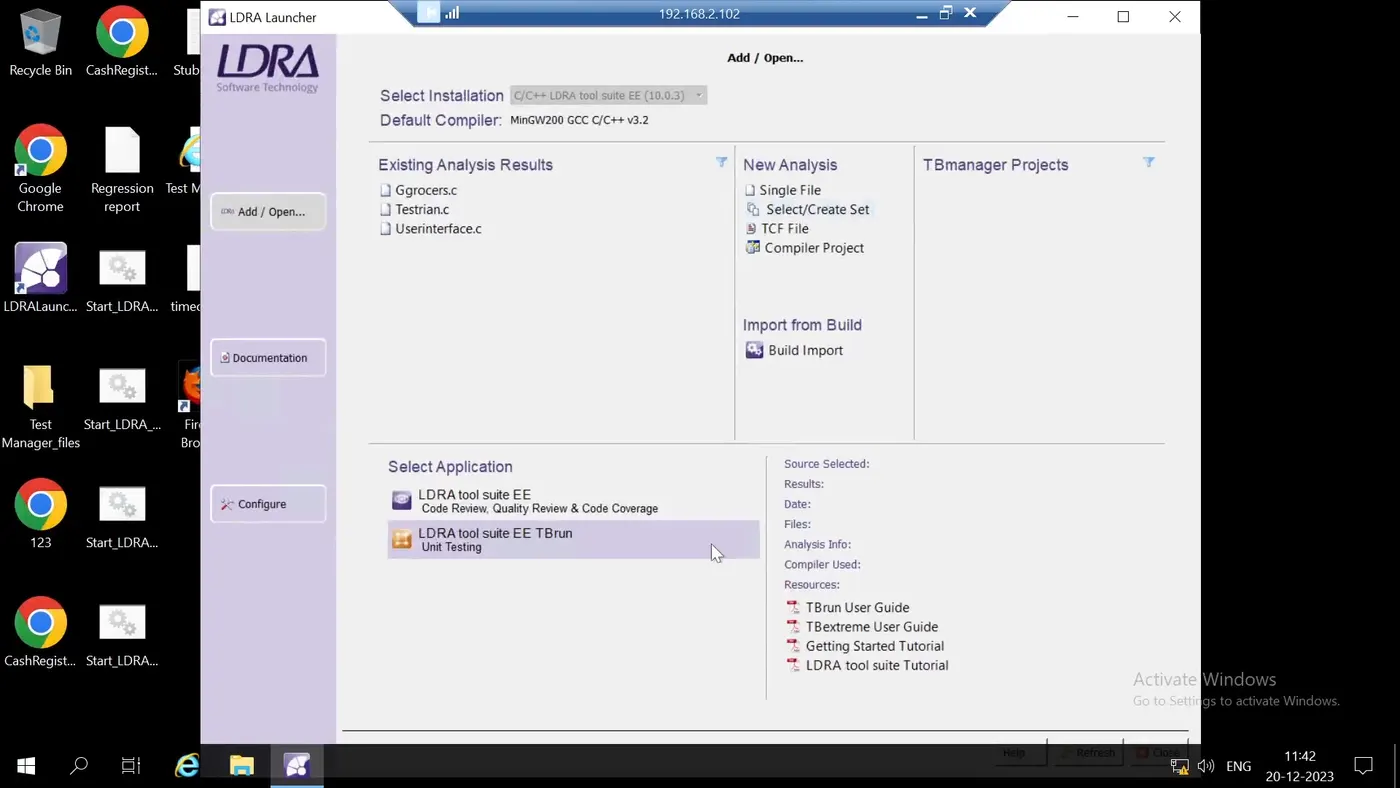
4.OPEN LDRA FOR INTEGRATION TESTING
4. Configure Static Analysis:
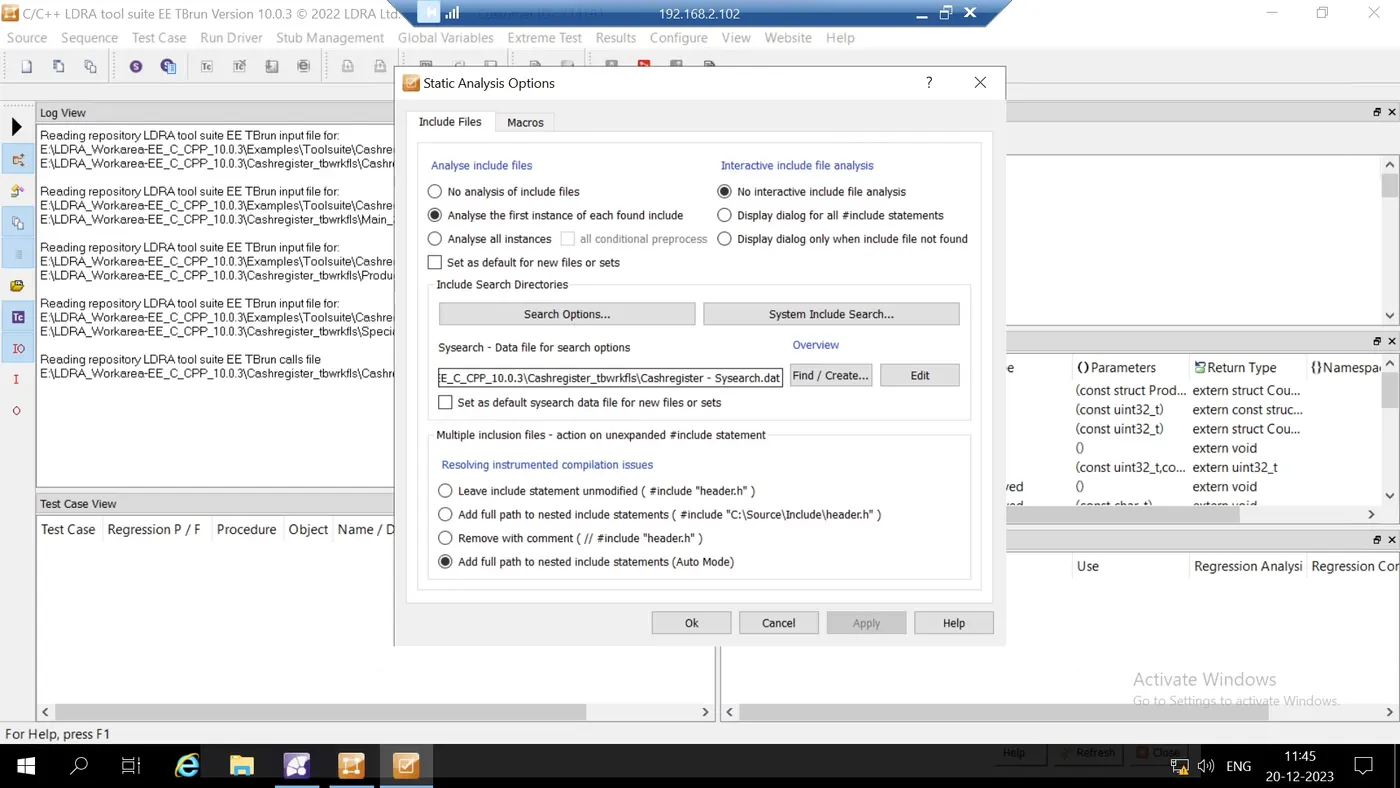
- Go to the `Configure` tab => `Analysis Configuration Option` => `Static Option`.
- In the `Include Files` tab, set the respective path for "Syssearch."
- In the `Macros` tab, create a path for the "sysppvar.dat" file.
5. Run Static Code Analysis:
- Go to `Source` and run static code analysis.
5.CREATING A SET
6. Review Analysis Results:
- Once the code execution finishes, check the log view.
- Go to `Result` => `View Test Manager Result`.
7. View Test Manager Result:
- Open the Test Manager result in an Internet Explorer window.
8. Create a New Sequence for Automation Testing:
- Go to `Sequence` => Create a new sequence (e.g., "jack") => Click `OK`.
6.INCLUDING FILES FOR THE TEST TO PERFORM INTEGRATION TESTING
9. Set a File as a Black Box:
- In the `File View`, right-click on "cashregister.C" and set it as a black box.
10. Run Automation Testing:
- Perform automation testing using the Extreme Test feature.
- Go to `Extreme Test` and click `Run Tabular Test`.
8.INCLUDING FILES
9.INCLUDING PATH AND THE TCF AND SETTING THE STAIC ANALYSIS OPTION
10.TEST CASE RESULTS
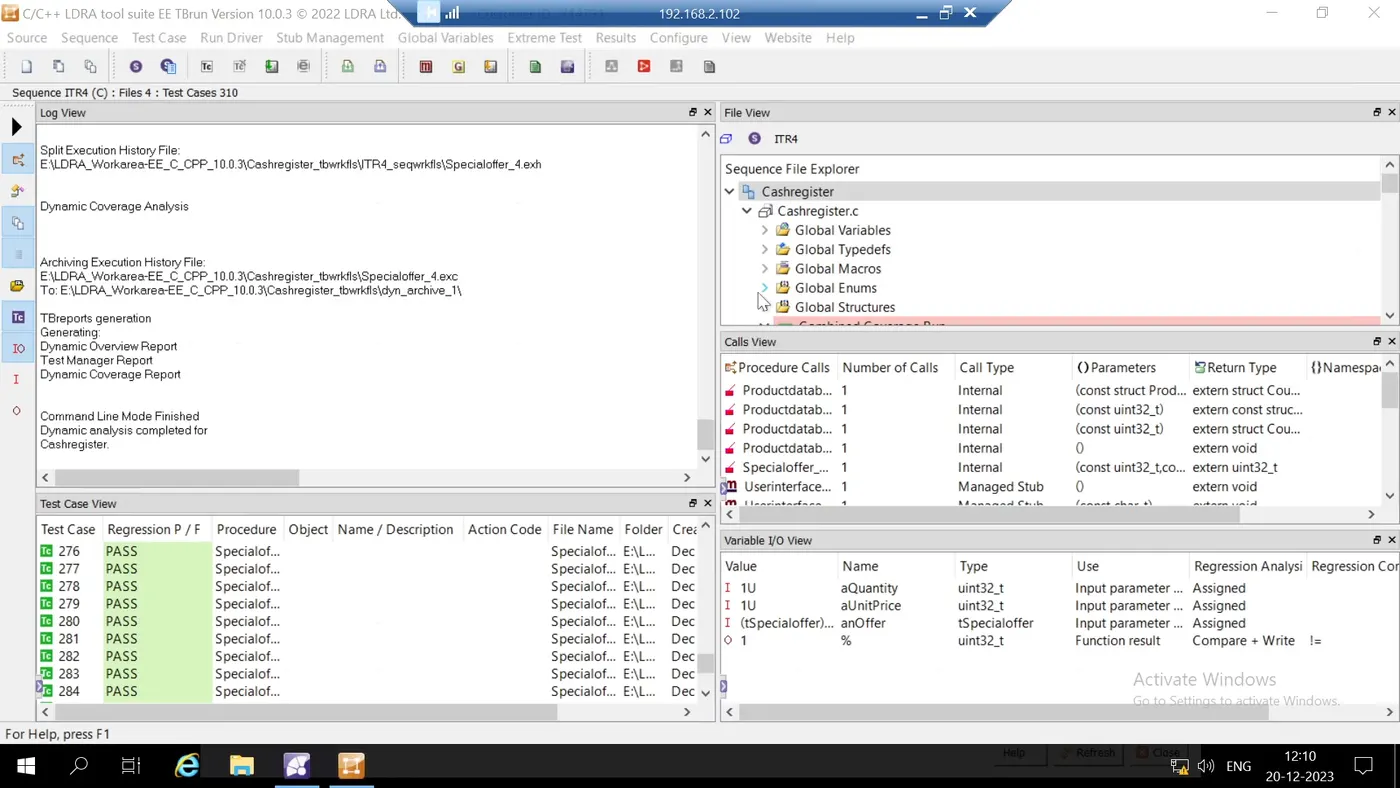
11. Review Test Results:
- Once the automated tests are executed, test cases are generated using the Extreme Test concept.
- View results in the `Result` tab => `Test Manager Report`.
12. Save Generated Test Cases:
- Save all generated test cases as a Test Case File (TCF).
- Go to `Source` => "Save as TCF" to export the generated test cases.
This refined procedure provides detailed steps for setting up and running integration testing using the LDRA Tool Suite. Ensure to follow each step carefully to achieve effective integration testing and generate comprehensive test reports