Project 2_Creating a 3D rendered model for a Residential Building in AutoCad
AIM: To create a 3D rendered model for a Residential Building in AutoCAD
INTRODUCTION:
The main objective of this project is to understand about to create a Plan in 2D, then convert it into 3D using AutoCAD 3D, applying materials and rendering.
AutoCAD is primarily used for generating 2D sketches. While it is possible to create 3D objects, AutoCAD is built around a flat, sketch-based interface. There is a wide range of pre-defined 3D objects in AutoCAD. These objects are cylinders, spheres and wedges and many more. But then users use 2D objects and modify them using the 3D commands accordingly. So, AutoCAD 3D commands like Extrude, Sweep, Revolve, and Union are used by the users.
Also, the user must know the importance of the Viewport feature if they are working on 3D Models. The viewport command allows the user to split the drawing area into different windows to project multiple views of the model. These include the top, front, left/right views of the object. This feature works great for the user and helps them to observe the model from different aspects.
RENDERING
Rendering is the process of creating a rendered image based on the 3D objects in a scene.It also helps us about how lighting and shadows are calculated based on the lights placed in a scene through a camera angle with proper Environment and exposure settings which can be adjusted to control the final rendered image.
APPLYING MATERIALS
- Click Visualize tab, Materials panel, Materials Browser. Then find the suitable material.
- Select the objects which you want to assign the material.
- In the Materials Browser, right-click the material to assign and choose Assign to Selection or drag and drop over the material.
The material is assigned to the objects.
To remove applied materials
- Click Visualize tab Materials panel (expanded) Remove Materials.
- Select an object whose material you want to remove.
The material is removed from the object and replaced by the ByLayer material.
OBJECTIVE:
The main objective of this project is to review and refresh almost most of the tools which will be used by a Professional engineer while drafting a 3D drawing. First we start from the initial drafting in 2D using lines and rectangles to rendering in 3D.
- To draw the plan using AutoCAD 2D.
- To project (extrude) walls to convert the plan from AutoCAD 2d to AutoCAD 3D.
- To design the staircase
- Designing and placing of 3D doors, 3D windows, normal window and glass grill.
- Adding lights and colouring of walls
- Adding chajja and 3D mirroring of the flat.
- Adding roof.
- Designing and placement of staircase rails.
- Copying floors
- Rendering.
PROCEDURE:
Step 1: To draw the plan using AutoCAD 2D.
- Type UN and enter then W (world).
- Under Drawing Units, select Engineering (feet and inches)
- Now the lower limit is set to 0', 0' and upper limit to 100', 100'. Default layers for materials like- door, door lvl 2, door roof, duct, floor, column, floor, floor lvl 2, floor lvl 3, hand rail lvl 2, railing lvl 2, slab, text, vent, vent lvl 2, wall, wall lvl 2, wall roof, window, window lvl 2.
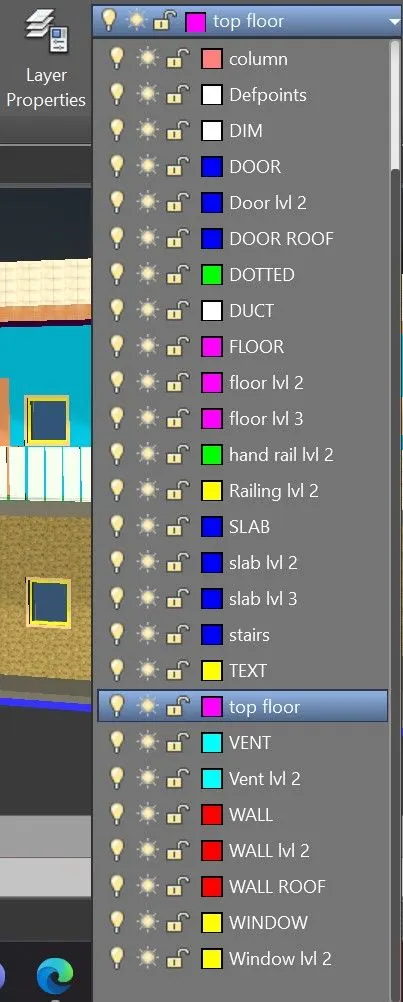
-
Using the line, rectangle, construction lines the plan layout of a single residential building was prepared as shown. Doors and windows was provided at places necessary as shown in plan.
- The staircase was made.
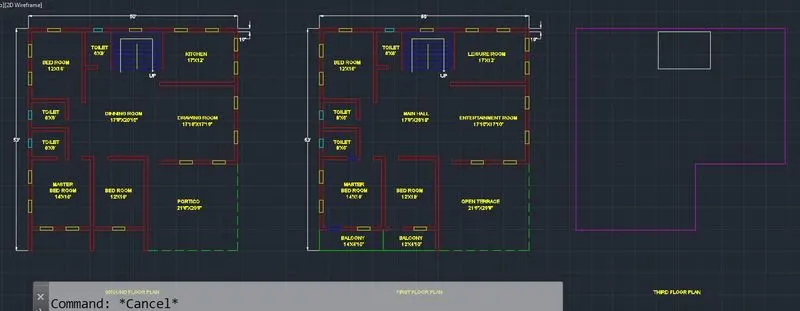
STEP 2: To project walls to convert the plan from AutoCAD 2d to AutoCAD 3D.
- Now in settings select 3D Modelling and visual style control to 2D wireframe to move to AutoCAD 3D.
- Turn off all layer except wall layer to be able to easily work on.
- Select the entire drawing and type J to join the entire residential building.
- Now, using extrude command, select the wall and keeping ortho (F8) on, move cursor towards z direction. Now, give height as 10' and press enter. Hence, 3D wall is formed.
- For Door cut outs, Using the REC command draw a rectangle connecting the top of all door openings.
After drawing all the rectangles select the Extrude command in the home tab and press enter, move mouse in downward direction and specify height as 3' and press enter. Now the door cut-outs of 7’ is formed. Now using the Union option in solid editing panel select the complete drawing to union all the elements in the drawing.
-
For Window cut-outs,
Now turn off the wall layer and turn on the window layer.
Using the REC command rectangle was drawn across all the window portion at the plinth level. Select all the rectangles just formed and move rectangle upwards by 7’.
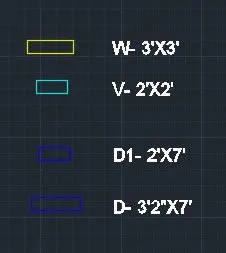
- All the main windows was extruded by 3’ and the small toilet windows (vents) was extruded by 2’ downward.
- Using the subtract option in solid editing panel the window rectangles was subtracted from the wall and thus the window cut-outs was made
- Floor Level:
Using the polyline draw lines connecting the outer wall of the building at the top.
Now Using the Move command, move the polyline made downwards to the plinth level.
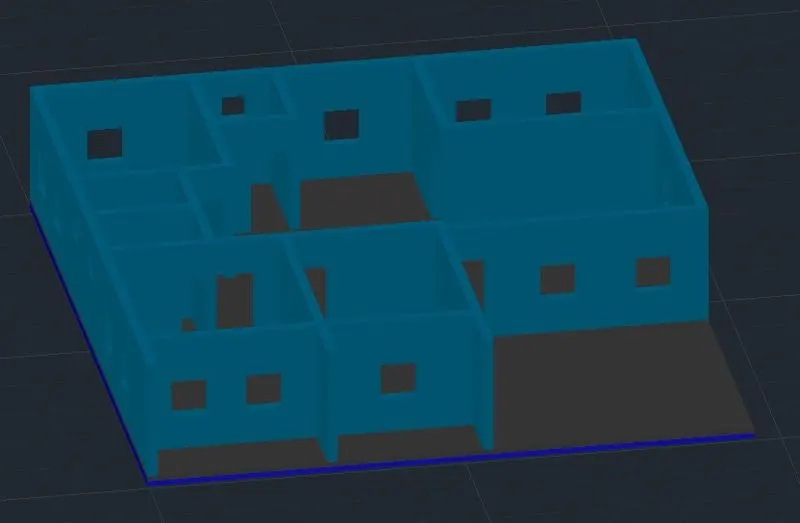
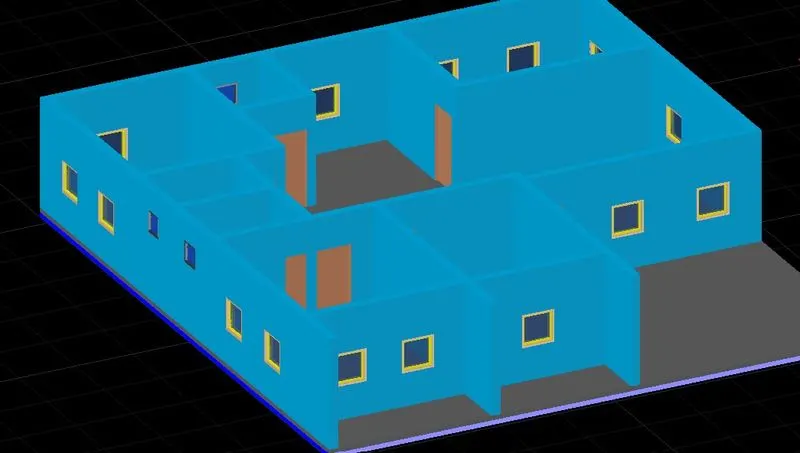
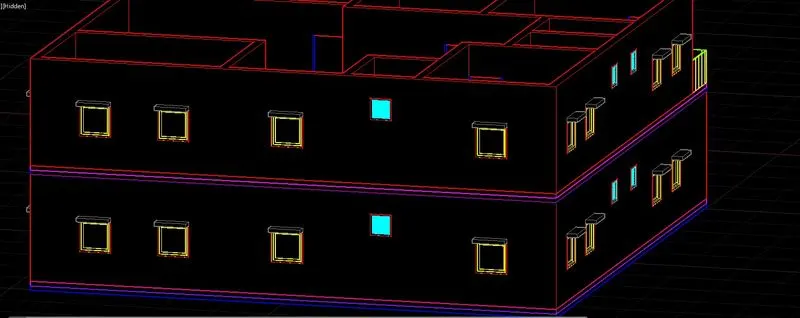
STEP 3: To design the staircase, in layer panel turn stairs layer on.
- Now using the press pull option in home tab press pull each step by 6” (6”, 12”, 18” etc.) that is in every successive step the extrusion height will be increased by 6”
- Using the press pull command in the solid editing panel press pull the bottom portion of staircase by drawing a line using the line command as required. It has to be done 2 times to remove all the below portions and to complete the loop.
- Using the move command the staircase was selected and moved to the exact position in the 3D drawing using the end points.
- Now, Turn off staircase layer and turn on the steps layer.
- Rectangle was made first as per the 2d dimension and then the 3 steps was extruded by Height of 6”, 12” and 18”.
- Use union command to join the steps.
- Using the move command the steps was selected and moved to the exact position in the 3D drawing using the end points.
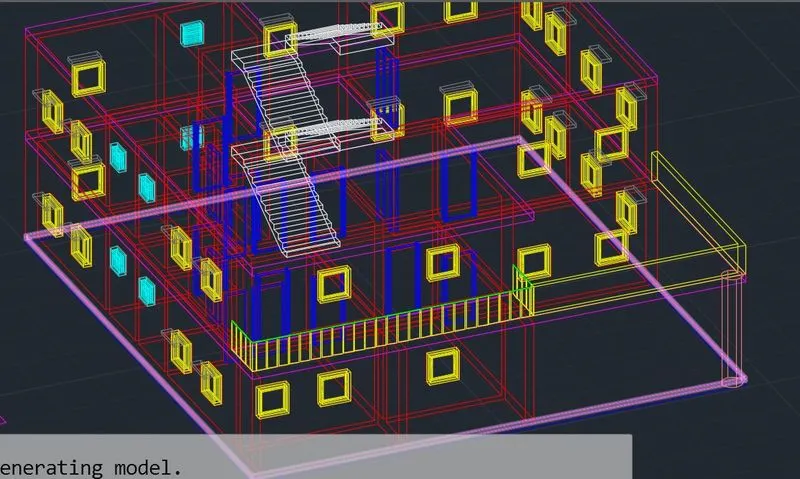
STEP 4: Designing and placing of 3D doors, swinging louver,sliding window, normal window and glass
- The 3D doors, vents, normal window and glass grill and window panels. It was designed using the tools polyline, sweep, extrude, union, 3D rotate, subtract command etc.
STEP 5: Applying materials:
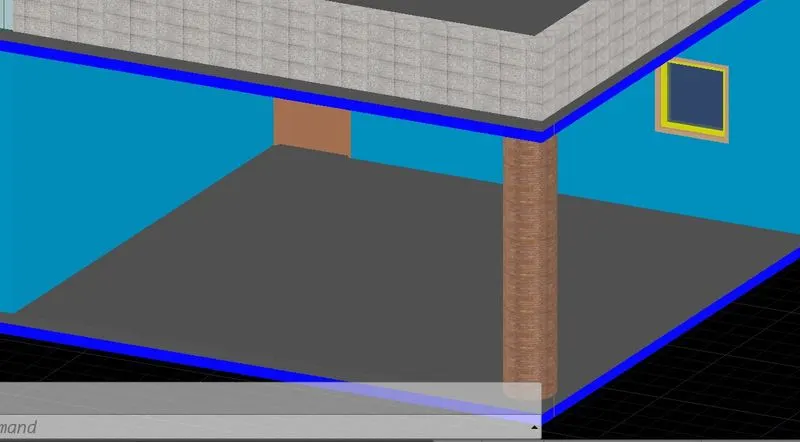
- On the visualize tab click on material library and apply suitable materials for 3D doors, swinging louver,sliding window, normal window and glass grill as shown.
- We can apply materials by just dragging the materials from the library to the object which is to be materialized.
- All of the materials was copied upto the number of times it was required, using th 3D rotate command it was rotated to the required direction and then they all are placed at their respective positions at shown.
STEP 6: Adding lights
Add sunlight source, from the visualise tab as per the render quality.

STEP 7: Adding chajja.
The chajja/ sunshades was made next using the polyline and have to make sure to turn on the dynamic UCS.
STEP 8: ROOFING
- In 2d wireframe draw a polyline across the plinth. Using the move command move it upwards by 10’ at each level. Using the extrude tool extrude it upwards by 6”
STEP 9: RENDERING
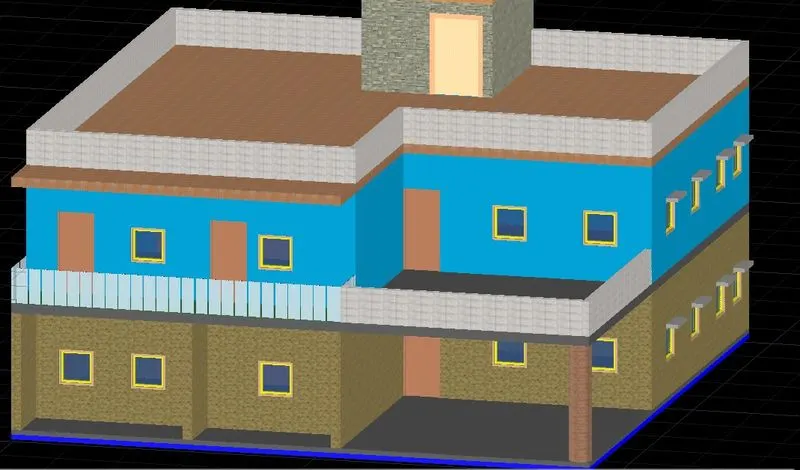
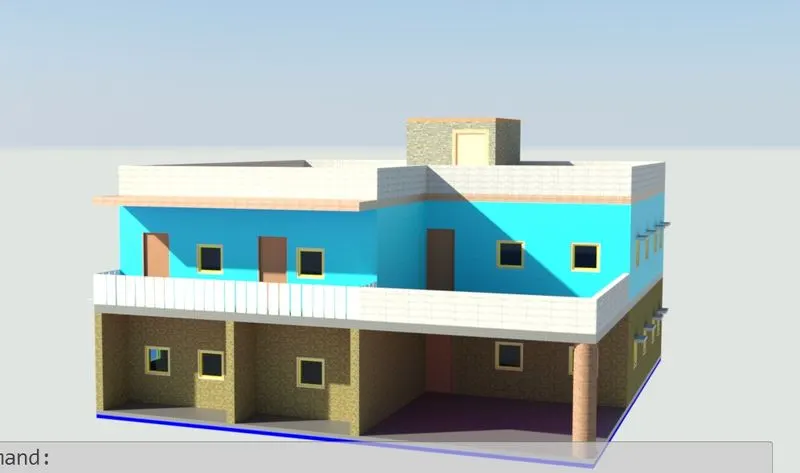
Rendering was done and the resultant images from the specified camera position is as shown below with sky background on.
STEP 10: For Walkthroughs, go to Visulaize tab under animation, click on Walkthroughs to get the required walkthrough video.
RESULTS:
A 3 dimensional model of the residential building with a rendered view is as shown