Project 2 - Create a report using PowerQuery, Macro VBA, List Functions and Data Validation functions for Data Reporting of Supply Chain Management companies
Workbook LINK:
AIM:
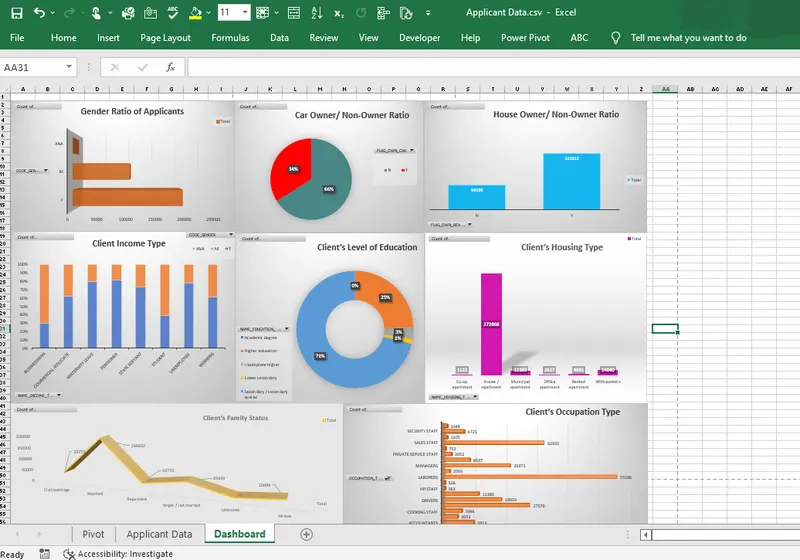
To Create the report that should be demonstrated using Dashboard into MS Excel.
INTRODUCTION:
You are working as Business Analyst in IJS Bank Limited. Currently your organization is working on Loan Applicant Clients for the current quarter. The Manager of the Branch asked you to analyze Loan Applicant’s data and to Present appropriate report on the shared data. The report should be demonstrated using Dashboard into MS Excel.
The report should be demonstrated using Dashboard into MS Excel.
Workbook link attached and also refer screenshot below.
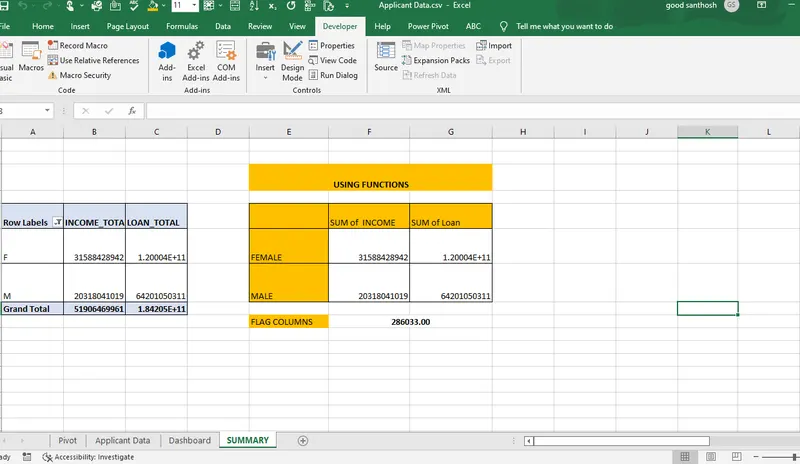
Data Summary of All Female Client’s for Income and Loan Amount using New Functions
Data Summary of All Male Client’s for Income and Loan Amount using List Functions
Data Summary for all Flag Columns like (FLAG_DOCUMENT_2, FLAG_DOCUMENT_3 etc.) using all variants of DCOUNT function.
Workbook link attached and also refer screenshot below.
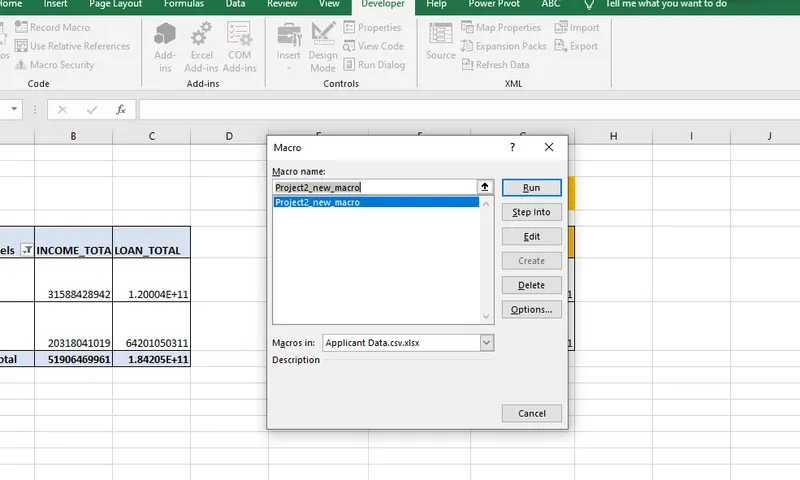
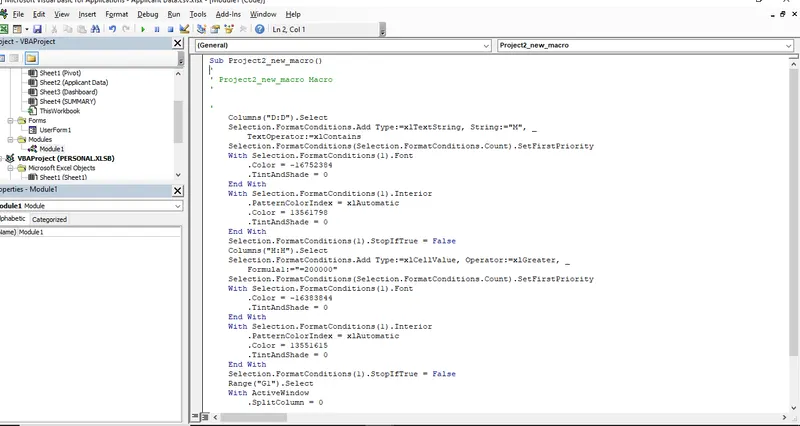
Create a Macro for Data Formatting (Conditional Formatting, Freezing Panes) of workbook as same will be applied to the data of next quarter
Workbook link attached and also refer code & screenshot below.
CODE:
Sub Project2()
'
' Project2 Macro
'
'
Columns("D:D").Select
Selection.FormatConditions.Add Type:=xlTextString, String:="M", _
TextOperator:=xlContains
Selection.FormatConditions(Selection.FormatConditions.Count).SetFirstPriority
With Selection.FormatConditions(1).Font
.Color = -16752384
.TintAndShade = 0
End With
With Selection.FormatConditions(1).Interior
.PatternColorIndex = xlAutomatic
.Color = 13561798
.TintAndShade = 0
End With
Selection.FormatConditions(1).StopIfTrue = False
Columns("H:H").Select
Selection.FormatConditions.Add Type:=xlCellValue, Operator:=xlGreater, _
Formula1:="=200000"
Selection.FormatConditions(Selection.FormatConditions.Count).SetFirstPriority
With Selection.FormatConditions(1).Font
.Color = -16383844
.TintAndShade = 0
End With
With Selection.FormatConditions(1).Interior
.PatternColorIndex = xlAutomatic
.Color = 13551615
.TintAndShade = 0
End With
Selection.FormatConditions(1).StopIfTrue = False
With ActiveWindow
.SplitColumn = 0
.SplitRow = 1
End With
ActiveWindow.FreezePanes = True
Range("A1:DQ1").Select
ActiveWindow.SmallScroll Down:=-15
ActiveWindow.ScrollColumn = 104
ActiveWindow.ScrollColumn = 103
ActiveWindow.ScrollColumn = 102
ActiveWindow.ScrollColumn = 101
ActiveWindow.ScrollColumn = 99
ActiveWindow.ScrollColumn = 97
ActiveWindow.ScrollColumn = 93
ActiveWindow.ScrollColumn = 91
ActiveWindow.ScrollColumn = 82
ActiveWindow.ScrollColumn = 78
ActiveWindow.ScrollColumn = 45
ActiveWindow.ScrollColumn = 29
ActiveWindow.ScrollColumn = 1
Range("D1").Select
ActiveWindow.SmallScroll Down:=-27
End Sub
Screenshot:
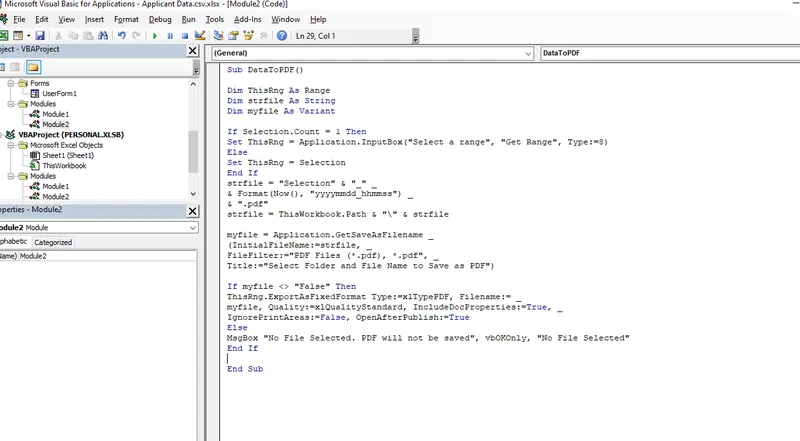
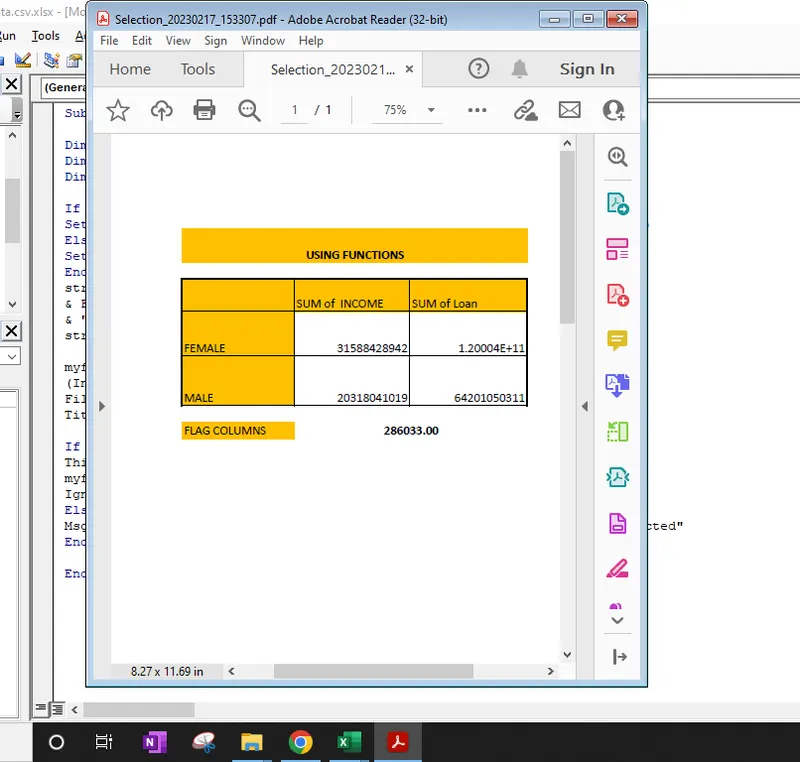
Create VBA Code to convert selected data into pdf from applicant data
Workbook link attached and also refer code & screenshot below.
CODE:
Sub DataToPDF()
Dim ThisRng As Range
Dim strfile As String
Dim myfile As Variant
If Selection.Count = 1 Then
Set ThisRng = Application.InputBox("Select a range", "Get Range", Type:=8)
Else
Set ThisRng = Selection
End If
strfile = "Selection" & "_" _
& Format(Now(), "yyyymmdd_hhmmss") _
& ".pdf"
strfile = ThisWorkbook.Path & "" & strfile
myfile = Application.GetSaveAsFilename _
(InitialFileName:=strfile, _
FileFilter:="PDF Files (*.pdf), *.pdf", _
Title:="Select Folder and File Name to Save as PDF")
If myfile <> "False" Then
ThisRng.ExportAsFixedFormat Type:=xlTypePDF, Filename:= _
myfile, Quality:=xlQualityStandard, IncludeDocProperties:=True, _
IgnorePrintAreas:=False, OpenAfterPublish:=True
Else
MsgBox "No File Selected. PDF will not be saved", vbOKOnly, "No File Selected"
End If
End Sub
SCREENSHOT:
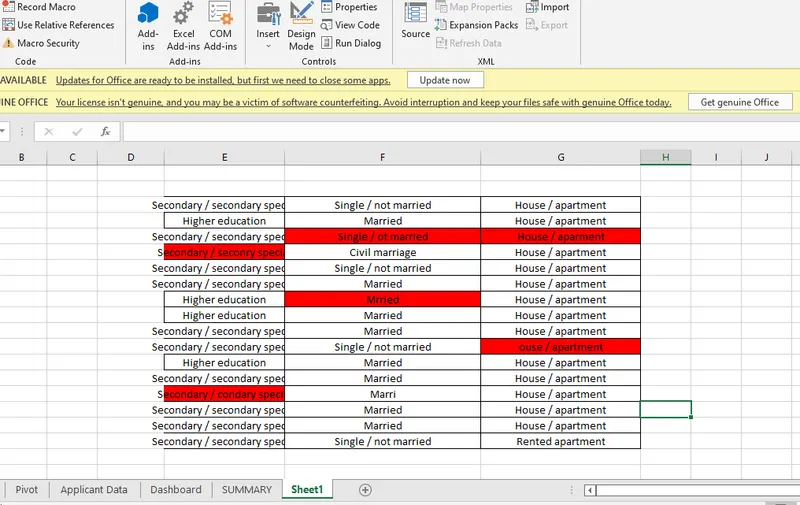
Check Spelling mistakes in the workbook using VBA Code
Workbook link attached and also refer code & screenshot below.
CODE:
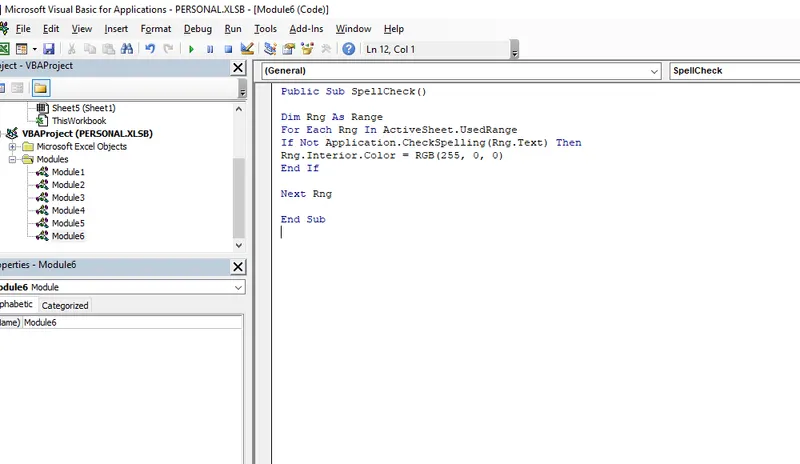
Public Sub SpellCheck()
Dim Rng As Range
For Each Rng In ActiveSheet.UsedRange
If Not Application.CheckSpelling(Rng.Text) Then
Rng.Interior.Color = RGB(255, 0, 0)
End If
Next Rng
End Sub
SCREENSHOT: