Project 2 - Create a report using PowerQuery, Macro VBA, List Functions and Data Validation functions for Data Reporting of Supply Chain Management companies
https://drive.google.com/file/d/19nPBnUffVXOugHUB4oRNLOuLufVBXl1M/view?usp=share_link
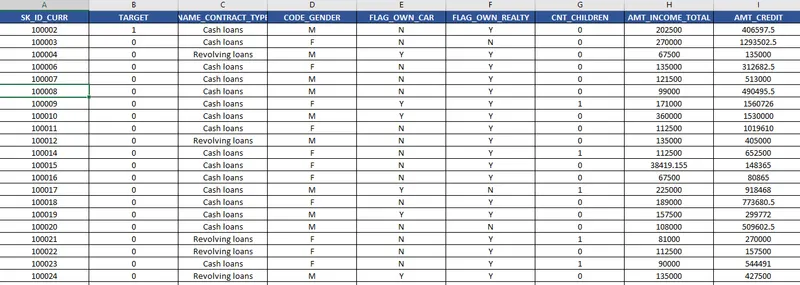
Create a Macro for Data Formatting (Conditional Formatting, Freezing Panes) of workbook as same will be applied to the data of next quarter
Sub formating()
'
' formating Macro
'
'
Range("A1").Select
Range(Selection, Selection.End(xlToRight)).Select
With Selection.Interior
.Pattern = xlSolid
.PatternColorIndex = xlAutomatic
.ThemeColor = xlThemeColorAccent1
.TintAndShade = -0.249977111117893
.PatternTintAndShade = 0
End With
With Selection.Font
.ThemeColor = xlThemeColorDark1
.TintAndShade = 0
End With
Selection.Font.Bold = True
With Selection
.HorizontalAlignment = xlCenter
.VerticalAlignment = xlBottom
.WrapText = False
.Orientation = 0
.AddIndent = False
.IndentLevel = 0
.ShrinkToFit = False
.ReadingOrder = xlContext
.MergeCells = False
End With
Selection.Borders(xlDiagonalDown).LineStyle = xlNone
Selection.Borders(xlDiagonalUp).LineStyle = xlNone
With Selection.Borders(xlEdgeLeft)
.LineStyle = xlContinuous
.ColorIndex = 0
.TintAndShade = 0
.Weight = xlThin
End With
With Selection.Borders(xlEdgeTop)
.LineStyle = xlContinuous
.ColorIndex = 0
.TintAndShade = 0
.Weight = xlThin
End With
With Selection.Borders(xlEdgeBottom)
.LineStyle = xlContinuous
.ColorIndex = 0
.TintAndShade = 0
.Weight = xlThin
End With
With Selection.Borders(xlEdgeRight)
.LineStyle = xlContinuous
.ColorIndex = 0
.TintAndShade = 0
.Weight = xlThin
End With
With Selection.Borders(xlInsideVertical)
.LineStyle = xlContinuous
.ColorIndex = 0
.TintAndShade = 0
.Weight = xlThin
End With
With Selection.Borders(xlInsideHorizontal)
.LineStyle = xlContinuous
.ColorIndex = 0
.TintAndShade = 0
.Weight = xlThin
End With
Range("A1").Select
Range(Selection, Selection.End(xlToRight)).Select
Range(Selection, Selection.End(xlDown)).Select
Selection.Borders(xlDiagonalDown).LineStyle = xlNone
Selection.Borders(xlDiagonalUp).LineStyle = xlNone
With Selection.Borders(xlEdgeLeft)
.LineStyle = xlContinuous
.ColorIndex = 0
.TintAndShade = 0
.Weight = xlThin
End With
With Selection.Borders(xlEdgeTop)
.LineStyle = xlContinuous
.ColorIndex = 0
.TintAndShade = 0
.Weight = xlThin
End With
With Selection.Borders(xlEdgeBottom)
.LineStyle = xlContinuous
.ColorIndex = 0
.TintAndShade = 0
.Weight = xlThin
End With
With Selection.Borders(xlEdgeRight)
.LineStyle = xlContinuous
.ColorIndex = 0
.TintAndShade = 0
.Weight = xlThin
End With
With Selection.Borders(xlInsideVertical)
.LineStyle = xlContinuous
.ColorIndex = 0
.TintAndShade = 0
.Weight = xlThin
End With
With Selection.Borders(xlInsideHorizontal)
.LineStyle = xlContinuous
.ColorIndex = 0
.TintAndShade = 0
.Weight = xlThin
End With
Cells.Select
With Selection
.HorizontalAlignment = xlGeneral
.VerticalAlignment = xlBottom
.WrapText = False
.Orientation = 0
.AddIndent = False
.IndentLevel = 0
.ShrinkToFit = False
.ReadingOrder = xlContext
.MergeCells = False
End With
With Selection
.HorizontalAlignment = xlCenter
.VerticalAlignment = xlBottom
.WrapText = False
.Orientation = 0
.AddIndent = False
.IndentLevel = 0
.ShrinkToFit = False
.ReadingOrder = xlContext
.MergeCells = False
End With
Range("A7").Select
ActiveWindow.SmallScroll Down:=0
End Sub
- Create VBA Code to convert selected data into pdf from applicant data
Sub ConvertToPDF()
' Declare variables
Dim ws As Worksheet
Dim rng As Range
Dim folderPath As String
Dim fileName As String
' Set worksheet to the active sheet
Set ws = ActiveSheet
' Set range to the selection
Set rng = Selection
' Get folder path for saving the PDF file
folderPath = "E:\downloads\pdf\" ' Replace with the desired folder path
' Set filename as the worksheet name and current date/time
fileName = ws.Name & " " & Format(Now(), "yyyymmdd_hhmmss")
' Export the selection as PDF file
rng.ExportAsFixedFormat Type:=xlTypePDF, fileName:=folderPath & fileName, Quality:=xlQualityStandard
' Display message box with the path and filename of the saved file
MsgBox "PDF file saved at " & folderPath & fileName & ".pdf"
End Sub
- Check Spelling mistakes in the workbook using VBA Code
Sub CheckSpelling()
' Declare variables
Dim ws As Worksheet
Dim cell As Range
' Set worksheet to the active sheet
Set ws = ActiveSheet
' Loop through all cells in the worksheet and check spelling
For Each cell In ws.usedRange
If Not Application.CheckSpelling(cell.Value) Then
cell.Interior.Color = vbYellow
End If
Next cell
End Sub