Project 1 - English Dictionary App & Library Book Management System
Project 1 - English Dictionary App & Library Book Management System
This project aims to create an English Dictionary app that returns definitions of English words. When the application is started, it displays a menu as follows:
Main Menu
Add a new word Find the meaning Update a word Exit
Enter Choice:
If item 1 is selected, it should prompt for a word and then accept its meaning. This pair of words and their meaning should be stored in a file called ‘words.txt’. When item 2 is selected, it should prompt for a word, search that word in the file ‘words.txt’ and return the meaning if it is found. If the meaning is not found, it should display an appropriate message. Similarly, when choice 3 is entered, it should accept a word and update its meaning. In all the above three cases, the prompt should return to the main menu. The words and their meanings should be stored as a dictionary in words.txt, using the concept of serialization. If choice 4 is selected, a graceful exit should be performed.
If you want to be recognized as a professional programmer, you have to practice more and develop applications in Python which you can include in your online portfolio. To achieve this, one such comprehensive project (with two small sub-projects inside it) is added which has to be completed by every student.
1A: English Dictionary App
This project uses the skills learned from week 1 to week 6. This project aims to create an English Dictionary app that returns definitions of English words.
import json
print('Main menu \n\n 1.Add a word \n 2.Find the meaning \n 3.Update a word \n 4.Exit \n')
while True:
try:
action=int(input('Please select from the given main menu(1,2,3,4):'))
except for ValueError :
print('!!!!Please enter interger values only!!!')
print('#'*50)
else:
if action==4:
e=input('Are you sure you want to exit?(yes/no):')
if e=='Yes' or e=='yes':
print('Thank you have a nice day!!')
print('#'*50)
break
else:
continue
elif action==1:
word=input('Enter a new word:')
meaning=input('Enter meaning of the word you entered:')
add={word: meaning}
with open('words.txt','a')as f:
f.write(JSON.dumps(add))
f.write('\n')
print('Word added successfully)
print('#'*50)
elif action==2:
find=input('Enter a word to find its meaning:')
with open ('words. txt', 'r')as f:
data=f.read()
if find in data:
print(meaning of the word you entered is : {meaning}')
print('#'*50)
continue
else:
print('Word not found)
print('#'*50)
elif action==3:
oldword=input('Enter a word to be updated:')
with open ('words. txt', 'r')as f:
data=f.read()
if the old word in the data:
newword=input('Enter new a word:')
data = data.replace(old word,new word)
with open("words.txt", "w") as file:
file.write(data)
print(f'{oldword} has been updated to {newword}')
print('#'*50)
continue
else:
print('Word not found)
print('#'*50)
else:
print('!!!Please chose the correct option from the Mainmenu!!!')
print('#'*50)
OUTPUT:
Main menu

 1. Add a word
 2. Find the meaning
 3. Update a word
 4. Exit

Please select from the given main menu(1,2,3,4):2
Enter a word to find its meaning: Find the meaning
Word not found
##################################################
Please select from the given main menu(1,2,3,4):1
Enter a new word:sree
Enter the  meaning of the word you entered: first
Word added successfully
##################################################
Please select from the given main menu(1,2,3,4):1
Enter a new word: hi
Enter the meaning of the word you entered: king
Word added successfully
##################################################
Please select from the given main menu(1,2,3,4):0
!!!Please choose the correct option from the Mainmenu!!!
##################################################
Please select from the given main menu(1,2,3,4):4
Are you sure you want to exit? (yes/no): yes
Thank you have a nice day!!
##################################################
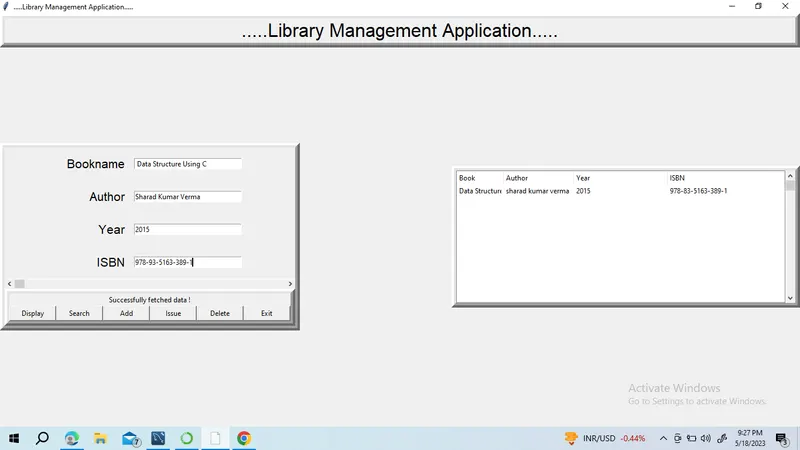
1B: Library Book Management System
In this project, a Library Book Management System will be implemented with the front-end GUI developed using Tkinter and the backend database implemented in SQLite. It is a single window tkinter GUI application that will implement CRUD( create, read, update, delete) operations on a ‘books’ database, in SQLite. The window will contain text widgets to accept/display book the title, author, year of publication, ISBN (optional) and a large text area/ list box to display the records which match the search criteria.
import sqlite3 as SQL
import tkinter as tk
import tkinter.ttk as ttk
import tkinter.messagebox as mb
import tkinter.simpledialog as sd
from Tkinter import *
root=Tk()
root.title('.....Library Management Application.....')
def Database():
global conn,cursor
conn=sql.connect('simple.db')
cursor=conn.cursor()
cursor.execute('CREATE TABLE IF NOT EXISTS Booklibrary(Book name TEXT,Author TEXT,Year TEXT, ISBN TEXT)')
def create():
if BOOKNAME.get()=="" or AUTHOR.get()=="" or YEAR.get() =="" or ISBN.get()=="":
txt_result.config(text='Please Enter all the fields',fd='red')
else:
Database()
cursor.execute('INSERT INTO Booklibrary(Book name,Author,Year,ISBN)VALUES(?,?,?,?)',(str(BOOKNAME.get()),str(AUTHOR.get()),str(YEAR.get()),str(ISBN.get())))
conn.commit()
BOOKNAME.set("")
AUTHOR.set("")
YEAR.set("")
#ISBN.set("")
cursor.close()
conn.close()
txt_result.config(text='Record Inserted !',fg='green')
def Read():
tree.delete(*tree.get_children())
Database()
cursor.execute('SELECT * FROM book library ORDER BY Author ASC ')
fetch=cursor.fetch all()
for data in fetch:
tree.insert('','end',values=(data[0],data[1],data[2],data[3]))
cursor.close()
txt_result.config(text='Successfully fetched data !',fg='black')
def Exit():
result=mb.askquestion('Do you want to Exit ?(y/n)',icon='warning')
if result == 'yes':
root.destroy()
exit()
#variables..
BOOKNAME=StringVar()
AUTHOR=StringVar()
YEAR=StringVar()
ISBN=StringVar()
#FRAMES
Top=Frame(root,width=900,height=50,bd=8,relief='raise')
Top.pack(side=TOP)
Left=Frame(root,width=300,height=500,bd=8,relief='raise')
Left.pack(side=LEFT)
Right=Frame(root,width=600,height=500,bd=8,relief='raise')
Right.pack(side=RIGHT)
Forms=Frame(Left,width=400,height=1000)
Forms.pack(side="top")
#buttons
Buttons=Frame(Left,width=300,height=100,bd=8,relief='raise')
Buttons.pack(side="bottom")
#Labels
txt_title=Label(Top,width=900,font=('arial',24),text='.....Library Management Application.....')
txt_title.pack()
txt_Bookname=Label(Forms,text='Bookname',font=('aerial,16),bd=15)
txt_Bookname.grid(row=0,stick='e')
txt_Author=Label(Forms,text='Author',font=('aerial,16),bd=15)
txt_Author.grid(row=1,stick='e')
txt_Year=Label(Forms,text='Year',font=('aerial,16),bd=15)
txt_Year.grid(row=2,stick='e')
txt_ISBN=Label(Forms,text='ISBN',font=('aerial,16),bd=15)
txt_ISBN.grid(row=3,stick='e')
txt_result=Label(Buttons)
txt_result.pack(side=TOP)
#Entry widgets
Bookname=Entry(Forms,textvariable=BOOKNAME,width=30)
Bookname.grid(row=0,column=1)
Author=Entry(Forms,textvariable=AUTHOR,width=30)
Author.grid(row=1,column=1)
Year=Entry(Forms,textvariable=YEAR,width=30)
Year.grid(row=2,column=1)
ISBN=Entry(Forms,textvariable=ISBN,width=30)
ISBN.grid(row=3,column=1)
#Button widgets
btn_display=Button(Buttons,width=10,text="Display")
btn_display.pack(side="left")
btn_search=Button(Buttons,width=10,text="Search")
btn_search.pack(side="left")
btn_add=Button(Buttons,width=10,text="Add",command=create)
btn_add.pack(side="left")
btn_issue=Button(Buttons,width=10,text="Issue",command=Read)
btn_issue.pack(side="left")
btn_delete=Button(Buttons,width=10,text="Delete")
btn_delete.pack(side="left")
btn_exit=Button(Buttons,width=10,text="Exit",command=Exit)
btn_exit.pack(side="left")
#list widgets
scrollbary=Scrollbar(Right,orient=VERTICAL)
scrollbarx=Scrollbar(Left,orient=HORIZONTAL)
tree=ttk.Treeview(Right,columns=('Book', 'Author', 'Year', 'Isbn'))
scrollbars.config(command=tree.view)
scrollbars.pack(side="right",fill=Y)
scrollbars.config(command=tree.view)
sscrollbarspack(side="bottom",fill=X)
tree.heading('Book',text='Book',anchor=W)
tree.heading('Author',text='Author',anchor=W)
tree.heading('Year',text='Year',anchor=W)
tree.heading('Isbn',text='ISBN',anchor=W)
tree.column('#0',stretch=NO,minwidth=0,width=0)
tree.column('#1',stretch=NO,minwidth=0,width=80)
tree.column('#2',stretch=NO,minwidth=0,width=120)
tree.column('#3',stretch=NO,minwidth=0,width=160)
tree.pack()
#instaaliztion
root.main loop()
OUTPUT: