Project 1
To take a step further, you can create a name for a certain cell or a range of cells, and then refer to that cell(s) in your Excel formulas by simply typing the name.
The fastest way to create a name in Excel, is to select a cell(s) and type the name directly in the Name Box. For example, this is how you create a name for cell A2: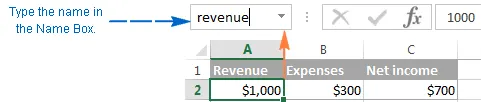
A professional-like way to define a name is via the Formulas tab > Defined names group or Ctrl+F3 shortcut. For the details steps, please see creating a defined name in Excel.
In this example, I've created the following 2 names:
- revenue for cell A2
- expenses for cell B2
And now, to calculate the net income, you can type the following formula in any cell on any sheet within the workbook in which those names were created: =revenue-expenses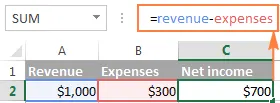
In the same manner, you can use names instead of cell or range references in arguments of Excel functions.
For example, if you create the name 2015_sales for cells A2:A100, you can find a total of those cells by using the following SUM formula: =SUM(2015_sales)
Of course, you can get the same result by supplying the range to the SUM function: =SUM(A2:A100)
However, defined names make Excel formulas more understandable. Also, they can significantly expedite creating formulas in Excel especially when you are using the same range of cells in multiple formulas. Instead of navigating between different spreadsheets to find and select the range, you just type its name directly in the formula.
How to make Excel formulas by using functions
Excel functions are nothing else than predefined formulas that perform the required calculations behind the scene.
Each formula begins with an equal sign (=), followed by the function name and the function arguments entered within the parentheses. Each function has specific arguments and syntax (particular order of arguments).
For more information, please see a list of the most popular Excel functions with formula examples and screenshots.
In your Excel spreadsheets, you can create a function-based formula in 2 ways:
Create a formula in Excel by using the Function Wizard
If you do not feel very comfortable with Excel spreadsheet formulas yet, the Insert Function wizard will give you a helpful hand.
1. Run the function wizard.
To run the wizard, click the Insert Function button on the Formulas tab > Function Library group, or pick a function from one of the categories: