Creation of Multiple viewports, Scaling the drawing and setting in Template in AutoCad
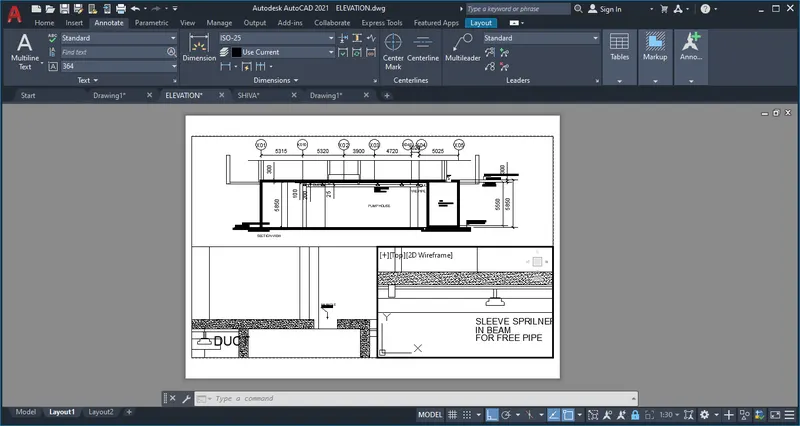
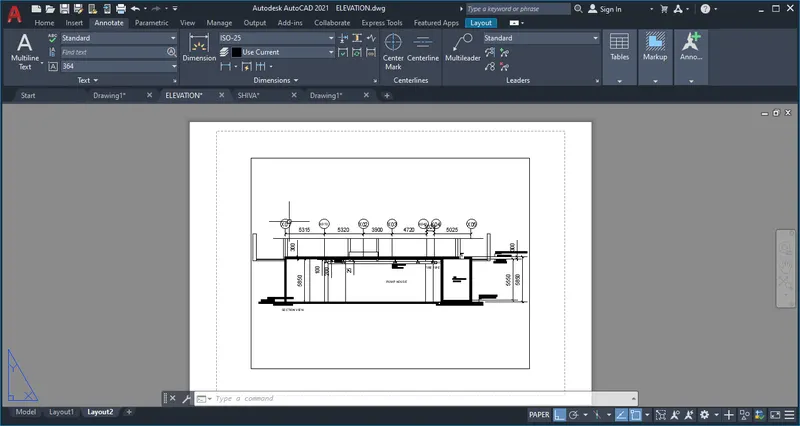
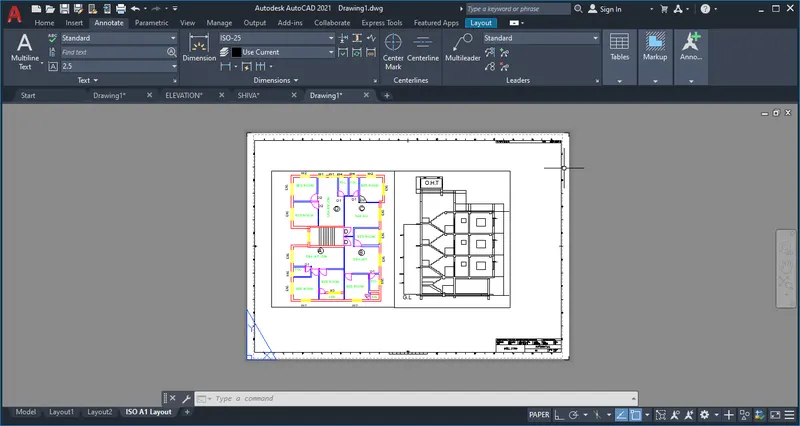
AIM: To create a layout area for the plan drawn in the challange 7.
INTRODUCTION: A alyout is prepared for a plan using proper commands and each of the are explaned in detail as follows.
PROCEDURE:
- First open the plan which is already drawn in challange 7.
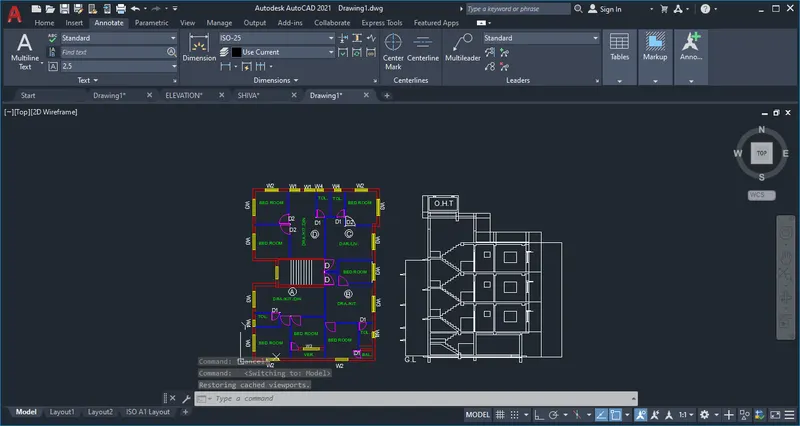
-
LAYOUT:
- Layout tab is visible on the bottom left side if not go to view and make it on.
- By clickinng it you will enter in to latout page.
- First thing is to change the name of layout it is done by right click on the layout tab or by command LAYOUT.
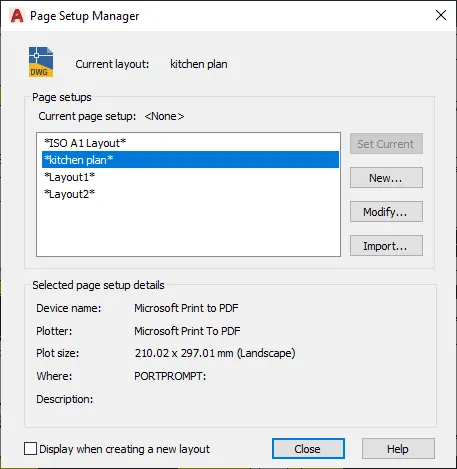
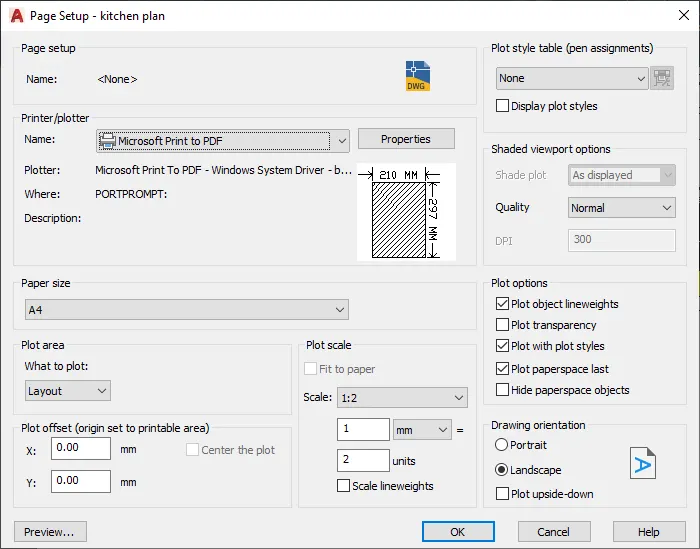
- Set the page by going in to page setup manager by right click on the layout tab.
- For template right click on layout tab select from template then select M.ARCH.DWT.
- Use ATTDEF and ATTED to add and edit the text in the template as it is blocked.
- Use MV command to create a drawing file in that we have different options like multiple ports, layers, object, new etc choose one to draw.
- Use MS command to enter in to modle space to edit drawing.
- Set the drawing in to defined scale and lock it by using MV or by going in to properties.

-
AIM: To create a layout drawn in challnge 9.
PROCEDURE:
- Open the drawn plan in challange 9.
LAYOUT:
- Layout tab is visible on the bottom left side if not go to view and make it on.
- By clickinng it you will enter in to latout page.
- First thing is to change the name of layout it is done by right click on the layout tab or by command LAYOUT.
- Set the page by going in to page setup manager by right click on the layout tab.
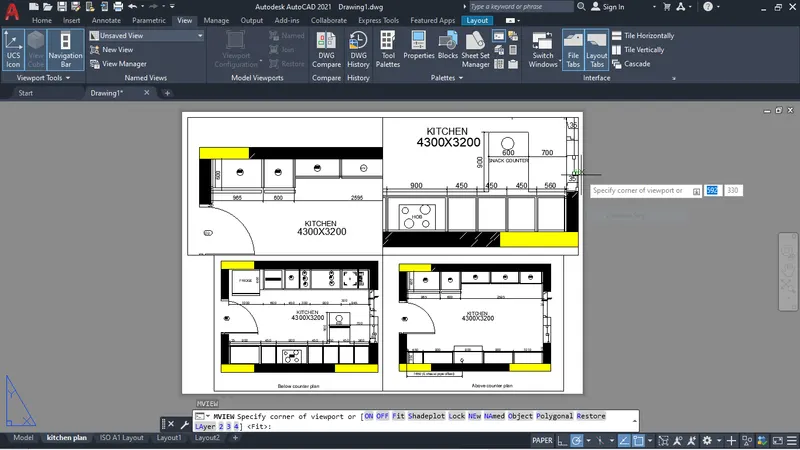
- Use MV command to create a drawing file in that we have different options like multiple ports, layers, object, new etc choose one to draw.
- Use MS command to enter in to modle space to edit drawing.
- Set the drawing in to defined scale and lock it by using MV or by going in to properties.
AIM:To create a layout for the section drawn in the challange 9.
Procedure:
- Open challannge 9.
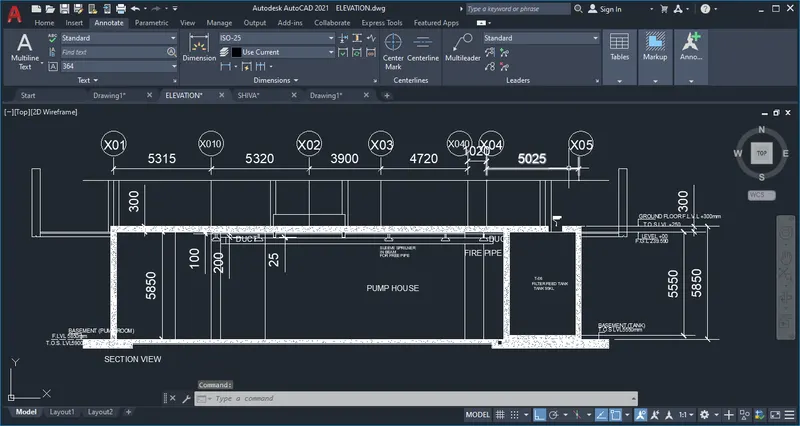
LAYOUT:
- Layout tab is visible on the bottom left side if not go to view and make it on.
- By clickinng it you will enter in to latout page.
- First thing is to change the name of layout it is done by right click on the layout tab or by command LAYOUT.
- Set the page by going in to page setup manager by right click on the layout tab.
- Use MV command to create a drawing file in that we have different options like multiple ports, layers, object, new etc choose one to draw.
- Use MS command to enter in to modle space to edit drawing.
- Set the drawing in to defined scale and lock it by using MV or by going in to properties.