Creation of geometries by Coordinate system methods using AutoCad
AIM:
To create the geometries from p1 to p2 using all the coordinates system methods.
1)ABSOLUTE COORDINATE SYSTEM.
2)RELATIVE COORDINATE SYSTEM.
3)POLAR COORDINATE SYSTEM.
INTRODUCTION:
Using the absolute coordinate system and relative coordinate system, polar coordinate system.
Click the AutoCad icon from desktop and go to the start>ALL PROGRAMS>Autodesk>AutoCad.
Click NEw icon to open a new drawing.
Set the limits and units.
Using commands line command and circle command.
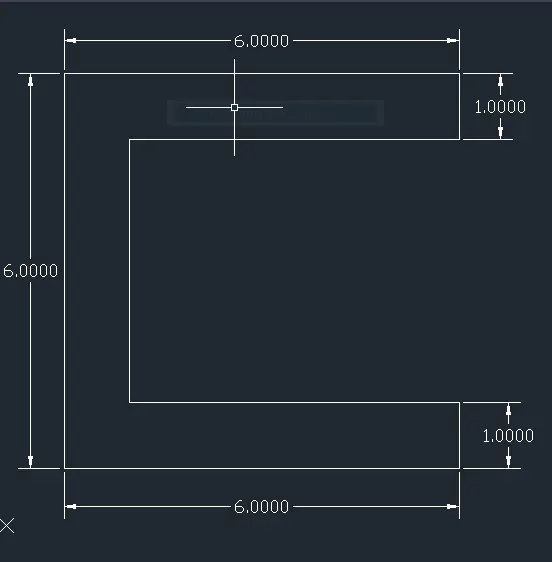
p-1
procedure
method -Absolute co-ordinate system
1. Then specify the first point: type 2,1 at command prompt and press enter (as a starting point)
x,y
2nd point(8,1)
3nd point(8,2)
4rd point(3,2)
5th point(3,6)
6thpoint(8,6)
7th point(8,7)
8th point(2,7)
9th point (2,1) or click on close
Then in
method- polar co-ordinate system
Enter the line command ,
1. Then specify the first point: type 2,1 at command prompt and press enter (as a starting point)
2. Specify next point: at @6<0and press enter
3. Specify the next point: at @1<90and press enter
4. Specify the next point: at @5<180 and press enter
5. Specify the next point: at @4<90and press enter
6. Specify the next point: at @5<0 and press enter
7. Specify the next point: at @1<90 and press enter
8. Specify the next point: at @6<180 and press enter
9. Specify the next point or close: select the close option press enter.
Then in relative co-ordinate method:
Enter the line command ,
1. Then specify the first point: type 2,1 at command prompt and press enter (as a starting point)
2. Specify next point: at @8,0 and press enter
3. Specify the next point: at @0,1and press enter
4. Specify the next point: at @-5,0 and press enter
5. Specify the next point: at @0,4and press enter
6. Specify the next point: at @5,0 and press enter
7. Specify the next point: at @0,1and press enter
8. Specify the next point: at @-6,0 and press enter
9. Specify the next point or close: select the close option press enter.or 0,-6 and press enter
p-2
Procedure
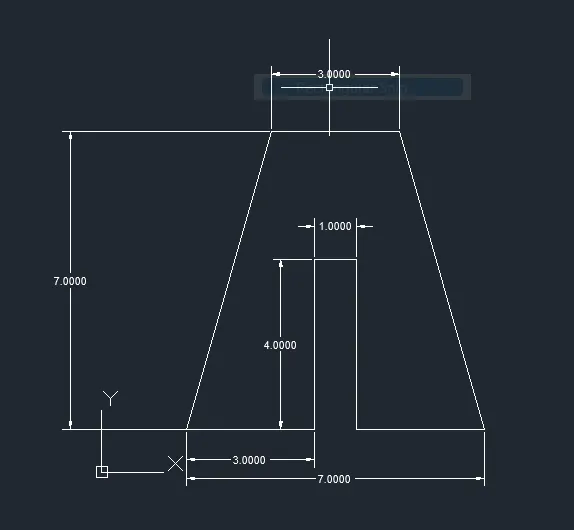
method -Absolute co-ordinate system
1. Then specify the first point: type 2,1 at command prompt and press enter (as a starting point)
x,y
2nd ponit(3,1)
3nd ponit(5,5)
4rd ponit(6,5)
5th ponit(6,1)
6thponit(9,1)
7th ponit(7,8)
8th ponit(4,8)
9th point (2,1) or click on close
Then in
method- polar co-ordinate system
Enter the line command ,
1. Then specify the first point: type 2,1 at command prompt and press enter (as a starting point)
2. Specify next point: at @3<0and press enter
3. Specify the next point: at @4<90and press enter
4. Specify the next point: at @1<0 and press enter
5. Specify the next point: at @4<270and press enter
6. Specify the next point: at @3<0 and press enter
7. Specify the next point: at @7<106and press enter
8. Specify the next point: at @3<180and press enter
9. Specify the next point or close: select the close option press enter.
p-4
Procedure
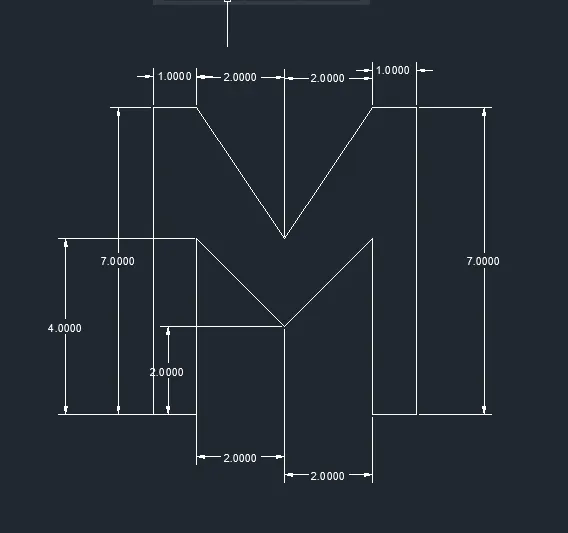
method -Relative co-ordinate system
Enter the line command ,
1. Then specify the first point: type 2,1 at command prompt and press enter (as a starting point)
x,y
2nd ponit@(1,0)
3nd ponit@(0,4)
4rd ponit@(2,-2)
5th ponit@(2,2)
6thponit@(0,-4)
7th ponit@(1,0)
8th ponit@(0,7)
9th point@(-1,0)
10th point@(-2,-3)
11th point@(-2,3)
12th point@(-1,0)
13th point@(0,-7) or click on the close
p-5
Procedure
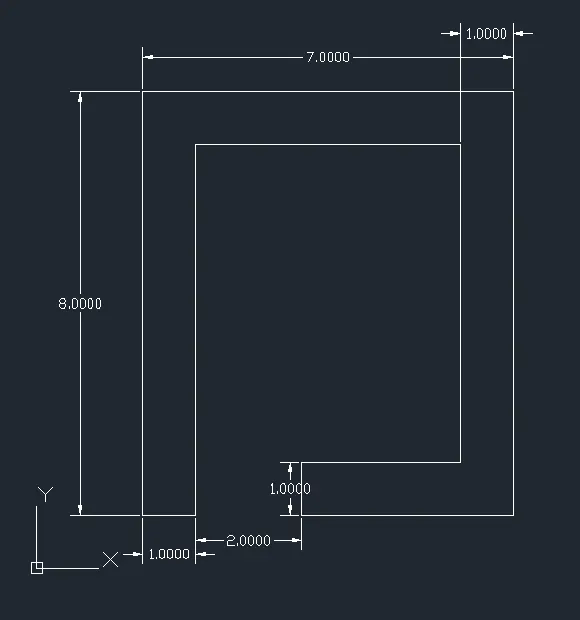
method -Absolute co-ordinate system
Enter the line command ,
1. Then specify the first point: type 2,1 at command prompt and press enter (as a starting point)
x,y
2nd ponit(2,9)
3nd ponit(9,9)
4rd ponit(9,1)
5th ponit(5,1)
6thponit(5,2)
7th ponit(8,2)
8th ponit(8,8)
9th point (3,8)
10th ponit(3,1)
11th point(2,1)
or click on close
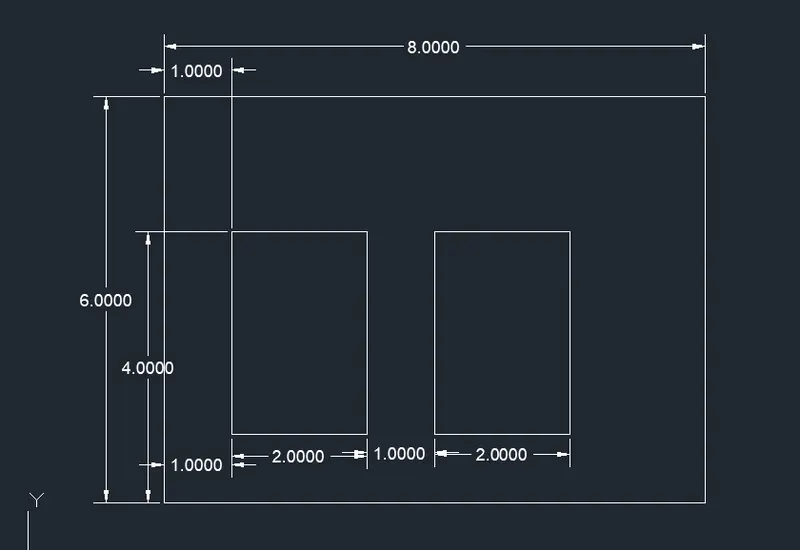
p-7
Procedure
method -Absolute co-ordinate system
Enter the line command ,
1. Then specify the first point: type 2,1 at command prompt and press enter (as a starting point)
x,y
2nd ponit(10,1)
3nd ponit(10,7)
4rd ponit(2,7)
5th ponit(2,1)
Again select line
Then specify the first point: type 3,2at command prompt and press enter (as a starting point)
2nd ponit(5,2)
3rd ponit(5,5)
4th point (3,5)
5th ponit(3,2)or close
Again select line
Then specify the first point: type 6,2 at command prompt and press enter (as a starting point)
2nd point(8,2)
3rd ponit (8,5)
4th point (6,5)
5th ponit (6,2)
or click on close
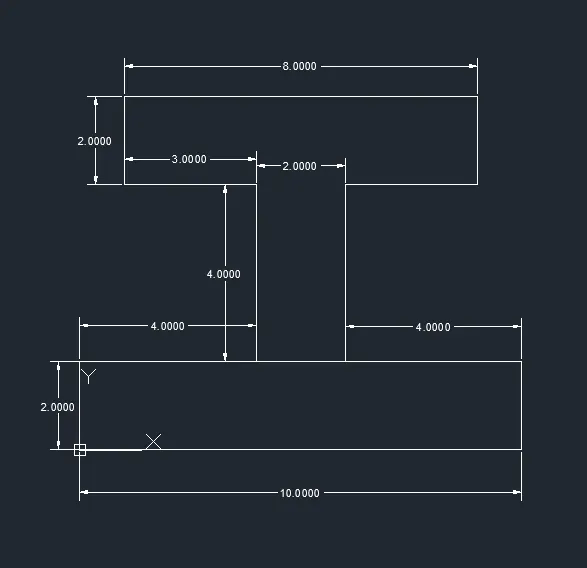
p-8
Procedure
method -Absolute co-ordinate system
Enter the line command ,
1. Then specify the first point: type 0,0at command prompt and press enter (as a starting point)
select the line then specify
x,y
2nd ponit(10,0)
3nd ponit(10,2)
4rd ponit(6,2)
5th ponit(6,6)
6thponit(9,6)
7th ponit(9,8)
8th ponit(1,8)
9th point (1,6)
10th ponit(4,6)
11th point(4,2)
12th point(0,2)
13th point (0,0)
or click on close
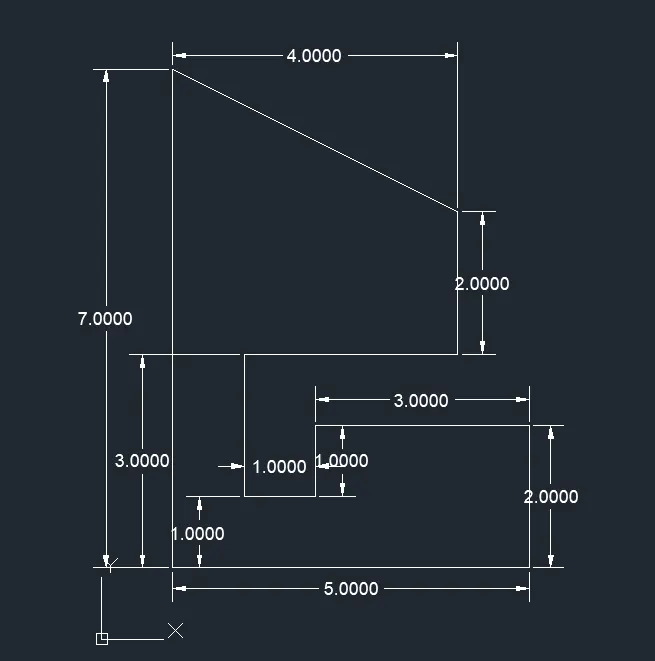
p-9
Procedure
method -Absolute co-ordinate system
Enter the line command ,
1. Then specify the first point: type 1,1 at command prompt and press enter (as a starting point)
x,y
2nd ponit(6,1)
3nd ponit(6,3)
4rd ponit(3,3)
5th ponit(3,2)
6thponit(2,2)
7th ponit(2,4)
8th ponit(5,4)
9th point (5,6)
10th ponit(1,8)
11th point(1,1)
or click on close
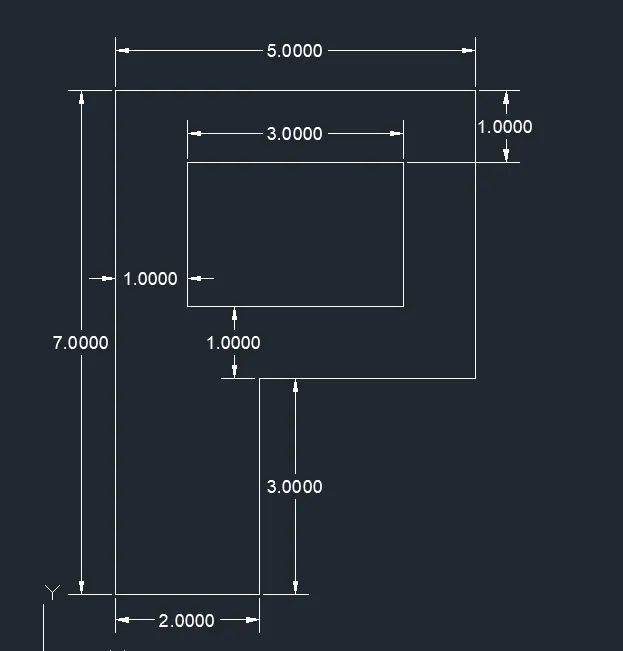
p-10
Procedure
method -Absolute co-ordinate system
Enter the line command ,
1. Then specify the first point: type 1,1 at command prompt and press enter (as a starting point)
x,y
2nd ponit(3,1)
3nd ponit(3,4)
4rd ponit(6,4)
5th ponit(6,8)
6thponit(1,8)
7th ponit(1,1)
Enter the line command ,
1. Then specify the first point: type 2,5 at command prompt and press enter (as a starting point)
2nd point (5,5)
3rd ponit(5,7)
4th point(2,7)
5th point(2,5)
or click on close
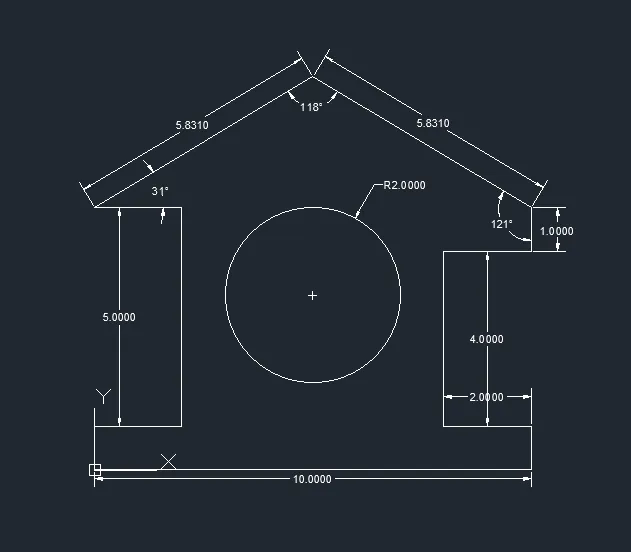
profile -wood
Method -polar coordinate system:
Enter the line command ,
1. Then specify the first point: type 0,0 at command prompt and press enter (as a starting point)
2. Specify next point: at @1<0 and press enter
3. Specify the next point: at @2<0 and press enter
4. Specify the next point: at @5<90 and press enter
5. Specify the next point: at @2<180 and press enter
6. Specify the next point: at @5.8310<31and press enter
7. Specify the next point: at @5.8310<329 and press enter
8. Specify the next point: at @1<270 and press enter
9. Specify the next point: at @2<180 and press enter
10. Specify the next point: at @4<270 and press enter
11. Specify the next point: at @2<0 and press enter
12. Specify the next point: at @1<270 and press enter
13. Specify the next point or close: select the close option press enter.
14.Enter the circle command ,
15. Then specify the first point: type 4,5 at command prompt and press enter (as a starting point)
10. Specify the radius of circle type 2 at command and press enter
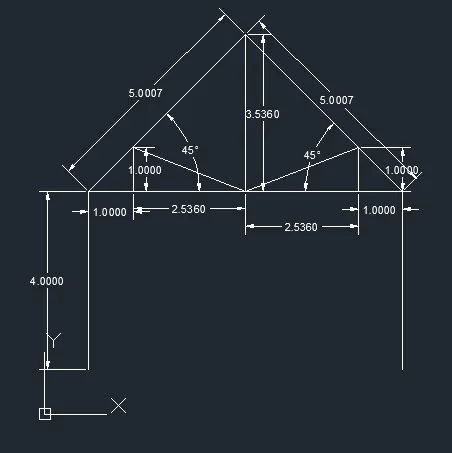
queen post truss
Method -polar coordinate system:
Enter the line command ,
1. Then specify the first point: type 1,1 at command prompt and press enter (as a starting point)
2. Specify next point: at @4<90 and press enter
3. Specify the next point: at @1<0 and press enter
4. Specify the next point: at @2.5360<0 and press enter
5. Specify the next point: at @2.5360<0and press enter
6. Specify the next point: at @1<0and press enter
7. Specify the next point: at @4<270 and press enter
Then specify the first point: type 4.536,5 at command prompt and press enter (as a starting point)
1 Specify the next point: at @5.0007<225and press enter
Then specify the first point: type 4.536,8.536at command prompt and press enter (as a starting point)
1. Specify the next point: at @5.0007<315and press enter
Then specify the first point: type 2,5 at command prompt and press enter (as a starting point)
1. Specify the next point: at @1<90 and press enter
2. Specify the next point: at @2.7261<338.5 and press enter
Then specify the first point: type 4.536,8.5at command prompt and press enter (as a starting point)
1. Specify the next point: at @2.7261<21.5 and press enter
2. Specify the next point: at @1<270 and press enter
mono pitch
Method Polar coordinate system:
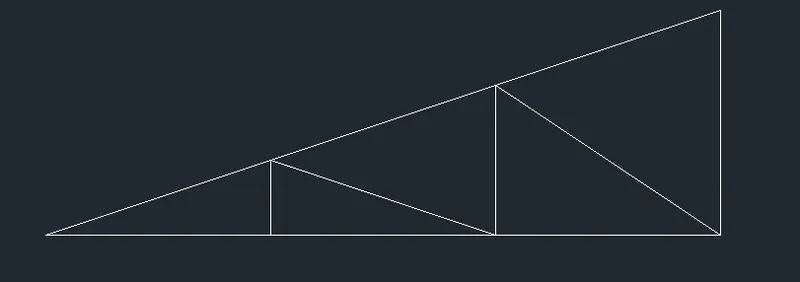
mono pitch
Method Polar coordinate system:
Enter the line command ,
1. Then specify the first point: type 7,2 at command prompt and press enter (as a starting point)
2. Specify next point: at @2.1083<203and press enter
3. Specify the next point: at @1.33<270 and press enter
4. Specify the next point: at @2<0 and press enter
5. Specify the next point: at @2.40<146 and press enter
6. Specify the next point: at @2.0932<203 and press enter
7. Specify the next point: at @0.667<270 and press enter
8. Specify the next point: at @2<0 and press enter
9. Specify the next point: at @5<180 and press enter
10. Specify the next point: at @2.108<161 and press enter
11. Specify the next point: at @2.1230<204 and press enter
12. Specify the next point: at @2<0 and press enter
13. Specify the next point or close: select the close option press enter.