Creation of geometries by Coordinate system methods using AutoCad
Q. Create the geometries from P1 to P2 using all the coordinates system methods. You need to use the Line tool to create the geometries. Where required you need to use the circle tool.
Please read the drawings and find out the missing dimensions before working on the sketches.
AIM:
(A)Create the geometries from P1 to P2 using all the coordinates system methods. we need to use the Line tool to create the geometries & Where required you need to use the circle tool and find the dimensions.
(B) Civil Related Problems
Draw the profile and the trusses using any coordinate system methods.
Introduction:
Before going to the drawing we should know about the coordinate systems. In Autocad there are two coordinate systems are there they are Cartesian and polar.
To these coordinate systems the aboslute and relative coordinatees of autocad are applicable.
Coordinate systems: Coordinate system is a system where numbers are used to determine the unique position of points or other geometric elements.
Also coordinates in Autocad can be set by mouse input setting the values of coordinates in the command line and enter coordinates using dynamic input.
There are three types of coordinate systems they are:
1) Absolute Coordinate system
2) Relative Coordinate system
- Relative Rectangular Coordinates
- Relative polar Coordinates
3)Direct distance entry
Create the Geometries for P1 using all the coordinate systems.
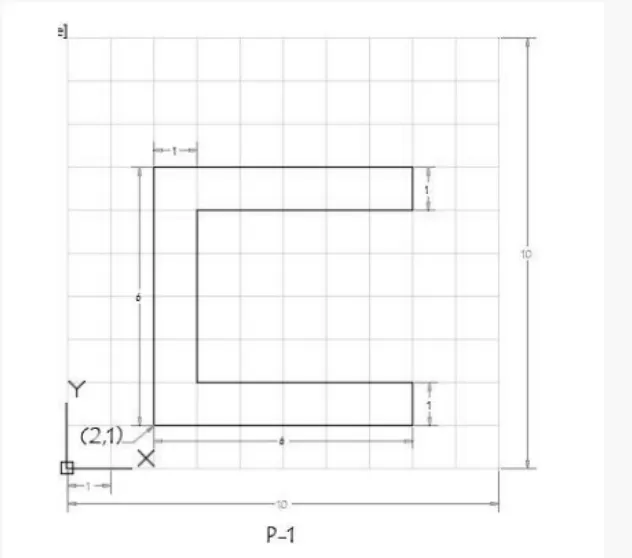
a) Absolute Coordinate:
Procedure:
- Select line tool from the ribbon tab (or) write the line command it will show specify the first point.
- Now enter the first point as (2,1)
- Specify the next point as (8,1)
- Specify the next point as (8,2)
- Specify the next point as (3,2)
- Specify the next point as (3,6)
- Specify the next point as (8,6)
- Specify the next point as (8,7)
- Specify the next point as (2,7)
- Specify the next point as (2,1), else click on the close command.
Result:
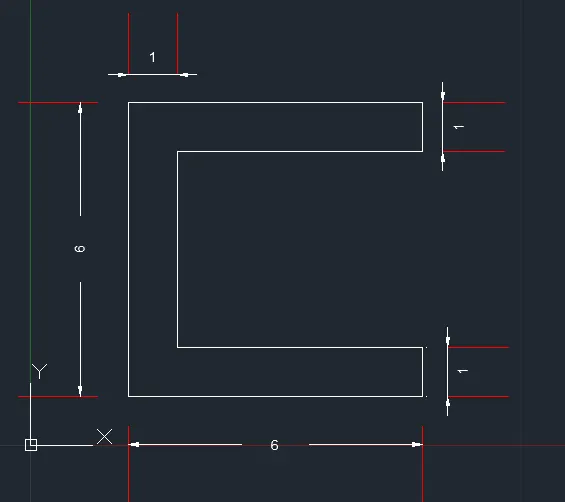
b) Relative Rectangular Coordinate system
Procedure:
- Select the line tool by entering Line command in the command prompt.
- Specify the starting coordinate of first point as 2,1 in the command prompt.
- specify the next coordinate point as @6,0 in the command prompt.
- specify the next coordinate point as @0,1 in the command prompt.
- specify the next coordinate point as @-5,0 in the command prompt.
- specify the next coordinate point as @0,4 in the command prompt.
- specify the next coordinate point as @5,0 in the command prompt.
- specify the next coordinate point as @0,1 in the command prompt.
- specify the next coordinate point as @-6,0 in the command prompt.
- click close on the command prompt.
Result:
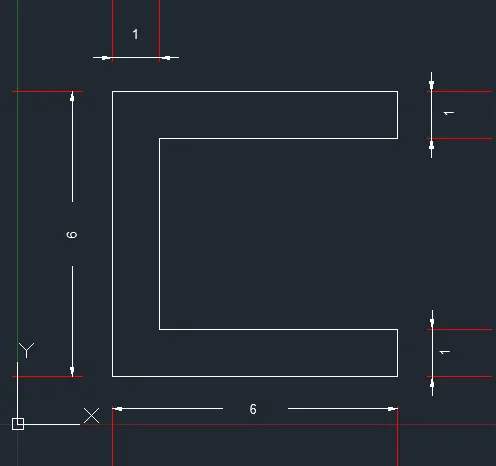
C) Relative Polar Coordinate system
Procedure:
- Select the line tool by enetering Line command in the command prompt.
- Specify the starting coordinate First point as 2,1 in the command prompt.
- Specify the next coordinate point as @6<0 in the command prompt.
- Specify the next coordinate point as @1<90 in the command prompt.
- Specify the next coordinate point as @5<180 in the command prompt.
- Specify the next coordinate point as @4<90 in the command prompt.
- Specify the next coordinate point as @5<0 in the command prompt.
- Specify the next coordinate point as @1<90 in the command prompt.
- Specify the next coordinate point as @6<180 in the command prompt.
- Click the close command in the command prompt.
Result:
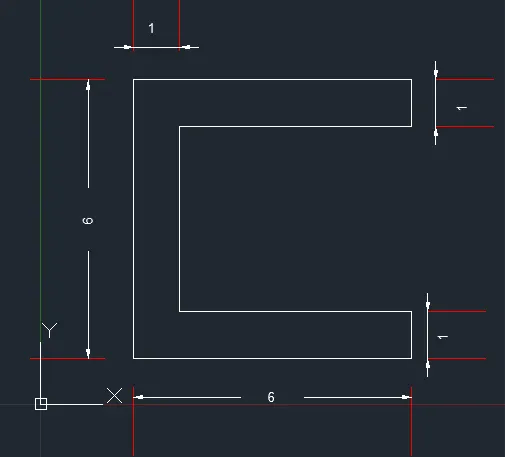
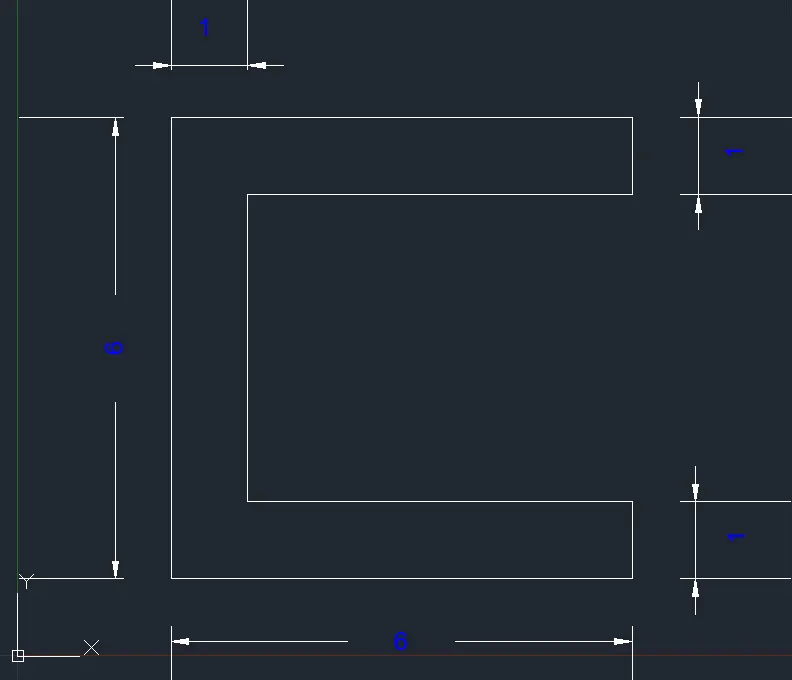
D) Direct Distance Entry method
Procedure:
- Select the Line tool by entering LINE command in the command prompt.
- Specify the starting coordinate of first point as 2,1 in the command line.
- Enter the length of next point 6 in the command line towards +ve X-axis.
- Enter the length of next point 1 in the command line towards +ve Y-axis.
- Enter the length of next point 5 in the command line towards - ve X-aixs.
- Enter the length of next point 4 in the command line towards +ve Y-axis.
- Enter the length of next point 5 in the command line towards + ve X-aixs.
- Enter the length of next point 1 in the command line towards +ve Y-axis.
- Enter the length of next point 6 in the command line towards -ve X-axis.
- Click close on the command line.
Result:
Create the geometries for P2 using all the coordinates system methods.
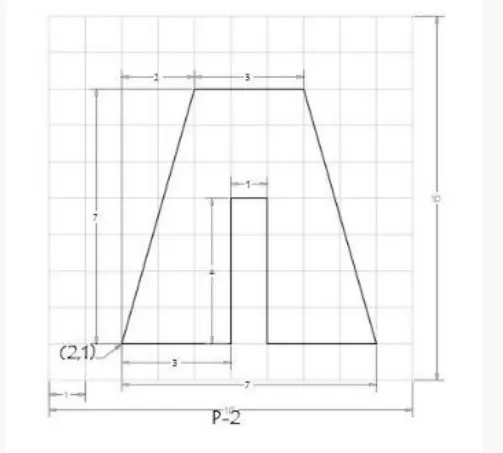
A) Absolute Coordinate system
- Select the Line tool by entering LINE command in the command prompt.
- Specify the starting coordinate of first ponit as 2,1 in the command prompt.
- Specify the next coordinate ponit as 5,1 in the command prompt.
- Specify the next coordinate ponit as 5,5 in the command prompt.
- Specify the next coordinate ponit as 6,5 in the command prompt.
- Specify the next coordinate ponit as 6,1 in the command prompt.
- Specify the next coordinate ponit as 9,1 in the command prompt.
- Specify the next coordinate ponit as 7,8 in the command prompt.
- Specify the next coordinate ponit as 4,8 in the command prompt.
- Click Close on the command line.
RESULT:
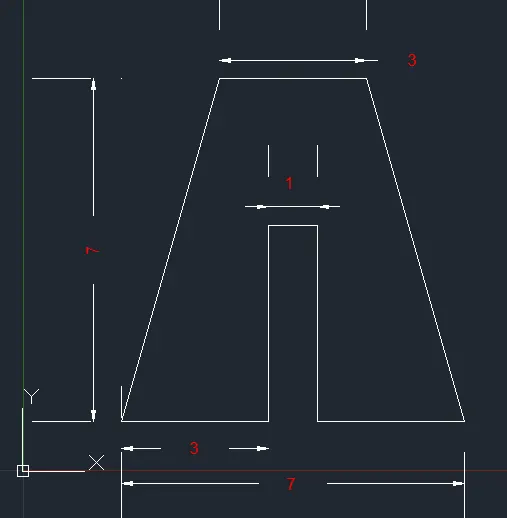
B) Relative Rectangular coordinate system
Procedure:
- Select the Line tool by entering LINE command in the command prompt.
- Specify the starting coordinate of point as 2,1 in the command prompt.
- Specify the next coordinate point as @3,0 in the command prompt.
- Specify the next coordinate point as @0,4 in the command prompt.
- Specify the next coordinate point as @1,0 in the command prompt.
- Specify the next coordinate point as @0,-4 in the command prompt.
- Specify the next coordinate point as @3,0 in the command prompt.
- Specify the next coordinate point as @-2,7 in the command prompt.
- Specify the next coordinate point as @-3,0 in the command prompt.
- Click Close on the command line.
Result:
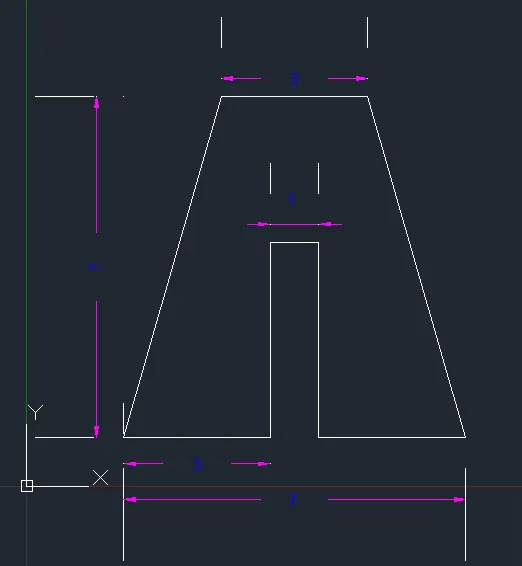
C) Relative Polar Coordinate system
Procedure:
- Select the Line tool by entering LINE command in the command prompt.
- Specify the starting coordinate point as 2,1 in the command prompt.
- Specify the next coordinate point as @3<0 in the command prompt.
- Specify the next coordinate point as @4<90 in the command prompt.
- Specify the next coordinate point as @1<0 in the command prompt.
- Specify the next coordinate point as @4<270 in the command prompt.
- Specify the next coordinate point as @3<0 in the command prompt.
- Specify the next coordinate point as @7<106 in the command prompt.
- Specify the next coordinate point as @3<180 in the command prompt.
- Click Close on the command Prompt.
Result:
D) Direct Distance Entry Method:
Procedure:
- Select the Line tool by entering LINE command prompt.
- Specify the starting coordinate point as 2,1 in the command prompt.
- Enter the length of the next point as 3 in the command prompt towards +ve X-axis.
- Enter the length of the next point as 4 in the command prompt towards +ve Y-axis.
- Enter the length of the next point as 1 in the command prompt towards +ve X-axis.
- Enter the length of the next point as 4 in the command prompt towards -ve Y-axis.
- Enter the length of the next point as 3 in the command prompt towards +ve X-axis.
- Enter the length of the next point as 7 in the command prompt at an angle of <106 from +ve X-direction while keeping polar tracking on.
- Enter the length of the next point as 3 in the command prompt towards -ve X-axis.
- Click Close on the command prompt.
Result:
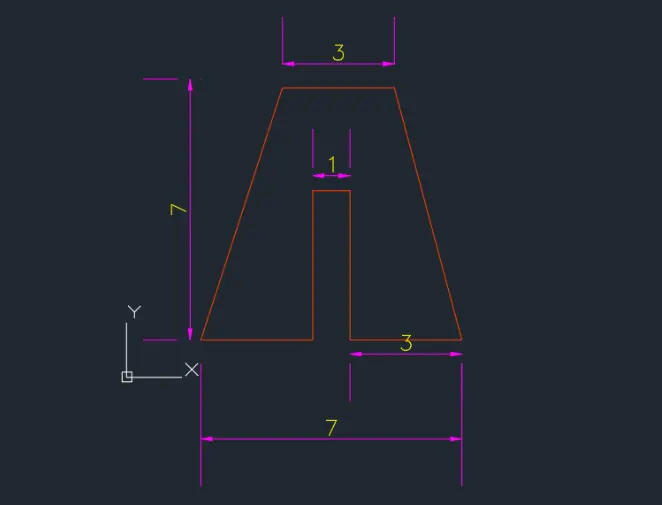
Create the geometries from P4 to P10 using any coordinate system methods.
Steps for creating the geometry in p-4 using Absolute coordinate system
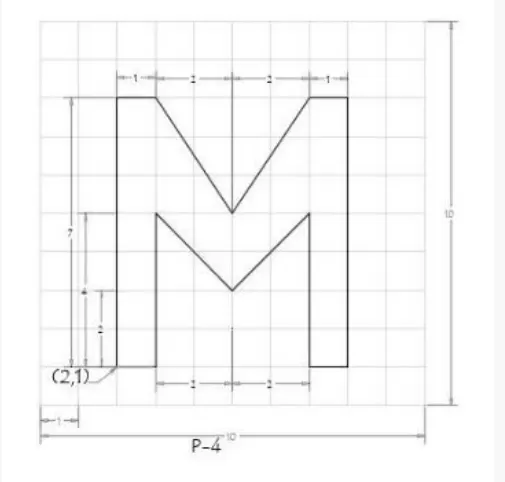
- Select the Line tool by entering Line command in the command prompt.
- Specify the starting coordinate of point as 2,1 in the command Prompt.
- Specify the next coordinate of point as 3,1 in the command prompt.
- Specify the next coordinate of point as 3,5 in the command prompt.
- Specify the next coordinate of point as 5,3 in the command prompt.
- Specify the next coordinate of point as 7,5 in the command prompt.
- Specify the next coordinate of point as 7,1 in the command line.
- Specify the next coordinate of point as 8,1 in the command prompt.
- Specify the next coordinate of point as 8,8 in the command prompt.
- Specify the next coordinate of point as 7,8 in the command prompt.
- Specify the next coordinate of point as 5,5 in the command prompt.
- Specify the next coordinate of point as 3,8 in the command prompt.
- Specify the next coordinate of point as 2,8 in the command prompt.
- Click close on the command prompt.
Result:
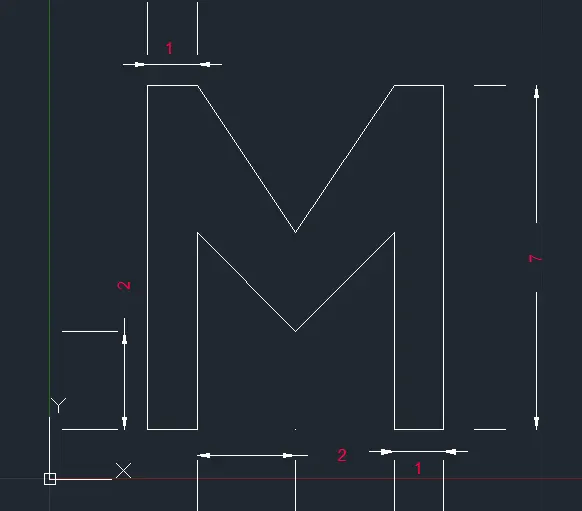
steps for cretaing the geometry in P-5 using Relative Rectangular coordinate system
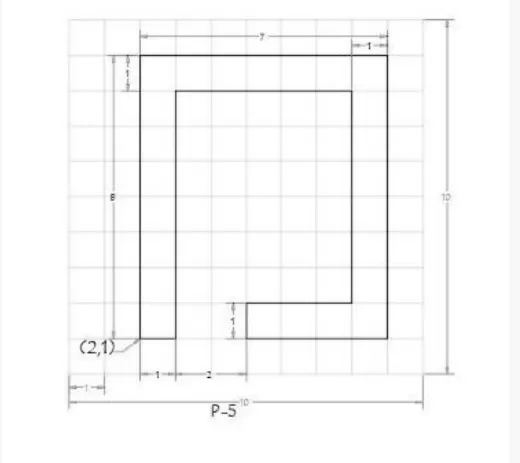
- Select the line tool by entering Line command in command prompt.
- Specify the starting coordinate of point as @1,0 in the command prompt.
- Specify the next coordinate of point as @0,7 in the command prompt.
- Specify the next coordinate of point as @5,0 in the command prompt.
- Specify the next coordinate of point as @0,-6in the command prompt.
- Specify the next coordinate of point as @-3,0 in the command prompt.
- Specify the next coordinate of point as @0,-1 in the command prompt.
- Specify the next coordinate of point as @4,0 in the command prompt.
- Specify the next coordinate of point as @0,8 in the command prompt.
- Specify the next coordinate of point as @-7,0 in the command prompt.
- Click Close on the command prompt.
Result:
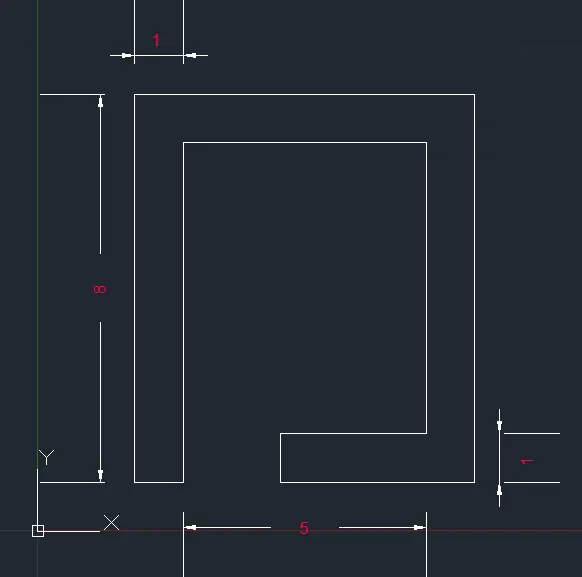
Steps for creating the geometry in P-7 using Abosolute coordinate system
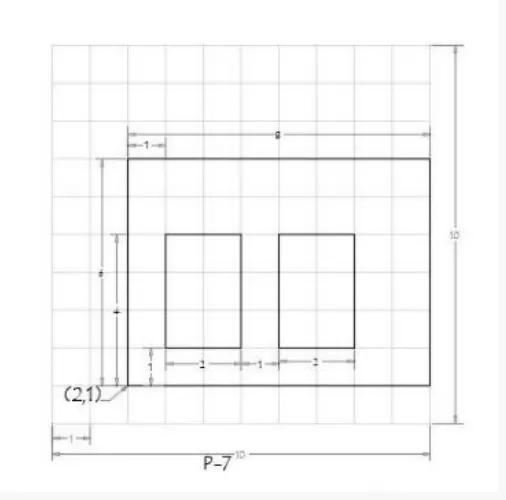
- Select the Line tool by entering Line command in the command prompt.
- Specify the starting coordinate of point as 2,1 in the command prompt.
- Specify the next coordinate of point as 10,1 in the command prompt.
- Specify the next coordinate of point as 10,7 in the command prompt.
- Specify the next coordinate of point as 2,7 in the command prompt.
- Click Close on the command prompt.
- Selct the Line tool by entering Line command in the command prompt.
- Specify the next coordinate of point as 3,2 in the command prompt.
- Specify the next coordinate of point as 5,2 in the command prompt.
- Specify the next coordinate of point as 5,5 in the command prompt.
- Specify the next coordinate of point as 3,5 in the command prompt.
- Click Close on the command prompt.
- Select the Line tool by entering Line command in the command Prompt.
- Specify the next coordinate of point as 6,2 in the command prompt.
- Specify the next coordinate of point as 8,2 in the command prompt.
- Specify the next coordinate of point as 8,5 in the command prompt.
- Specify the next coordinate of point as 6,5 in the command prompt.
- Click Close on the command Prompt.
Result:
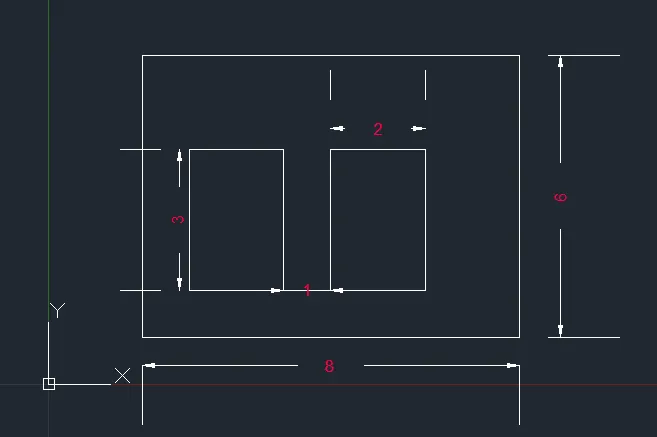
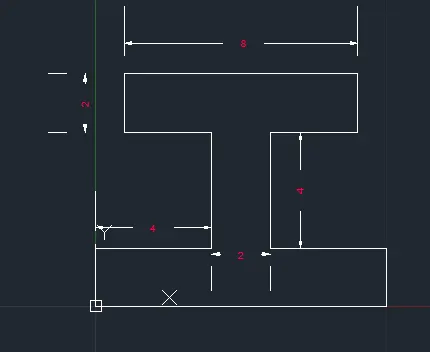
Steps for creating the geometry in P-8 using Relative Rectangular coordinate system
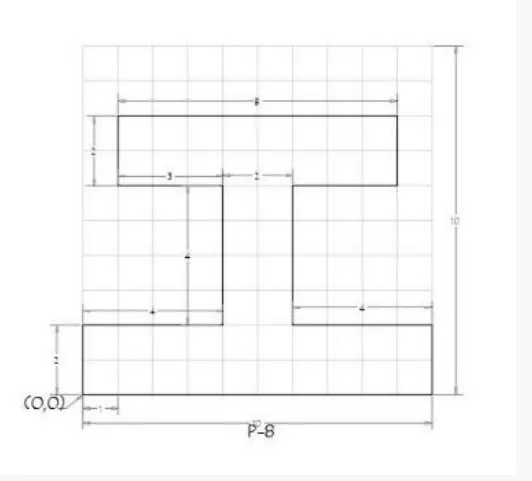
- Select the Line tool by entering Line command in the command prompt.
- Specify the starting coordinate of point as 0,0 in the command prompt.
- Specify the next coordinate of point as @10,0 in the command prompt.
- Specify the next coordinate of point as @0,2 in the command prompt.
- Specify the next coordinate of point as @-4,0 in the command prompt.
- Specify the next coordinate of point as @0,4 in the command prompt.
- Specify the next coordinate of point as @3,0 in the command prompt.
- Specify the next coordinate of point as @0,2 in the command prompt.
- Specify the next coordinate of point as @-8,0 in the command prompt.
- Specify the next coordinate of point as @0,-2 in the command prompt.
- Specify the next coordinate of point as @3,0 in the command prompt.
- Specify the next coordinate of point as @0,-4 in the command prompt.
- Specify the next coordinate of point as @-4,0 in the command prompt.
- Click Close on the command prompt.
Result:
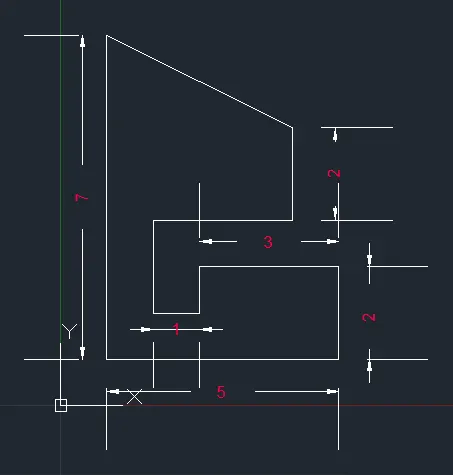
Steps for creatiing the geometry in P-9 using Absolute coordinate system
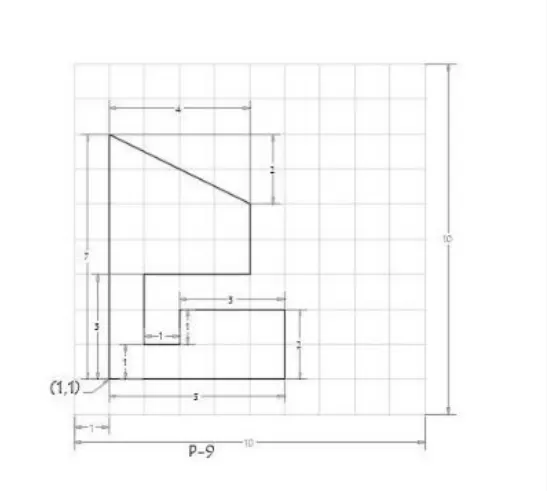
- Select the Line tool by entering Line command in the command prompt.
- Specify the starting coordinate point as 1,1 in the command prompt.
- Specify the next coordinate point as 6,1 in the command prompt.
- Specify the next coordinate point as 6,3 in the command prompt.
- Specify the next coordinate point as 3,3 in the command prompt.
- Specify the next coordinate point as 3,2 in the command prompt.
- Specify the next coordinate point as 2,2 in the command prompt.
- Specify the next coordinate point as 2,4 in the command prompt.
- Specify the next coordinate point as 5,4 in the command prompt.
- Specify the next coordinate point as 5,6 in the command prompt.
- Specify the next coordinate point as 1,8 in the command prompt.
- Click Close on the command prompt.
Result:
Steps for creating the geometry in p-10 using Relative polar coordinate system
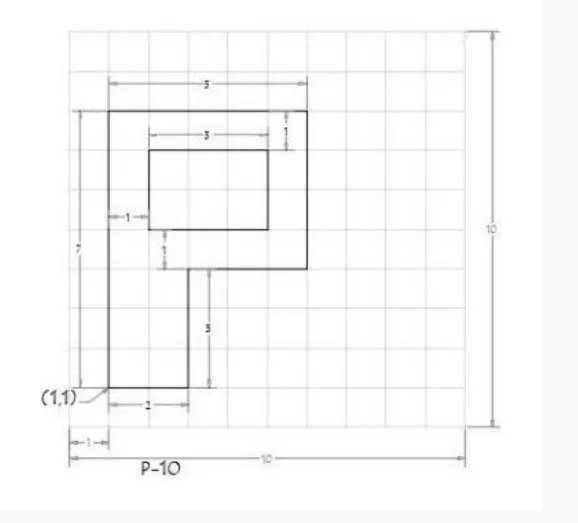
- Select the Line tool by entering Line command in the command prompt.
- Specify the starting coordinate point as 1,1 in the command prompt.
- Specify the next coordinate point as @2<0 in the command prompt.
- Specify the next coordinate point as @3<90 in the command prompt.
- Specify the next coordinate point as @3<0 in the command prompt.
- Specify the next coordinate point as @4<90 in the command prompt.
- Specify the next coordinate point as @5<180 in the command prompt.
- click Close on the command prompt.
- Select the Line tool by entering Line command in the command Prompt.
- Specify the next coordinate point as 2,5 in the command prompt.
- Specify the next coordinate point as @3<0 in the command prompt.
- Specify the next coordinate point as @2<90 in the command prompt.
- Specify the next coordinate point as @3<180 in the command prompt.
- Click Close on the command Prompt.
Result:
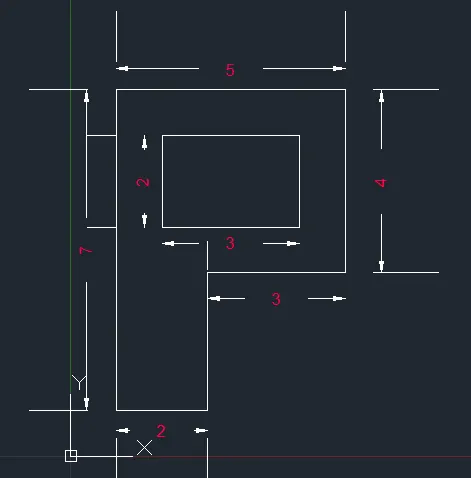
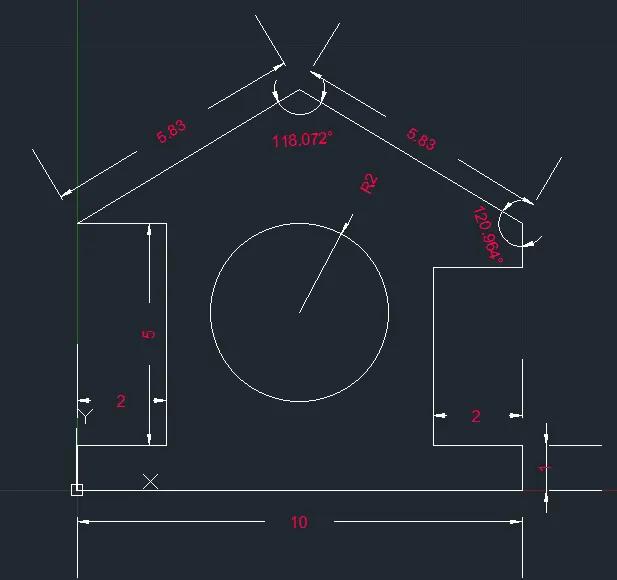
(B) Civil related problems - Draw the profile and the trusses using any coordinate system methods. The dimensions are there for references.
Steps for creating the wood profile using Direct Distance Entry method
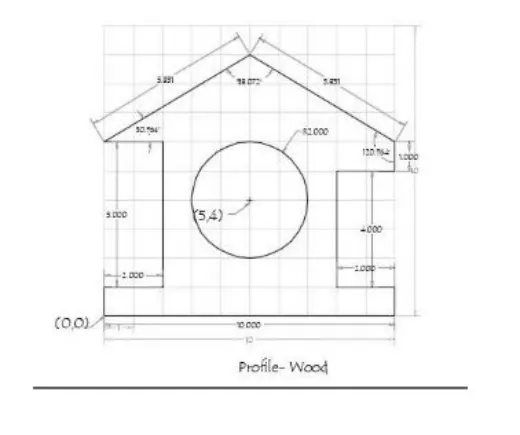
- Select the Line tool by entering Line command in the command prompt.
- Specify the starting cooridnate point as 0,0 in the command prompt.
- Enter the length of the point as 10 in the command line towards +ve X-axis.
- Enter the length of the point as 1 in the command line towards +ve y-axis.
- Enter the length of the point as 2 in the command line towards -ve x-axis .
- Enter the length of the point as 4 in the command line towards +ve y-axis
- Enter the length of the point as 2 in the command line towards +ve x-axis.
- Enter the length of the point as 831 in the command line at an angle of <149.036 from +ve X-direction while keeping polar tracking on.
- Enter the length of the point 8 as 5.831 in the command line at an angle of <210.964 from +ve X-direction while keeping polar tracking on.
- Enter the length of the point as 2 in the command line towards +ve X-axis.
- Enter the Length of point as 5 in the command line towards -ve Y-axis
- Enter the length of the point as 2 in the command line towards +ve X-axis.
- Click Close on the command line.
- Select the circle tool by entering Circle command in the command prompt.
- Specify the centre point of circle as 5,4.
- Specify radius of circle as 2.
Result:
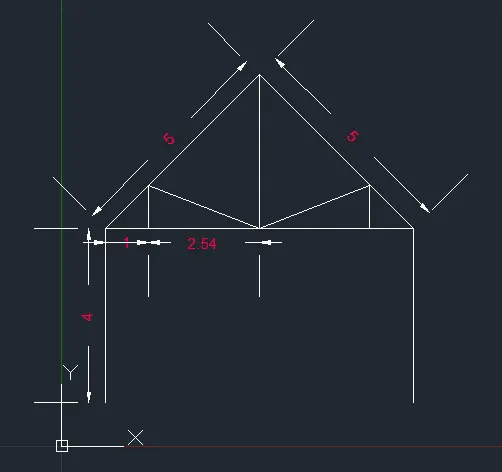
Steps for creating the queen post Truss using Relative Rectangular coordinate system
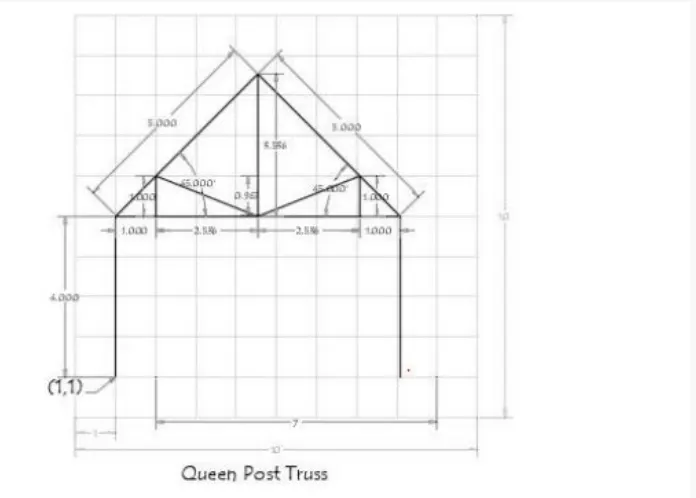
- Select the Line tool by entering Line command in the command prompt.
- Specify the starting coordinate point 1 as1,1 in the command prompt.
- Specify the next coordinate point 2 as @0,4 in the command prompt.
- Specify the next coordinate point 3 as @3.536,3.536 in the command prompt.
- Specify the next coordinate point 4 as @3.536,-3.536 in the command prompt.
- Specify the next coordinate point 5 as @0,-4 in the command prompt.
- press Esc to cancel the Line command in the commnad prompt.
- Select the Line tool again by entering Line command in the command prompt.
- Join the points 2,4.
- press Esc to cancel the Line command.
- Select the line tool again by entering Line command in the command prompt.
- Specify the next coordinate of point 6 as 4.536,5 in the command prompt.
- Specify the next coordinate of point 7 as @-2.5361, in the command prompt.
- Specify the next coordinate point 8 as @0,-1 in the command prompt.
- press Esc to cancel the Line command.
- Select the Line tool again by entering Line command in the command prompt.
- Specify the coordinate point 6 as 4.536,5 in the command prompt.
- Specify the next coordinate point 9 as @2.536,1 in the command line.
- Specify the next coordinate point 10 as @0,-1 in the command prompt
- Press Esc to cancel the line command in the command prompt.
- Select the Line tool again by entering Line command in the command prompt.
- Join points 3 and 6.
- Press Esc to cancel the Line command.
Result:
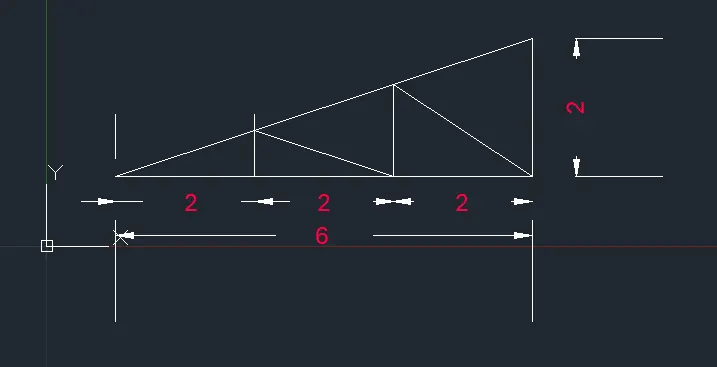
Steps for creating the Mono pitch using Absolute coordinate system
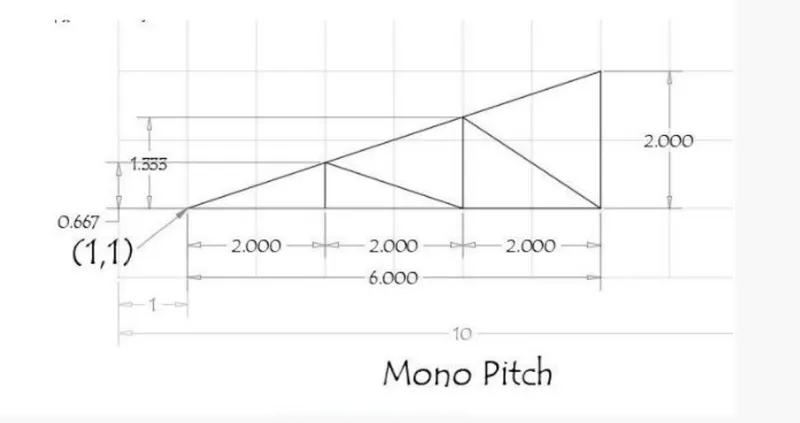
- Select the Line tool by enetring Line command in the command prompt.
- specify the starting point coordinate point as 1,1 in the command line.
- Specify the next coordinate point as 7,1 in the command line.
- Specify the next coordinate point 3 as 7,3 in the command line.
- Click close on the command line.
- Select the line tool by entering Line command in the command prompt.
- Specify the next coordinate point as 3,1 in the command line.
- Specify the next coordinate point as 3,1.667 in the command line.
- Specify the next coordinate point as 5,1 in the command line.
- specify the next coordinate point as 5,2.333 in the command line.
- Specify the next coordinate point as 7,1 in the command line.
- Press Esc to cancel the Line command.
Result: