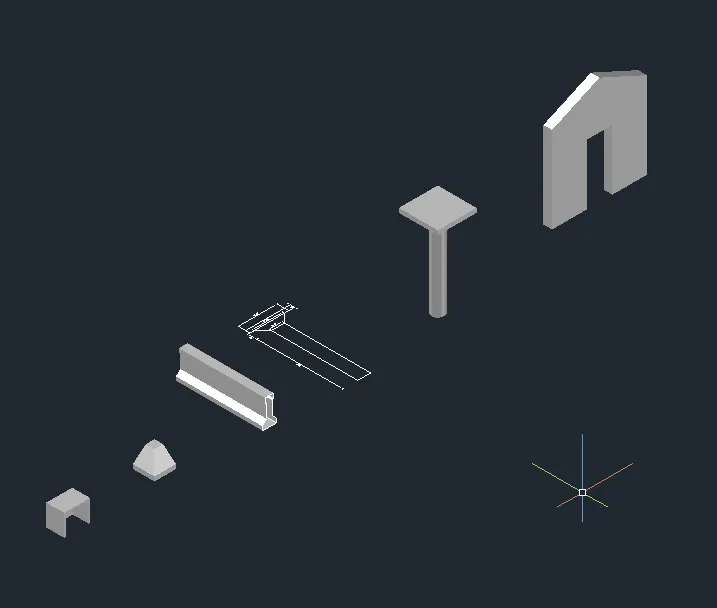
Creating various 3D Models like Furniture, Footing, Girder, Column drop with panel and Gable Wall in AutoCad
1. AIM
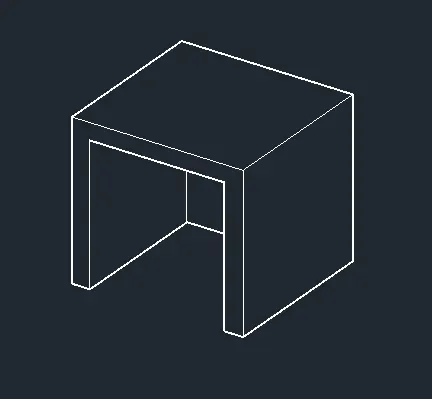
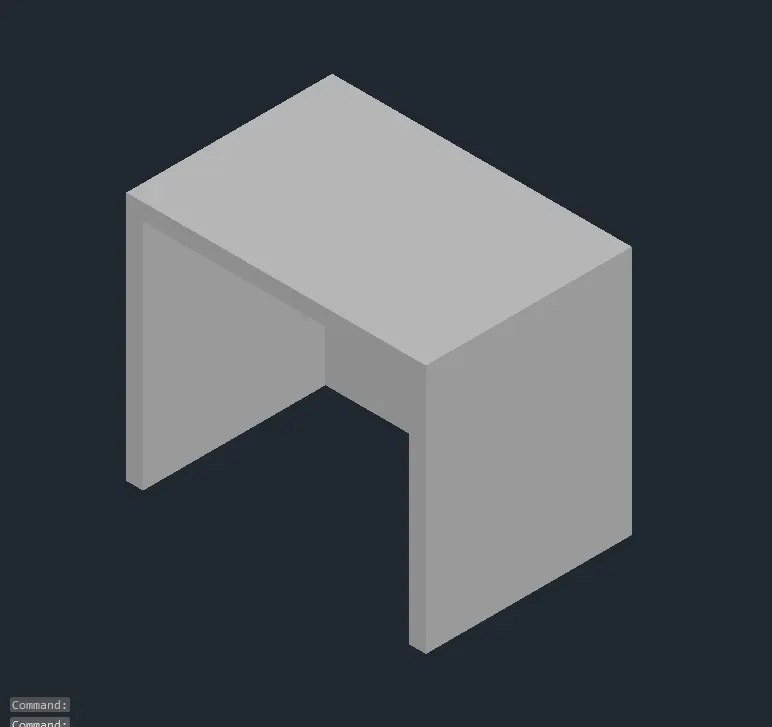
To create 3D Furniture elements using the various commands in Auto CAD.
INTRODUCTION BY 3D VIEW
The process of creating a mathematical representation of any surface of an object in three dimensions by using special software.
A 3D model can even be represented as a two-dimensional image by using the 3D rendering process.
It enables the professional creation and edition of 2D geometry and 3D models with solids, surfaces and objects.
PROCEDURE
To create a new sheet from the application of Auto CAD.
Go to the setting and change the view of the page from Drafting to 3D modeling.
Type,, UN’ to set the units of the current format of measure. ( feet and inches).
Type,, LIMITS’ to set the maximum dimension limits on the particular page.
First, we take the top view of the page.
Type,, REC’ to create a rectangle with a dimension of 2’6” x 3’0”.
And then we take to a 3D custom view.
Type ,, 3D ORBIT’ to view a 3D orbit viewport in the current viewport
Then, we take all box dimensions to create it from the origin point (0,0,0).
Next point we take to x direction of (@2’6”,0,0)
Type extrude to create a surface or solid of a 2D surface.
Then, we have to change the view of 2D Wire, Shaded, Conceptional, etc.
Type,, 3D FACE’ for allows to generate of 3D faces by identifying them.
To save the diagram to a particular file.
RESULTS
The diagram of 3D furniture elements is drawn as per dimensions using the software of Autocad.
2. AIM
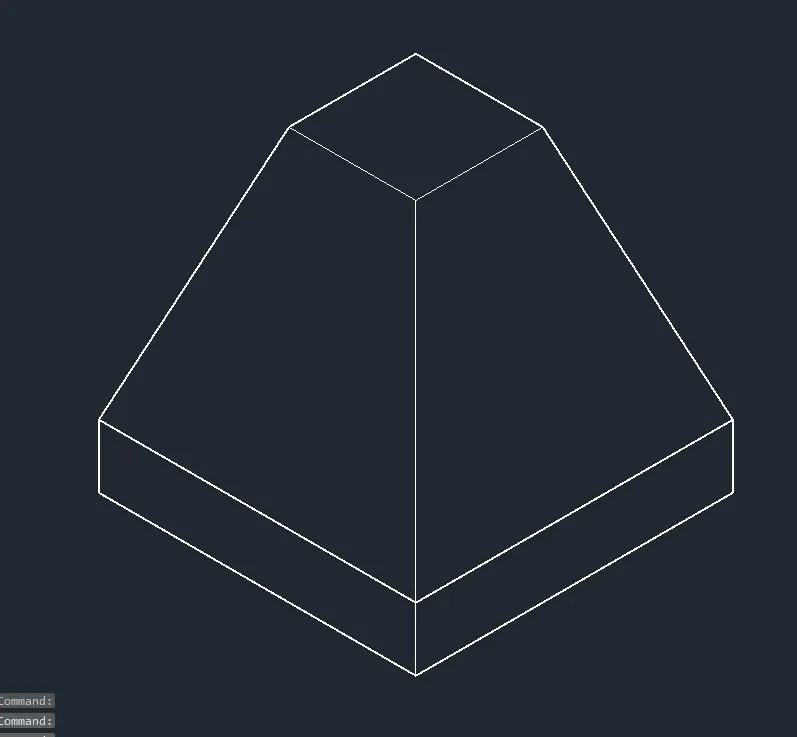
To create a 3D Model of isolated footings using the various commands in Auto CAD.
PROCEDURE
To create a new sheet from the application of Auto CAD.
Go to the setting and change the view of the page from Drafting to 3D modeling.
Type, UN’ to set the units of the current format of measure.( feet and inches).
Type, LIMITS’ to set the maximum dimension limits on the particular page.
First, we take the top view of the page.
Type, REC’ to create a rectangle with the given dimensions.
And then we take to a 3D custom view.
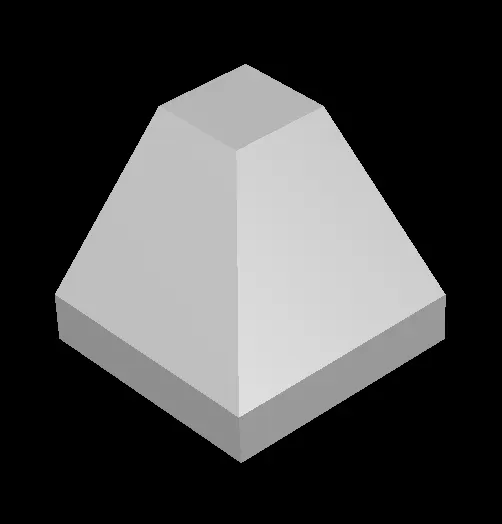
The footing dimension is 4’0” x 4’0”.
The depth of footing is 6” and reduced to a depth of 2” and the width is 1’0”.
COPY – this command is used to select objects from a given square to the destination, learning a copy at the originally selected location.
MOVE – moves the objects to the destination place from the source place.
And then join the all lines.
Type ,, 3D ORBIT’ to view a 3D orbit viewport in the current viewport
Type, 3D FACE’ for allows to generate of 3D faces by identifying them.
To save the diagram to a particular file.
RESULT:
The diagram of the 3D Model of an isolated footing is drawn as per dimensions using the software of Auto.
3. AIM
To create a 3D View of the AASTHO-type girder using the various commands in Auto CAD.
PROCEDURE
To create a new sheet from the application of Auto CAD.
Go to the setting and change the view of the page from Drafting to 3D modeling.
Type, UN’ to set the units of the current format of measure.( feet and inches).
Type, LIMITS’ to set the maximum dimension limits on the particular page.
First, we take the top view of the page.
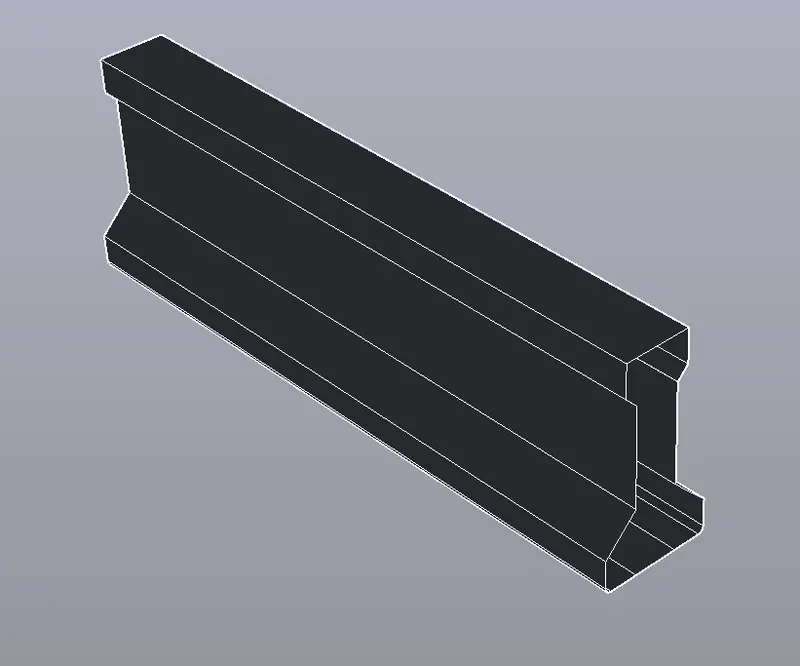
To take, L’ to create a line to draw the I section AASTHO Girder.
The origin point is 0,0,0.
The next point is (@1’6”,0,0)
The next point is (@0,0,6”).
The next point is (@6”<0<135) and follows the all given dimensions to draw the Section.
Type ,, 3D ORBIT’ to view a 3D orbit viewport in the current viewport
Type, 3D FACE’ allows generating of 3D faces by identifying them.
Type, REGION’ to convert objects that enclose an area into 2D region objects.
Type, EXTRUDE’ to create a surface or solid of a 2D surface or a 3D curve.
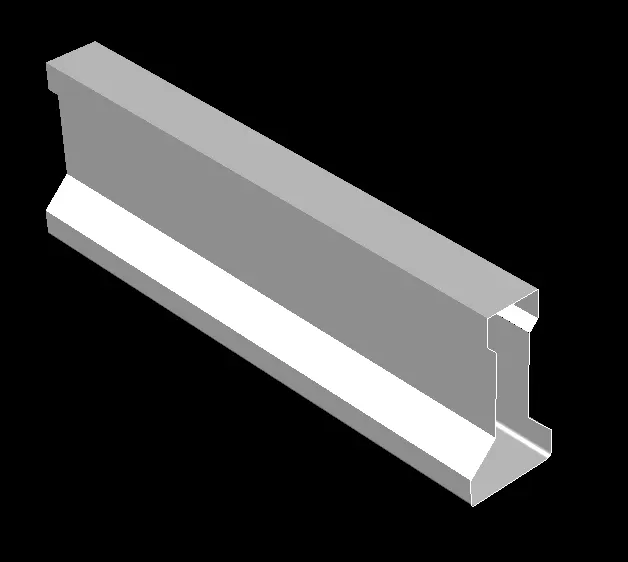
The extruded length of the section Girder is 10 feet.
Then, we have to change the view of 2D Wire, Shaded, Conceptional, etc.
To save the diagram to a particular file.
RESULT:
The diagram of the 3D type of AASTHO girder type is drawn as per dimensions using the software of Auto CAD.
4. AIM
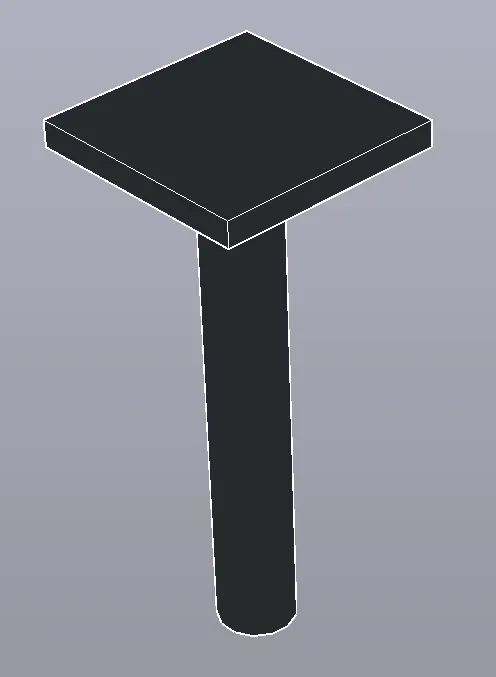
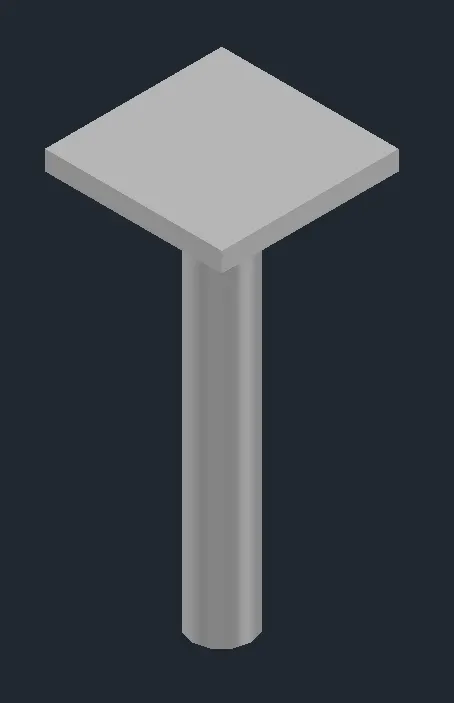
To create a 3D Model of a drop column with a panel using the various commands in Auto CAD.
PROCEDURE
To create a new sheet from the application of Auto CAD.
Go to the setting and change the view of the page from Drafting to 3D modeling.
Type, UN’ to set the units of the current format of measure.( feet and inches).
Type, LIMITS’ to set the maximum dimension limits on the particular page.
First, we take the top view of the page.
Type, REC’ to create a rectangle with the given dimensions.
And then we take to a 3D custom view.
Choose the Top view of the page.
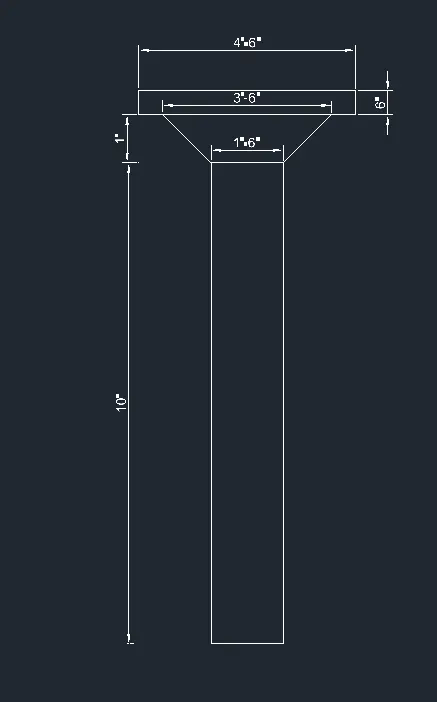
The rectangular size is 4’6”.
Type,, C’ to create circle options.
The column cap height is 1 foot.
The column head thickness is 6 inches,
The height of the column is 10 feet.
COPY – this command is used to select objects from a given square to the destination, learning a copy at the originally selected location.
MOVE – moves the objects to the destination place from the source place.
After completing the copy of the rectangle to make the box-like structure of the column header.
After we take to draw a circle of a diameter of 1’6”.
Type, EXTRUDE’ to create a surface or solid of a 2D surface or a 3D curve.
The extruded length of the circular column with a negative direction of Z is 10 feet.
Type ,, 3D ORBIT’ to view a 3D orbit viewport in the current viewport
Type, 3D FACE’ allows generating of 3D faces by identifying them.
Type, REGION’ to convert objects that enclose an area into 2D region objects.
To save the diagram to the particular file.
RESULT:
The diagram of a 3D model of a column with a drop panel is drawn as per dimensions using the software of Auto CAD.
5. AIM
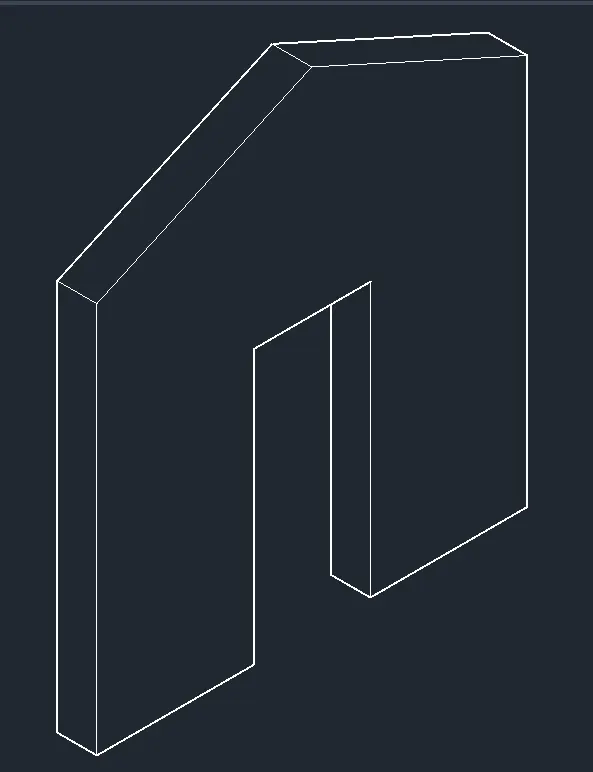
To create a 3D model of a wall using the various commands in Auto CAD.
PROCEDURE
To create a new sheet from the application of Auto CAD.
Go to the setting and change the view of the page from Drafting to 3D modeling.
Type, UN’ to set the units of the current format of measure. ( feet and inches).
Type, LIMITS’ to set the maximum dimension limits on the particular page.
First, we take the top view of the page.
Before we start the 3D work to create a plan of the wall in 2D.
To make the wall thickness of 250mm.
To fix the door and wall opening from wherever we need.
Type, REGION’ to convert objects that enclose an area into 2D region objects.
After creating a perfect plan to do the next work of 3D solid works.
Type, EXTRUDE’ to create a surface or solid of a 2D surface or a 3D curve.
The extruded wall height is 10 feet from the base.
And then draw the rectangle of wherever has the doors and windows.
This comes after following the extruded door opening height of 7 feet.
Type, 3D ORBIT’ to view a 3D orbit viewport in the current viewport
Type, 3D FACE’ for allows to generate 3D faces by identifying them.
Type, REGION’ to convert objects that enclose.
Type, SUBTRACT’ to remove the open required places of doors and windows.
To save the diagram to a particular file.
RESULT:
The diagram of a 3D model of a wall is drawn as per dimensions using the software of Auto CAD.

THE FINAL RESULTS OF ALL DIAGRAMS :