Creating Bar Bending schedule, Different Door types, and Creation of standard drawing templates using AutoCad
Aim: To create
1. Templates as shown
2. Doors and placing it in blocks
3. Electrical legend and making it blocks
4. Different types of door
5. Drawing bars, making it as block and then inserting it in table.
Commands used: Line, Block, Insert, copy, offset, mirror, text, rectangle, array.
1. Aim to draw templates:
Procedure:
- Create a rectangle of size 3729 mm and 6811 mm
- Divide it with line for the text box into columns
- For rows, take offset
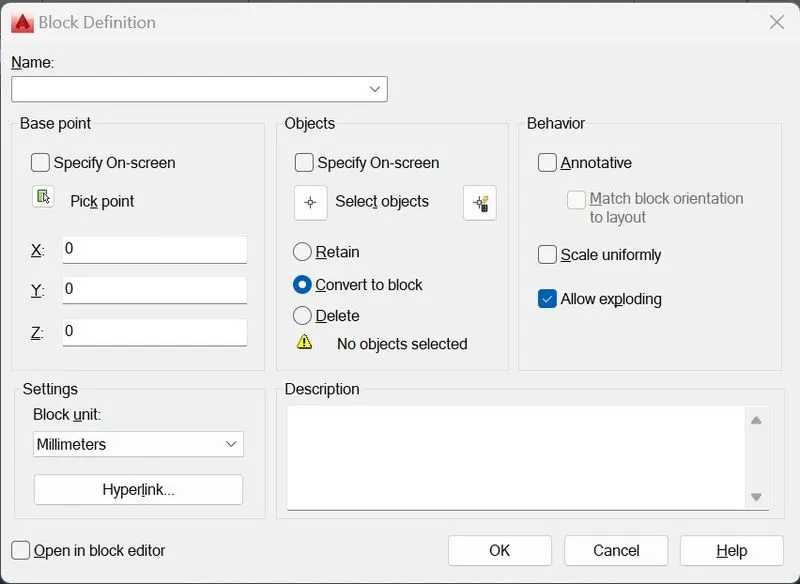
Creating Block: Use block command and follow the menu. Select the required objects
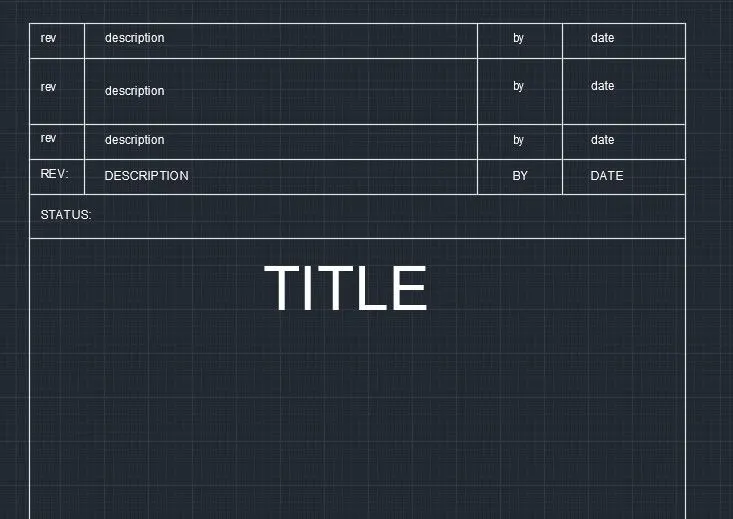
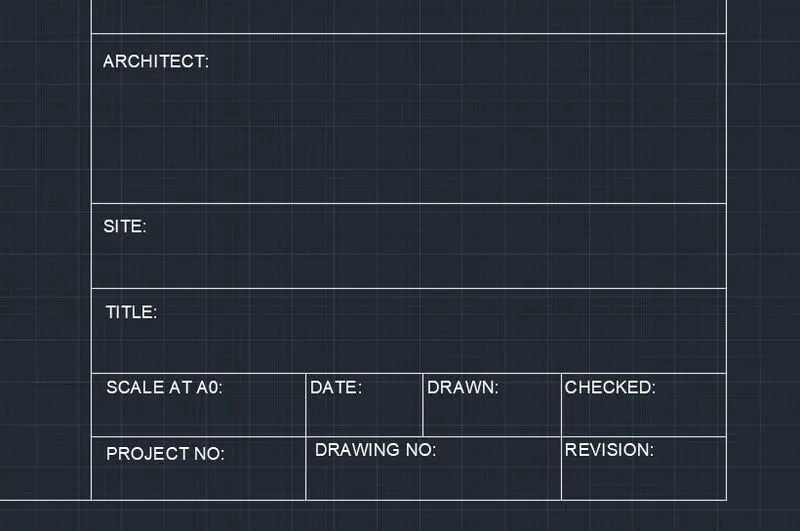
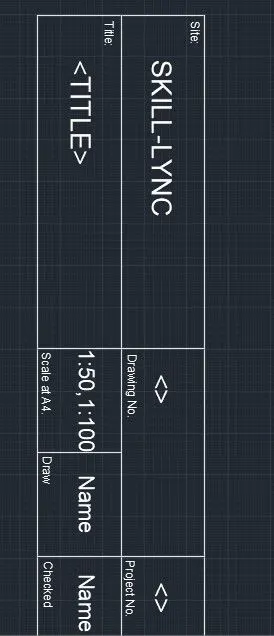
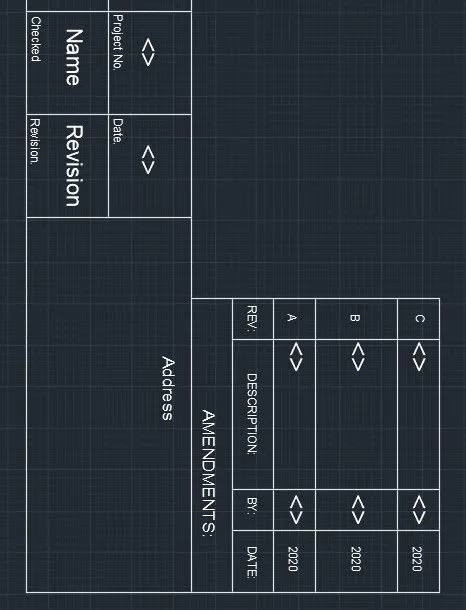
Result: Ttile block 1 and Title block 2 are created.
2. Doors and placing it in blocks:
Aim: Creating doors and placing it in blocks:
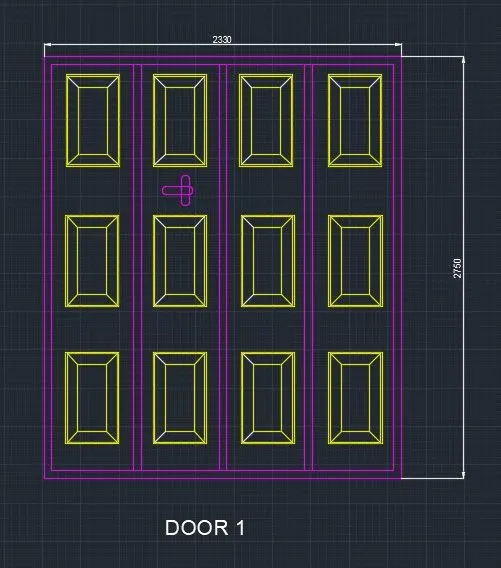
Door 1: 2330 x 2750 mm
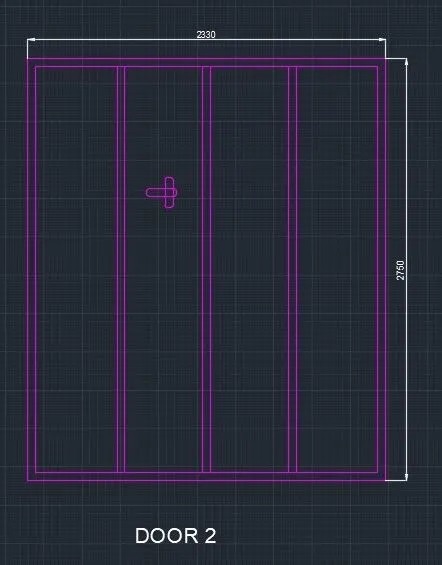
Door 2: 2330 x 2750 mm
Procedure:
- Create a rectangle of size 2330x2750mm.
- offset as per the requirement.
- Create a rectangle to show the panels.Offset 10mm from the 1st rectangle and offset 70mm from the 2nd rectangle. Draw lines joining the corners of the outside and inside rectangle.
- Create the panel as a block, so that it is easy to copy.
- By using the copy command all the frames are copied. Layer is created and all the objects are kept in different layers.
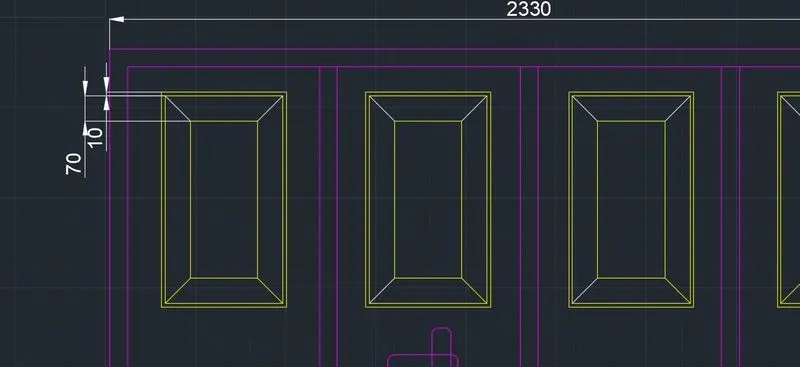
Creating block:
Command "B" - Use block command and follow the menu. Select the required objects.
Door 2 -2330 x2750mm:
Create a rectangle of size 2330x2750mm.Offset 50mm as a frame. 90mm for the left side.Explode the rectangle.
Result: The doors block was created.
3. Electrical legend and making it blocks:
Aim: To create electrical legend
- Create each electrical symbol
- Creating them as block
- Arranging them in legends
Procedure:
Single gang switch: Draw a circle of radius 100mm and with line draw an inclined line vertical and horizontal line perpendicular to the inclined as required.
Double gang switch: Draw circle and draw two horizontal lines and a vertical incline line.
Triple gang switch: Draw circle, 1 vertical incline line and three horizontal lines.
Single two-way switch: Draw same as single gang switch and with donout command give internal dia as zero and for external diameter select it in the circle.
Double two way switch: Draw same as double gang switch and create donout.
Triple two-way switch: Draw same as triple gang switch and create donout.
Switch cross: Create a circle and donout inside and with line command draw an inclined vertical and perpendicular horizontal. Mirror the line in both directions.
Switch serial: Copy the switch cross and delete two bottom lines, remove the donout also.
Single socket: Create a circle, divide it into half and draw a line at the top
Single socket for lamp: From the single socket, draw a horizontal line perpendicular to vertical.
Double socket: Draw the single socket and copy it to create same and place it using snap on.
Floor socket single: Draw a rectangle surrounding single socket.
Floor single socket for lamp: Draw a rectangle surrounding single socket for lamp
Floor single socket for lamp: Draw a rectangle surrounding single socket for lamp
Floor socket single telephone: Draw a single socket, a triangle and surrounded by a rectangle.
Floor socket double, telephone: draw 2 single socket and a triangle surrounded by a rectangle.
Telephone socket: Draw a triangle
Internet socket: Insert text "i" in the triangle.
Tv socket: Insert text “TV' in the triangle.
Weatherproof socket: Insert text "w" in the triangle.
Duct base section: Draw a rectangle - select the bottom grip point - select add vertex - then pull the vertex to create a bend, with line draw the lines.
Wall bracket: With rectangle draw the base, create a circle, draw a line connecting the rectangle and circle, draw a cross line inside the circle.
Picture lamp: draw two rectangles connected by a line.
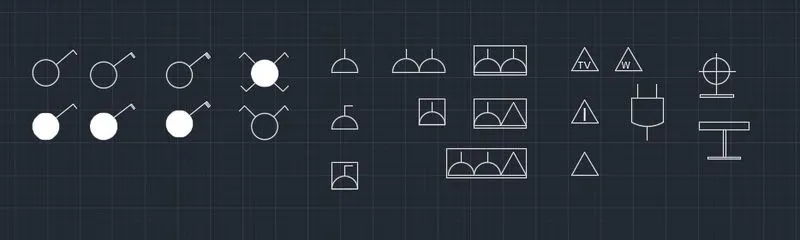
Creating them as block: Command "B" - Use block command and follow the menu. Select the required objects.
Similarly define each one of them as block giving the respective names.Do the same procedure for the remaining symbols.
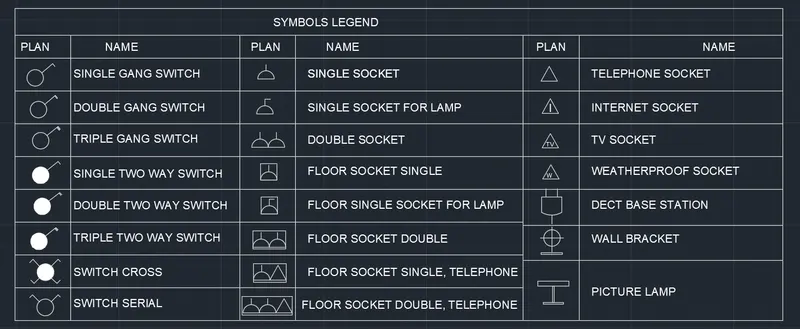
Creating and arranging hem in layers: First create a rectangular table having 10 rows and 6 columns. Place each of the blocks in the respective rows and columns.
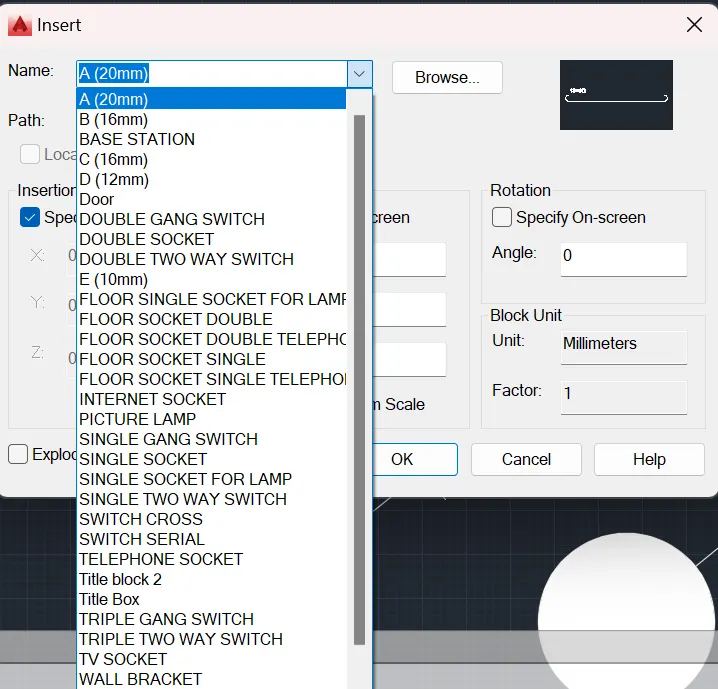
Place the text in the respective rows. Similarly place all the title inside the legends.
Result:
4. Different types of door:
Aim: To draw the doors of residential project and create it as block.
D1, D2, D3, D4, D5, D6
Procedure:
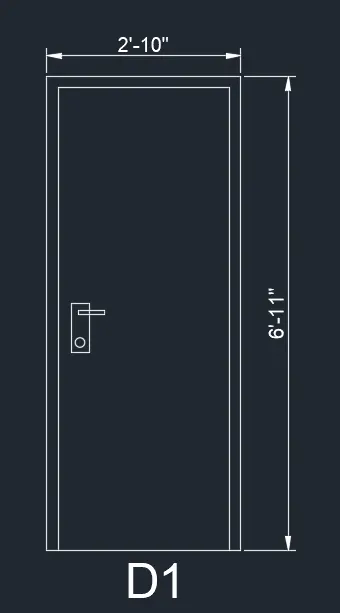
1. D1= 2'10"x6'11"
Draw rectangle with dimension 2'10" and 6'11". Draw offset of 2". Draw lock by two rectangles perpendicular to each other. Write text by multiline text "D1".
Creating them as block: Command "B" - Use block command and follow the menu. Select the required objects.
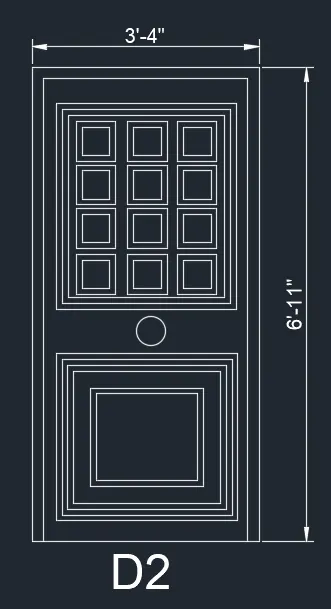
2. D2= 3'4"x6'11"
Draw rectangle with dimension 3'4" and 6'11". Draw offset 2" for frame.Draw offset 2" for shutter. Draw rectangle for panel then offset two times. Draw a rectangle 7" x 7", offset 1".
Copy it with copy command. Copy the 3 rectangles to 4 rows.
For the second panel draw a rectangle of 1'8" x 1'5". Offset 1" 3 times. Draw another rectangle inside this. Draw lock by circle in between the two panels.Write text by multiline text "D2".
Creating them as block: Command "B" - Use block command and follow the menu. Select the required objects.
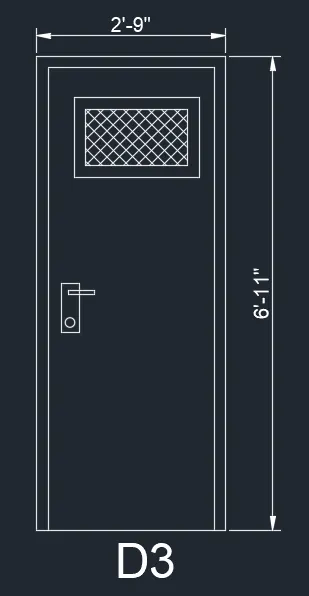
3. D3= 2'9" x 6'11"
Draw a rectangle of 2'9" x 6'11". Offset 2" for thickness, 2"offset for frame. Offset 1.5" as shutter thickness. Draw a rectangle at the top for ventilation 1'10" x 1'2", give offset 2" for thickness. Hatch inside the rectangle. Create lock by rectangle two of them, perpendicular to each other and a circle.
Creating them as block: Command "B" - Use block command and follow the menu. Select the required objects.
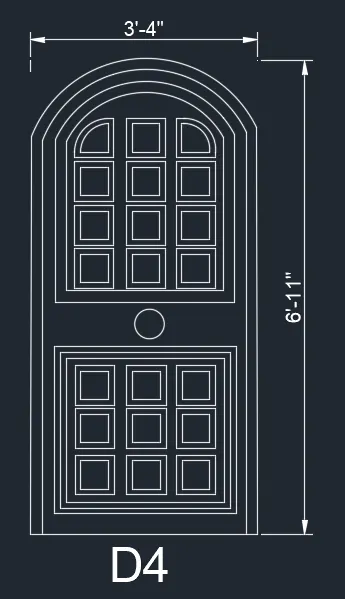
4. D4= 3'9" x 8'7"
Draw rectangle of dimension 3'9" x 6'11".Explode it and create an arc with 2-point method with both point as the endpoints. For lock, create a circle. Make it a block, name as type D4.
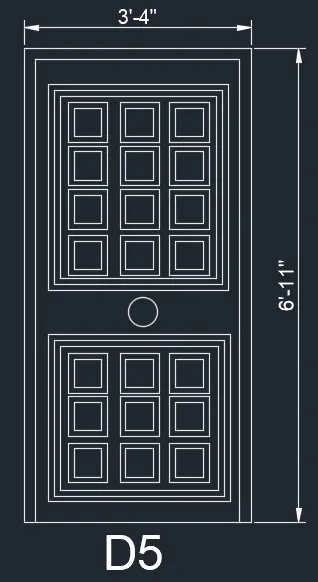
5. D5= 3'5" x 6'8"
Draw a rectangle of 3'5" x 6'8". Draw in the same way as D4 except the top panel being a rectangle. Make it a block, name as type D5.
6. D6= 3'5"x7'11.6"
Similarly draw D6. Make it a block, name as type D6.
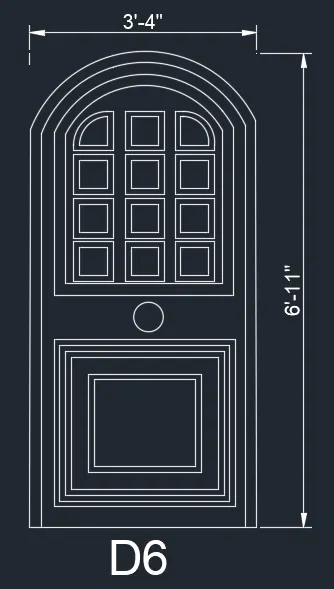
Result: The doors are created and are made into blocks.
5. Drawing bars, making it as block and then inserting it in table:
Aim: To create bar bending schedule and insert it as block.
Drawing each shape.
Creating it as block.
Inserting it in table as Bar bending schedule.
Procedure:
Drawing each shape.
A -20mm :
Draw a line of 750cm for straight bar.Create arc for the bend. Create on one side and mirror it on another side.
B-16mm :
Draw line of 300mm for straight bar. Draw vertical line of 41cm and extend a horizontal line and draw a line inclined at 45 degree from the base of vertical line up to horizontal line. Trim off the unwanted lines.Copy the same on the other side. Draw a horizontal line of 139cm and copy it on other side. Draw bend with arc and mirror the same on other side.
C -16mm :
Draw a line of 210cm. Draw vertical line of 41cm and extend a horizontal line and draw a line inclined at 45 degree from the base of vertical line up to horizontal line. Trim off the unwanted lines. Copy the same on the other side. Draw a horizontal line of 180cm and copy it on other side.Draw bend with arc and mirror the same on other side.
D -12mm :
Draw a line of 750cm for straight bar. Draw an arc downwards.Mirror it on the other side.
E- 10mm :
Draw a rectangle of 23cm and 43 cm. Fillet the corner with fillet radius 5cm. Draw two line of 120cm.
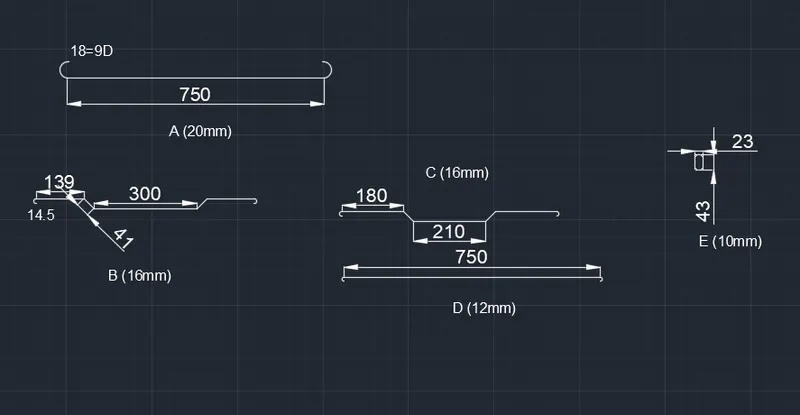
Similarly create 5 blocks: A,B,C,D,E and insert each of the bars as blocks.
Inserting blocks in the table:
Create a table with rectangle and divide it into 6 rows and 7 columns.With multiline text enter type, shape size, length, no, total length, unit weight, total weight and all other text.By command "I" insert each of the block in respective columns.
Result:
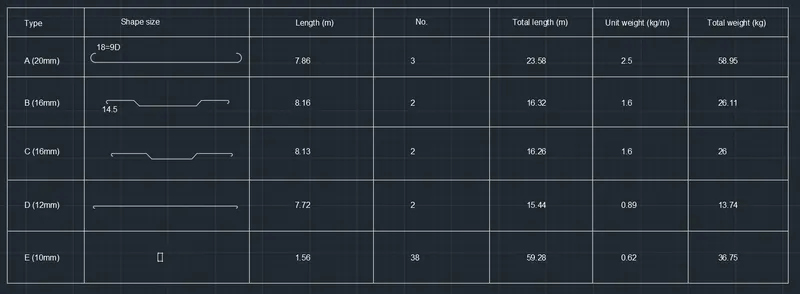
RESULT: All answers are achieved successfully.