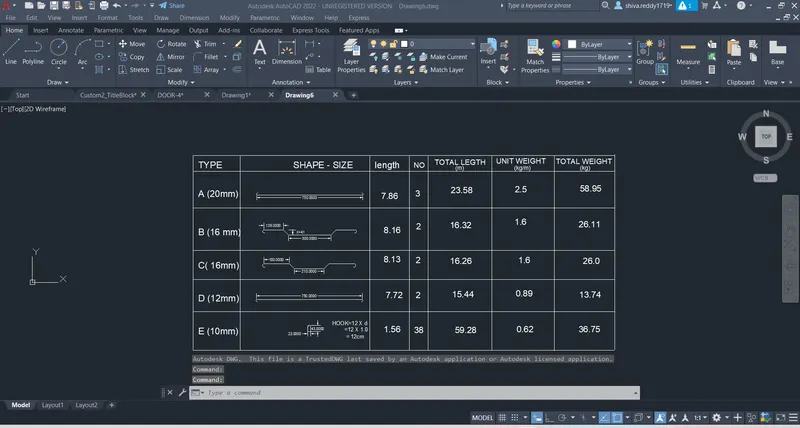
Creating Bar Bending schedule, Different Door types, and Creation of standard drawing templates using AutoCad
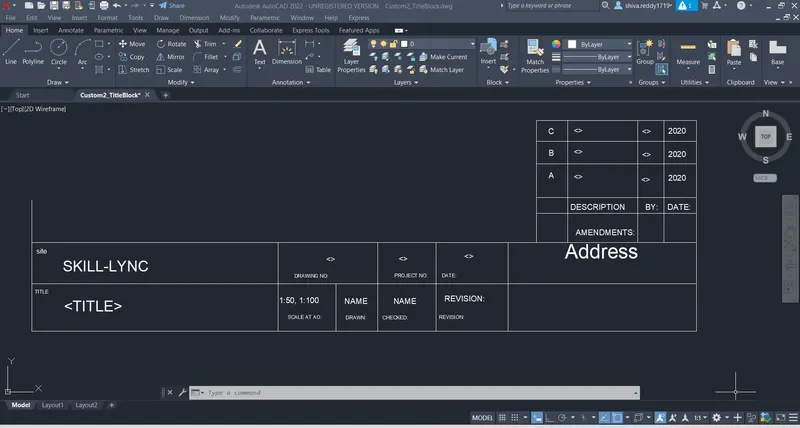
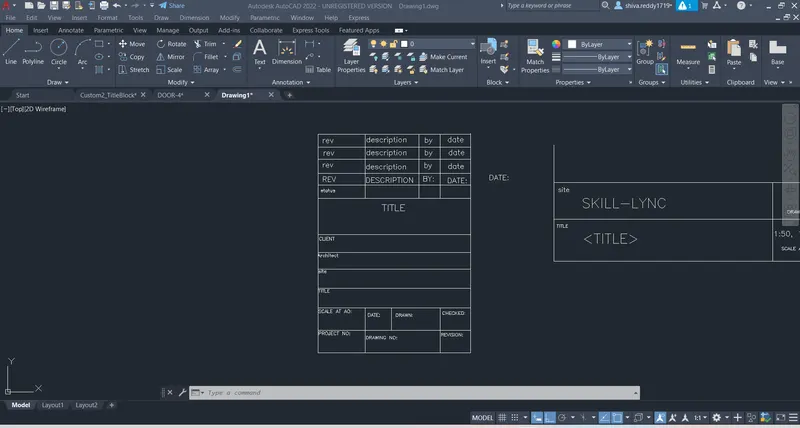
AIM: To create a template as shown in the figure.
INTRODUCTION: Creating a template as shown in fig by using standared dimensions or using paper size.
PROCEDURE:
- The external part is created by line command.
- The text is written by DT command and ED is used to edit text.
- Use proper text height rotation and justification.
- Use ATTDEF command to create a text in the block objects.
- ATTED command to edit attribute.
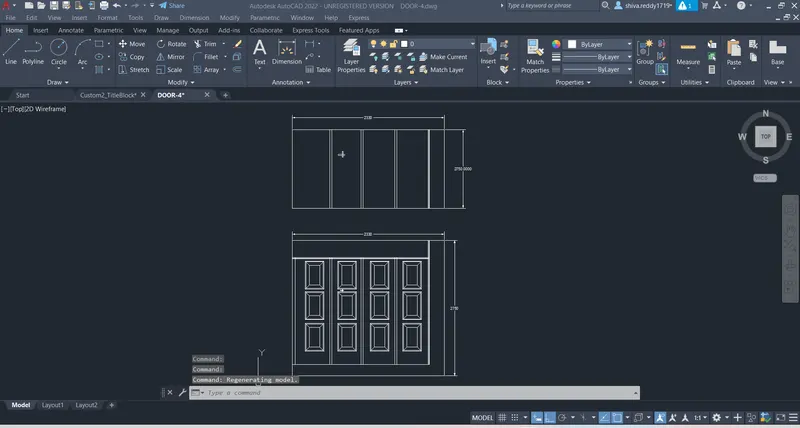
AIM: To create door type for warehouse and block them as shown in fig.
INTRODUCTION: By makinng use of dimensions and proper commands of autocad software door type for warehouse is created.
PROCEDURE:
- Rec for rectangle and take offset(O).
- Next we need to create the door style as per given figure.
- Use MI command to mirror the objects and CO to copy when they are useful.
- Create the door and door2 as shown in fig.
- Use B FOR BLOCK the objects.
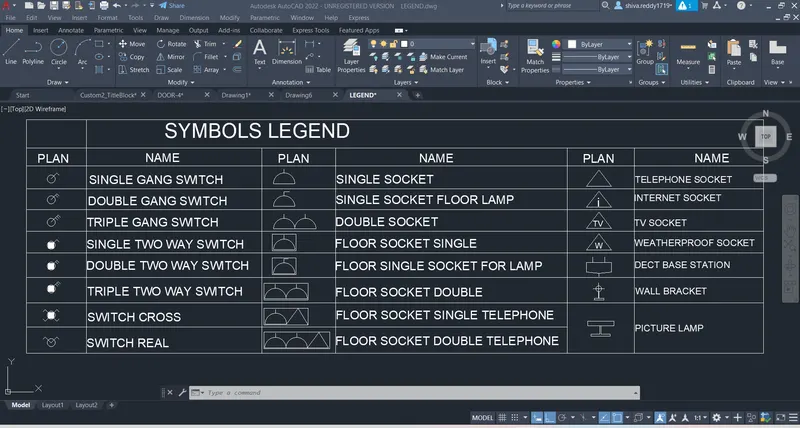
AIM: create each symbol as a block with the name given in the legend.
INTRODUCTION: To create the blocks arrangment in the legend as shown inn the fig.
PROCEDURE:
- Use rec to create a box.
- Create symbols as given in fig.
- Next we need to block them by giving proper name.
- Now copy (co) the blocked symbols and place them in the proper placement.
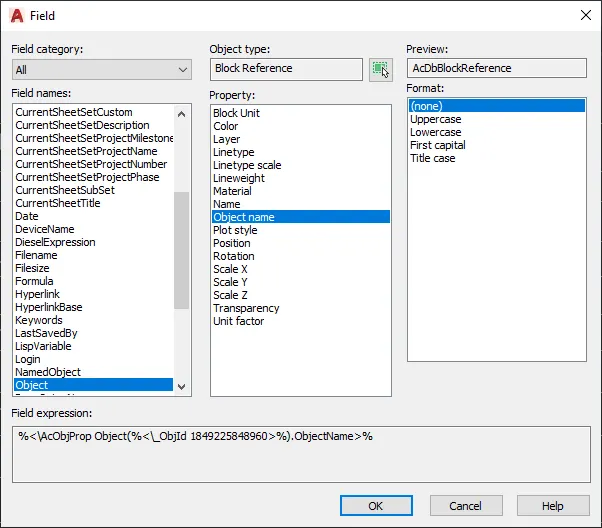
- Now go to FIELDS in the insert tab, select field catageory as object and select the object and take name as proporty in the property box and select any one in format box and place that beside the symbol.
AIM: To draw the residential doors as show in the figure.
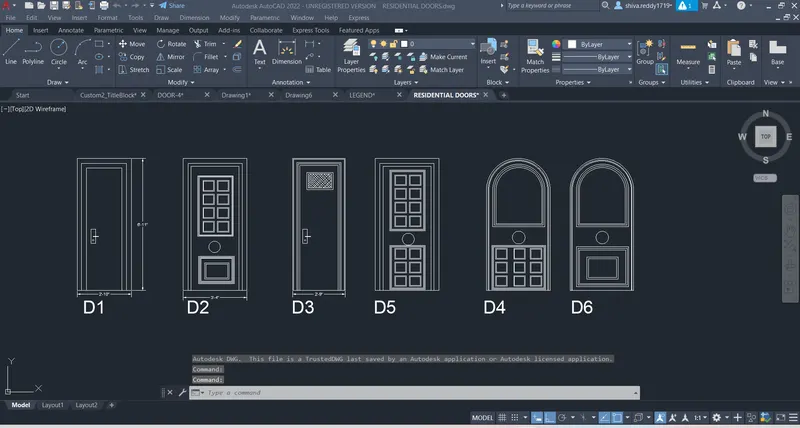
INTRODUCTIONS: By using the proper dimensions draw the residential doors, the procedure is given below
PROCEDURE:
- REC to create a rectangle for the door.
- Use offset(O), mirrror(MI), copy(CO) trimm(TR) commands when possible.
- Circle (C) used to create circles.
- ARC command is used to create arch over the door.
- DT to write text .
AIM: To create eachh shape as block as shown in figure.
PROCEDURE:
- Create the shape and block with the use of line command.
- Create table column.
- Then use DT to write text.
- Use B to block