Channel flow simulation using CONVERGE CFD
Aim
To set up an channel flow case in Converge CFD and simulate the flow for different mesh grid sizes and plot the output parameters using Paraview
- Introduction
An open channel flow is a type of fluid flow with a free surface. Free surface can be defined as the surface with zero shear stress and constant normal stress. Such a flow is generally associated with liquid flow in a channel or conduit. Its application include channel used for irrigation applications, diversion channels for water supply to dry regions etc. Also, it can be noted that the liquid used for a channel flow is predominantly water with the normal stress equal to that of the atmospheric pressure.
In the design stage of the open channel, it is important to achieve high volume flow rate with minimum wetted perimeter. This will reduce the investment costs and help in establishing an economical channel flow. Designers make use of CFD to calculate the flow rate for different configurations and optimize the channel flow model.
- Objective
To set up the case for a steady, laminar flow and simulate for the below mesh grids:
- dx = 2e-4m, dy = 2e-4m, dz = 2e-4m
- dx = 1.5e-4m, dy = 1.5e-4m, dz = 1.5e-4m
- dx = 1.0e-4m, dy = 1.0e-4m, dz = 1.0e-4m
Using the results, the plots and contours are generated for the parameters:
- Velocity and pressure contours for all the 3 base mesh sizes
- Mesh (i.e surface with edges) for the 3 base mesh sizes
- Plots for velocity, pressure, mass flow rate and total cell count for all 3 base mesh sizes.
An animation is generated to explain the solution generation methodology.
3. Procedure
3.1 Geometry create and boundary generation
The first step involves creation of geometry using the shape option. For the given case we assign the below dimensions:
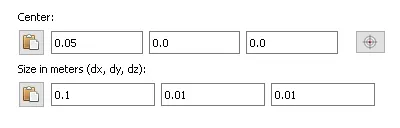
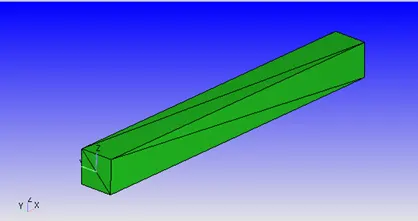
Fig 1: Geometry of channel flow
The next step is to assign the triangles to a boundary flag.
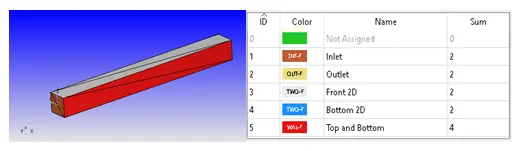
Fig 2: Boundary
As shown in the above figure, we assign the boundary for inlet and outlet. The top and bottom surfaces are grouped together as the boundary conditions are same for the surfaces.
In order to simplify the 3D case to a 2D case, we need to assign ‘Two-D’ region along the z-direction. To define this, we create two boundaries ‘Front 2D’ and ‘Bottom 2D’. It is to be ensured that the normal to both these boundaries are parallel to the z axis.
3.2 Normal transformation
For running a simulation in converge CFD, the normal to the boundary must in the direction of the fluid flow.
By default the normal for the given geometry is pointing out of the fluid flow region. This is corrected by Transform àNormalàPropagate change from single triangle. To verify the appropriateness of the geometry, diagnosis is run.
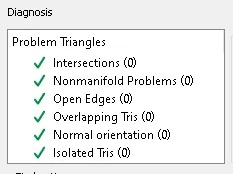
Fig 3: Diagnosis of geometry
- Case Setup
After cleaning the geometry, the next step is to setup the case using converge studio.
Application typeà Time-based
Materialsà Predefined mixture- Air & Gas simulation
Speciesà N2 & O2
Run parametersà Solver: Steady state solver
Simulation time parametersà 0 to 15000 cycles ; Time step : 1e-9 to 1 second
Boundary conditions:
|
Boundary |
Type |
Property |
Value |
|
Inlet |
Inflow |
Pressure |
100001 Pa |
|
Outlet |
Outflow |
Pressure |
100000 Pa |
|
Top & Bottom |
Wall |
No-slip |
|
|
Front 2D |
Two_D |
- |
- |
|
Bottom 2D |
Two_D |
- |
- |
Region creationà Assign all boundaries
Region initializationà O2 mass fraction=0.23 , N2 mass fraction = 0.77
Base grid: Three cases are generated for the different mesh sizes
4.1 Output files- Writing time intervals
To generate satisfactory results and ensure the simulation time is optimized, we must select the writing time intervals carefully.
A target of at least 100 output data files with restart files at a suitable frequency is considered a good practice. Considering this, the following are the parameters considered for writing time intervals
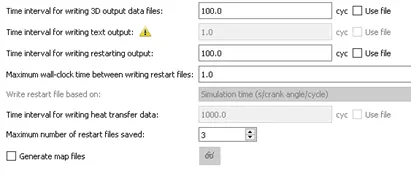
Fig 4: Output files-Writing time intervals
- Final validation and export
After completing the setup, a final validation is performed to check for errors and if no issues are found, the input files are exported to the directory.
- Performing simulation
The simulation is performed using the cgywin command prompt terminal and the output files are generated.
The commands used are:
- Command for running converge solver
mpiexec.exe -n 4 "C:\Program Files\Convergent_Science\CONVERGE\3.0.16\bin\intelmpi\converge.exe" restricted </dev/null> logfile &- Command for tailing progress
tail -10 logfile- Command for post converting output files to Paraview compatible binary extension
mpiexec.exe –n 4 post_convert_30_mpmpi_64.exe- Results and discussion
7.1 Mesh
After importing the output files in Paraview, a brief comparison is made for the contours with surfaces with edges for all the three cases. For the same scale of reference, we can see that the mesh is changed from coarse to very fine.
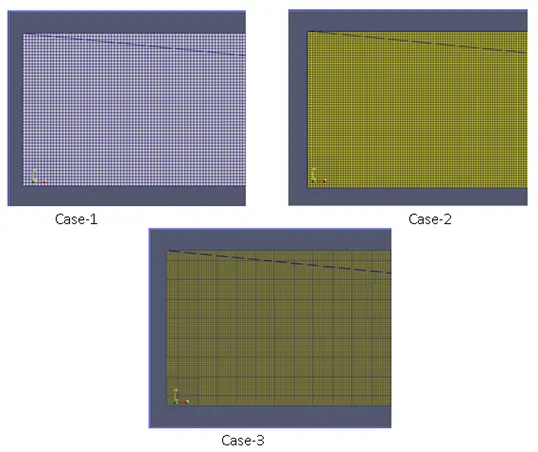
Fig 5: Mesh
The figure shows the surface with edges view for the three cases. The number of cells for the three grid sizes is as follows:
|
Case |
Number of Cells |
|
1 |
79412 |
|
2 |
140682 |
|
3 |
308812 |
7.2 Velocity contours
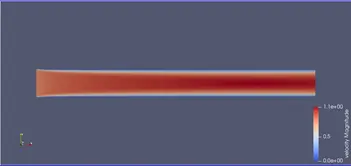
Fig 6: Velocity contour for case-1
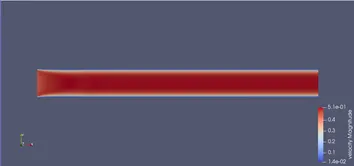
Fig 7: Velocity contour for case-2
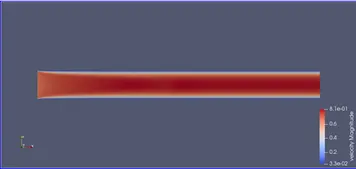
Fig 8: Velocity contour for case-3
From the above velocity contours, we can observe the development of the flow in the open channel. The formation of boundary layer is evident in the images.
Although the velocity profile is similar for the three cases, we can see that the velocity magnitude is varying. This indicates that the solution obtained is a grid dependent solution. In order to find an independent solution, more mesh refinement is required. As the project is constrained by the number of cells, the third case is assumed to be a grid independent solution.
7.3 Pressure contours
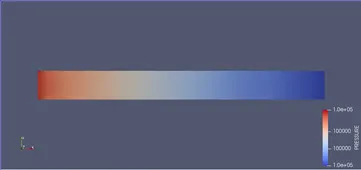
Fig 9: Pressure contour for case-1
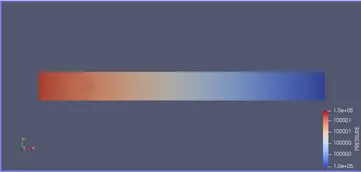
Fig 10: Pressure contour for case-2
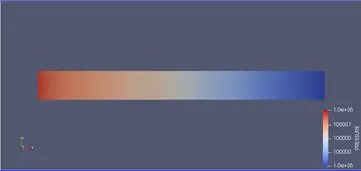
Fig 11: Pressure contour for case-3
Based on the boundary conditions assigned, we can observe that the pressure is changed from 100001 Pa at inlet to 100000 Pa at the outlet. The same holds true for all the three cases.
7.4 Velocity line plot
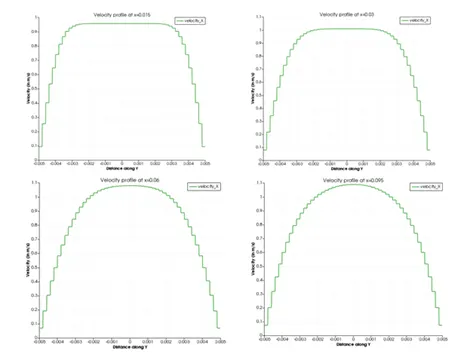
Fig 12: Velocity profile in the channel flow for case-1
The above figure shows the development of flow from the entry towards the exit of the channel. Near the entry, due to the no-slip condition at walls, the boundary layer development occurs and as we move towards the exit, a parabolic curve, symmetric about the central axis can be seen. This indicates the complete development of the boundary layer in the flow.
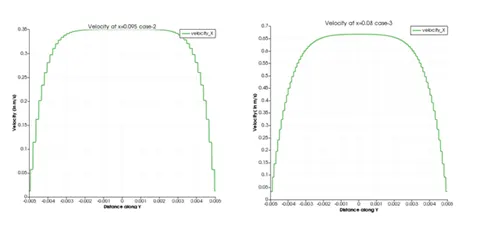
Fig 13: Velocity profile for case-2 and case-3
7.5 Pressure line plot
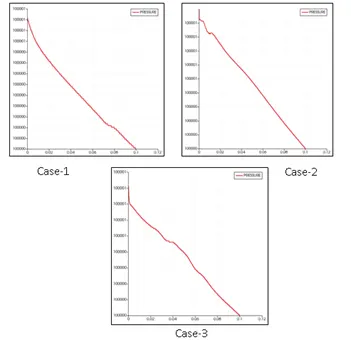
Fig 14: Pressure plot along X direction
7.6 Mass flow rate line plot
For a solution to be considered valid, the mass continuity equation must be obeyed at each iteration of the solution. To determine this, we plot the mass inflow and outflow for the entire range of cycles simulated.
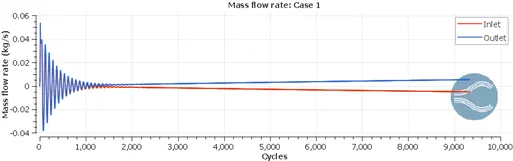
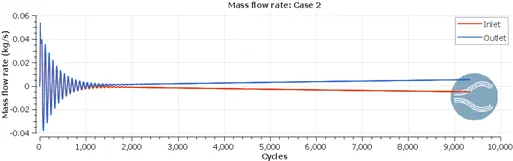
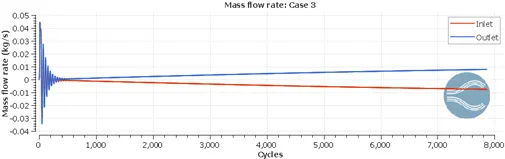
Fig 15: Mass inflow and outflow for the three cases
It can be seen that the net sum of mass inflow and outflow is zero for all the cases. Hence, the solution follows the continuity equations over the entire range of cycles.
7.7 Total cell count line plot
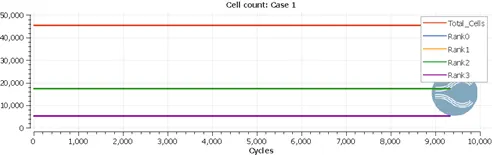
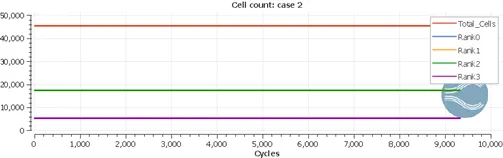
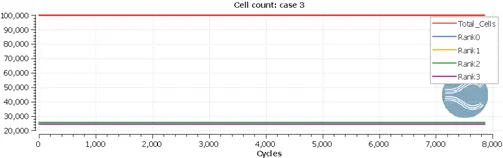
Fig 16: Cell count plot for the three cases
7.8 Development of the flow
From the above animation, we can observe the development of solution using the CFD solver. Based on the initial conditions, a default value of velocity is assigned for the given region. Over the course of solution, these values are updated for each grid by solving the Navier-Stokes equations.
At the walls, due to the no-slip condition, the fluid layer in contact has zero velocity. This friction results in loss of kinetic energy in the subsequent layers away from the wall surface. Hence, we obtain a parabolic velocity profile along the y direction. However, this effect diminishes as we move further away from the wall and the smooth flow with velocity same as that of the inlet velocity is attained. As there is a wall on the top and bottom surface, we observe the velocity profile along with boundary layer formation to be symmetric about the central axis.
- Conclusion
Thus, the open channel flow case setup is completed and simulation is performed to determine the output characteristics.