Channel Flow Simulation Using Converge-CFD
Channel Flow Simulation Using Converge-CFD
Aim: To perform a channel flow simulation using Converge-CFD and postprocess the result in Paraview.
Objective:
Run 3 simulations and compare the results between all the 3 simulations.
3 different base mesh sizes are,
- dx = 2e-4m, dy = 2e-4m, dz = 2e-4m
- dx = 1.5e-4m, dy = 1.5e-4m, dz = 1.5e-4m
- dx = 1.0e-4m, dy = 1.0e-4m, dz = 1.0e-4m
Procedure:
- Before setting up the simulation download necessary softwares that are required for simulation and post processing.
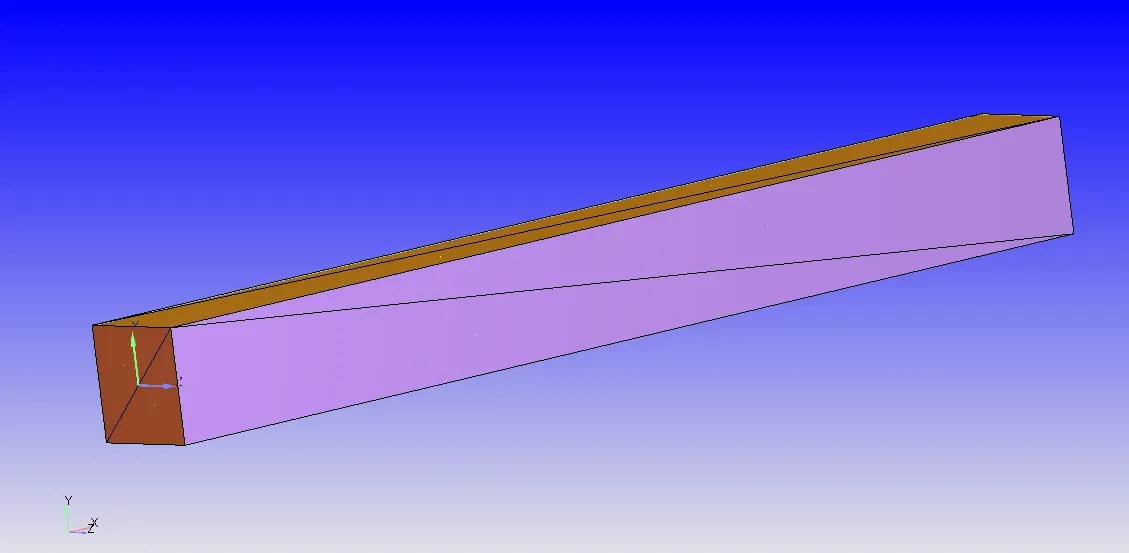
- Initially open Converge Studio and create geometry of a Channel. For this go to Geometry > Create > Shape=Box > specify the center for geometry.
- Next go to Geometry > options > select Surface Normal. After selecting the S.Normal the normals point towards outside, so selec any one arrow that is point outwards and clik on them. Then the normals change their direction to inwards.
- After setting the geometry, next important thing is to diagnosis the geometry for errors/problems. For this go to Right Bottom side, select Diagnosis > click on All intersections > click Find. On top we can check for problems in Problem Triangles.
- Now if there are no errors found then the geometry is correct.
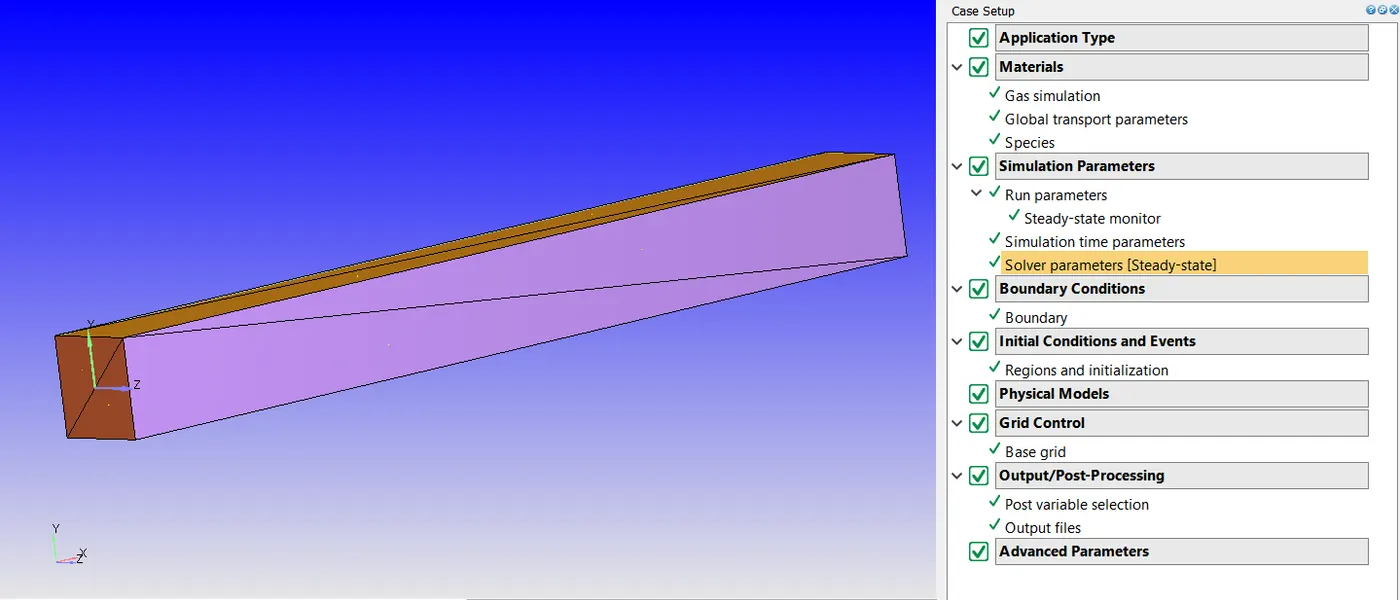
- To we should do Case Setup. Just beside Diagonisis > click on Cae Setup > in case setup window we can see 'Begin Case Setup" > click on it to set the setup.
Case Setup :
Application Type = Time-based
Materials -
Predefined mixtures = Air
Select 'Gas Simulation' & 'Species(not in mech.dat)'
> Click on Species > select Gas > click on Add and select N2 &O2.
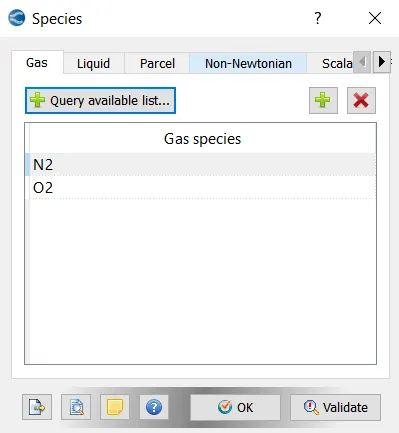
Simulation Parameters-
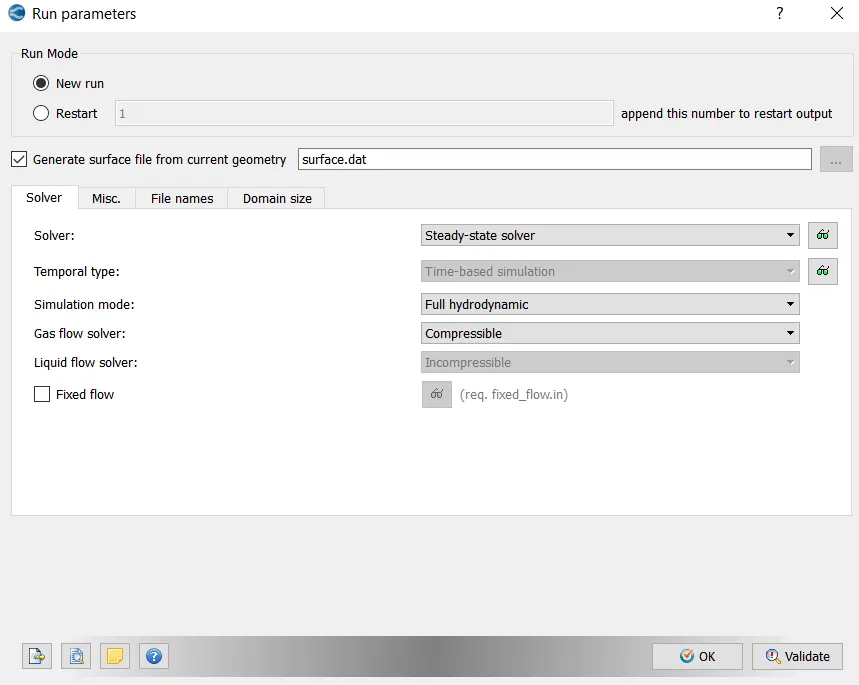
In Run Parameters two main things to be considered:-
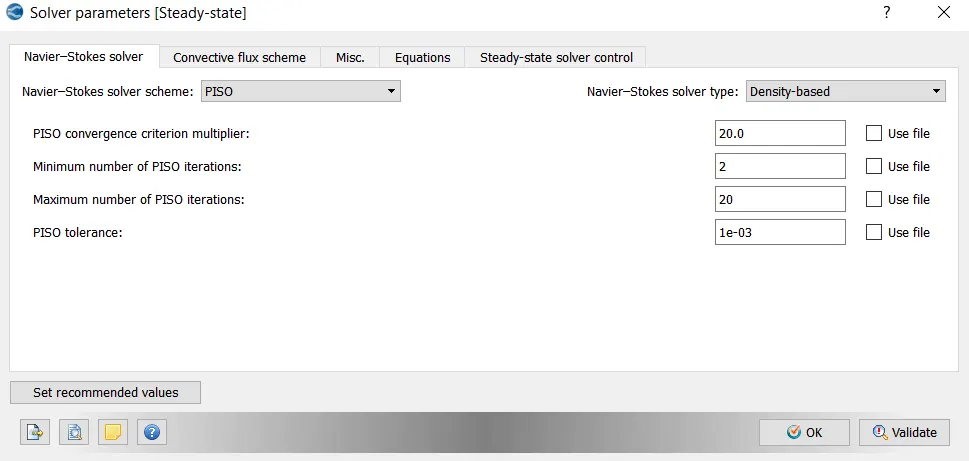
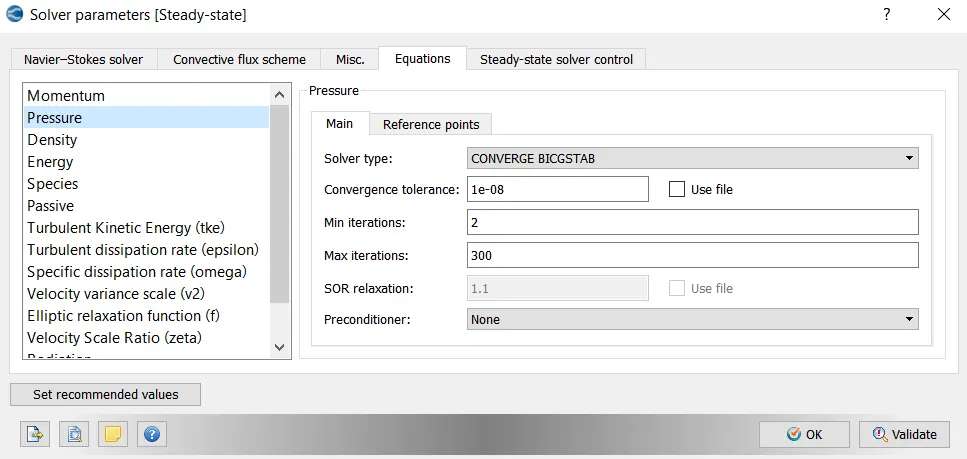
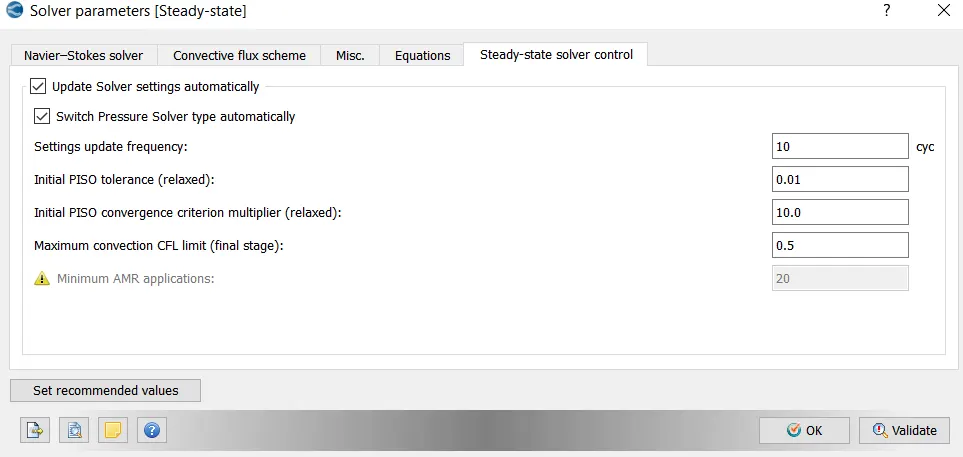
(a.) select the following solver settings.
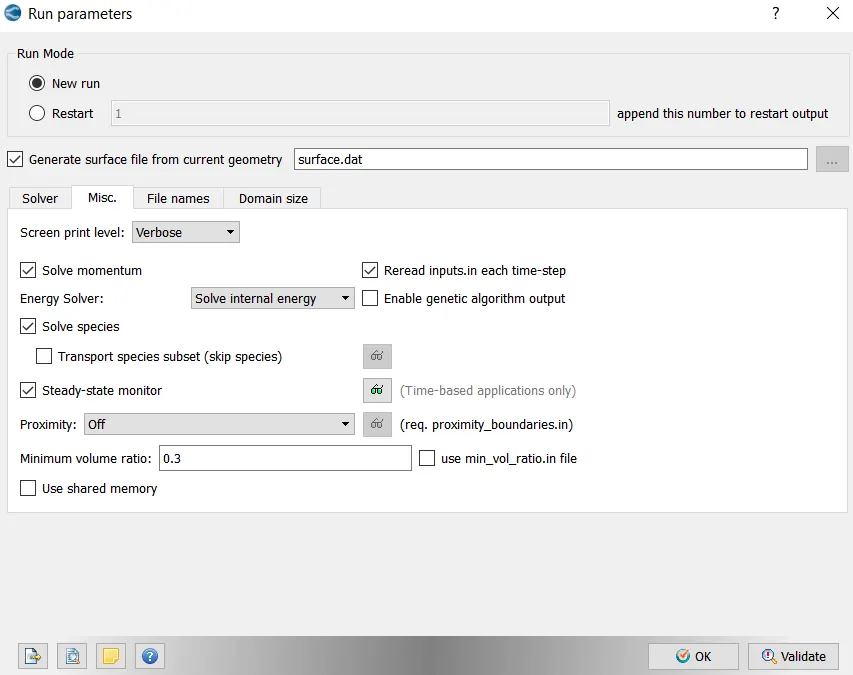
(b.) Go to Misc. > uncheck UseSharedMemory and click on Steady-State Monitor .
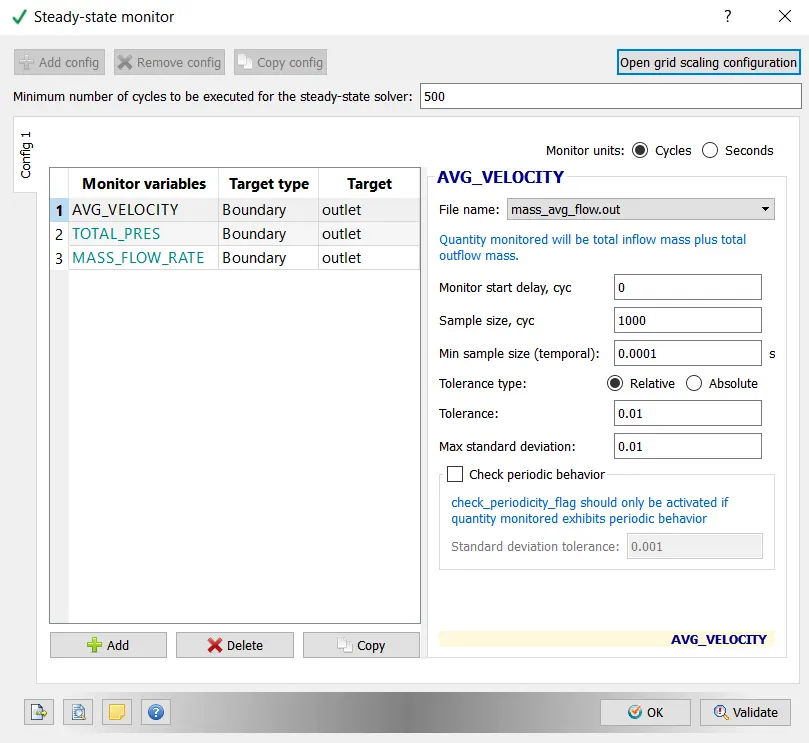
Steady-State Monitor:
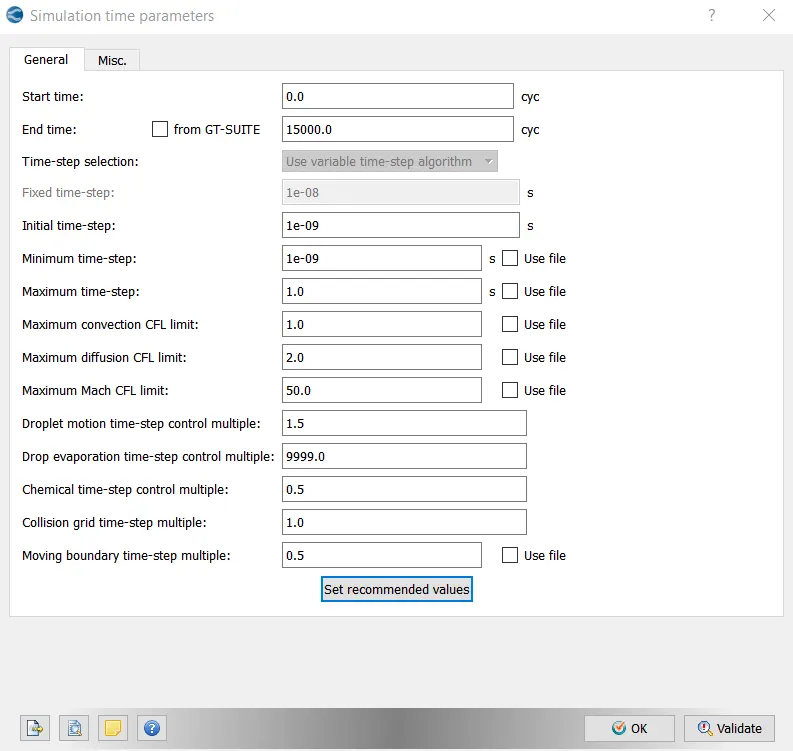
Simulation Time Parameters:-
Solver Parameters [Steady-State]-
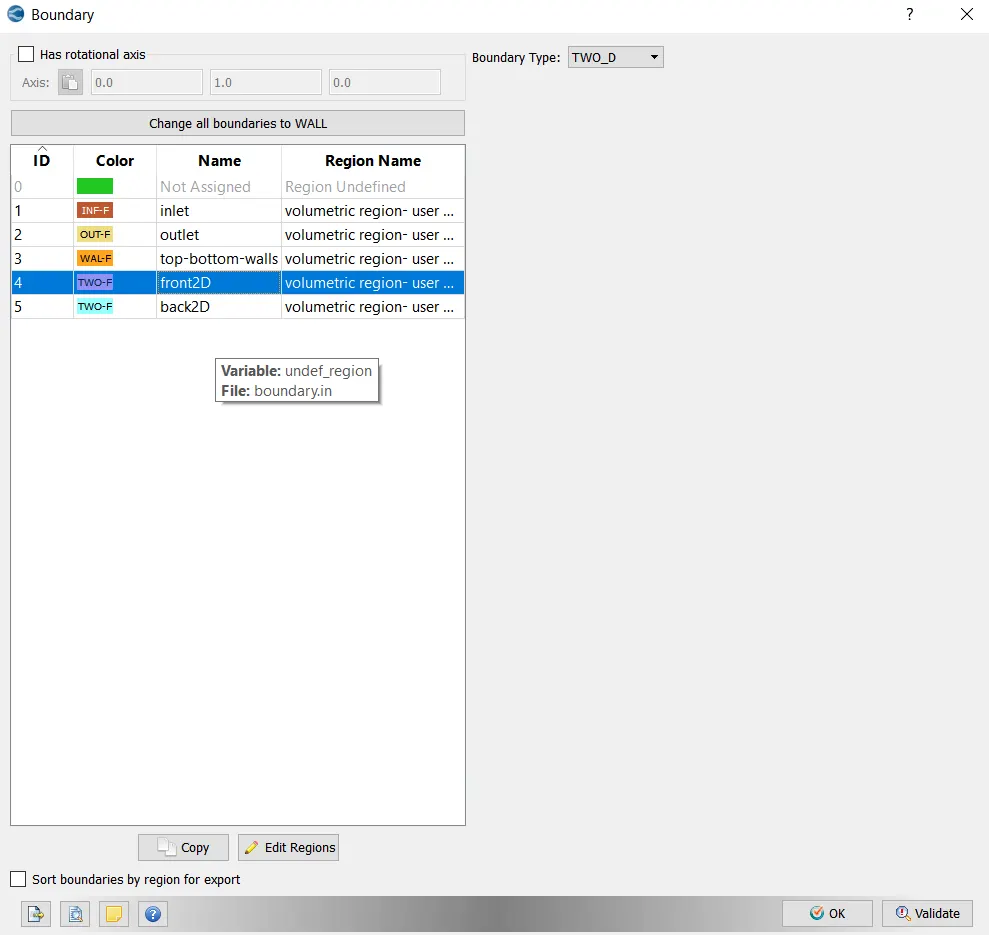
Boundary Conditions-
Booundary:
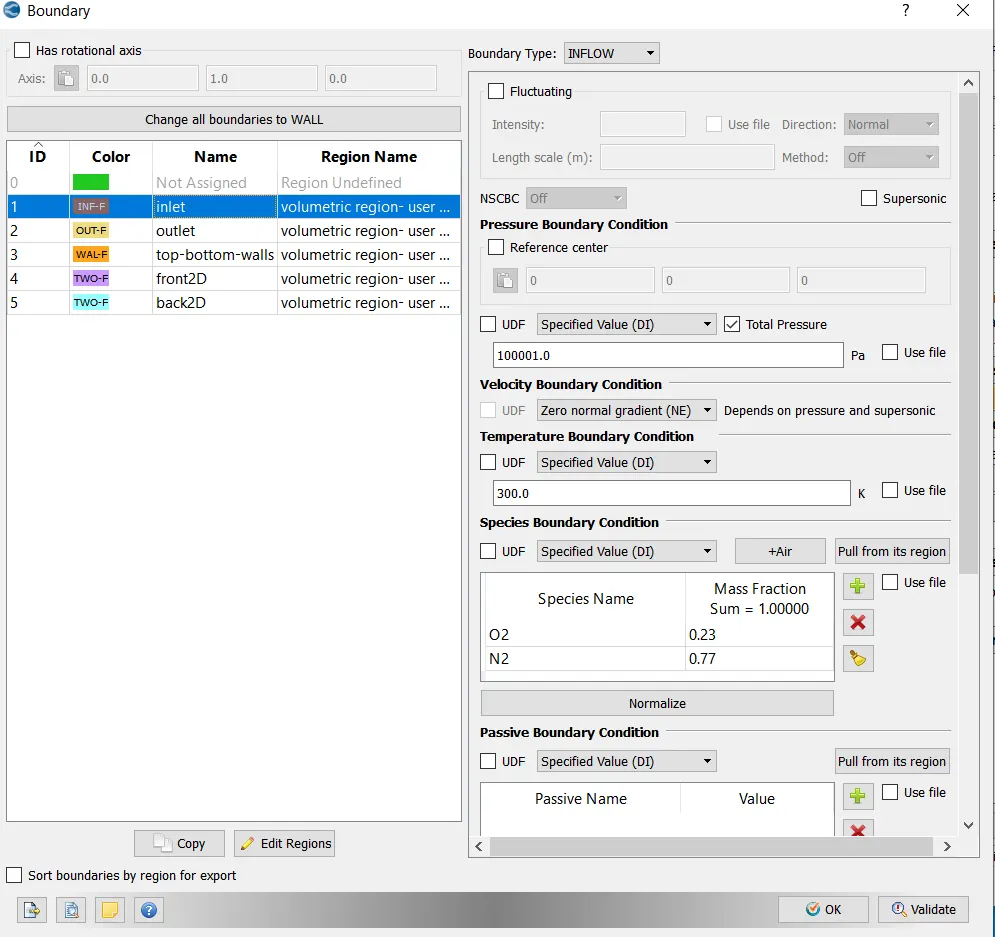
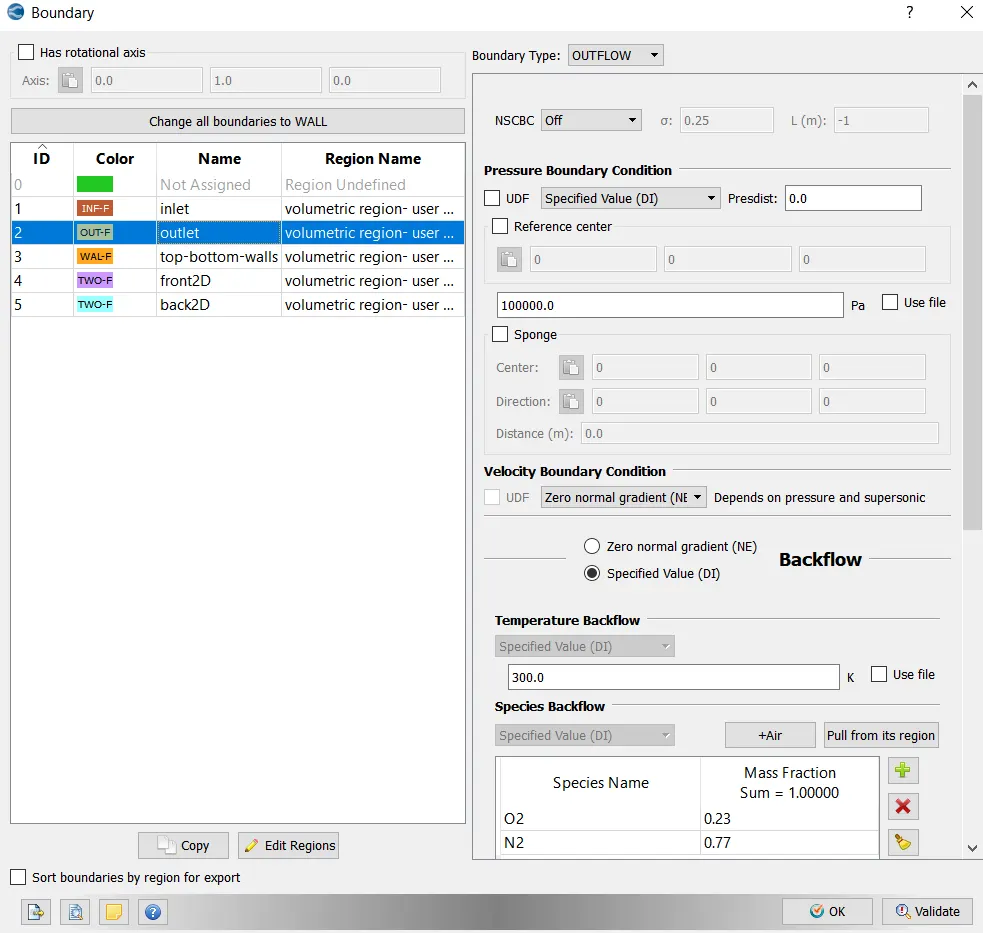
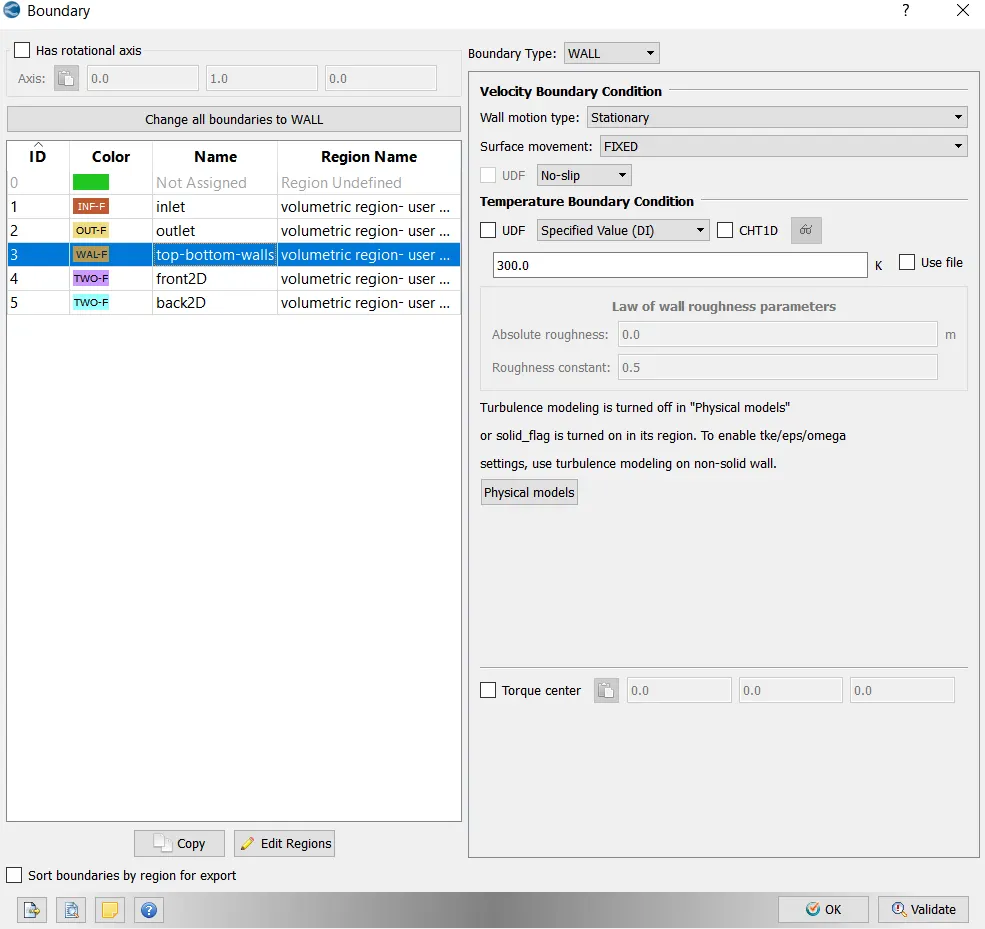
For front2D and bacK2D > Boundary type = TWO_D
Initial Conditions and Events:-
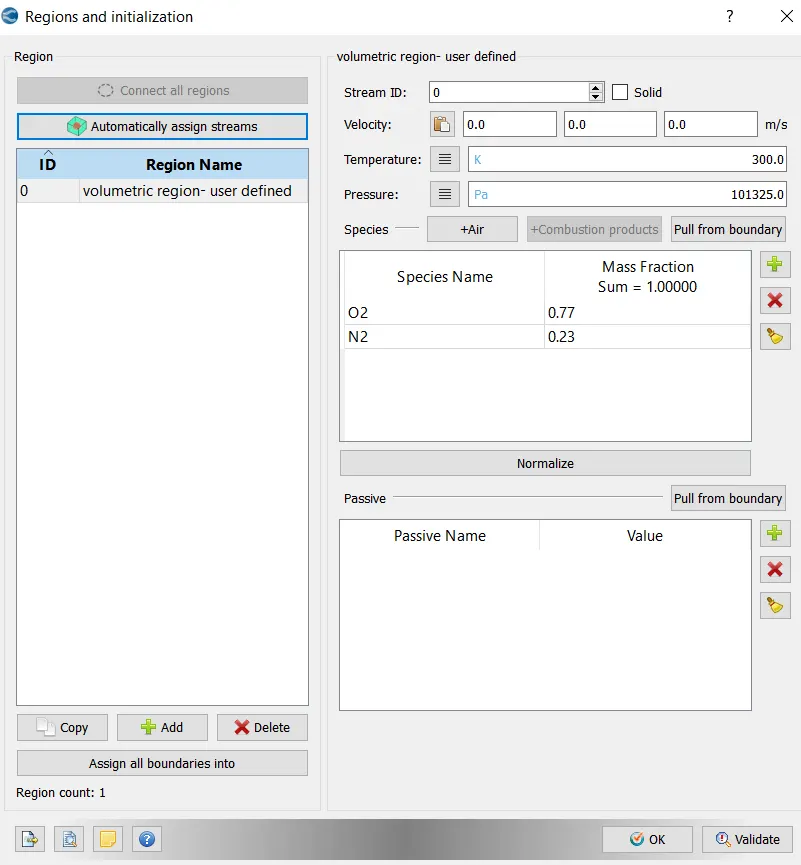
Regions and Initialization:
Physical Models:-
Uncheck Turbulence Modeling in this case.
Grid Control:-
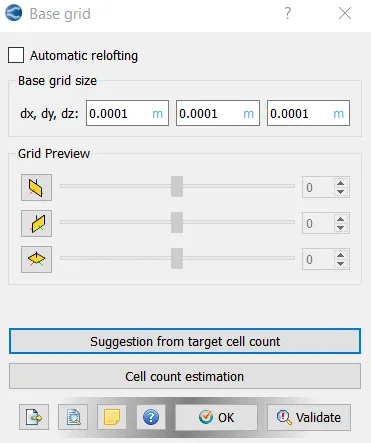
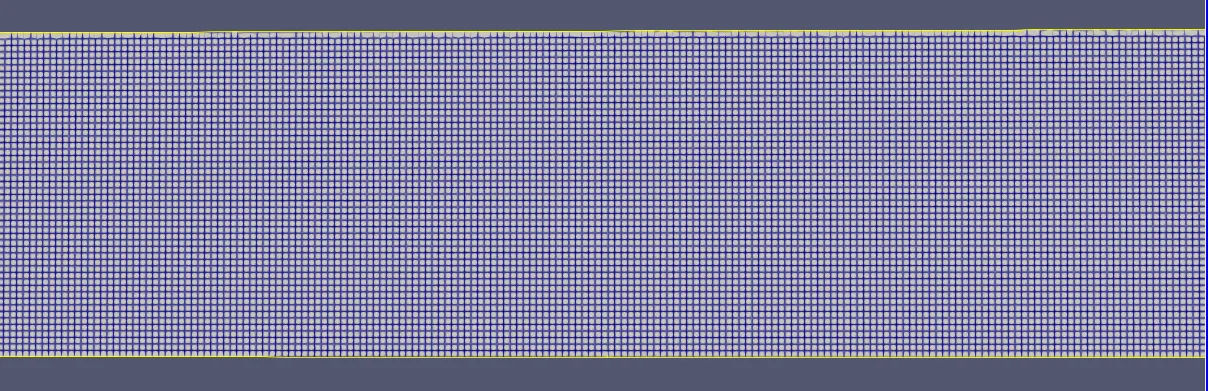
Base Grid:
case-1 dx = 2e-4m, dy = 2e-4m, dz = 2e-4m
case-2 dx = 1.5e-4m, dy = 1.5e-4m, dz = 1.5e-4m
case-3 dx = 1.0e-4m, dy = 1.0e-4m, dz = 1.0e-4m
Post-Processing:-
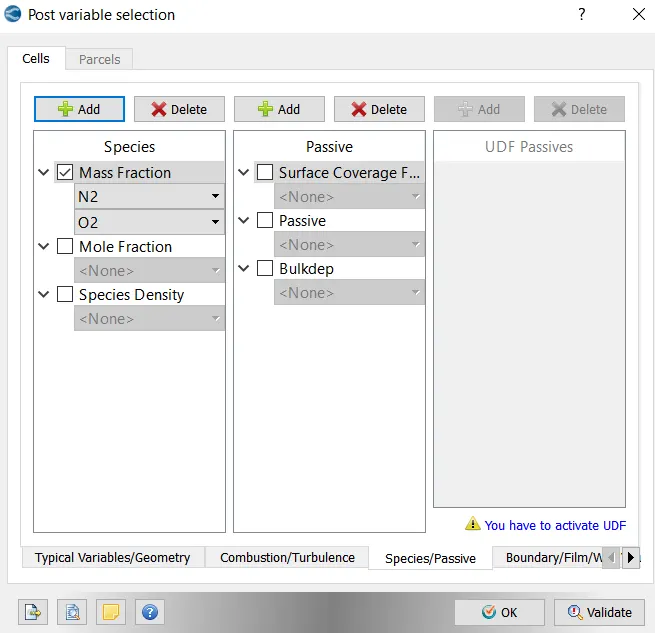
Post Variable Selection:
Click on Typical Variables/Geometry > Select required variables.
Click on Species/Passive
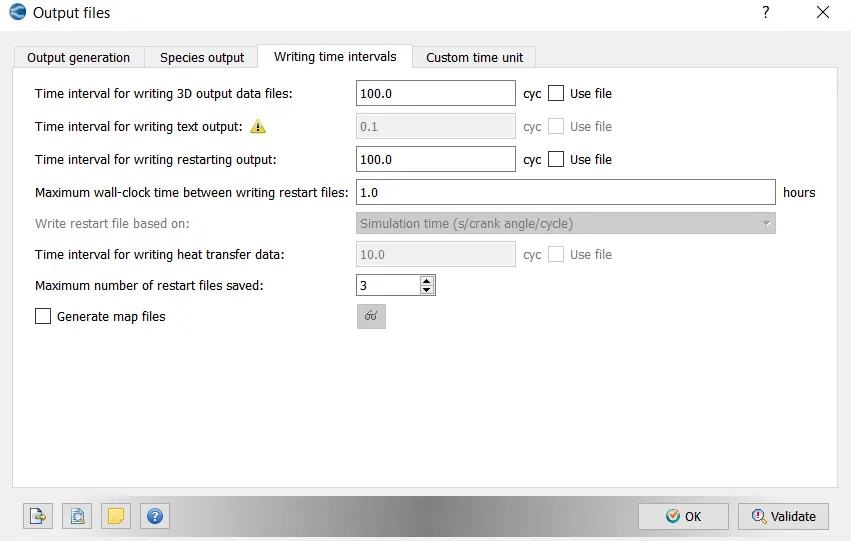
Output Files:
- With this setting up of the case is completed.
- Now go to File > Export > click on Export Input Files. select the destination folder(channel_test) to save the data.
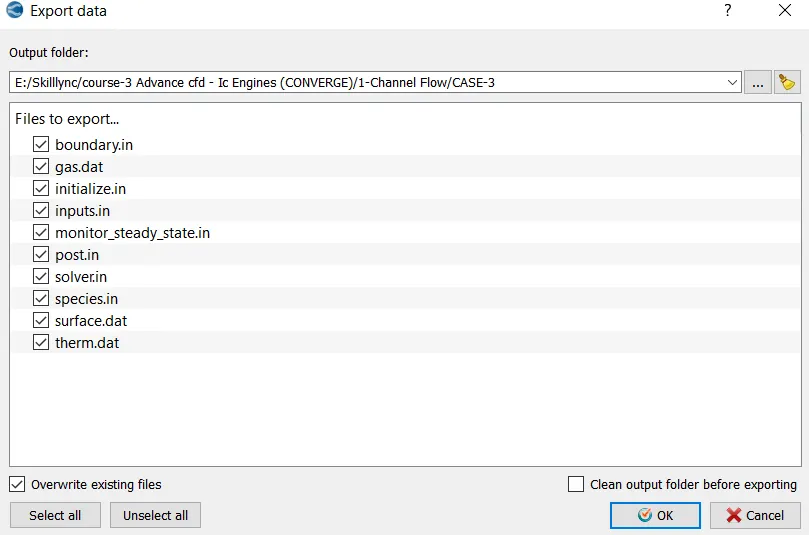
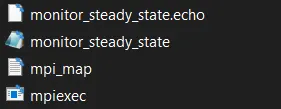
- After importing the input files, paste the "mpiexec.exe file".
- Now open Cygwin and navigate to the location where the setup files are imported.
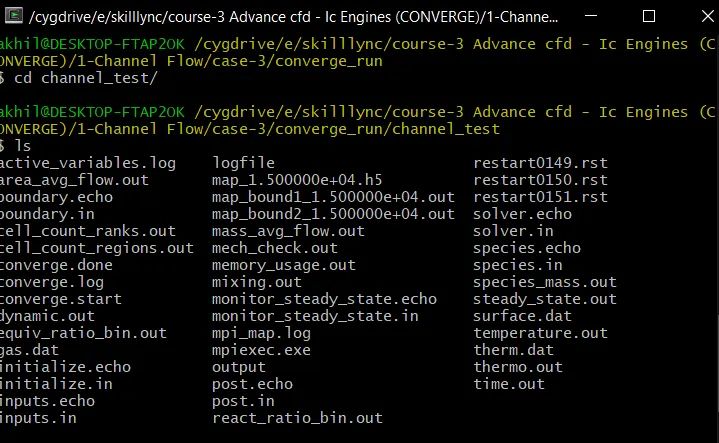
- Once we navigate to the respective folder, we need to run the simulation. To run the simulation use the following command in Cygwin;

>> Here path is copied from " C:Program FilesConvergent_ScienceCONVERGE3.0.15binconverge-intelmpi.exe ".
- Now the simulation starts running , and it displays the steps in cygwin. As the simulation begins it creates multiple folders (i.e. '.scratch' & output) in the path where we saved the input files.
- Once the simulation is complete, to perform post processing we need to convert the obtained result data into format where we can access in Paraview. These converted files are directed to the Output folder.
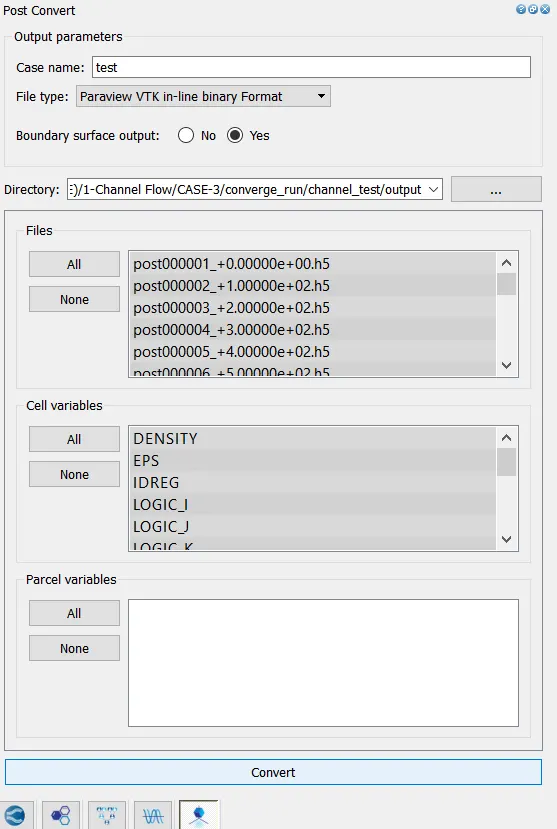
- Open PARAVIEW > direct to folder where the output is saved > select '.vtm(group file)' > data imported to paraview.
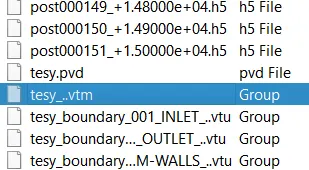
- Necessary contours, profiles and animations are generated using paraview. To generate plots we can use ConvergeStudio (line plotting option).
- Hence required plots, contours , animations are obtained in order to study the results.
Geometry:
Case Setup:
Observations:
Case-1
Mesh sizes - [dx = 2e-4m,dy = 2e-4m,dz = 2e-4m]
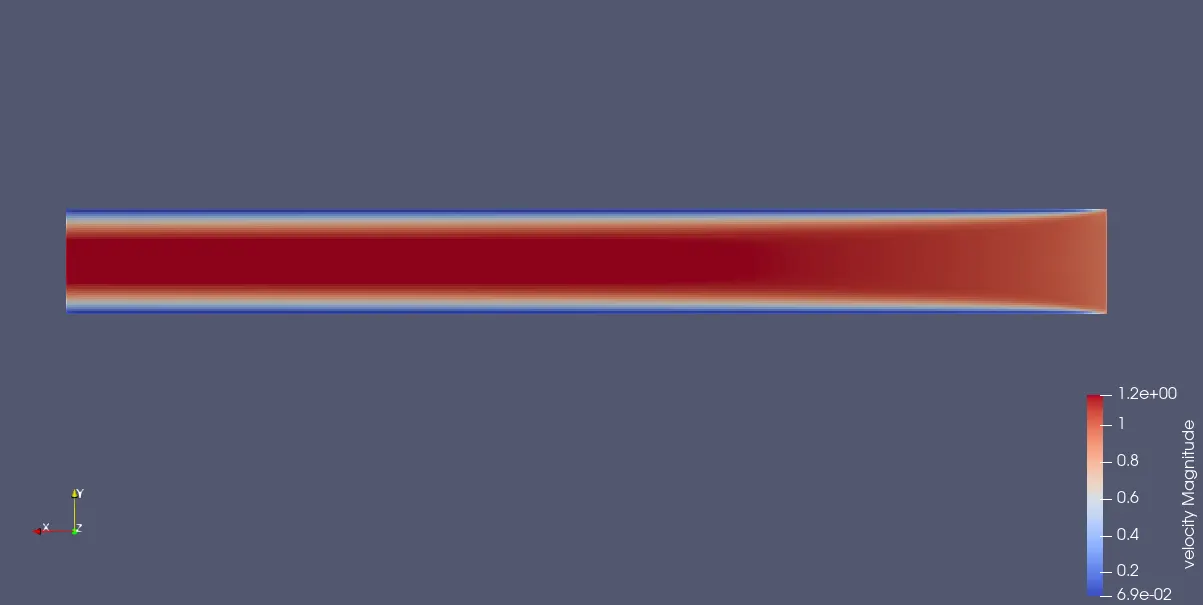
Velocity Contour:
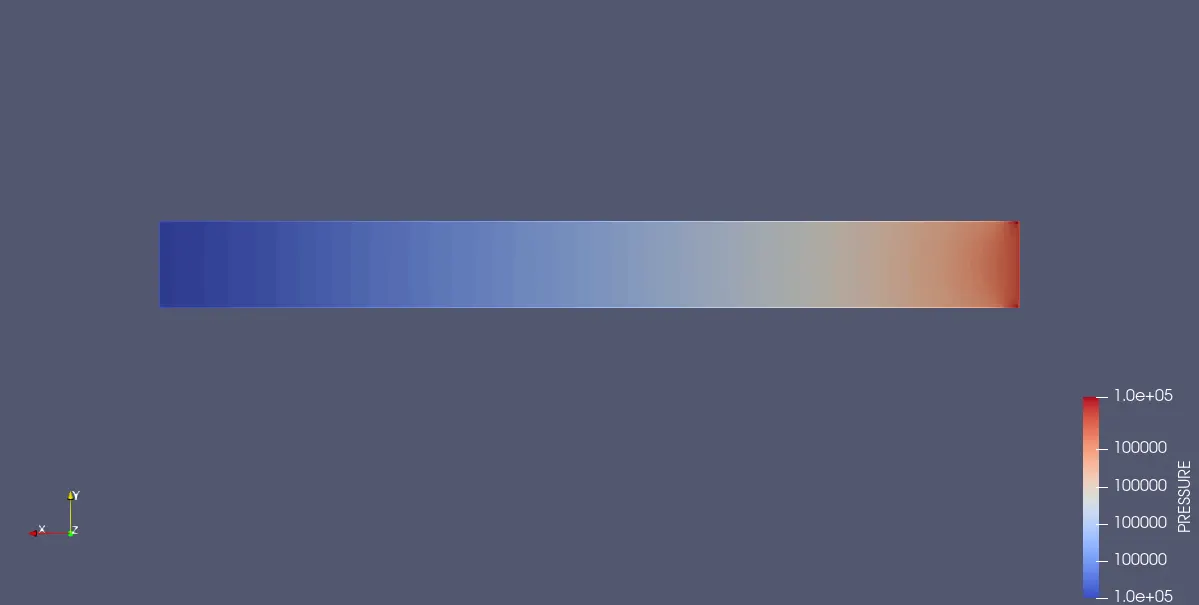
Pressure Contour:
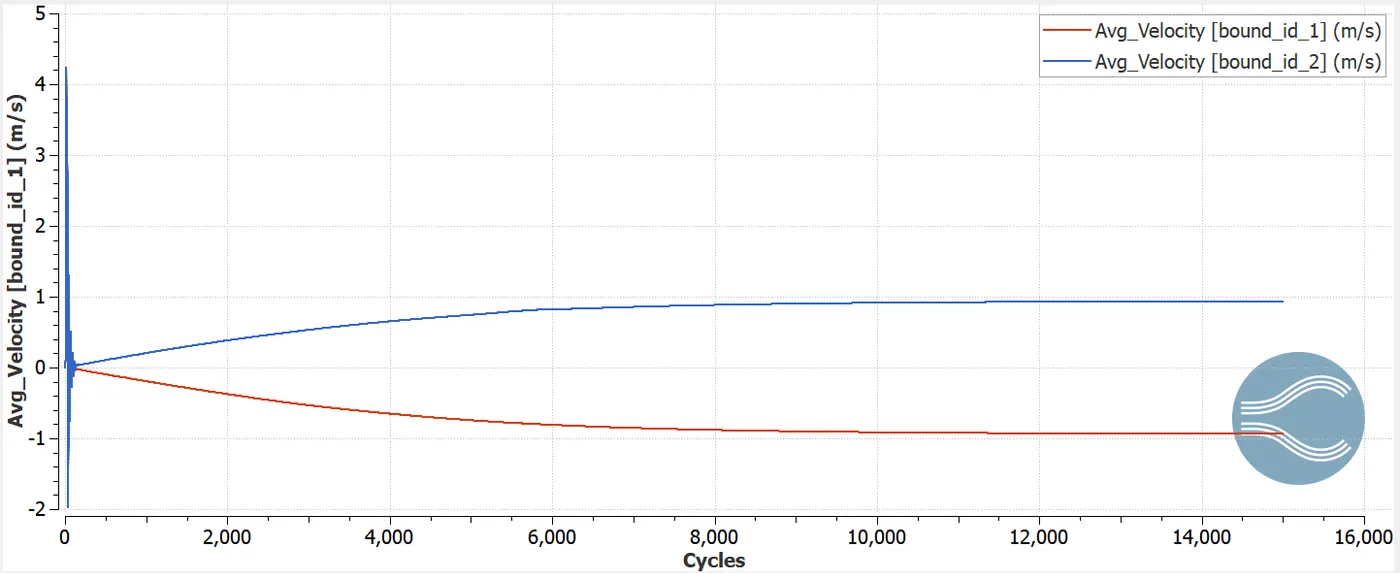
Velocity Plot:
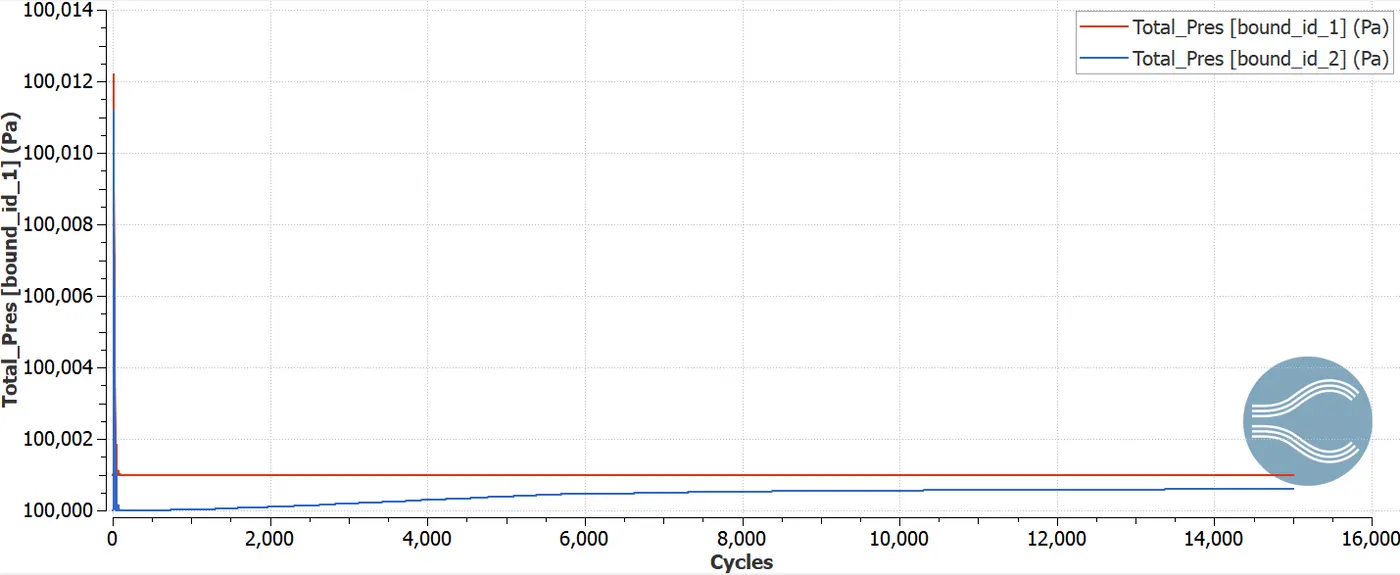
Pressure Plot:
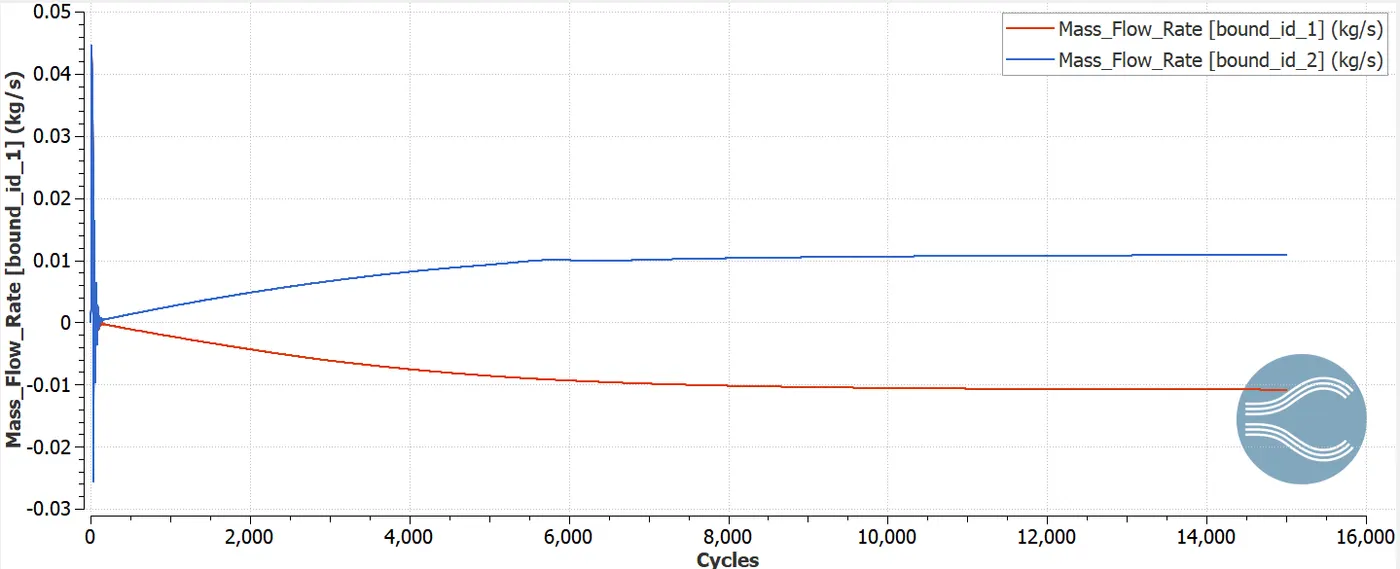
Mass Flow Rate Plot:
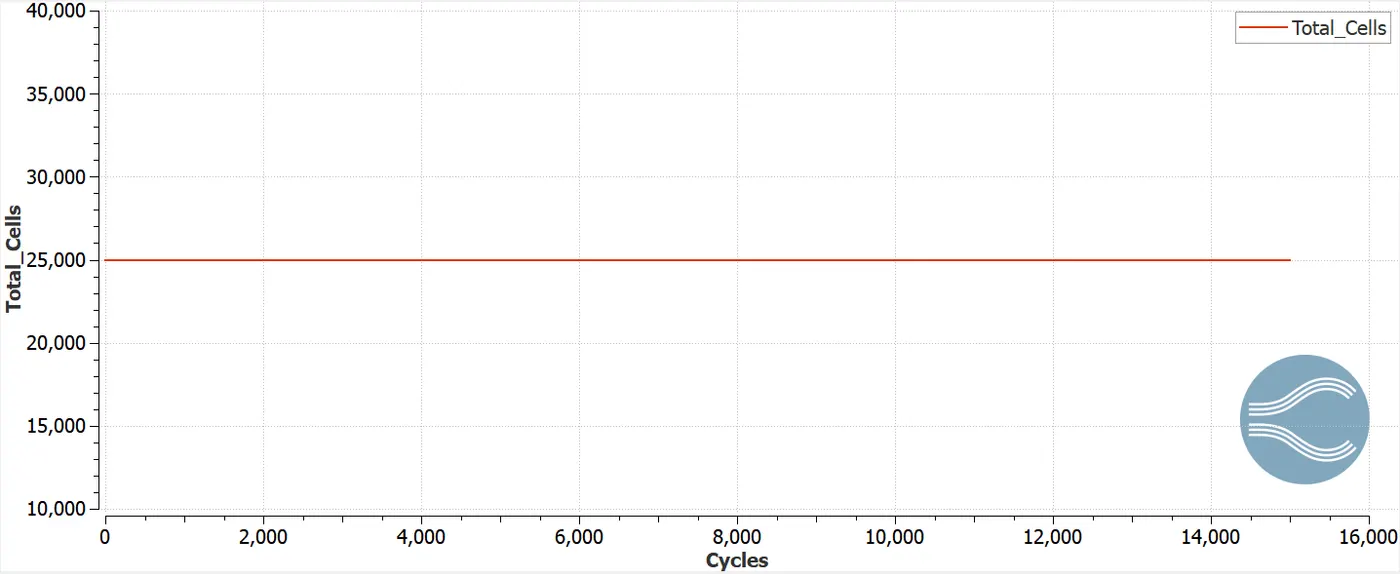
Total cells:
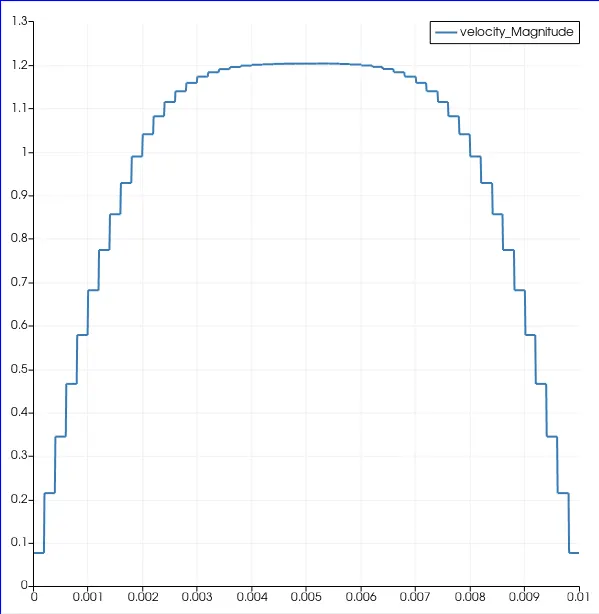
VelocityProfile:
Animation:
Velocity:
Pressure:
Case-2
Mesh sizes - [dx = 1.5e-4m, dy = 1.5e-4m, dz = 1.5e-4m]
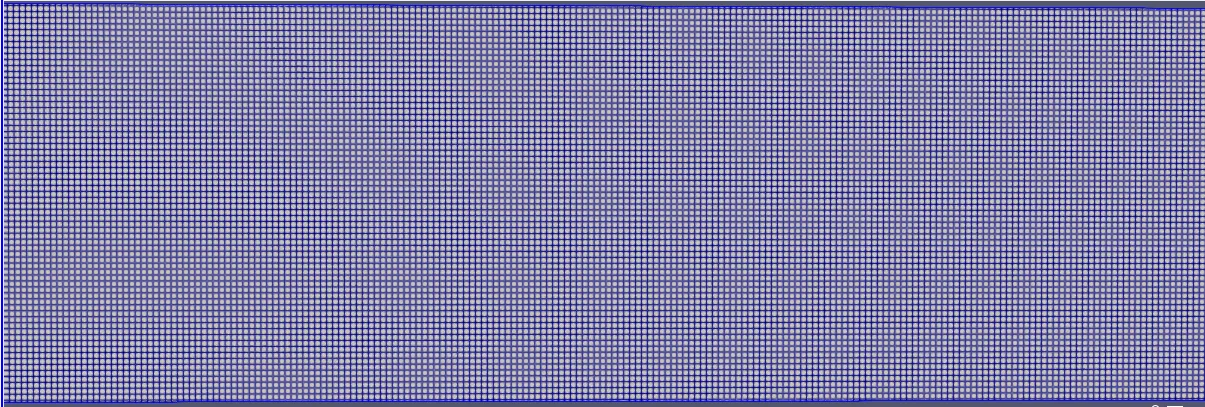
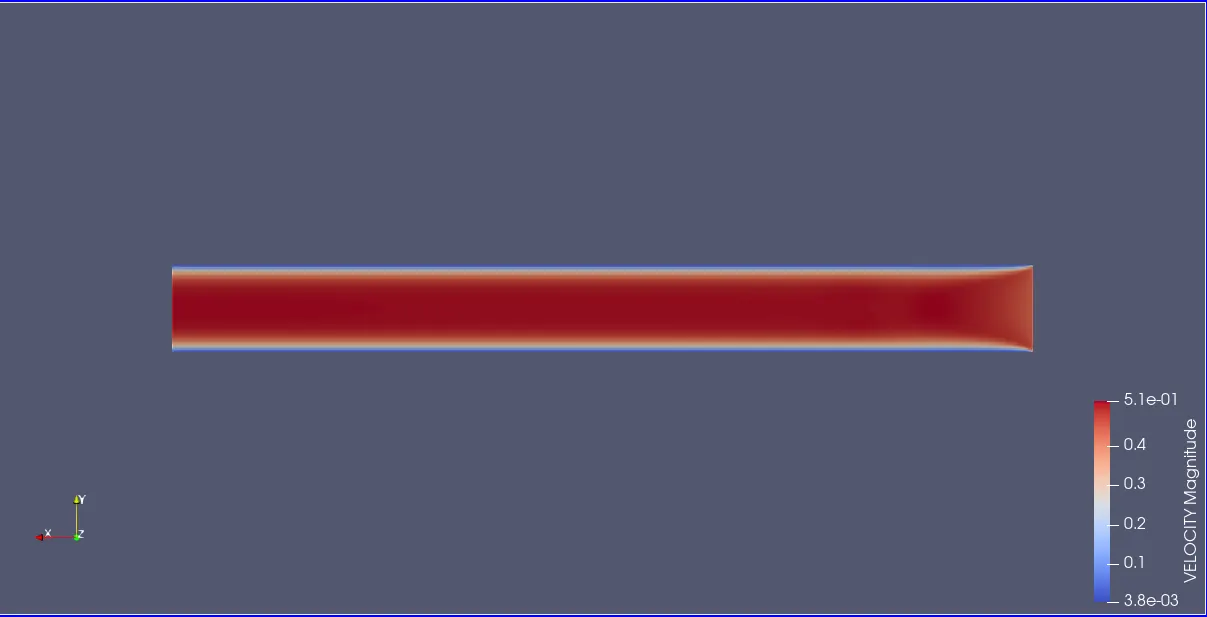
Velocity Contour:
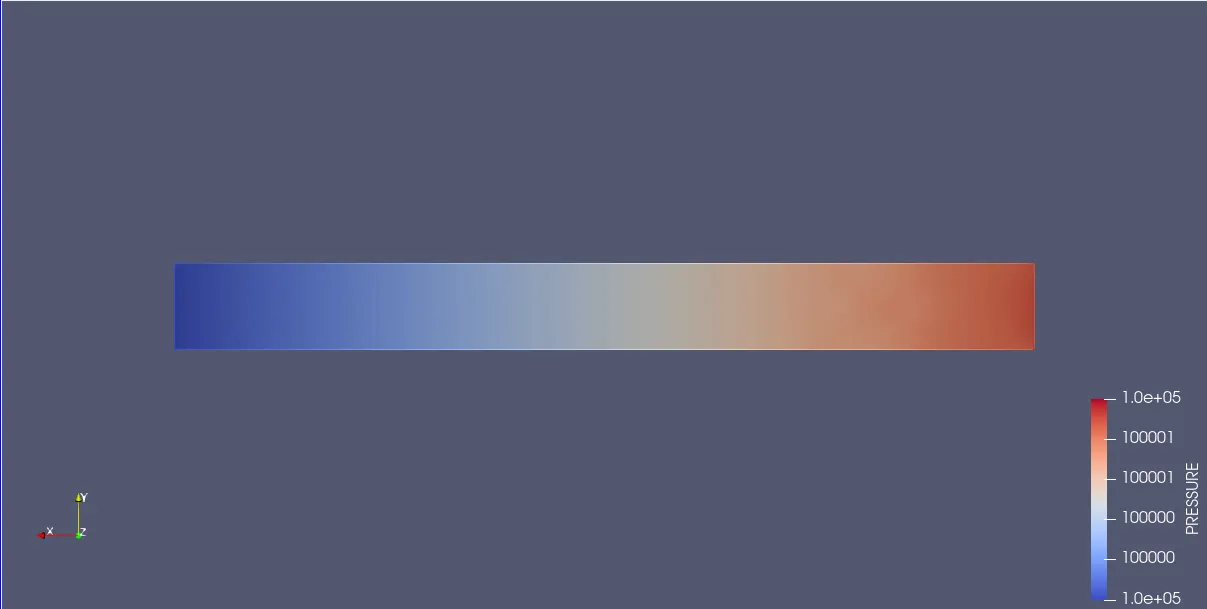
Pressure Contour:
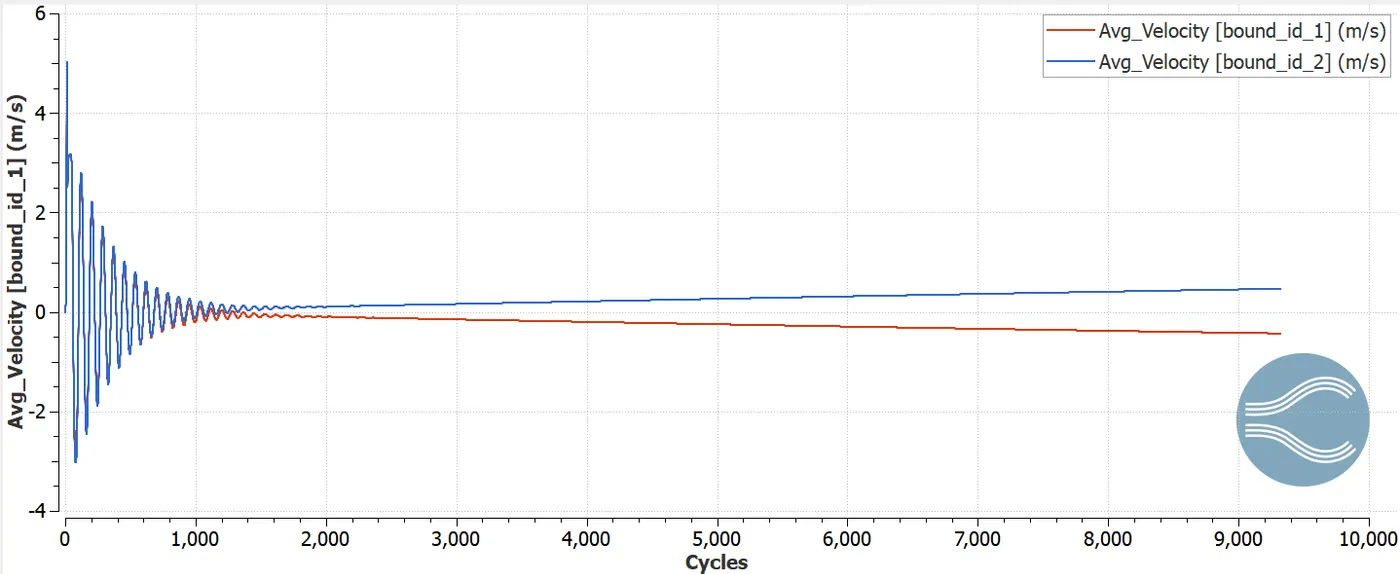
Velocity Plot:
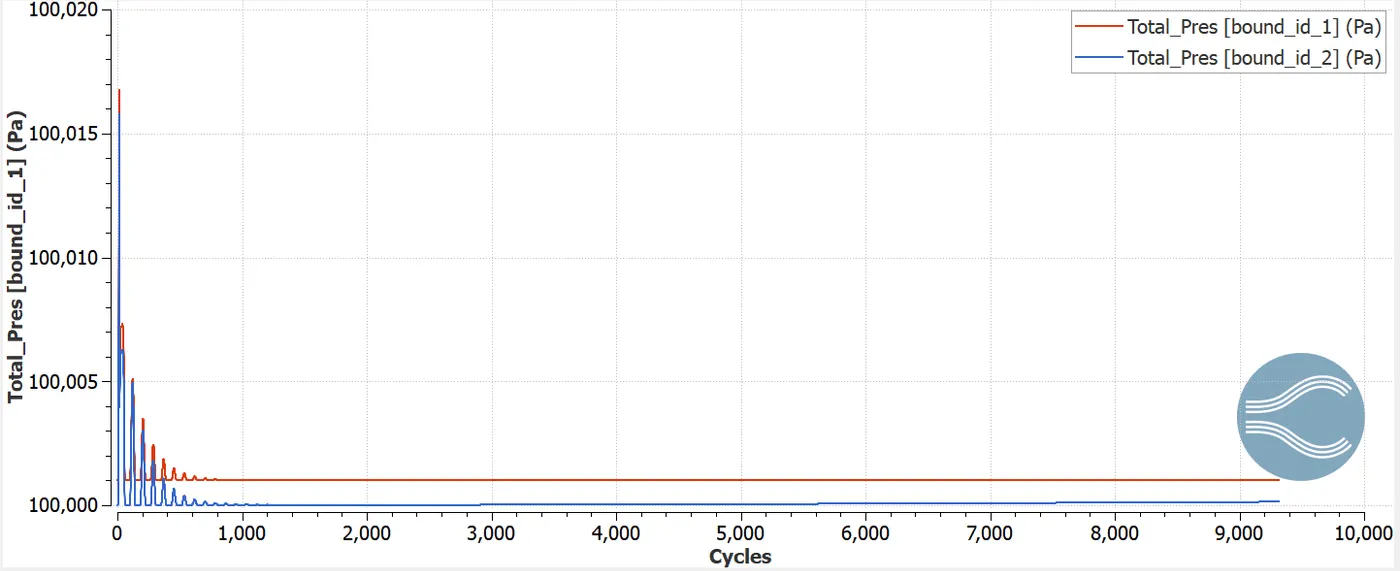
Pressure Plot:
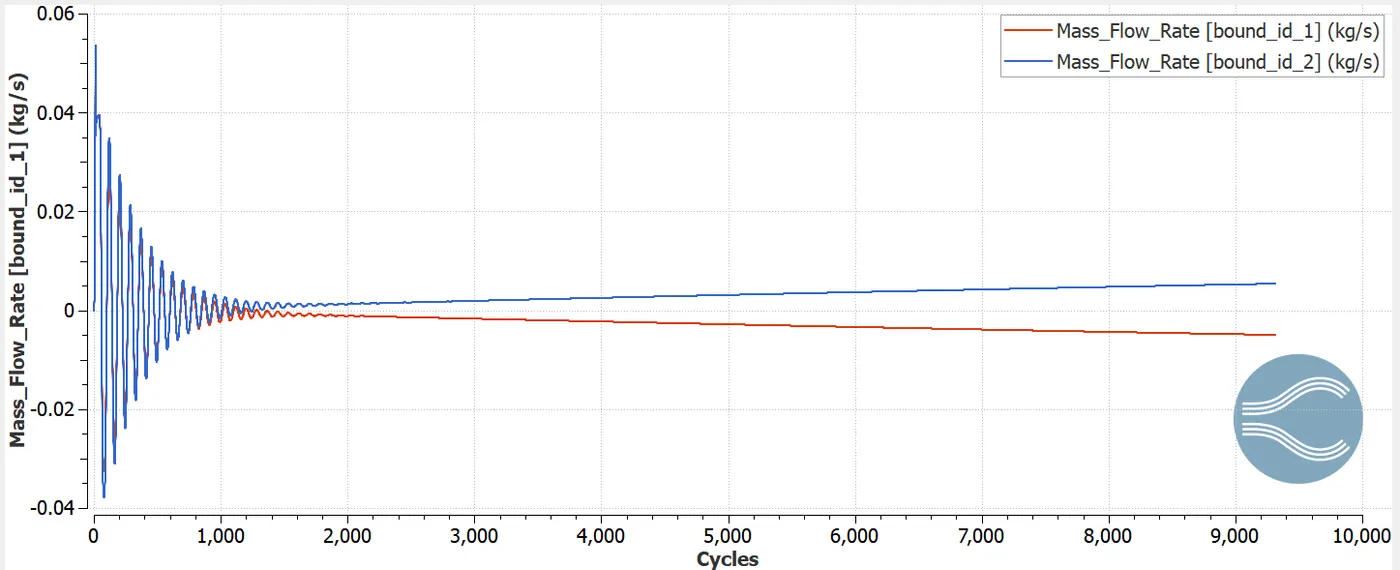
Mass Flow Rate Plot:
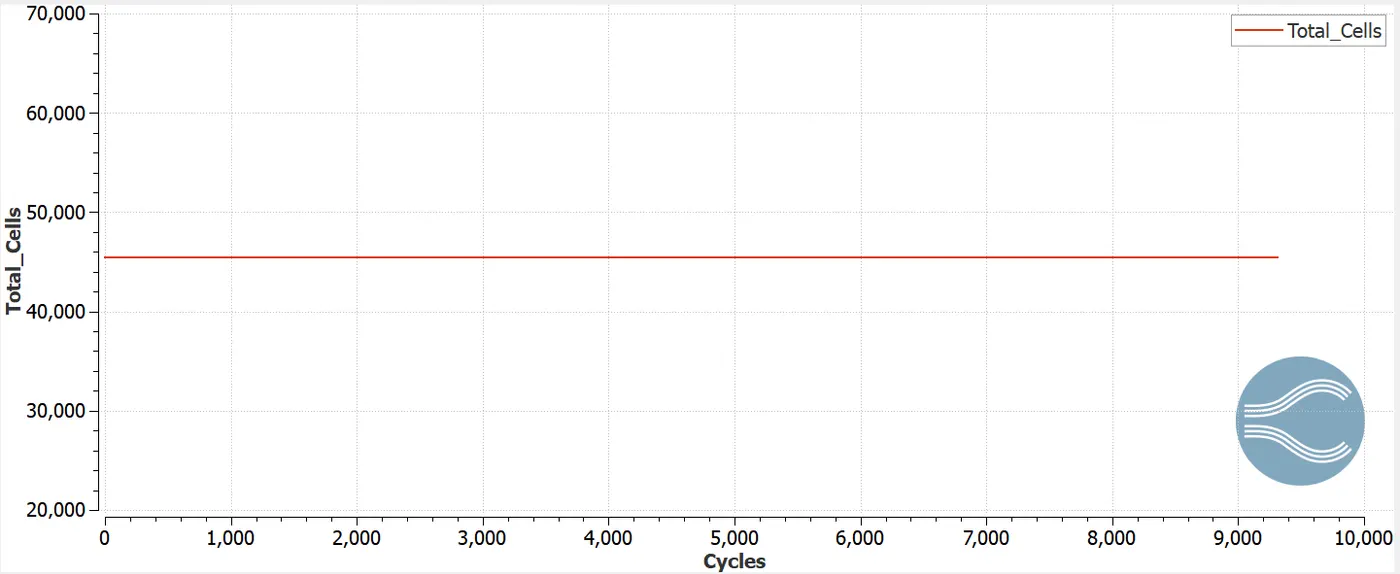
Total Cells:
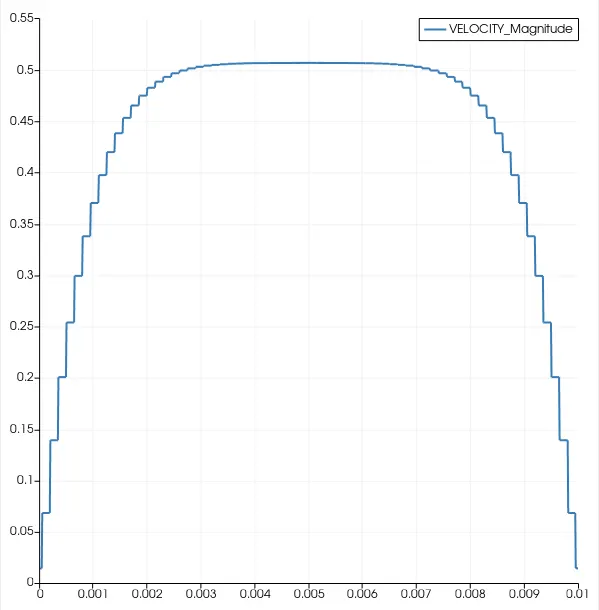
Velocity Profile:
Animation:
Velocity:
Pressure:
Case-3
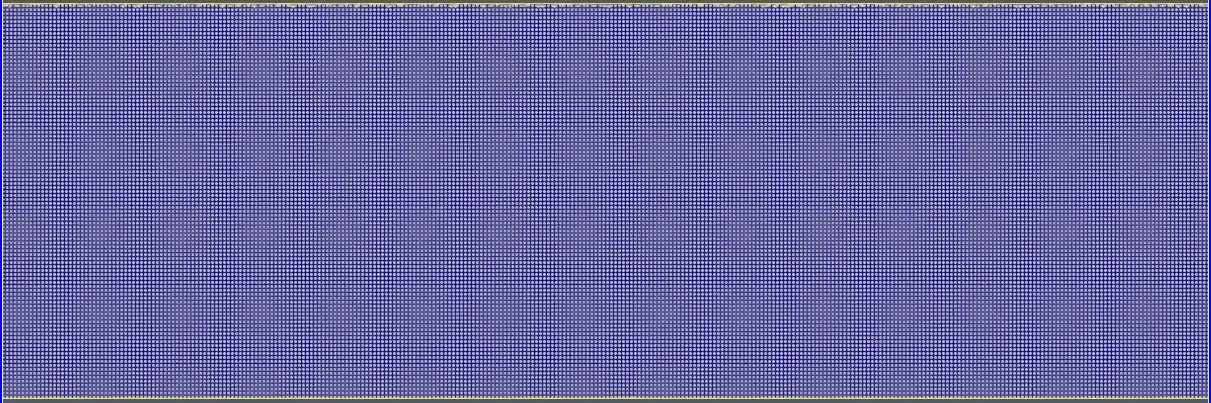
Mesh sizes - [dx = 1.0e-4m, dy = 1.0e-4m, dz = 1.0e-4m]
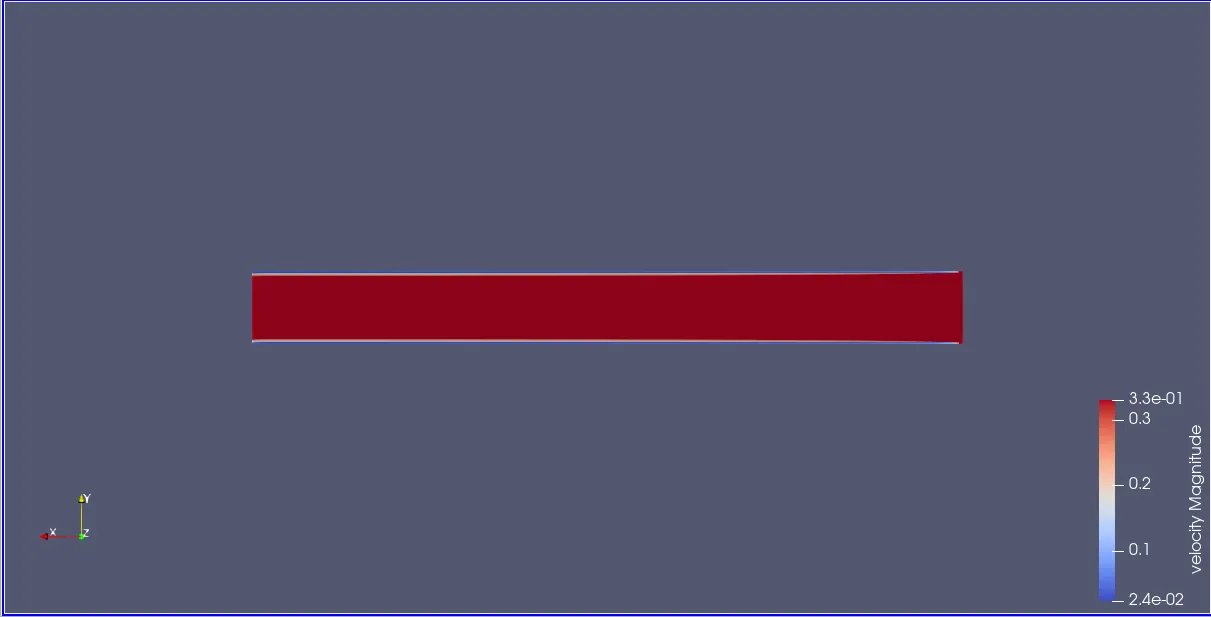
Velocity Contour:
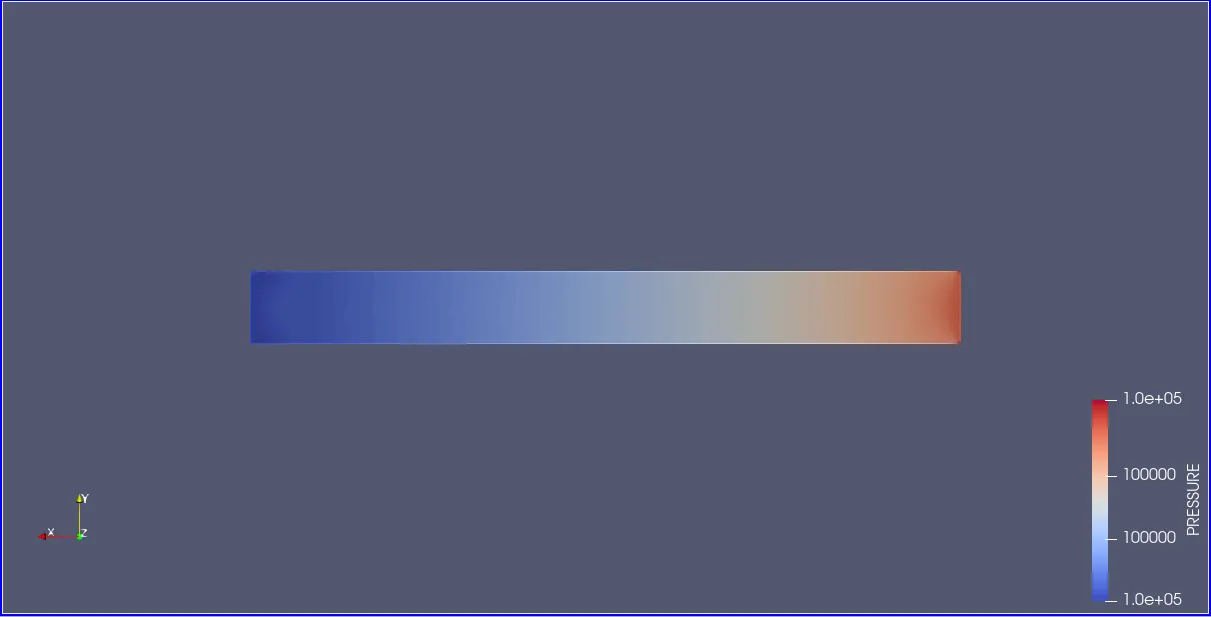
Pressure Contour:
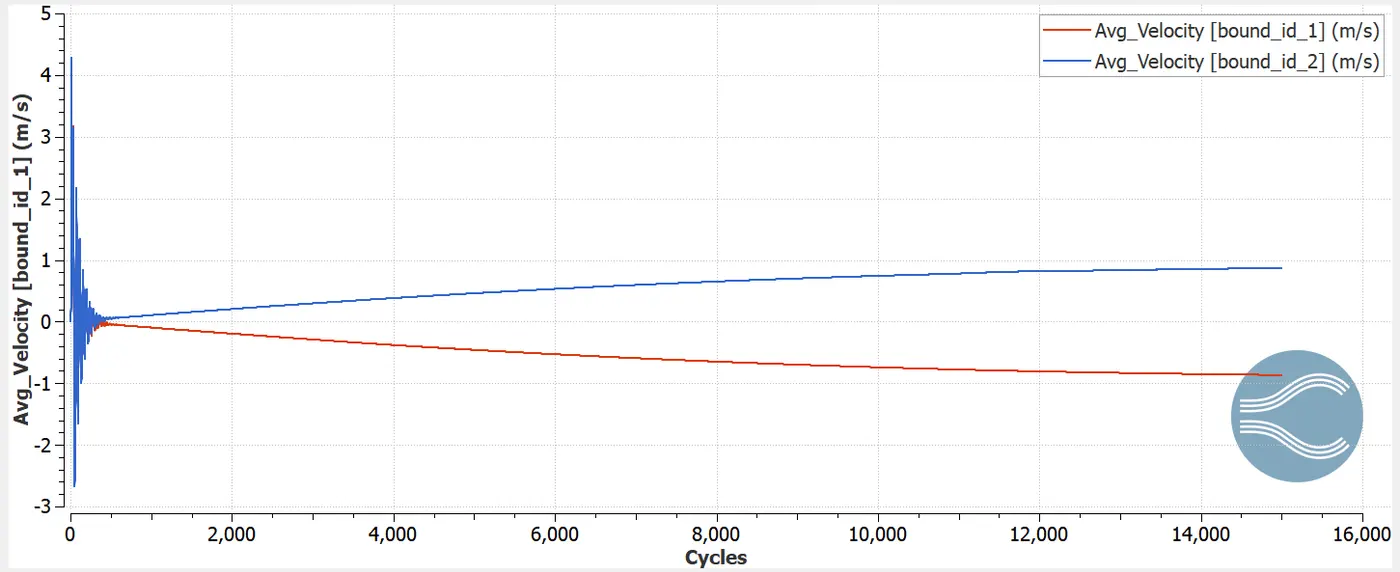
Velocity Plot:
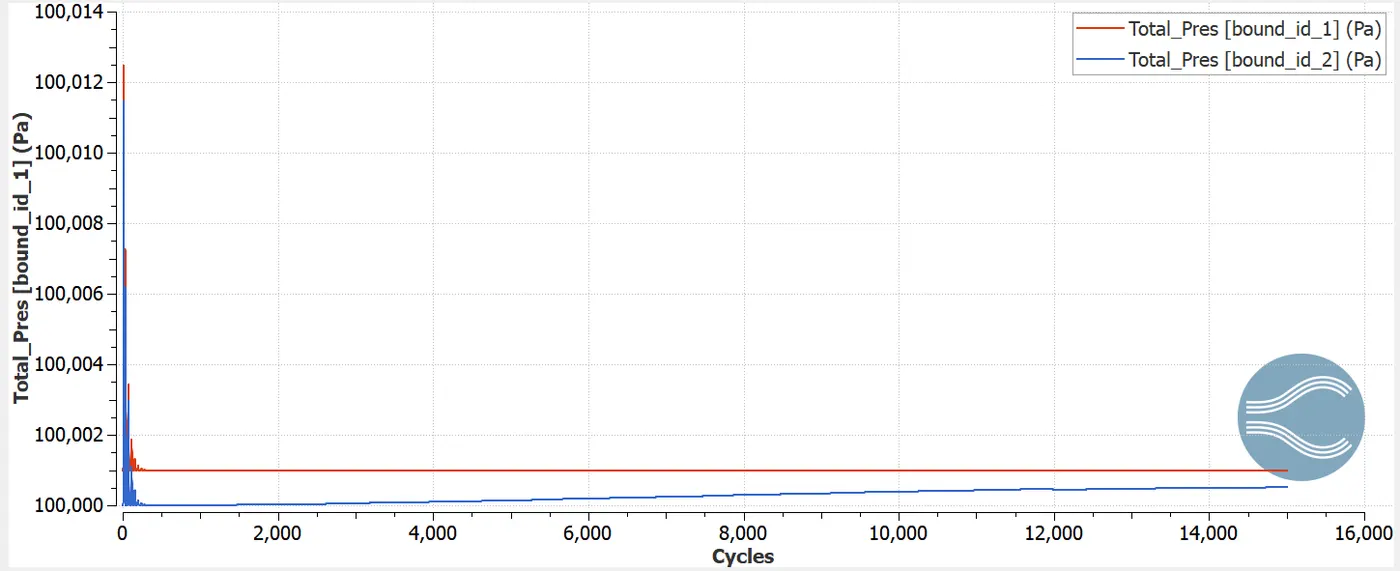
Pressure Plot:
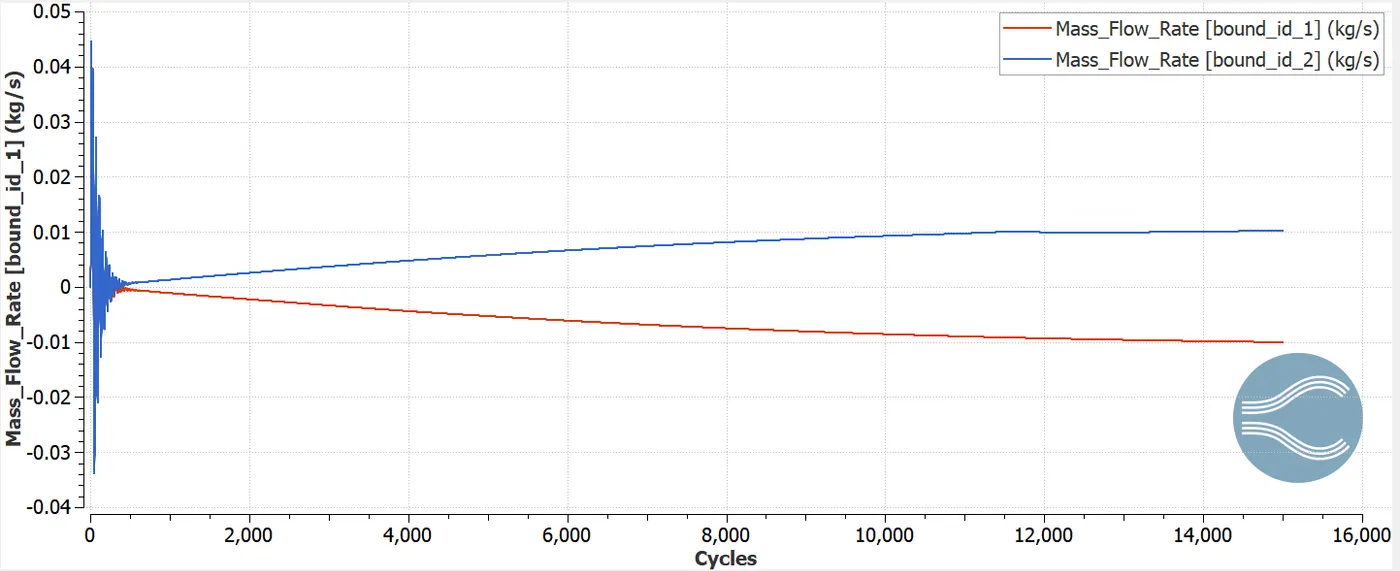
Mass Flow Rate Plot:
Total Cells:
Velocity Profile:
Animation:
Velocity:
Pressure:
Results:
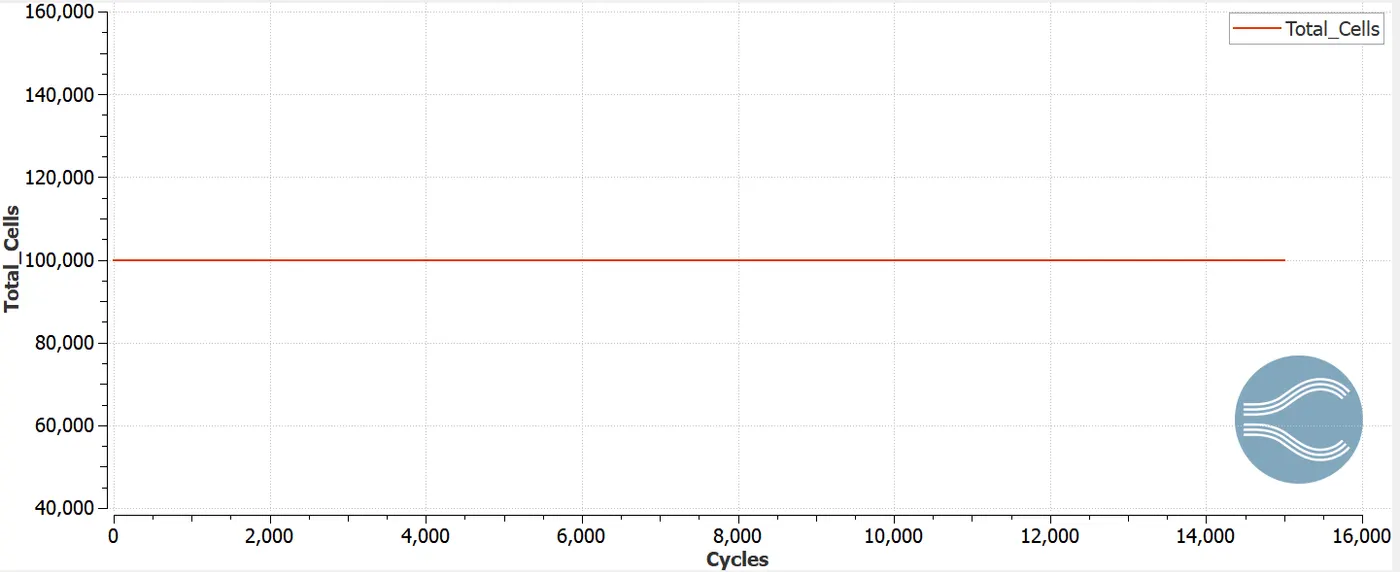
- From the simulations performed it is clear that, for mesh size (2e-4, 1.5e-4, 1.0e-4) the total cell count for each of the mesh are 25000, 45000, 100000 respectively. Hence as the mesh becomes more finer and finer the total cell count increases, as the cell count increases the computational time also increases.
- It is observed that, velocity in the initial case is highest but as the mesh is coarse it is generally not preffered to be accurate. In the next two cases it calculated more accurately.
- The pressure obtained in all the cases remains constant. This is because both inlet and outlet are provided with constrained boundary conditions.
- Mass Flow Rate at the outlets for the refined cases are almost same.When both inlets and outlets are compared we can observe a positive flow and a negative flow.
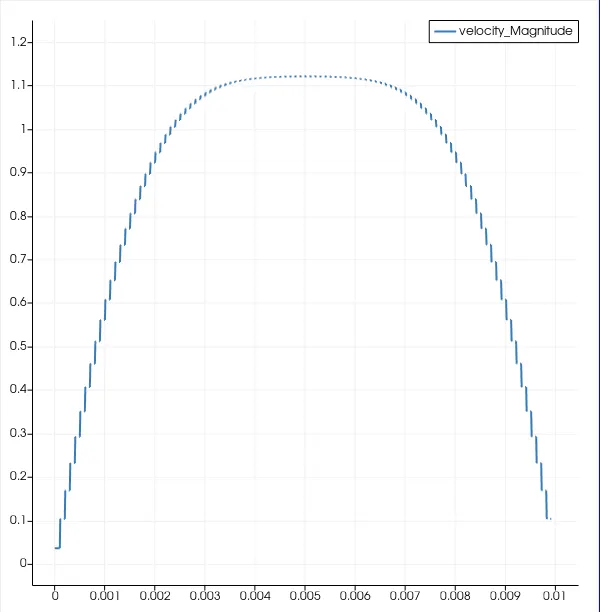
- As the mesh becomes finer, the velocity profile obtained is also much clear compared to other two cases.
- Hence, as the grid size increases the results obtained are much clear and accurate.
Conclusion:
The channel flow simulation using Converge CFD is performed. With different mesh sizes the accurate results are obtained. Various plots, contours, profiles, animations are generated in order get the clear understanding of how the flow is inside a channel with the help of Converge CFD software.