Assignment 1-2D Meshing Challenge
AIM: 2D Meshing the given components and assigning the thickness
OBJECTIVES: Carrying out the geometry cleanup operation, Midsurface, 2D Meshing, assigning thickness by creating a generic property on the given 3 files
Following Criteria should be followed in all three of the models-
- Creating 2D mesh with target length 5mm, min 3.5mm max 7mm
- Clean the geometry
- Extracting mid surface
- Clean mid-surface geometry
- Ignore holes less than dia 5mm
- Assigning proper thickness, by creating a generic property
- Duplicate the parent surface model to another collector to keep the parent surface safe.
-
Organize the parent surface to another component collector and duplicate the surface and move
*Tool>Organise>surface>set current component>select dest component>Duplicate>move.
-
We can see that there are many free edges,unsplit surfaces and surfaces are missing, to fix that we can go through following commands of quick edit panel
*F11>toggle edges>select lines
*F11>replace points>points>retain
*F11>surface delete
*Geom>surfaces>ruled>select line list 1>select line list 2>create
*Geom>surface edit>trim with surface>select surface 1>select surface 2>trim both
*F2>surface>select surface>delete entity
-
Toggle lines of geometry so that elements will not fail for minimum element length.
*F11>toggle edges>select lines
-
Extracting the mid surface of the component, this component is less complex and we can go through auto mid surface command.
*Geom>midsurface>auto mid surface>surface>displayed>extract
-
2D mesh on the component
*2D>auto mesh>surface>select surface>element size(5mm)>mesh type(mixed)>mesh
-
Correcting Failed elements after setting up 2D element criteria file setting *Menu Bar>preferences>Criteria file setting
- Remesh *2D>auto mesh>elements>select elements>mesh
- Translating node *Tool>translate>nodes>select node> direction vector N1,N2>magnitude>translate + or -
- Quality index panel
- Rotating nodes *Tool>rotate>nodes>select nodes>give axis>select base node>rotate + or -
- Projecting nodes *Tool>project>to line>nodes>select nodes>select line list>project
- Checking for free edges *Shift+F3>select component>find free edges
- Connecting nodes *F3>select node of one element>select node of another element
-
Assigning thickness to elements by creating a property.
-Right-click on the graphic area of model tree>create>properties
-Rename that particular collector with the same name as mid surface and thickness
-Select component>mid surface>right click to assign>select property>apply
- Viewing Thickness of elements
RESULTS:
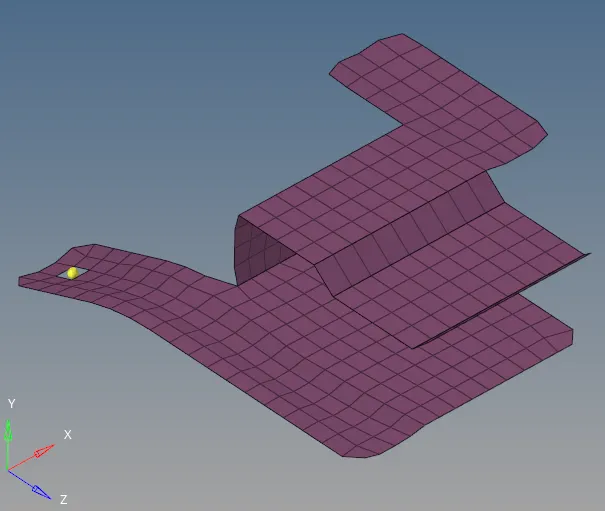
Part1-
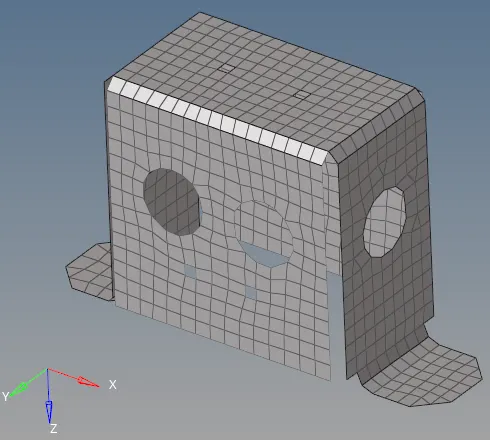
Part2-
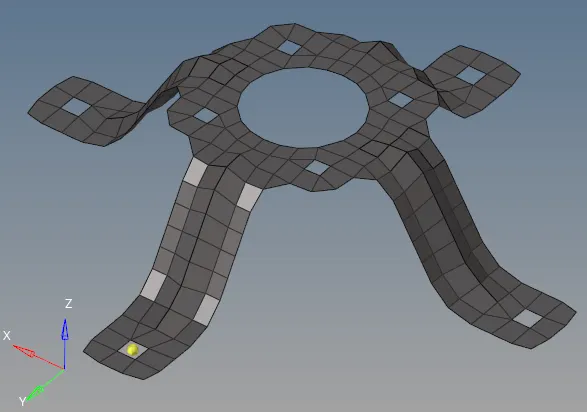
Part3-
CONCLUSION:
- Geometry has been cleaned up and mid-surface has been extracted
- Mid surface cleaned up
- Created a 2D mesh with target length 5mm, min 3.5mm max 7mm
- Assigned a proper thickness to all components