3D meshing using Hypermesh
Aim: To do Tetra meshing as well as Hexa meshing on the models given.
Abstract: In this assignment, I have performed Tetra mesh and Hexa meshing on the model given.
Tetra meshing
once we have open the model we need to check for topological error and solid if any fix them and proceed further. if the model is a closed error-free geometry proceed furthur
There are 2 component in this model to mesh
- Hub
- Housing
To mesh a model with Tetra element we have three methods to do generate auto tetra elements
- Conversion of 2D tria to tetra element using tetra mesh option
- Using the volume tetra mesh panel
- Using quick tetra mesh in utility panel
I will choose 1st and 2nd option to mesh hub and housing simultaneously
Hub model(used conversion method for tetra meshing)
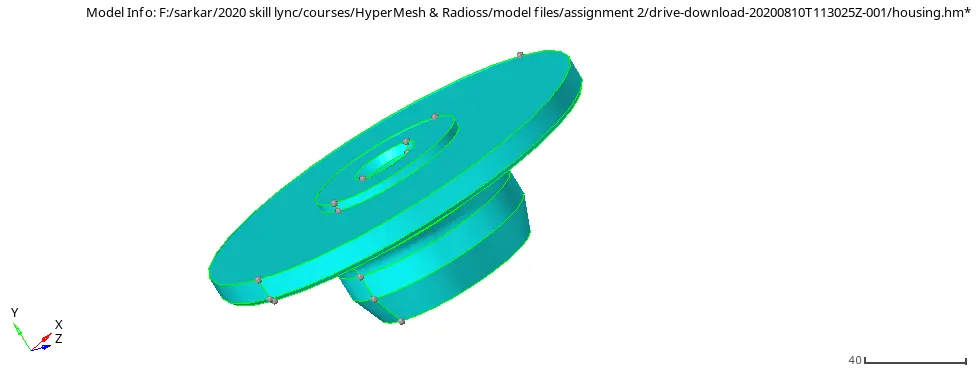
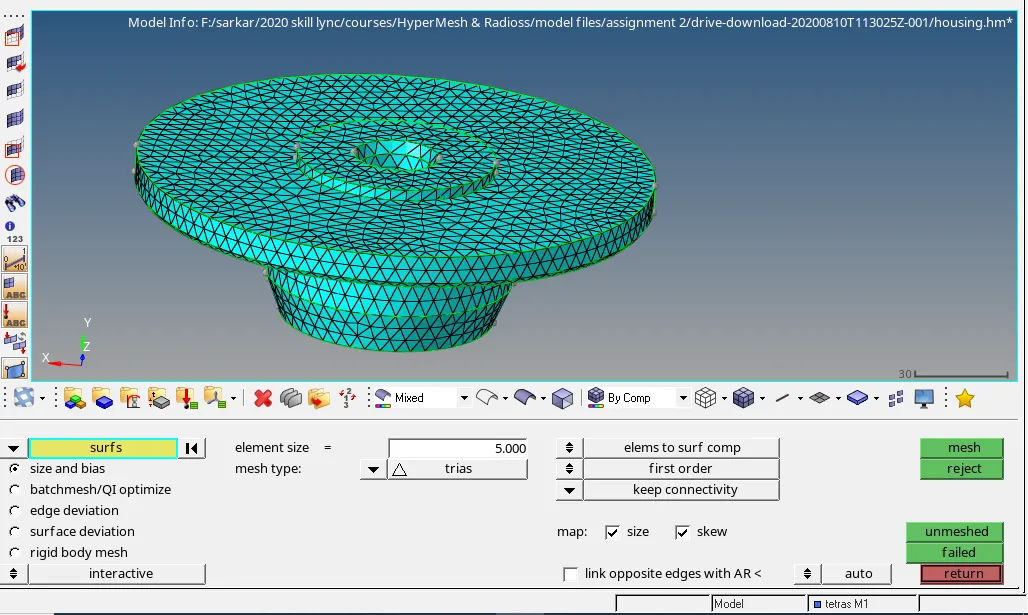
If the geometry is closed and solid do a surface mesh with only tria elements. keeping the target element size as 5mm .
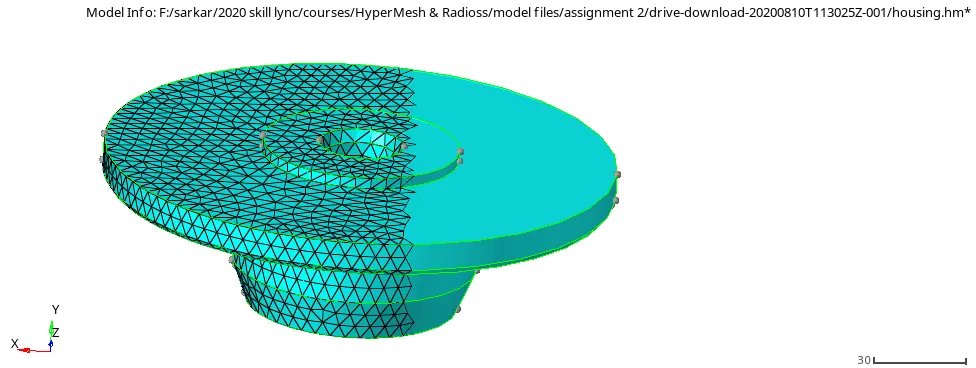
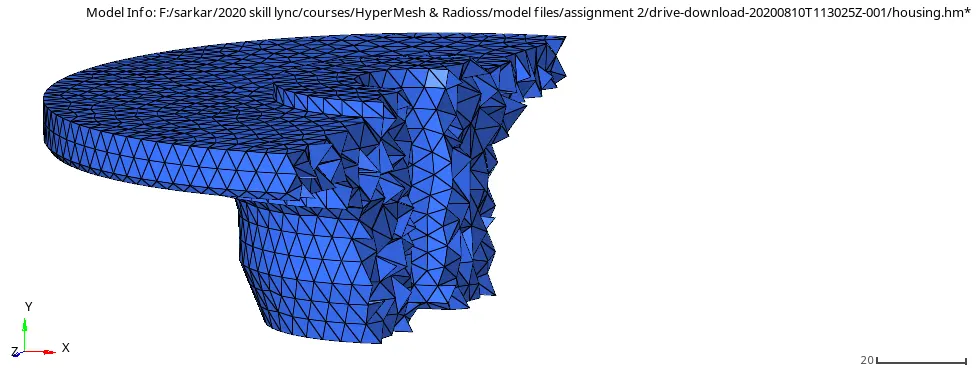
It can be visualized that the model has got only surface mesh using the mask option shown below figure.
Now unmask everything then proceed for 3D meshing. Under 3D meshing select tetramesh tab.
once we enter tetramesh tab firstly we will fill tetra mesh parameter and assign the tetra collapse value an 0.15 the proceed for tetra mesh panel.
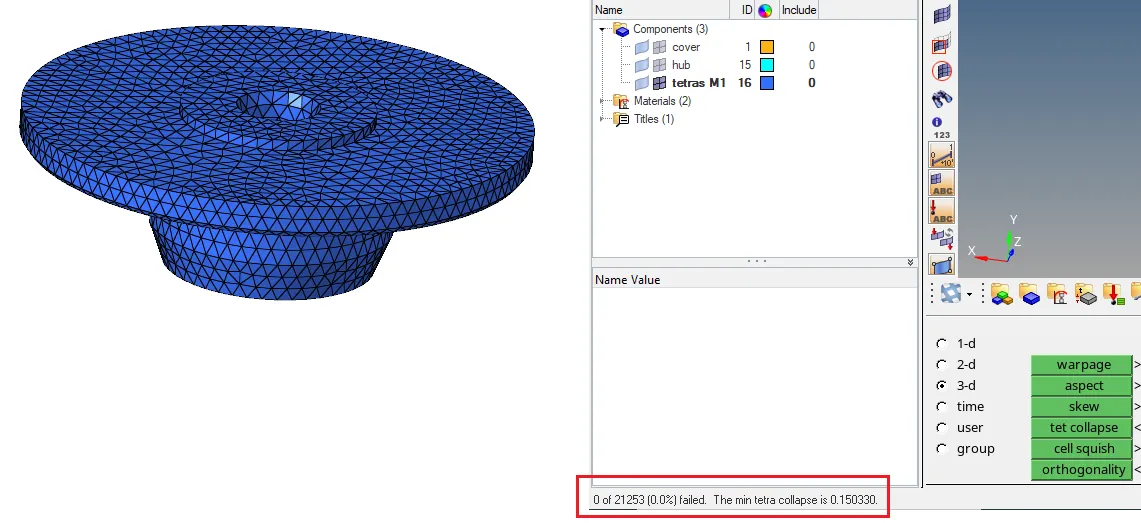
we have to check for the tetra collapse value from the check element tool. (as shown above within red box.) The accepted value of fail element failing with tetra collapse is below 100.
Masked View
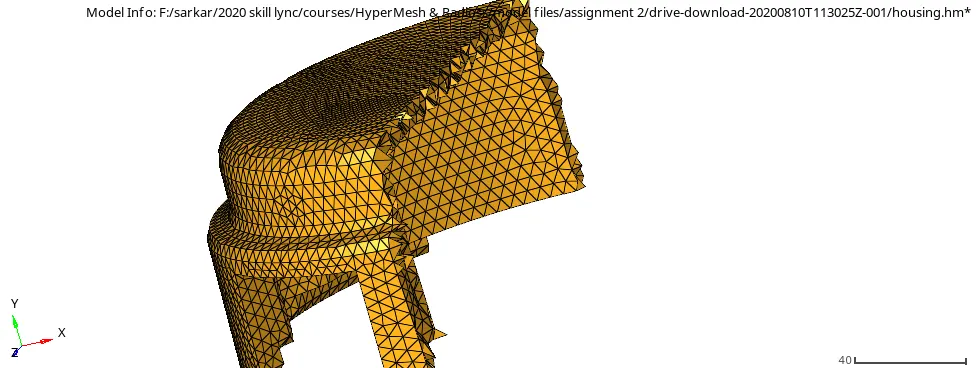
Housing model (Used volume tetra meshing )
1) Open the model check the geometry fix the topological errors and remove solids.
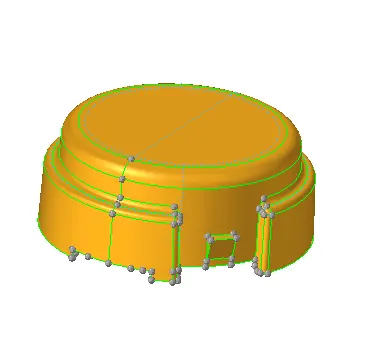
Housing model geometry
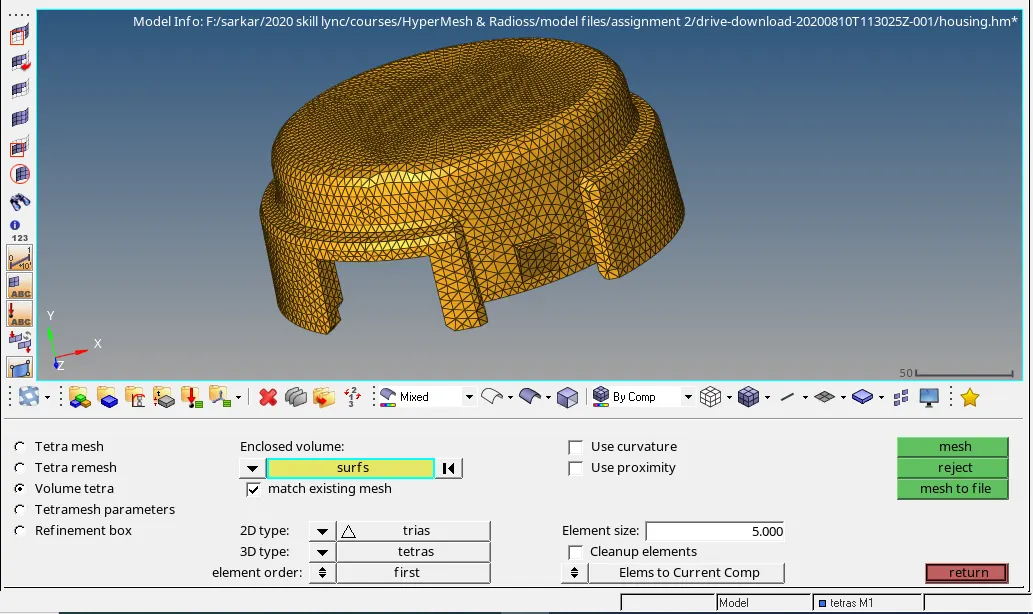
2) Goto the 3D mesh option with tetra mesh and choose volume mesh option then select the surfaces also set the element size a 5mm and hit mesh.
3) Once done with meshing the component check with the tet collapse which we get is 0% with min value as 0.15011 which is within the limit.
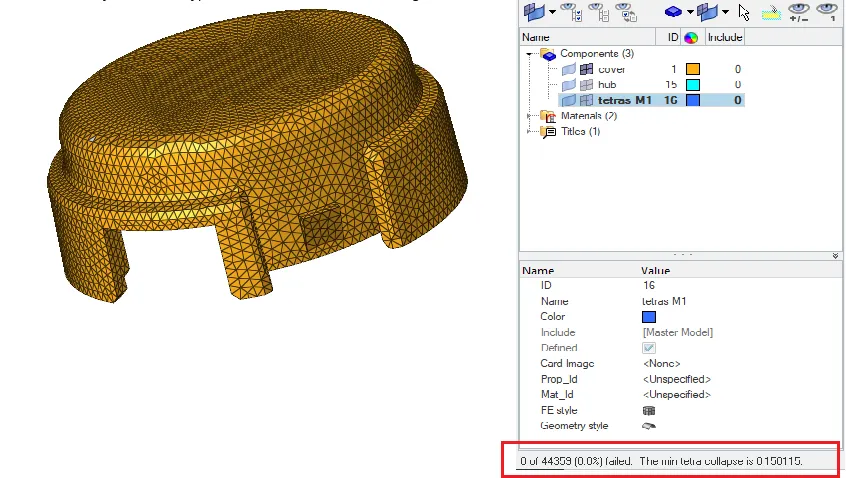
Masked View
Hexa Meshing
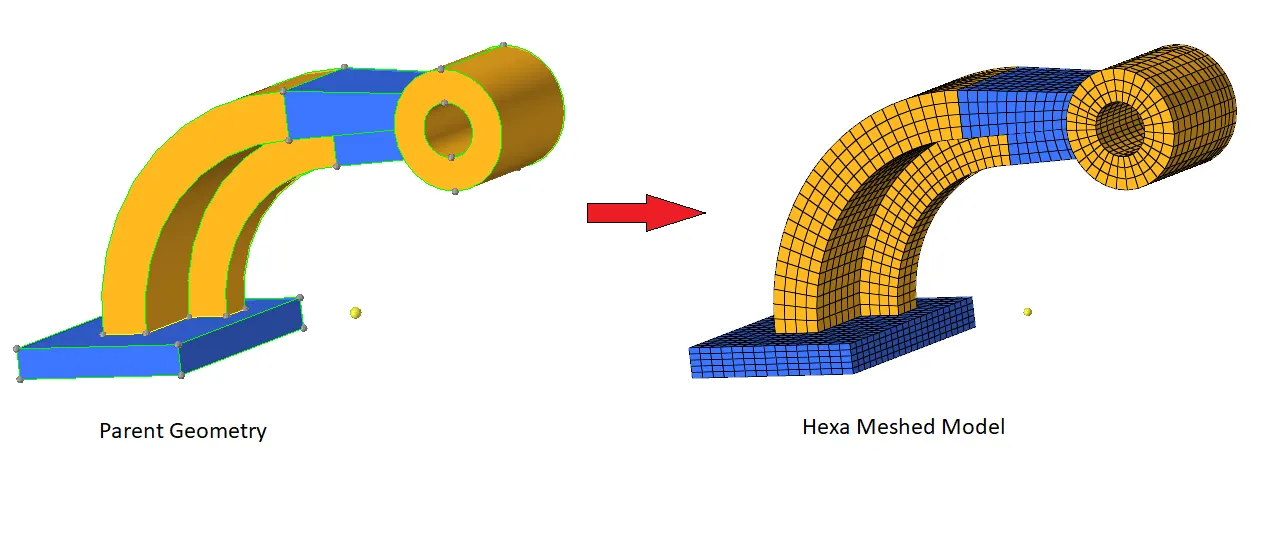
For Hexa meshing the component, we have arm bracket model divided into 4 sections as shown below.
- Base
- Curved arm
- Straight arm
- Boss
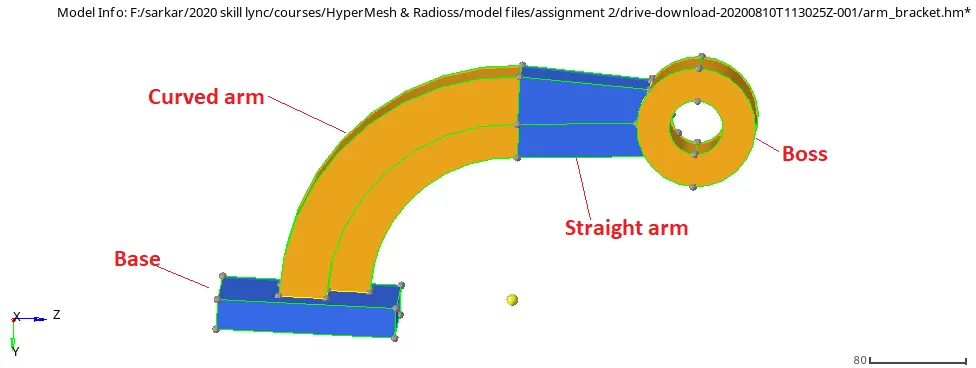
1) check for any topological error and fix there any. Also, check for solid and delete any extra solid entity.
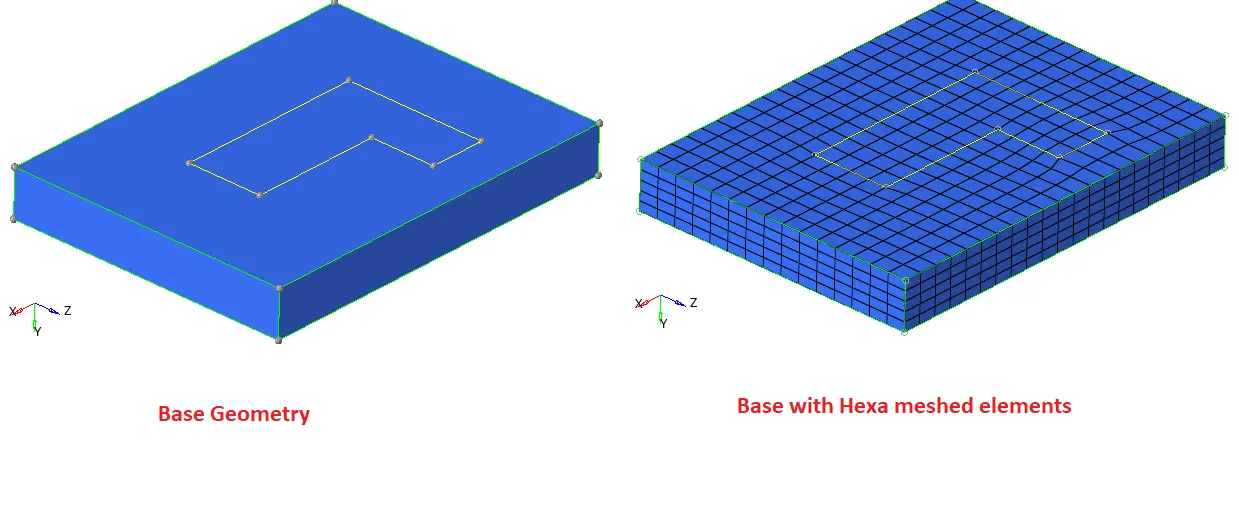
2) switch on visualization only for the base do the 2D quad mesh on it with element size 10 mm. use the solid map option in 3D mesh option to map the 2D quad to Hexa mesh
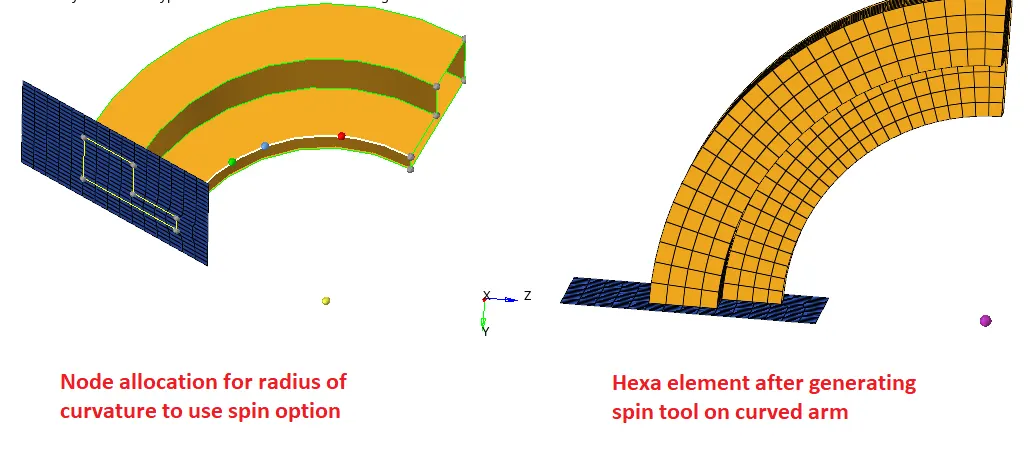
3) switch the current geometry to curve arm and proceed to Hexa meshing use spin tool to do hexa meshing.
4) now we can proceed to the straight arm
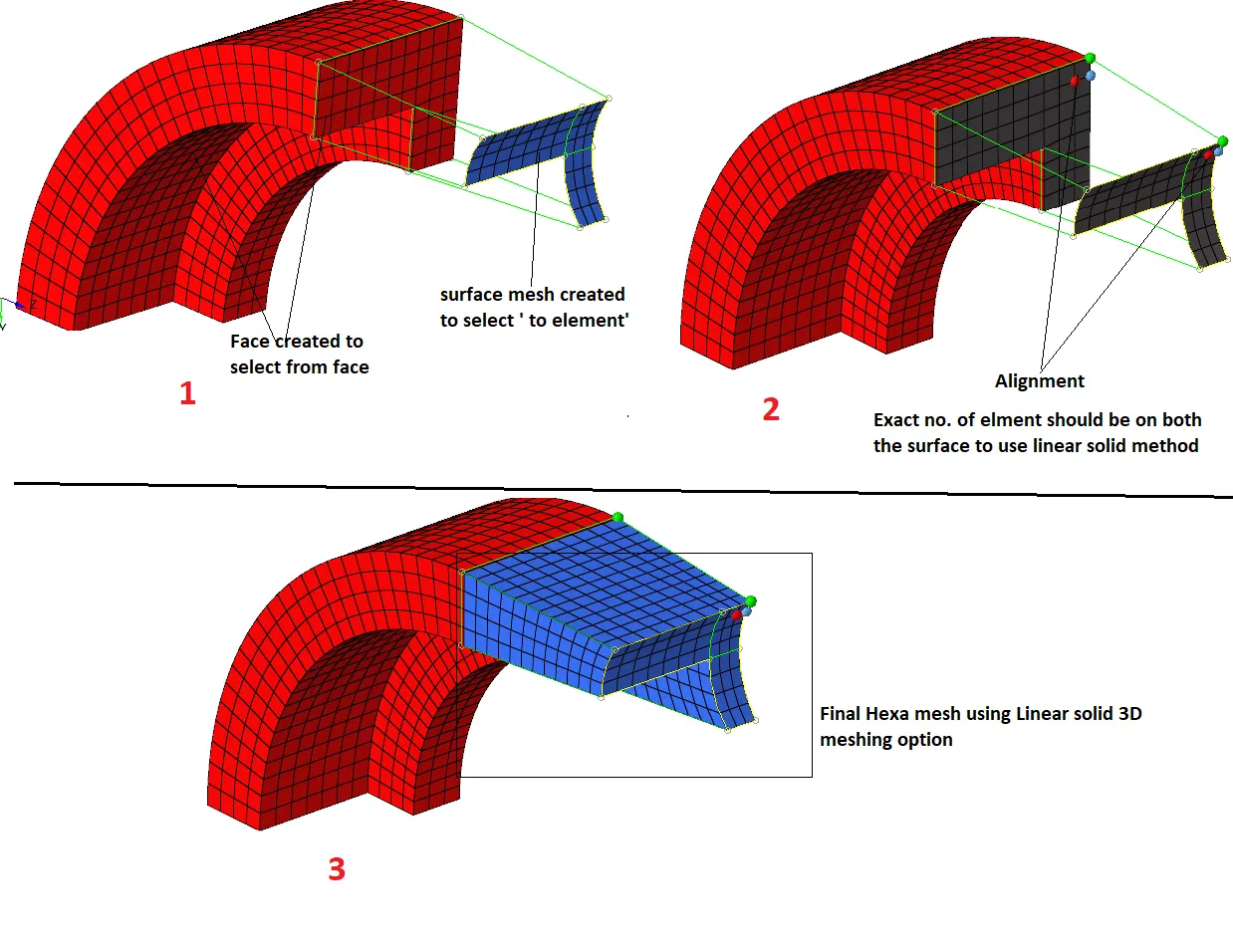
5) now the only left part is the boss so do Hexa meshing we will use a solid map option for 3D meshing.
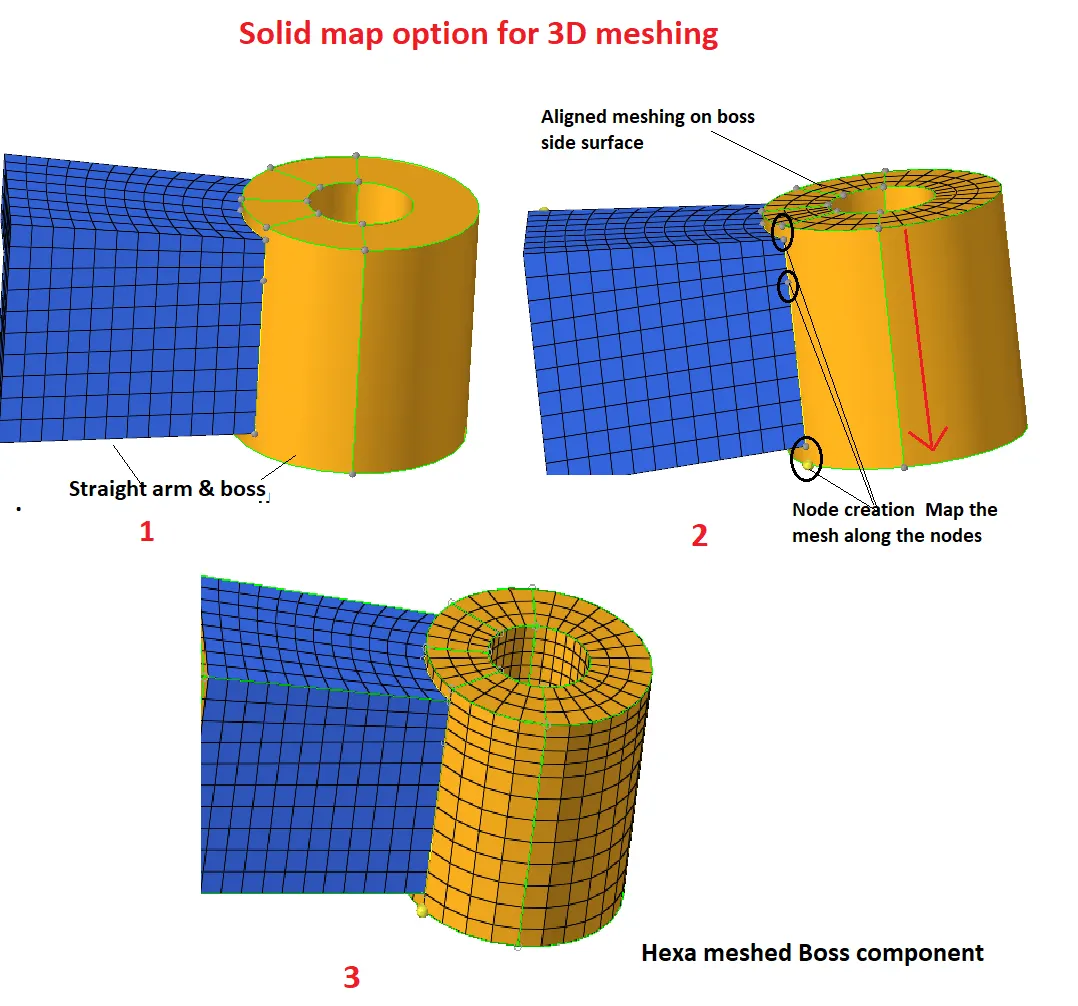
Final Hexa meshed model
Learning outcome:
- Tetra meshing different methods on HyperMesh.
- Hexa meshing Using HyperMesh.